
Someone on a pottery workshop waitlist asks whether they should arrive early with their tools. The coordinator wants to be kind, but no seat has opened. An email saying “You are all set; see you Saturday” sounds welcoming while making an unauthorized reservation. Editing tone is useful only if it does not erase the difference between a waitlist request and a confirmed place.
Microsoft documents Coaching by Copilot in Outlook as a way to suggest improvements to tone, clarity, and reader sentiment before sending. It can offer an Apply all suggestions option, but the sender still controls the final text. This guide uses a fictional workshop to keep the seating status, next action, and recipient information intact as the message becomes more considerate.
Write the essential status in plain language first
Prepare a draft from facts the workshop coordinator can verify: the recipient joined a waitlist, the class is currently full, and the next offer will be sent only if a space becomes available. If no response deadline has been set, do not create one for convenience. If early arrival cannot secure a seat, say so rather than suggesting that a friendly conversation at the door may work.
A brief but explicit status sentence should survive every tone change: “You are on the waitlist; this is not a confirmed registration.” Place that sentence where a hurried reader will see it, not buried after a cheerful closing. The assistant’s role is to improve how it is said, not determine the enrollment state.
Find the coaching control in your Outlook version
Microsoft’s support instructions describe composing a message, opening the Copilot menu, and choosing Coaching by Copilot. The interface differs across Outlook for Windows, Mac, and mobile; Copilot access is also subject to supported accounts, app versions, and administrator availability. Treat the current product instructions as the source for exact controls.
On mobile, Microsoft notes a minimum draft length for meaningful coaching. That is an eligibility detail, not a recommendation to pad the email. If the feature is not available, the same factual review process works with manual edits. Avoid moving real participant details to another service solely to generate a more polished sentence.
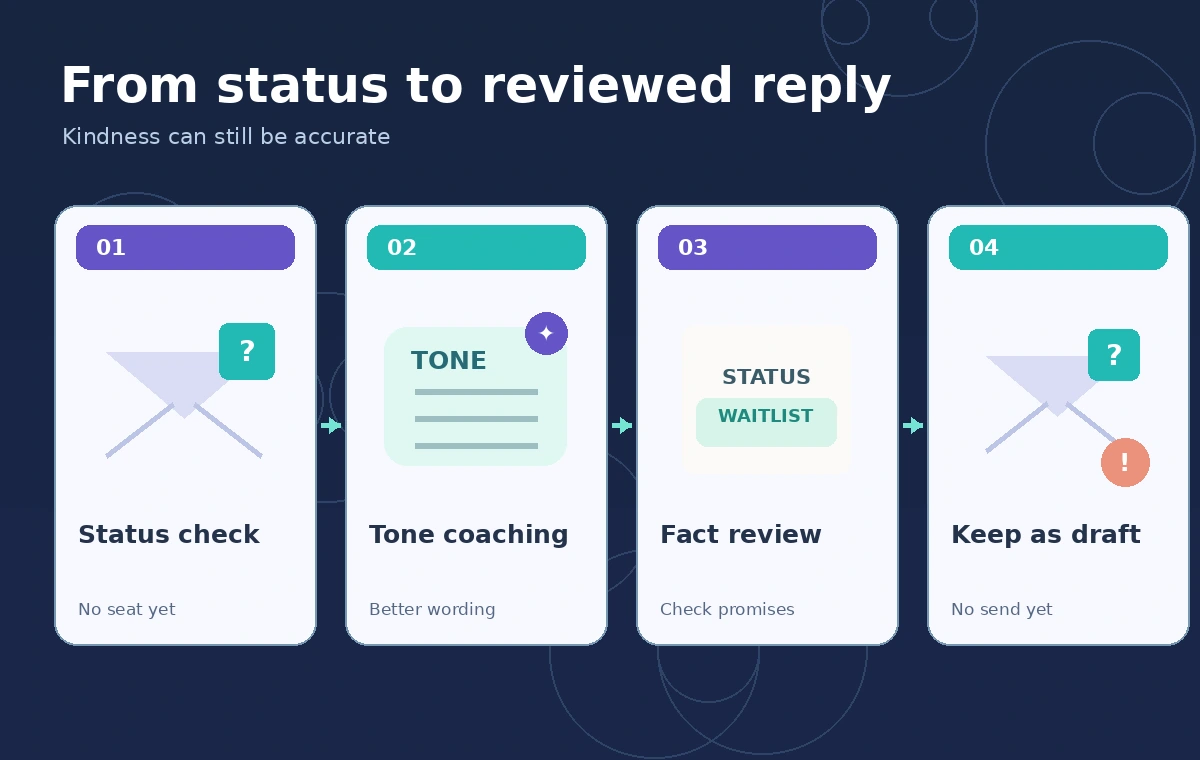
Ask for a warmer tone without changing the commitment
Compose the email with the status and practical next step already present. Let Coaching by Copilot analyze tone and clarity. A useful human objective is to acknowledge the inconvenience, explain what happens next, and make it simple to ask questions. Do not evaluate the advice by how optimistic it makes the message sound.
Read suggestions as options. The tool does not know that the coordinator has not authorized a seat. A suggested phrase may accidentally imply certainty or a commitment to notify someone by a particular time. Decline that suggestion or edit it manually until it matches the actual waitlist procedure.
Compare unsafe reassurance with accurate reassurance
The side-by-side example shows how a rewrite could go wrong: “Your place is reserved, and we look forward to seeing you.” In the corrected concept, the coordinator says the requester remains on the waitlist and will receive a separate confirmation only if a seat opens. The drawings are not logs of Copilot outputs or real participant communications.
The second version can still be warm. It can thank the person for their interest and recognize the inconvenience without implying that staff will make an exception. Clear uncertainty is not cold language; it gives readers a reliable basis for planning transportation, materials, and their time.
Review Apply all suggestions with the original draft beside it
Microsoft describes an option to apply suggestions together, which may regenerate wording. Before using it, preserve the key message or keep a copy of the original draft. Compare the rewritten email for changed numbers, dates, deadlines, capacity claims, and booking statuses rather than only proofing punctuation.
If the rewrite adds “we will hold a seat for you,” remove it unless an actual hold is recorded. The same discipline applies to implied refunds, cancellations, and special accommodations. A reasonable email review can be short, but it should always address what the recipient might act upon.

Check recipients, attachments, and accidental disclosure
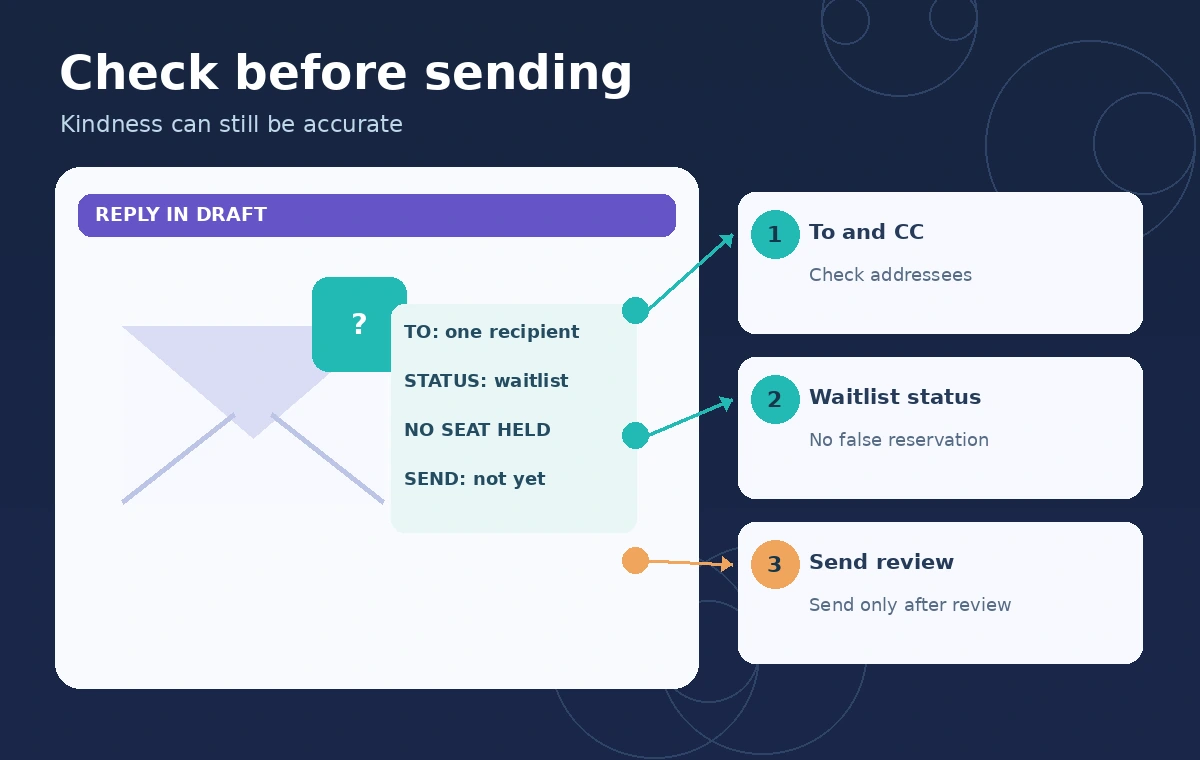
Even a perfect message is wrong if sent to the wrong person. Reconfirm the To and CC fields, any copied registration details, and attachments. Do not expose other people on the waitlist or paste a full roster into the draft. If the sender is replying to a group, reconsider whether a personal attendance status belongs on that thread.
Do not depend on a visible “suggested” status as a send barrier. In Outlook, applying coaching and sending are distinct actions, but the operator remains responsible for not clicking Send prematurely. A second reviewer is worthwhile when a message concerns payment, cancellation rights, or access accommodations.
Keep an explicit trigger for later confirmation
The correct workflow separates this reply from a future seat-offer message. Only an authorized registration system or coordinator should establish that a place is available. When that happens, a new notification may specify a real acceptance deadline and any confirmed arrangements. Do not recycle today’s hopeful text into tomorrow’s official confirmation without checking the status again.
A small checklist helps: participant identity confirmed, enrollment state checked, next action aligned with policy, and no promised seat in the current reply. This prevents a writing convenience from turning into a reservation process.
Know what this guide has and has not demonstrated
We reviewed Microsoft’s official instructions for Coaching by Copilot and related drafting tools. We did not sign in to Outlook, run a live coaching session, or send an email. The sample wording and visuals were written for the hypothetical workshop, so no person or organization is being represented as having made a real reservation.
Feature availability can change with subscription and client version; check Microsoft’s current account guidance and your administrator’s rules. The enduring editorial practice is to verify commitments against a source of authority and retain human review before a message leaves the outbox.
How We Research
On November 5, 2026, we reviewed Microsoft Outlook email coaching instructions and Microsoft Outlook draft email documentation. We cross-checked documented controls, eligibility notes, and limits against the workflow in this article. We checked the wording of each hypothetical status and reviewed the editorial diagrams for clear before/after differences. We did not operate the vendor software, upload records, conduct user studies, measure performance, or verify a real-world organization. Product interfaces and plan entitlements can change.
Frequently Asked Questions
No. Coaching offers language suggestions for a draft email. It does not replace a registration system or create a valid booking.
Microsoft documents Apply all suggestions in supported Outlook experiences. Compare the result with the factual draft before sending, especially for status or dates.
Say clearly that the person is on the waitlist and not yet registered, then describe the real notification process if one exists.
Microsoft provides mobile instructions for supported Outlook apps, subject to account and availability requirements. Follow the current help page for your device.
No. It is a source-based instructional workflow using a fictional waitlist scenario, with no live account or participant data.