
Customer feedback arrives as messy notes: one person describes a broken checkout, another asks for dark mode, and a third praises a feature while mentioning a missing receipt. A database with carefully chosen tags can help teams see themes, but an AI-filled field is not an authoritative judgment of urgency. Notion documents Basic Autofill for page-based summaries and categorization. Here the example is a hypothetical product-feedback table with a deliberately small category set. The ticket wording and diagrammed tag outcomes are illustrative, not records from a connected Notion workspace.
Define a narrow vocabulary before adding AI
Create a database with columns for original feedback, source, owner, human review status and Theme. Choose a small, mutually understandable tag list: Billing, Access, Performance, Feature request and Other. Do not mix a topic tag with a priority rating, because a comment about billing is not automatically a payment outage. Write one sentence defining every tag and provide a human fallback for notes that mention two topics. For example, a complaint about login plus billing may need two tags or a manual split into separate follow-ups. A controlled vocabulary makes mistakes easier to spot than open-ended AI labels that change spelling from row to row.

Keep source text in the row that Basic Autofill reads
Notion’s current Autofill help distinguishes Basic Autofill from Custom Agent Autofill. Basic uses the content of the particular row or page and does not search the web or inspect the entire workspace. Put enough context in the page body for a reader to understand the feedback, including the quoted problem and any user-provided reproduction details. A title such as ‘Urgent issue’ provides almost no evidence. Do not paste customer secrets, passwords, payment credentials or unnecessary identifying information into the notes. If a helpful source lives somewhere else, summarize the approved factual context in the row rather than assuming Basic Autofill will magically retrieve it.
Configure the property for predictable categories
Open the property name in the database and look for AI Autofill or Set up AI Autofill. Select Basic, then an appropriate categorization or custom instruction for the Theme property according to the available interface. Notion documents Basic options including summary, translation, key information and custom autofill; available property choices can differ by workspace. Tell the system to choose from your existing tag set and to avoid inferring urgency or account status. Define what should happen when the note is empty or ambiguous. Consider manual runs first; automatic runs on creation or edits can repeatedly update a field that someone has already corrected.
Test the instructions on deliberately tricky examples
Before using the field in a live queue, write a small synthetic set: a straightforward password-reset note, a mixed checkout-and-performance report, an empty entry, an enthusiastic compliment, and a request missing details. These are hypothetical samples made for review, not actual tool test results. Look for category stability and whether the rule avoids adding nonexistent claims. For the checkout case, the source might say ‘button stays gray’ without naming a payment provider; the AI should not invent a gateway outage. Track disagreements on a review sheet and revise definitions rather than fixing a confusing rule by piling on dozens of extra categories.
Separate a topic tag from priority and assignment
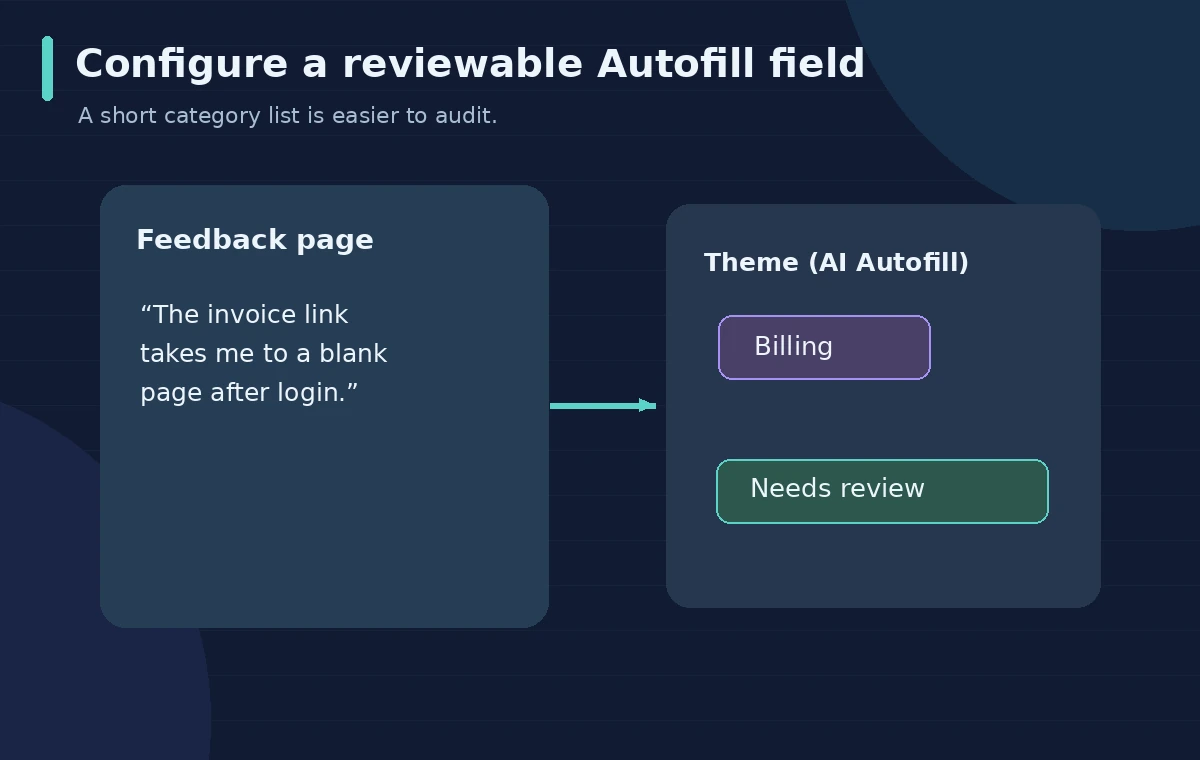
Theme describes subject matter, not severity. A large customer asking about a receipt does not prove the finance team must interrupt another incident. Reserve Priority, Owner and Status for a documented operational rule or a human decision. A generated ‘Billing’ label should route a person to check the note, not silently trigger a refund, public response or account change. The companion illustration makes this boundary visible: a colored tag can be a useful suggestion, while impact, deadlines and responsibility remain separately confirmed. This distinction reduces the risk of automation laundering guesses into official service commitments.

Add an explicit review state before acting
A reliable workflow uses states such as Needs review, Confirmed and Needs clarification. In the database view, filter for newly autofilled rows and compare the output against the exact source text. Reviewers should be able to remove an overconfident tag, assign Other or ask a follow-up question. When a comment concerns account access, billing, safety or compliance, inspect it with greater care; do not assume a summary includes every important caveat. Keep an original field that AI is not authorized to overwrite. Note who approved the label so colleagues can distinguish a machine suggestion from a reviewed classification.
Understand plan and agent differences
Notion’s documentation says Basic Autofill is included for Business and Enterprise plans, while Custom Agent Autofill can use credits and is intended for richer work, including optional workspace or web search. Avoid describing those as interchangeable or assuming that a free workspace has the same controls. Because pricing, credits and product placement can change, confirm current entitlements before designing a workflow that depends on scheduled refreshes. If the local row does not contain enough evidence, moving to a more powerful agent may widen data access, but it will not eliminate the need for privacy boundaries or fact checks.
Review category drift on a regular schedule
Make a weekly sample audit of new, changed and manually corrected rows. Ask whether a new product feature requires another controlled tag or whether reviewers are using Other because a definition is unclear. If AI instructions are edited, compare a fixed set of sample comments again so the team can see changes in behavior. Do not report an accuracy percentage without an actual measured evaluation. For a live operation, keep a short change log with definition revisions and reviewer decisions; this is more meaningful than a polished chart that hides the underlying ambiguous feedback.
How We Research
We relied on Notion’s current AI Autofill documentation for setup, page-scope, automation choices and Basic versus Custom Agent differences, and its database properties guide for select and multi-select fields. We did not create a workspace, buy credits or measure automated classification quality. All feedback examples and dashboard illustrations are hypothetical; teams should test the rules on approved data with real reviewers before acting on tags.
Frequently Asked Questions
No. Notion describes Basic Autofill as relying on the specific database row or page. Custom Agent Autofill may use broader search when configured.
Not by itself. A topic tag is not a reliable severity assessment, so keep priority and escalation under separate documented rules and human review.
A multi-select property can represent several topics, but define when reviewers should tag twice or split an issue into separate actionable records.
Use Other, Needs clarification or another explicit fallback instead of generating a detailed complaint that the customer never made.
Availability depends on the current plan and workspace entitlements. The official documentation identifies Business and Enterprise inclusion for Basic Autofill; verify current access.