
A small textile museum needs a one-page training diagram for incoming loan requests. The registrar has already approved the written procedure, but new volunteers struggle to remember which documents go to a conservator and which decisions require an authorized signature. Napkin AI can suggest diagrams from pasted text and its Custom Generation controls can request a flowchart. A diagram is still a generated interpretation of policy. A missing arrow could turn a mandatory review into a fictional automatic approval, so this walkthrough treats verification of branches as the main work.
Freeze the source procedure
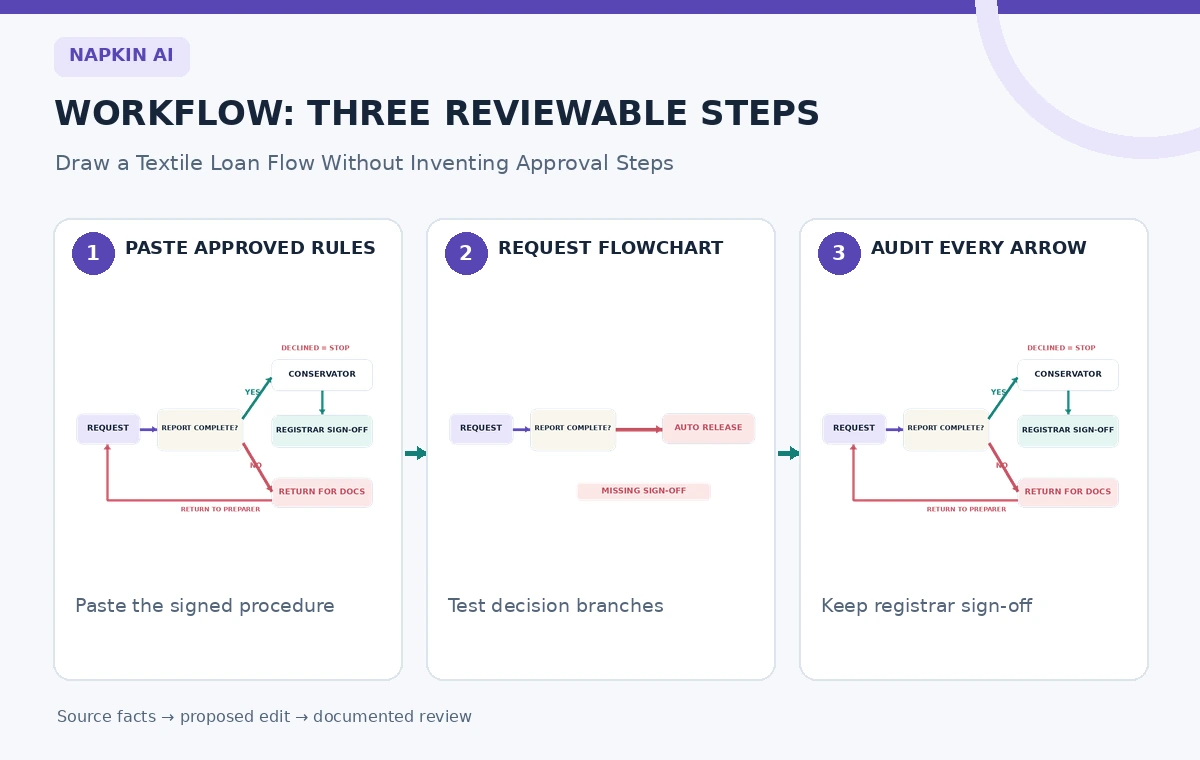
Begin with the current, approved textile loan checklist rather than informal notes from a meeting. Record the policy title, revision date, and approving registrar. For the fictional example, a request first needs a complete object description and purpose. The conservator then reviews the condition report. Finally, only the authorized registrar can approve release. A missing condition report sends the case back for documentation; a rejected loan is closed with a recorded reason, not silently forwarded to shipping.
Write these stages as short statements with verbs, owners, and explicit stop conditions. Avoid sentences like ‘once everything looks good, send it along,’ which invite interpretation. Mark REQUIRED, OPTIONAL, and NOT PERMITTED rules in the source copy. If staff disagree about whether a conservator’s sign-off is mandatory, resolve that issue with the policy owner before generating the graphic. A visual tool cannot adjudicate a conflict in the institution’s own instructions.
Make the text diagram-ready without rewriting policy
Convert the approved paragraph into a numbered sequence while preserving its meaning. Include conditional statements such as ‘If no condition report: return to preparer’ and ‘If conservator declines: stop and notify registrar.’ Keep the approval step separate from the condition check. The job of this preparation is clarity, not invention. A concise but faithful text source makes it easier to recognize which decisions a generated diagram has omitted.
Create a companion trace table with columns for source clause, expected box, expected branch, and reviewer. For example, the condition-report requirement should point to a decision diamond with both YES and NO outputs. Label the specific person or role responsible for each transition. If there are multiple versions of the procedure, use the current approved one exclusively and keep the retired version only for historical audit, never as an extra source for the new flowchart.
Generate a visual in Napkin AI
Open a Napkin document, paste the prepared source text, and select the part describing the loan process. The official Napkin instructions describe the blue Generate Visual control, generated visual suggestions, and a choice of styles. Choose an option that makes the branch logic inspectable rather than one whose decorative icons obscure the decision points. Napkin’s Custom Generation feature can guide the visual type, orientation, and detail level; request a landscape flowchart with clearly labeled YES and NO branches.
Use a moderately detailed layout so the exception routes have space. Napkin says customization guides suggestions but does not guarantee an exact structure. Do not assume the output is complete because the selected design resembles a professional workflow chart. The tool may summarize away a rare but important return route. Treat generated boxes as a first editorial draft, and compare them line by line with the trace table before deciding which layout is worth keeping.
Read the AI tool selection checklist
Verify every decision and arrow
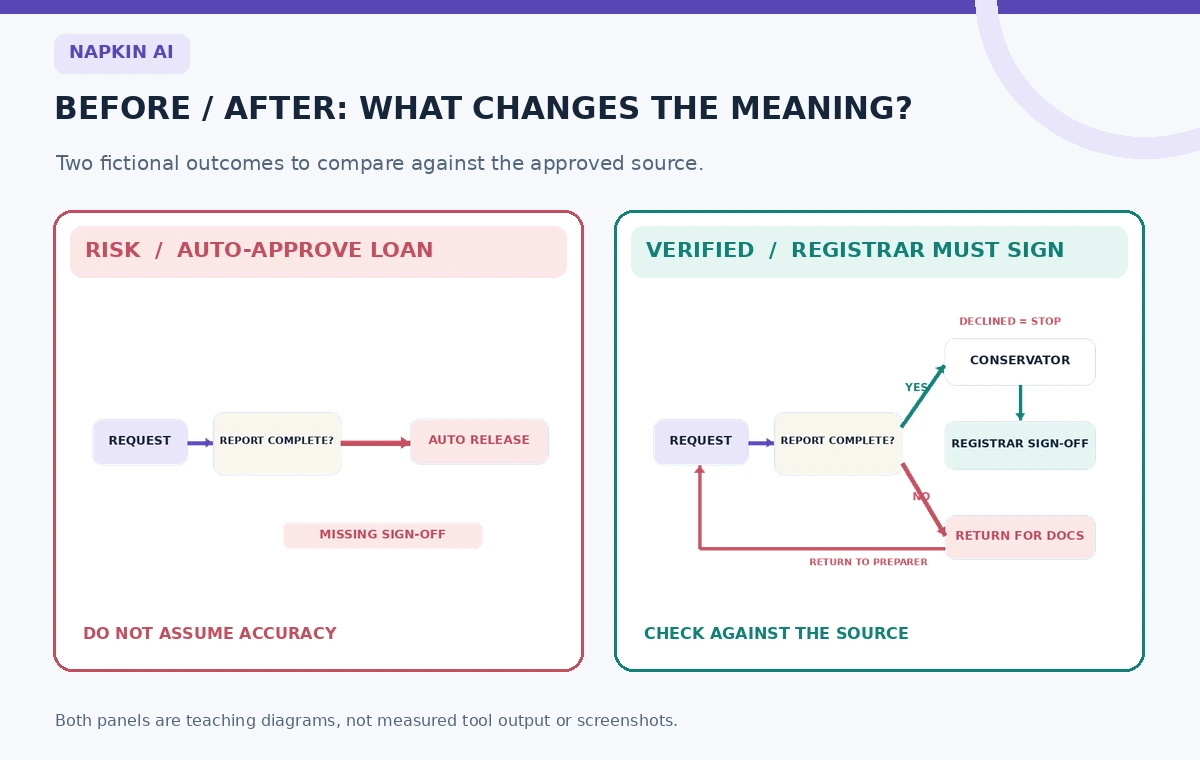
Follow the drawing from the initial request through both possible outcomes at every decision. The dangerous error is an arrow that moves directly from ‘Object identified’ to ‘Loan approved,’ bypassing the conservator and registrar. Another is an orphaned ‘Missing condition report’ box with no way back to the preparer. Trace each expected path using a pen or cursor and write a separate test case for the incomplete, rejected, and approved examples. If a path cannot be followed without guessing, the diagram is not ready.
Compare labels with source terminology exactly where precision matters. A ‘registrar’ is not necessarily interchangeable with a ‘volunteer coordinator’; ‘release authorized’ is not the same as ‘packed for shipment.’ The final box should not imply that shipping happens automatically after a request is reviewed. If the authorized registrar must sign, show that signature requirement explicitly. A diagram’s apparent simplicity should never override the permission boundary defined by the written policy.
Fix layout problems without losing logic
After selecting a generated visual, edit the text and shapes to repair omissions, following Napkin’s stated ability to customize visual elements. Keep the YES path and NO path spatially distinct; avoid crossing lines that can be mistaken for a connection. Make sure a return arrow terminates at the correct upstream box, not a nearby title. Add a short note where a diagram cannot capture an entire exception policy, pointing readers back to the approved manual rather than squeezing legal or conservator guidance into unreadable fine print.
Use consistent symbols: rectangles for actions, diamonds for choices, and document icons only when they add meaning. Color may help, but never rely on color alone to convey approval state. Mark the stop condition in words, and ensure the layout remains understandable in grayscale print. A volunteer using a photocopied chart must still be able to see which branch means ‘stop’ and who has authority to resume the process.
Test with three fictional loan cases
Build a small scenario table. Case A has complete paperwork and conservator approval; it can proceed to registrar review but not straight to shipment. Case B has an incomplete condition report; the diagram must send it back to the preparer. Case C has a conservation objection; it must stop without manufacturing an override. Walk a colleague through these cases with the diagram alone, then check their answer against the approved text.
Ask the reviewer to name the actor at every handoff. If they cannot tell who makes the next decision, add ownership to the relevant box. If they treat a notification as permission, replace vague words such as ‘inform’ with the precise required action from the policy. A useful flowchart should reduce ambiguity on edge cases, not simply make the happy path visually attractive. Record any disagreement for the registrar to resolve rather than improvising a new rule.
Export and control the approved version
Napkin’s documentation describes exporting visuals to formats such as PNG, SVG, PDF, and PowerPoint. Pick a format that suits the museum’s distribution workflow while preserving readable text and intact arrows. Export a full-size proof and print it in grayscale for a physical review. If the diagram is destined for slides, check that editable elements do not shift or disconnect when imported. Keep a link to the source procedure in the accompanying training document.
Assign a version number, approval date, and owner to the diagram itself. A diagram copied into a shared folder can outlive the procedure from which it came, so a clear revision note is necessary. Do not present the generated file as an institutionally approved rule until the registrar has signed off. When policy changes, revise the source first, regenerate or edit the visual, and repeat the branch tests instead of changing only the most visible box.
See our responsible multi-tool workflow
Complete a source-to-diagram sign-off
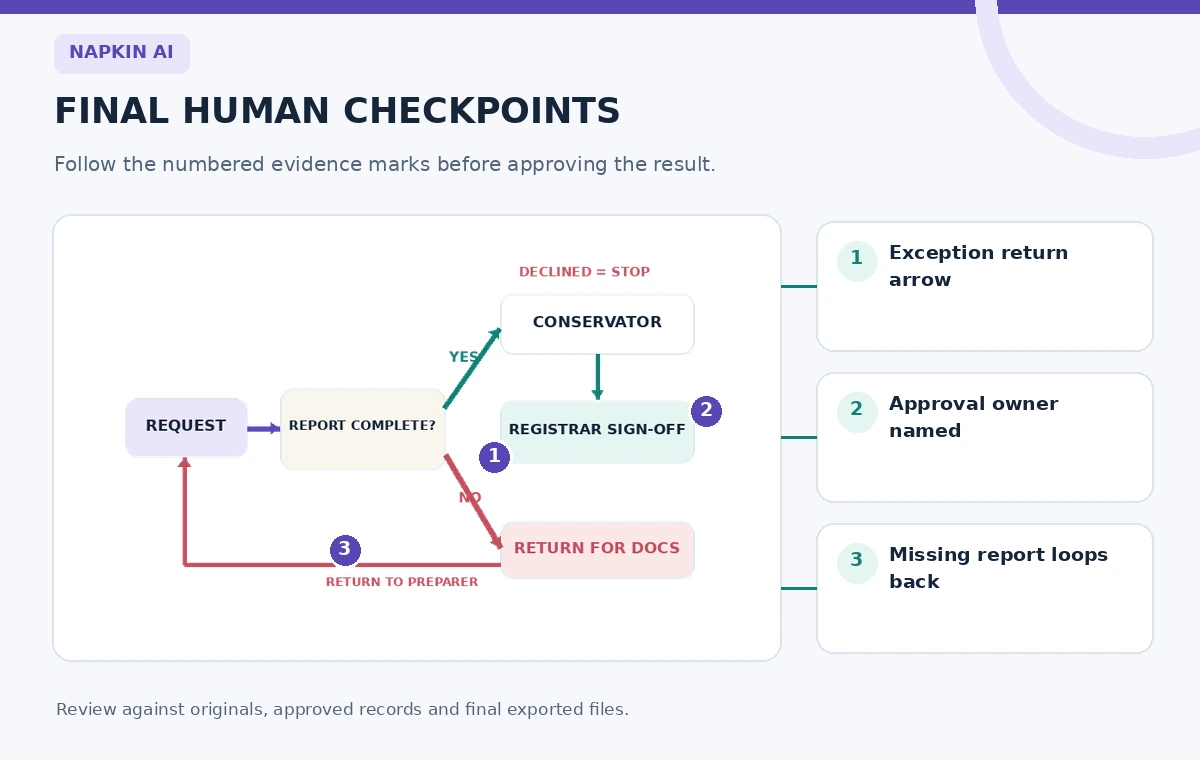
For final approval, read each policy sentence while pointing to its matching diagram element. Verify that every required decision has both outcomes, every stop has a defined owner, and every rejected or incomplete case goes somewhere appropriate. Check the role labels, release authorization gate, print readability, and source revision. If anything is missing, reject the current visual even when the artwork is polished. The source procedure wins over the generated graphic.
Archive the approved flowchart, original text, edited intermediate version, and three case tests together. In training, tell volunteers to use the graphic as a navigation aid and to consult the written policy for special circumstances. This approach captures Napkin AI’s speed advantage without silently allowing a machine-generated arrow to grant permission that the organization never delegated.
How We Research
We reviewed Napkin AI Custom Generation official instructions and Napkin AI Visuals Generation help and Napkin AI guide to getting started to confirm the documented feature names, editorial limits, and supported workflows. The people, values, rooms, projects, and visuals in this article are fictional teaching examples, not measured tool output or genuine product screenshots. We did not operate a live customer account, submit private material, conduct a hands-on performance test, or certify any produced result. Source documentation supports what the product is described as doing; the evidence-preservation and human-approval tests are independent editorial recommendations. Confirm current plans, platform support, and interface wording in your own installed version before use.
Frequently Asked Questions
Yes. Napkin documents visual generation from selected or pasted text and offers Custom Generation controls to request a flowchart layout.
No. The official guidance says requests guide visual suggestions, not guaranteed exact output. Verify each condition and route against the approved source.
A branch that bypasses mandatory conservator or registrar approval, especially if the diagram then appears to authorize release.
The help center describes PNG, SVG, PDF and PowerPoint options, among others. Review the resulting file for shifted text or disconnected arrows.
The owner of the current written procedure. A visually coherent AI diagram cannot substitute for the registrar’s actual authorization.