
A neighborhood repair group needs a flyer for a hypothetical tool-swap afternoon. A bold wrench-and-spanner illustration would help people understand the event, but its date, place, organizer and participating partners must come from an approved notice. A generated design that quietly adds a municipal crest can imply an endorsement that no one granted.
Kittl documents a Creative Agent that generates designs in conversation, offers follow-up revisions and can apply an existing Brand. This is a proposed workflow, not an account-level test or reproduction of the service interface. The sample names, poster and sponsor issue below are invented teaching examples.
Write a fact sheet before requesting a layout
Prepare a short, versioned brief: event title, approved location, confirmed date and hours, contact method, accessibility wording and a list of organizations authorized to appear. If a partner has only been invited, record that status outside the public copy rather than treating the invitation as acceptance.
For illustration, the tool-swap flyer can show a wrench, a hand drill and stacked boxes; those objects do not establish that any particular item will be available. Put a designated reviewer beside each fact. The point is to make the approved material easier for a design assistant to reuse, not to ask the assistant to decide what is true.
Ask for hierarchy and illustration, not made-up facts
In Creative Agent, describe a legible vertical flyer with the event title at the top, a central set of simple tool silhouettes and a clearly separated facts block. Provide only the approved event text. Ask the agent to leave a blank space for logos until organizers supply their own artwork and written permission.
The documented chat workflow lets you refine layout, warmth and visual emphasis with follow-up requests. It does not mean the tool has verified the schedule or any relationship with a sponsor. Avoid asking for a “professional municipal badge” because the result could be mistaken for official branding.
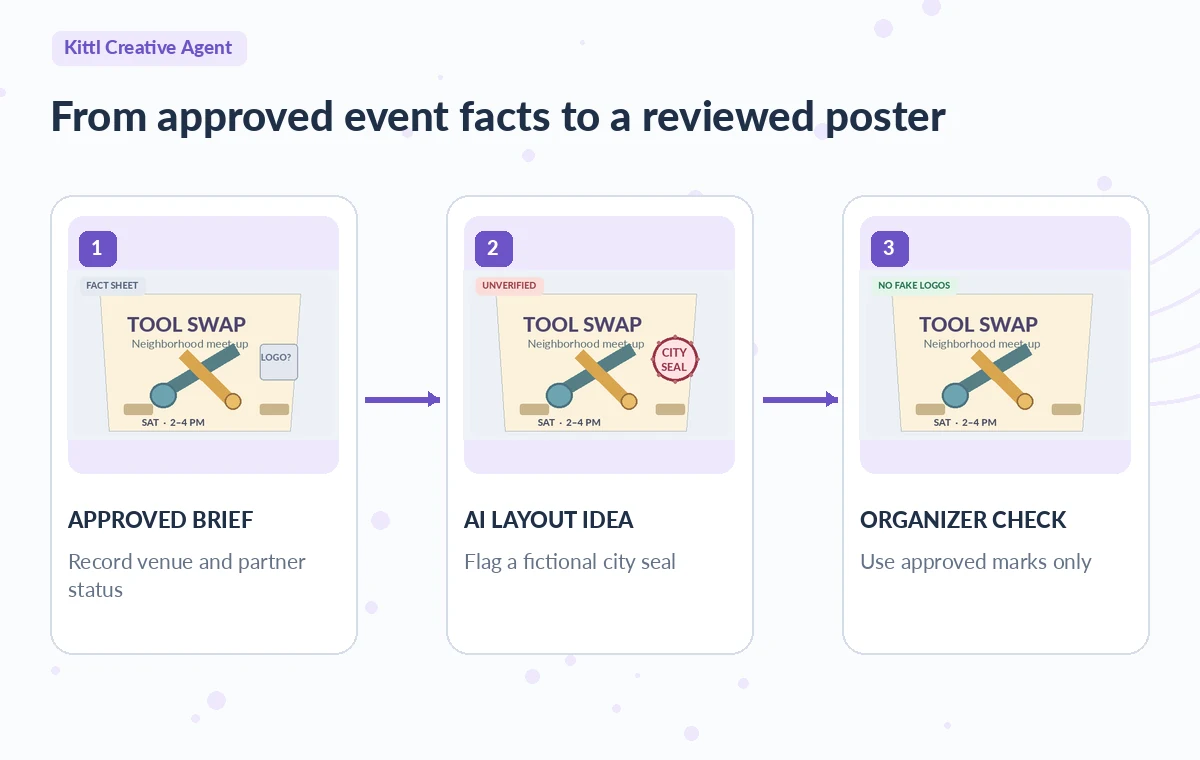
Review the whole design after each follow-up
Kittl says the agent can change specific parts while aiming to preserve others; an instruction such as “change only the headline” still deserves a full visual comparison. Save or screenshot the approved draft outside the tool, then compare names, numbers, organization labels and graphics after each revision.
Look especially at small decorative copy, footer details and background symbols. When a generated wrench becomes a police-style shield or a fictional partner lockup, remove it instead of polishing it. An AI response that says the rest stayed unchanged is not an independent inspection of every pixel.
Treat logos, seals and endorsements as controlled assets
Use a deliberate asset register for logos: source file, rights owner, permission scope, allowed colors and placement. The illustrated risky candidate inserts a round city seal next to the organizer name. In the safe direction, the event uses a neutral wrench motif and a plain organizer line until consent is documented.
The distinction is material because visitors may infer that a city or charitable organization officially sponsors the swap. Do not ask AI to imitate a real entity logo from memory. For a logo that is truly authorized, insert the original approved asset rather than a regenerated approximation.

Inspect typography for misleading event claims
Print-style decoration may create new microtext, labels or superlatives that were never part of the brief. Review the flyer at normal size and zoomed to 100 percent. Re-type the address, date, accessibility notes and cancellation policy as editable text where the editor permits, instead of trusting letters baked into an image.
Check the reading order: a strong illustration should not push the venue beneath a crop boundary. If the exact address remains provisional, state that an updated venue will be confirmed rather than letting the assistant choose one. The sample artwork is a conceptual example of this audit, not actual output from Kittl.
Use targeted edits and retain a review trail
Creative Agent documentation describes an Edit view and tools such as Edit Area, Layerize Image, Vectorize and text editing. Choose the narrowest change that addresses the problem: replace a stray emblem or revise a short subtitle without regenerating the entire poster.
Name saved versions by editorial state, such as initial concept, facts-reviewed and printer-proof, not by an invented quality score. Keep a side-by-side comparison with the original written brief. If the generated file includes raster marks that cannot be separated cleanly, rebuilding the questionable element manually is safer than masking a false association with another graphic.
Export only after checking rights and technical settings
Kittl documents both quick and full export paths, with choices for PNG, JPEG, SVG and PDF and options such as artboards, size and color profile. The availability of high-resolution or vector export and commercial use depends on plan terms and content rights.
Do not assume a free design workflow implies permission to sell printed flyers or to distribute third-party logos. Test a print-size proof and inspect text, margins, contrast and any border that might be trimmed. For an online preview, use a lighter file and provide readable event details in surrounding page text, not only in the picture.
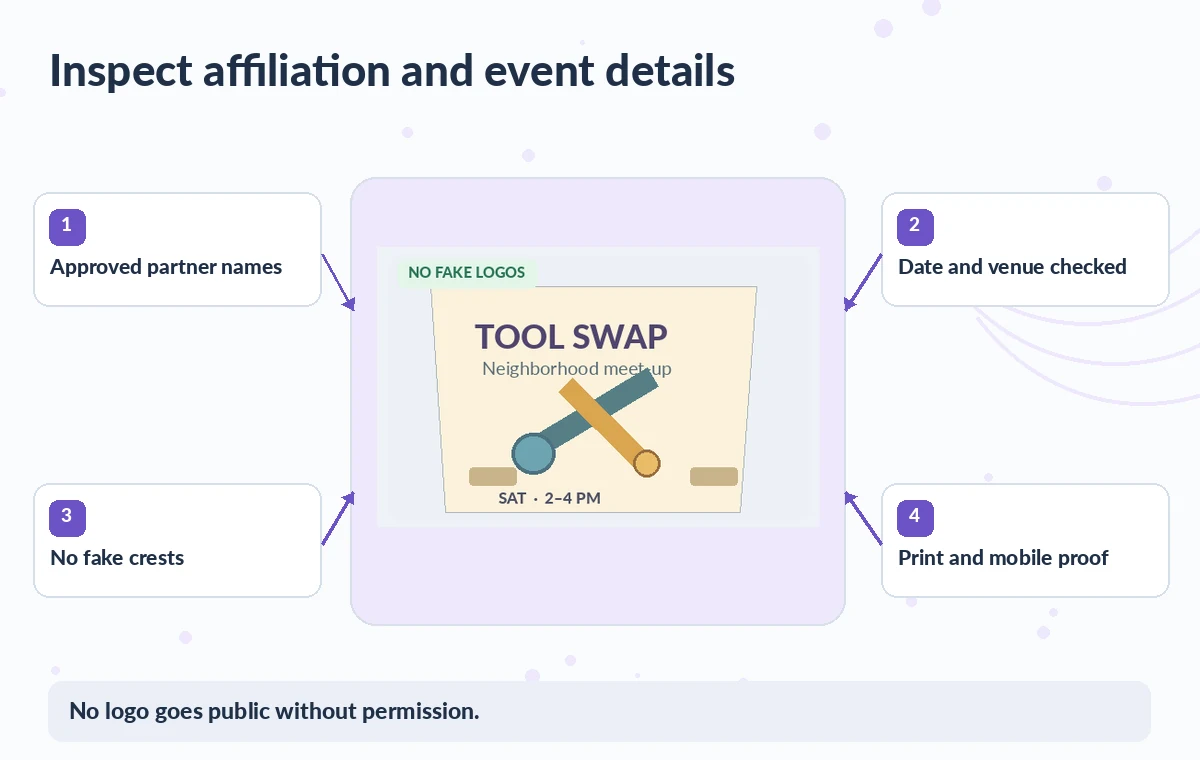
Run an organizer-led release check
Before uploading anything, have the named organizer confirm the exact event details against the fact sheet and a separate reviewer approve images and permission records. Test both a mobile preview and a printed copy at the intended viewing distance. Check that the contact method functions and no unauthorized partner mark remains.
Retain the prompt, approved copy, final artwork and export settings in the event folder. If you cannot verify the venue or permission, hold the flyer. Creative Agent can accelerate the layout work; it cannot make a tentative invitation into a factual partnership.
How We Research
We prepared this article on November 4, 2026 by reviewing the following official developer materials: Kittl Creative Agent: official walkthrough; Kittl: export your design; Kittl: Pro plan licensing and features. We checked documented controls, eligibility, export conditions, workflow boundaries and features that may change with a plan or account. We designed the scenario and independently drawn illustrations to demonstrate an editorial risk, not to represent a completed product test, measured accuracy result, verified real customer story or screenshot of the service. No live library status, institutional record, venue, partnership or admission rule was accessed. For a real assignment, review current documentation and rights, inspect the source materials yourself, and obtain a named human approval before release.
Frequently Asked Questions
Kittl says an active Brand can supply colors, fonts, logos and style guidance, but a human should still check that each mark is authorized for the particular flyer.
No. Provide confirmed source text and check the exported artwork against an organizer-approved brief.
Kittl documents follow-up prompts and an Edit view with targeted tools; compare the entire new version even when the request addresses just one item.
Kittl provides several export formats, but resolution and licensing depend on the plan, the assets and the intended commercial use.
Remove it and review the complete image for other implied affiliations before distributing or printing the design.