
A small museum wants to turn a dense ticket FAQ into a one-minute illustrated video. The source document contains a fictional policy: children under age 12 enter with a free ticket while visitors 12 and older require the applicable admission ticket. A stylish video that changes “under 12” to “12 and under” gives visitors the wrong answer.
Google documents a Docs to video route in Google Vids that accepts document files, makes an editable script and creates a video. The example age rule in this guide is invented for editorial training; it is not advice about any real museum. No live conversion or playback test is claimed.
Approve the policy before making a video
Start with a dated ticket-policy document approved by admissions staff, not a collection of old website copies. Mark the current age threshold, accompanying-adult rule, applicable ticket prices, accessibility provisions and any event exceptions. The fictional example uses “under 12,” which explicitly excludes someone who has turned 12.
Write a compact policy fact table including source section and approval date. This table is the standard against which the generated narration and on-screen captions will be checked. Do not ask a generative video tool to decide eligibility when a rule is ambiguous; send the ambiguity back to the policy owner first.
Check account eligibility and the input format
Google says summary videos can be generated from DOC, DOCX and PDF files in Vids on eligible Google Workspace or Google AI plans. Feature exposure also depends on organizational administration and language availability. Open Google Vids on a permitted account and look for File, then Docs to video; if the feature is missing, check official availability rather than claiming a hidden setting will enable it. Use a copy of the approved FAQ without patron records or confidential pricing arrangements. Attach the exact policy version being reviewed and note when the feature or the source file changes.
Inspect the script before selecting Create
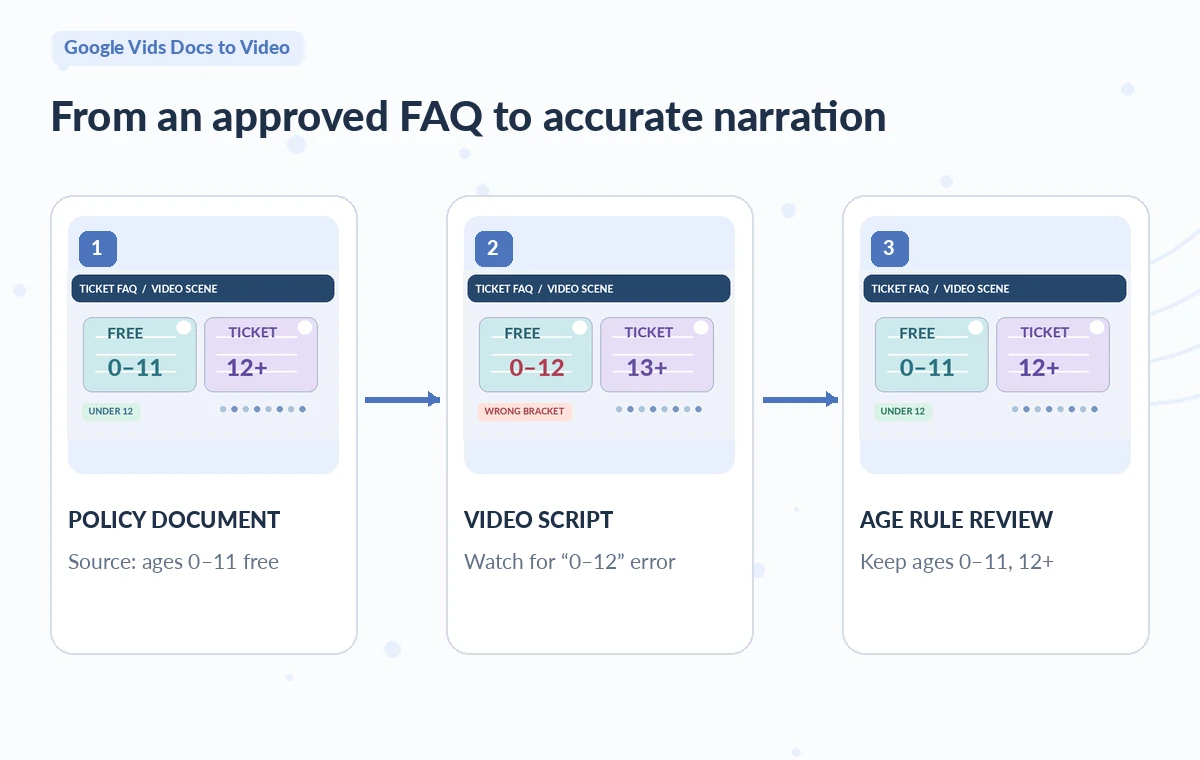
Google documents a step after selecting the source where the generated script can be reviewed and sections treated as scenes. At this stage, locate every numeric claim and each conditional word such as “under,” “over,” “unless,” and “with.” In the sample, a script saying “ages 12 and under” is wrong even if it sounds friendlier.
Correct the wording in the script editor and remove unsupported phrases such as “always free” or “all school groups admitted.” Cross-check each scene with its exact FAQ heading. This review is more efficient before narration, although it does not remove the need to inspect the finished video.
Make age brackets visually unambiguous
Draw a simple two-column ticket graphic rather than relying on prose alone. The safe illustration labels “0–11” and “12+” for the fictional case; the risky variant shows “0–12” in the free-ticket group. Avoid photos of real children to imply actual customer eligibility or endorsement.
Use clear typography and consistent number formatting. A slide that is technically accurate but flashes too briefly to read is still a communication failure. If exceptions are complex, include an explicit “Check current policy” instruction and link to the institution’s published rules rather than condensing them into a misleading single slogan.

Listen for narrated and captioned number errors
Generated voices can be fluent while saying the wrong ages, speaking “twelve and under” when the visual says “under twelve,” or dropping an exception. Review the actual script associated with each scene and compare it against the voiceover and captions as heard by a person. Google permits choosing a voice during the workflow, but that does not authenticate the factual content.
Pay attention to pauses around qualifiers. For accessibility, make the age cutoffs available in readable on-screen text and in a link to the source policy. Do not assume that an AI-produced voice alone is adequate proof of comprehension.
Replace misleading stock scenes and placeholders
A summary video can include appealing media that conveys the wrong service conditions. A shot of a crowded ticket kiosk may imply on-site ticket sales, while a smiling group photo could suggest a nonexistent family discount. Audit each scene for factual associations, not just image quality.
Replace uncertain illustrations with neutral admission cards, a generic queue symbol or institution-approved photos. Confirm copyright and consent for any actual visitors depicted. If the generated voiceover needs changing, follow the applicable Google Vids editing guidance rather than trusting an earlier draft to update automatically when the text changes.
Control the final review and publication decision
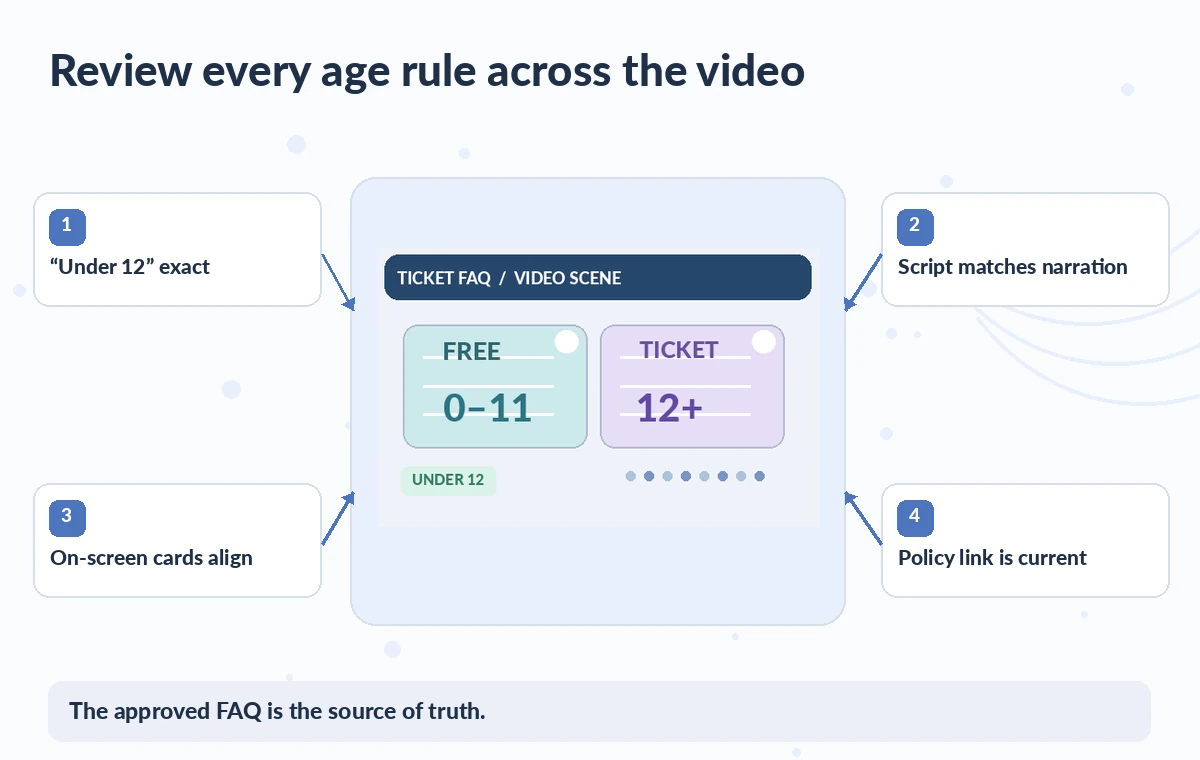
Before release, ask admissions staff to check the full rendered video against the dated FAQ, then have a separate accessibility reviewer inspect reading time and text contrast. Review the cover frame, thumbnail and description for the same age rule. A video file, website embed and social teaser should all point to the same published source of truth.
Recheck the release date: policy changes can make a formerly correct video wrong. Keep the draft, the original document, the reviewed scene script and the approver’s sign-off in one folder. Treat the output as a communications derivative, never the authoritative policy itself.
Plan for revisions when ticket rules change
Museums frequently change admission terms for school holidays, temporary exhibitions or local sponsorships. Create a replacement schedule instead of letting a video circulate indefinitely with no owner. If the policy changes, revise the source FAQ first, recheck the whole script and regenerate or replace the needed media and voiceover.
Update description and thumbnail text as well as the main clip. Do not rely on a newly generated video looking similar to the earlier one; compare all numbers and exclusions. A clear archival note can identify the prior version as superseded and prevent staff from re-sharing it.
How We Research
We prepared this article on November 4, 2026 by reviewing the following official developer materials: Google Vids: create summary videos from documents; Google Vids: feature availability; Google Vids: best practices. We checked documented controls, eligibility, export conditions, workflow boundaries and features that may change with a plan or account. We designed the scenario and independently drawn illustrations to demonstrate an editorial risk, not to represent a completed product test, measured accuracy result, verified real customer story or screenshot of the service. No live library status, institutional record, venue, partnership or admission rule was accessed. For a real assignment, review current documentation and rights, inspect the source materials yourself, and obtain a named human approval before release.
Frequently Asked Questions
Google lists DOC, DOCX and PDF inputs for generating a summary video.
Yes. Verify numerical rules, exceptions, terminology and the intended meaning against an approved source document.
Google documents a voice selection during creation; the final narration must still be checked for factual and accessibility accuracy.
No. Eligible plan, administrator and feature-availability conditions apply.
The current approved written policy is authoritative; the video is a derivative summary that needs updating when terms change.