
A handwritten page can contain a useful diagram, a deadline, or the exact phrase you need months later. The difficult part is not making a summary; it is keeping the original marks retrievable while recognizing text accurately enough to search. This workflow addresses stylus notes and scanned paper, not meeting transcripts or another general roundup of note-taking apps. The goal is a searchable archive with verifiable links back to each page.
Choose the capture format before buying an app
Start by separating notes created with a digital pen from photographs of paper. Native ink generally contains stroke data and is easier for compatible applications to recognize. An imported scanned PDF can be only an image, even when its pages look clean. Write down your devices, languages, need for offline access and whether you must export a standard PDF later.
Goodnotes, OneNote and MyScript Notes approach this differently. Goodnotes indexes supported handwritten content; OneNote offers ink tools and search; MyScript Notes focuses on handwriting conversion and editing. These are documented capabilities, not results from a controlled accuracy test. Check the specific operating system and plan before picking a new home for an archive.
Use a predictable page layout for recognition
Give each page a date, a plain-language heading and one subject. Leave enough space between columns so that conversion software does not merge unrelated phrases. Keep arrows and drawings near their labels, but do not assume a recognition system can recover the meaning of a complex flowchart from ink alone. Record unfamiliar names in a small typed glossary beside your notes.
For paper, photograph the page straight on with even light, visible edges and no fingers covering words. Preserve the original photo or scan independently of extracted text. A well-scanned page still needs OCR, and a PDF that displays text visually may contain no searchable text layer. This distinction matters when you later share the document with another app.

Check the Goodnotes and OneNote search paths
Goodnotes documents its search across handwriting, typed text and certain PDF content, but explicitly notes that imported PDFs need an existing OCR layer for PDF text to be searchable. Do not import a decade of image-only scans and assume indexing will invent a text layer. Search a known distinctive phrase in a small sample before scaling up.
OneNote supports searches across notebooks and has a separate Ink to Text workflow in applicable desktop versions. The web app does not offer every ink conversion option. Search results are convenient for finding pages, but a matched keyword is not proof the entire paragraph was recognized correctly. Test names, punctuation, numbers and any symbols that matter to your work.
Convert selectively, preserving the source page
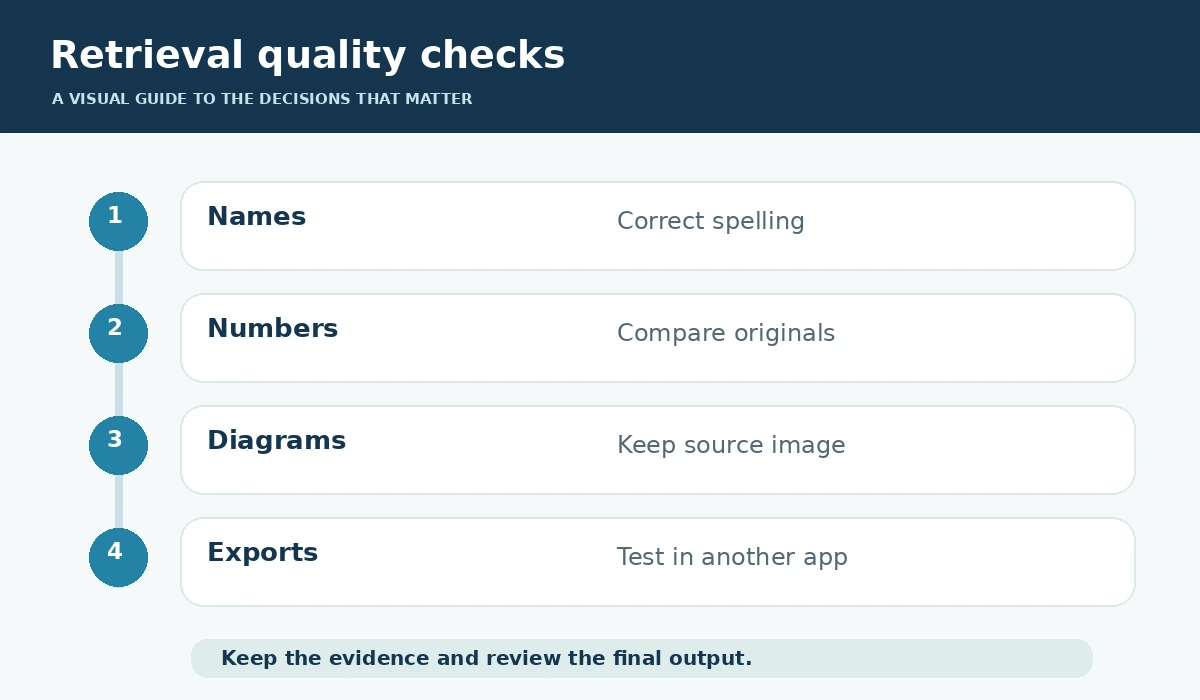
Convert text when you need to quote, edit or send it to a database; otherwise a searchable original may be more faithful. For each important page, save an image or native note, the extracted text and a durable reference to its notebook and page. Keep mathematical notation and diagrams as images alongside typed explanations rather than accepting a confidently wrong conversion.
For large sets, process one notebook at a time. Establish a naming rule such as subject, date and page number, then audit a few results before moving on. Avoid automated renaming that replaces meaningful handwritten labels with guesses. Where the handwriting is private or regulated, review cloud-processing settings and organizational policy before using generative features.
Build an index that points back to evidence
Store a record with document title, author or owner, capture date, topics, and a link to the original page. Add a short verified summary, but do not substitute it for the source. If an AI assistant invents an attractive headline, keep that suggestion in a separate field until you confirm what the notes actually say.
Try retrieval questions that require precise evidence: “Which page has the expense figure?” or “Where did I record the client decision?” Open the returned page, compare the digits and label the result correct or wrong. A useful notes system should make these inspections faster rather than hide uncertainty behind polished paragraphs.

Choose exports that remain usable elsewhere
Goodnotes documents an important trade-off: its flattened PDF export can include searchable handwriting when recognition is enabled, while its editable export preserves other structure but does not make handwriting searchable in the same way. Test hyperlinks, outlines and text selection on a sample export. Keep a source backup before converting a whole notebook.
Prefer common formats for long-term portability: readable PDFs, images and plain text. A proprietary notebook file can preserve ink editing but may not open without the original app. Export one notebook, open it in a different PDF viewer and run a keyword search before declaring the migration complete.
Audit recognition errors with a small scorecard
Choose ten representative pages: neat notes, fast scribbles, a diagram, different languages and one poor scan. Check whether headings are discoverable, names and dates are correct, and every important result opens at the right source page. Count meaningful errors without pretending this informal sample is a laboratory benchmark.
Use an error log with the original phrase, recognized phrase, consequence and correction. A misspelled ordinary adjective is different from a wrong medication name or contract amount. For high-stakes information, manual verification against the original page is mandatory even if search finds the right document.
Maintain a modest weekly review ritual
Set aside a short weekly pass to name untitled pages, archive duplicates, tag decisions and confirm extracted dates before they become action items. Mark uncertain text as uncertain. Avoid sending an AI-generated task to someone solely because a handwritten sentence appears to assign them work; confirm the owner and context first.
A successful system is not the one with the greatest number of summaries. It is the one where you can retrieve an old idea, identify its source and confidently reuse its details. Review device sync, access permissions and backup restoration occasionally, especially if you switch note-taking platforms or devices.
How We Research
We compared manufacturer-maintained documentation including Goodnotes search documentation, Goodnotes export guidance, Microsoft OneNote handwriting instructions, MyScript Notes features. We examined what each source actually documents, then designed a practical decision workflow around identifiable constraints, user verification and safe fallback steps. Where sources describe features, we treat those as vendor claims rather than independent proof of reliability. We did not purchase paid accounts, run independent benchmarks, measure productivity improvements, or verify pricing across every workspace configuration. Our source review was performed on October 27, 2026; features, policies, plan availability and terminology can change.
Frequently Asked Questions
No. Its documentation says imported PDFs need an existing OCR layer. Test a sample scan and add recognition using a suitable workflow when required.
Yes in supported OneNote versions using Ink to Text, but availability differs by platform and the web version lacks some ink tools.
Yes. The original preserves diagrams and context, while verified extracted text supports search, editing and accessible reuse.
Wrong dates, numbers, names, negations and technical terms deserve priority because they can reverse the meaning of a note.
Search representative pages with known answers, check exported PDF behavior, confirm links to originals and restore a sample backup.