
A short internal training video can begin with a simple illustration: an employee enters a workshop, notices a marked walkway and turns toward a safety board. Google Vids offers an Animate workflow that uses an uploaded image and a motion description to make a short clip. Motion generation is not the same as a verified procedure, especially when labels, signs or body positions carry instructions. This walkthrough uses a fictional, self-created training illustration. No video was generated or reviewed on a live Google account for this article, and the storyboard frames are explanatory artwork rather than rendered Vids results.
Begin with a still that already communicates the task
Draw or license a clear illustration with a strong focal point and enough empty space for later captions. For this hypothetical scene, use a person wearing ordinary workplace clothing, a doorway, a marked path and a noticeboard. Keep the safety message as editable text in the video editor rather than baking tiny instructions into the image, because AI animation may alter lettering. Avoid depicting hazardous actions or equipment procedures unless a qualified trainer checks the visuals. Decide in advance what single idea the opener conveys: entering the designated area while remaining aware of posted guidance, not demonstrating a complete safety certification.

Check eligibility and choose a supported source
Google’s help describes AI video generation as requiring an eligible subscription or a testing program. In Google Vids on a computer, the documented Animate flow accepts an uploaded JPG or PNG illustration. Prepare a sharp source with a clean aspect ratio before starting; an incompatible ratio may acquire black bars. The current help describes landscape and portrait output options, but feature lengths, model behavior and quotas can change. Verify the actual current controls before committing a course deadline or spending a budget. Keep rights to the illustration and permission to depict any recognizable person used in source material.
Write a motion prompt that changes only one thing
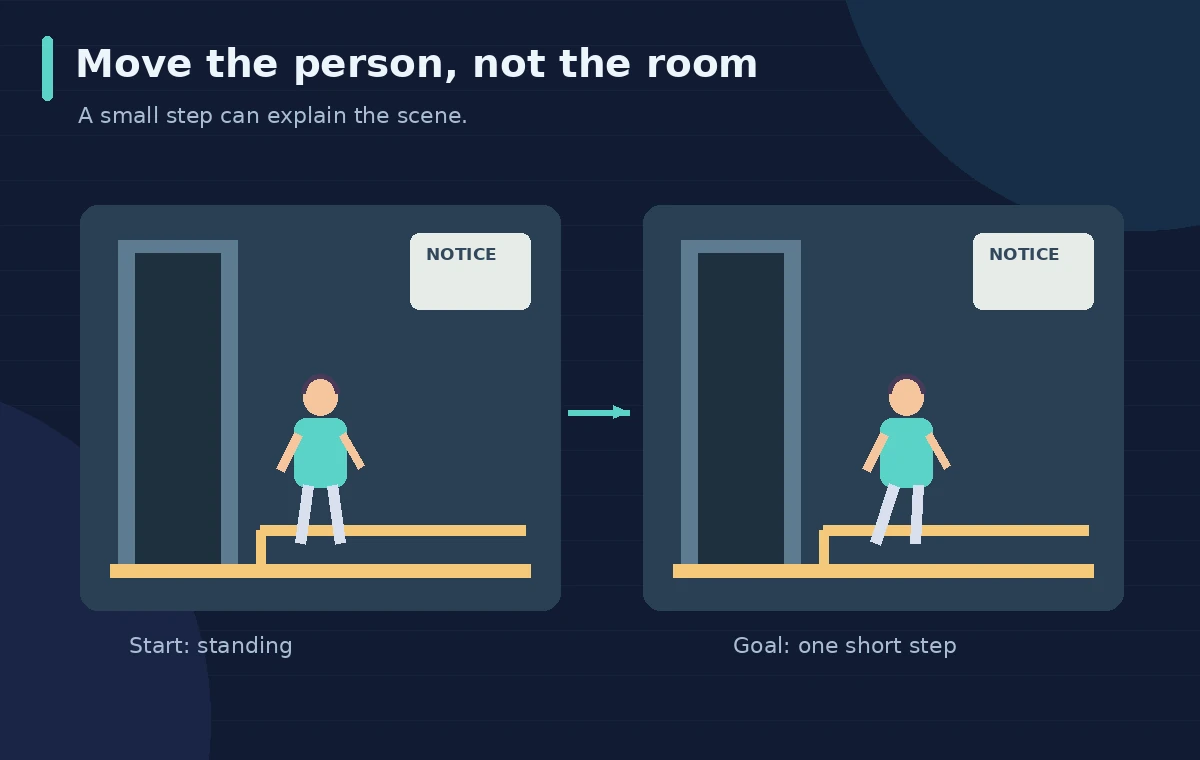
The prompt should describe movement rather than rewrite the entire scene. A careful example is: ‘The illustrated person takes one small step toward the marked path; the camera remains locked; the noticeboard and doorway stay still; gentle ambient movement only.’ Do not request a dramatic pan, a face turn and complicated tool interaction all at once. Generation may still transform details despite those instructions. The diagram uses arrows on a figure and fixed anchors on the room to show the intended motion, not a verified success. Save the prompt text so a reviewer can understand the goal without guessing what the model was supposed to do.
Follow the documented Animate workflow
From Google Vids, select Create AI videos and the Animate option where available, choose Landscape or Portrait, add the source image and enter the motion description. Then request generation and review the preview before inserting it into the video project. Google documents adding the result to the Vid and controlling it on its own timeline track. Do not assume the first generation is acceptable or that an inserted clip is automatically published. When a feature changes interface wording, follow the current product help rather than imitating a mock screenshot. The accompanying scene graphic is a process explanation, not a representation of the live Google Vids controls.
Inspect all frames for physical and textual drift
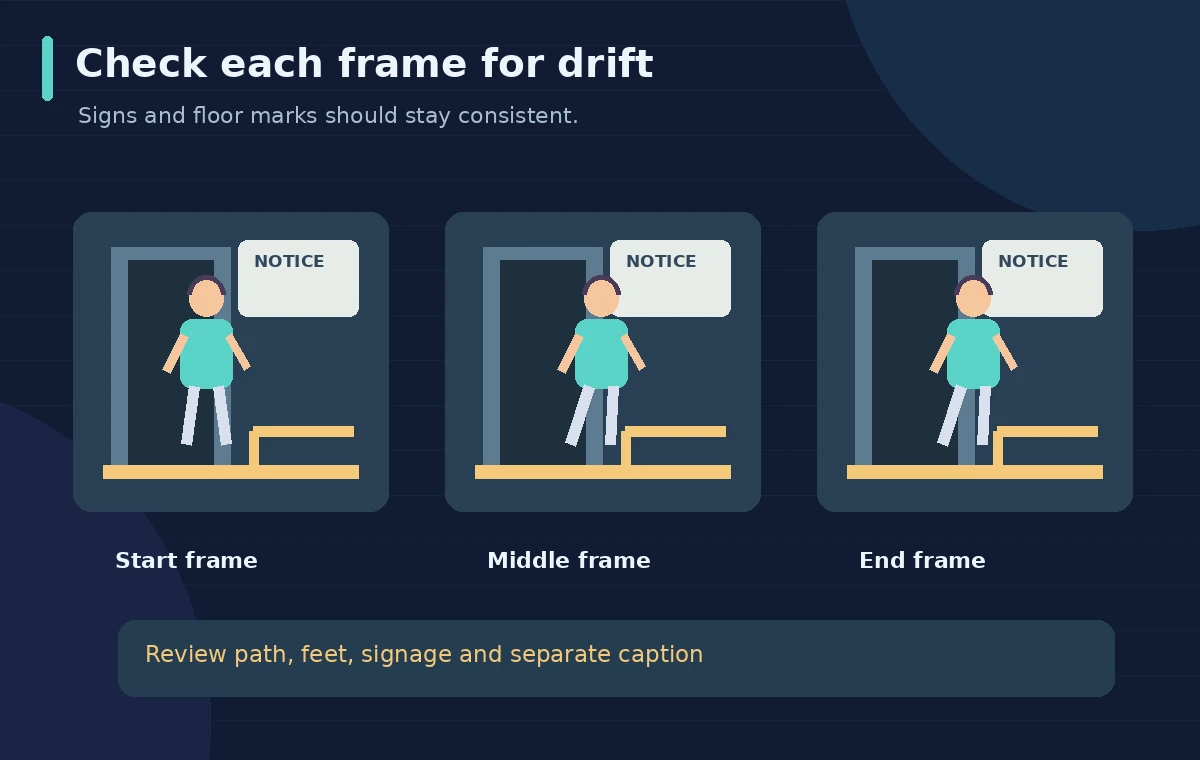
Watch the start, middle and end of the clip rather than accepting a compelling first frame. Confirm that doorways stay attached to the wall, floor markings remain continuous, hand and foot positions do not suggest unsafe actions, and clothing or badges do not morph. If any instructional text was embedded in the image, verify it carefully; generated video should never be the sole source of a safety instruction. The before/after storyboard here shows an intended small step but is not a proof of actual output. If a key visual fails, simplify the motion or switch to a conventional keyframe animation with editable objects.
Use on-screen instructions outside the generated pixels
Place captions, step numbers or a safety reminder as regular editable text elements in the Vids timeline, with sufficient contrast and screen time. Keep an action like ‘Follow posted signs’ separate from the animated background so editors can correct wording without rerendering the whole clip. Avoid putting exact technical tolerances, hazard limits or emergency exits into generative imagery. Pair any voiceover with a script approved by the responsible trainer and preview captions at the smallest expected display size. A graphic should support the instruction, never secretly become the authority for how a worker performs a task.
Compare a generated opener with a simpler motion option
If the illustrated scene only needs the camera to move slightly, an ordinary slide transition or keyframed zoom may be more reliable than generative animation. A generated step can add personality but creates additional review work for hands, signs and geometry. Build a two-column decision note: desired effect and risk introduced. For a welcoming mood, a modest camera movement may be enough; for an exact demonstration of which lever to touch, use filmed expert footage or a controlled animation instead. Do not claim a model achieves a specific consistency rate when no repeatable test was performed.
Approve the short clip as part of the full lesson
Review the opener in context with the following lesson, not as an isolated art exercise. Check that it does not imply a process sequence that conflicts with the spoken instruction. Retain the original illustration, prompt, reviewed clip and editable captions with clear ownership. Ask the subject-matter reviewer to approve the scene before distribution, especially in safety-related training. Confirm music and image rights separately and check the organization’s video retention rules. Nothing about inserting an animated clip into an editing timeline implies the training video has been published or that every generated frame meets organizational standards.
How We Research
We used Google’s official Google Vids AI video help for the Animate entry point, supported still-image types, aspect ratios, prompt guidance, insertion into the timeline and subscription caveats. We did not access a paid Workspace tenant, generate a video or measure model consistency. All storyboard frames are purpose-built illustrations of intended movement, not actual outputs. A qualified reviewer must approve the real training script and visuals before distribution.
Frequently Asked Questions
The documented Animate workflow accepts uploaded JPG or PNG files. Prepare a supported image and check current account eligibility before starting.
Do not rely on that. Keep critical text as separate editable video captions and inspect every visible generated sign or label.
No such accuracy guarantee is established. Use expert-reviewed footage or deterministic animation for safety-critical procedural details.
Reject the affected clip, simplify motion, revise the source art, or choose a traditional keyframed effect that preserves geometry.
No. Inserting it is an editing step; review, rights clearance, export and distribution remain separate decisions.