
Gemini in Google Slides can generate supporting imagery within a presentation, but a polished visual is not evidence that its charts, labels or business claims are accurate. This guide uses a fictional greenhouse expansion presentation to explain which parts can be illustrative, which parts require verified data, and how to keep the final slide editable. It is a practical approval method, not a claim that Google’s image generator has been independently benchmarked or can verify a company’s operating metrics.
Write a slide-specific brief instead of a generic picture prompt
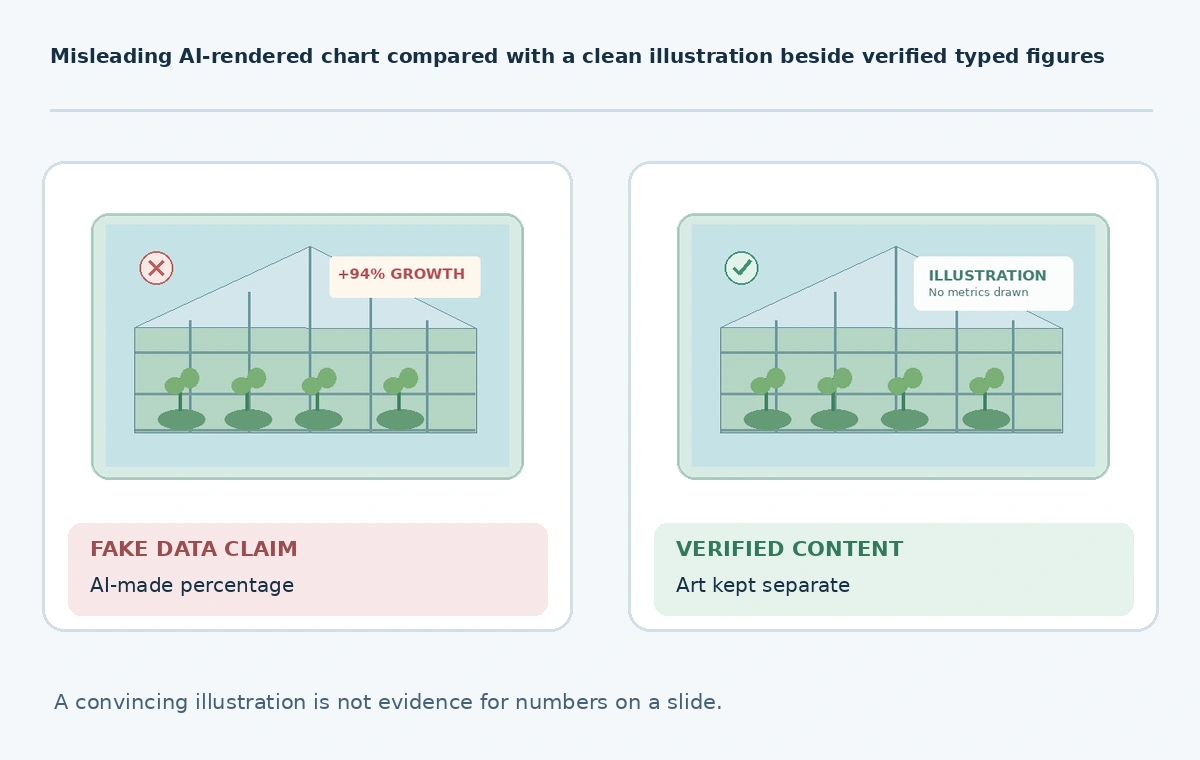
Choose one message per slide. The fictional organization wants to show what a future greenhouse might look like while separately reporting estimated project milestones. Ask for a concept illustration with plants, glass roof framing and open space at the left for a real caption. Do not ask the image model to invent a revenue chart, equipment specifications or construction permits. The role of the picture is to visualize the idea, not to certify engineering or cost figures.
Define what the visual is allowed to suggest and what it must not imply. A greenhouse illustration may establish atmosphere, but its layout may be physically unbuildable. Label it as conceptual when appropriate. Store the source brief with the deck and identify the reviewer who will check the final slide’s factual statements.
Confirm Gemini image-generation availability and workflow
Google’s Google Slides and Vids image-generation guide documents generating and editing images with Gemini for eligible Google Workspace or Google AI plans, with availability depending on account and features. The Gemini in Slides help page describes a side-panel workflow for generating image suggestions and placing one into a slide.
Verify the options shown in your workspace rather than promising the same controls to every consumer account. Google also documents a generated-slide-image beta workflow that may make mistakes; that is not identical to inserting a stand-alone illustration. Record whether the team used a generated image, an entire generated slide or ordinary stock artwork. Distinguish these routes in your review notes because their editability differs.

Generate illustration first and keep data in real slide objects
Use a prompt like: “Concept illustration of an efficient small greenhouse, warm morning lighting, clear aisle, no company marks, no words, no charts; horizontal composition suitable for a presentation slide.” Generate candidate artwork through the feature available to your account and select one based on layout, clarity and visual consistency with the deck. Do not rely on the generator’s attempt to render dates, axes or numbers.
Add any milestone bars, cost figures and labels separately as typed slide content or real charts sourced from a verified spreadsheet. This keeps claims editable, screen-readable and auditable. If the greenhouse project has a source report, cite it in notes or visible slide footnotes as appropriate. An imaginary drawing must not visually impersonate the actual building as it currently exists.
Audit the image for false specificity
Generated concept art often includes details that viewers may interpret as facts: number of doors, safety rails, equipment, lighting or specific plant varieties. Before presenting, identify objects that were invented by the model and decide whether the audience needs a disclaimer. A generic greenhouse illustration is fine in a brainstorming meeting; a board investment proposal needs a sharper distinction between concept and verified design. Do not put a generated picture next to a financial claim in a way that suggests the pictured assets are already installed.
Review the slide for impossible structural connections, reversed text, misleading logos and inaccessible color contrast. If a visual becomes a substitute for documented evidence, replace it with a real photograph or annotated design. Be especially careful with maps, charts and diagrams: the image model may make them aesthetically plausible but factually inaccurate.
Create a reproducible human approval stage
Use a simple four-column slide review sheet: illustration purpose, verified factual claims, remaining uncertainty and owner. Review the slide both full-screen and at typical presentation distance. The editor checks composition; the subject specialist confirms factual statements; the presenter confirms that speaker notes do not describe a fictional picture as reality. Save the prompt and image source information, and preserve a version before last-minute edits.
Do not claim that a verified source has confirmed numbers just because they appeared on a generated slide. Link each quantitative claim to the spreadsheet or report from which it came. Keep only one main message on the slide. If an AI illustration competes with the actual result, reduce its prominence or remove it entirely.

Export slides while preserving accountability
When sharing the deck, decide whether collaborators need editable slide objects or only a PDF. Keep charts, text and citations editable in the source. Make sure no fact is trapped solely inside an AI-generated image where it cannot be corrected with ordinary tools. In exported formats, check for cropping, missing fonts and overlaid captions. Send a version number or date so the reviewer can tell whether the visible figures match the approved spreadsheet.
Review image permissions for external presentations and do not assume every generated or stock asset has identical rights. Google’s documented capability to create visuals is not an endorsement of any claims contained in a presentation. A useful image helps explain a real proposition while leaving evidence, caveats and decisions legible and independently checkable.
How We Research
We consulted Google’s official Gemini image generation in Slides and Vids instructions, Gemini in Google Slides help and generated-slide guidance on October 27, 2026. The greenhouse project, document ledger and fact-check steps are conceptual editorial examples. We did not access a customer Workspace account or benchmark generated-image quality.
Frequently Asked Questions
No. Google ties these functions to eligible Workspace or Google AI plans and certain account/feature conditions.
Google documents both routes, but generated slide images and inserted illustrations can have different editability and review needs.
Use a real chart from independently verified data; image-generated axes and values may be invented.
State that it is illustrative or conceptual whenever viewers might take it as a depiction of an existing asset.
The source spreadsheet or report, dated deck, image origin, prompts, reviewer comments and any concept disclaimer.