
Canva AI business card design is useful for exploring a look, but a generated concept is not automatically a printable card. Contact information must be exact, text should remain editable, logos must be cleared for use, and the finished file needs the bleed and safe margins your printer requests. This guide follows a fictional independent florist from visual concept to a checked print proof. It avoids assuming that AI artwork can create a legally exclusive trademark or that the same bleed setting suits every print provider.
List nonnegotiable content before exploring a design
Start with verified name, title, phone, email, website and any other details that truly need to fit. Decide whether the card is one-sided or two-sided and ask who approves the content. Never let a generative image model invent an address or telephone number. For the florist example, the visual motif will be a small original flower illustration; the brand name and contact fields stay in editable text layers.
Choose a real print format through Canva or the intended outside printer. Define the finished size, orientation, paper stock and corner treatment. If a team will print the design elsewhere, ask for that printer’s requirements before building the file. A mockup that appears beautifully centered on a phone may still put tiny type too near the physical trim line.
Use AI for a motif, not for the entire final card
Begin with a restrained brief: “Simple original botanical line illustration for a florist business card; one flower stem, muted pink and olive palette, no lettering, no symbols resembling existing brands.” Keep the visual small enough that the contact details remain the primary information. Avoid generating an apparent complete print-ready card inside one flat image, because its text will be hard to edit and often unreliable.
If an AI template or image is used, keep track of the source and any required licenses. Canva’s editing tools can place images alongside normal type and shapes, but a visually plausible logo should not be assumed to grant exclusive rights or trademark clearance. If the florist intends to register the brand identity, have the mark reviewed separately rather than declaring it unique because a model generated it.

Understand trim, margins and bleed as separate zones
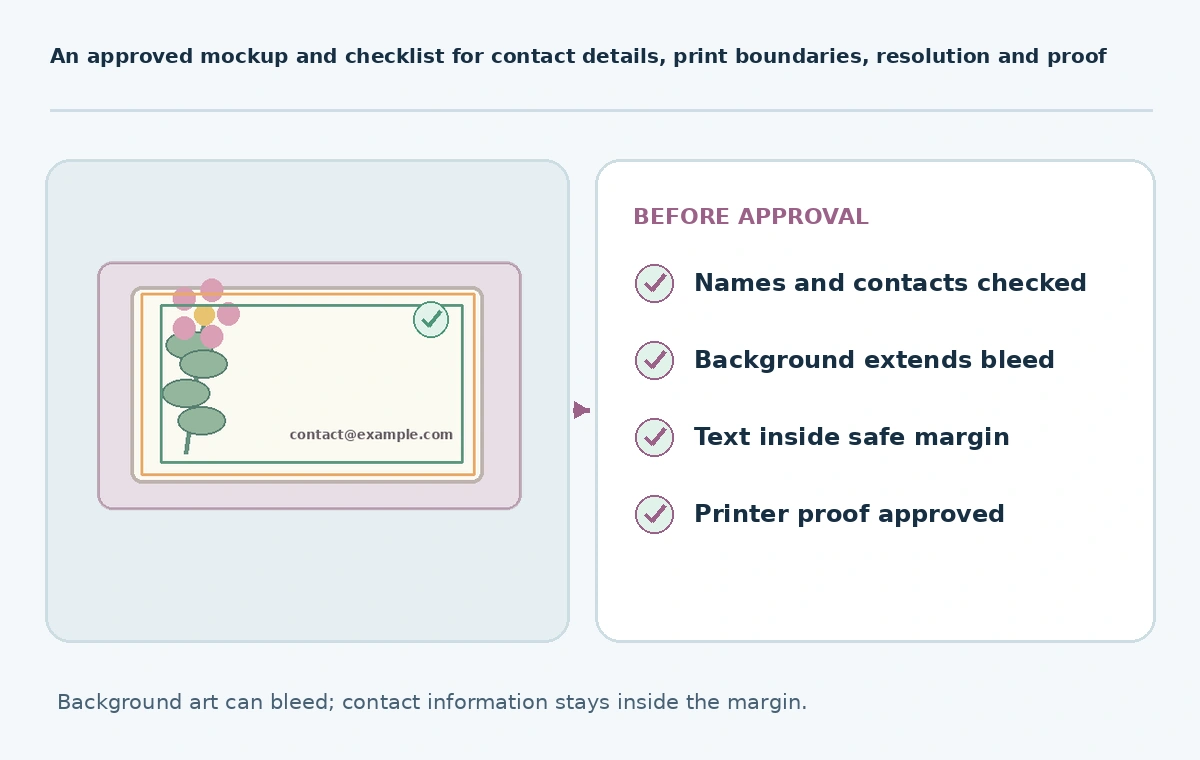
Canva’s official print guidance separates margins, safe zones, trim lines and bleed. It explains that backgrounds should extend into the bleed, while text and logos belong inside safe margins. Canva gives a default bleed of 0.125 inches for applicable cut products, but also instructs people using outside print providers to follow their requirements rather than assuming Canva’s specification always applies.
Draw these zones as separate outlines during review. An image can cover the full bleed while the florist’s email remains comfortably inside the safe region. Do not put an essential petal tip, QR code or character of the website address precisely at the trim line. Inspect both sides of the card, including places where a border could visibly vary after cutting.
Make the final copy independently editable and legible
Use normal Canva text boxes for the business name and contact details. Check spelling and punctuation against a verified document, then inspect the type at the printed size. A decorative script may work for the name while being unsuitable for the email address. Keep sufficient contrast for phone numbers and links. Avoid tiny type that looks acceptable only when the canvas is enlarged to 300 percent.
Test the actual URL and email. If adding a QR code, generate it with a trusted tool, scan the printed proof and confirm the destination is owned by the business. Do not accept an AI-made lookalike QR symbol as functional. On the back, leave white space instead of filling every available area with artwork. The card must communicate quickly when held in ordinary lighting.

Export and check a genuine printer proof
Canva documents exporting PDF Print with crop marks and bleed, where applicable. Confirm which options your printer wants, and do not assume every shop accepts the same PDF setup. Inspect the exported file rather than relying on edit mode: verify the trim area, edge extension, embedded art clarity, font integrity and both page orientations. For a commercial run, request a proof or one small sample where practical.
The same help page describes danger-zone indications that warn when elements approach the trim. Treat those as flags for human review, not a substitute for a printer’s specifications. If using print colors, proof the result in the selected process and stock; the laptop’s bright RGB preview is not a reliable promise of finished ink color.
Create a repeatable handoff for reprints
Deliver an editable source, printer-approved PDF, date-stamped proof, logo-license record and a plain text copy of the card’s contact details. Note the finished size and printer, because a second supplier may use a different bleed or crop-mark convention. If staff details change, edit the verified text rather than regenerating the artwork. A reprint should not need to revisit the initial AI prompt.
Use a release checklist with separate signoffs for content, legal/brand rights and technical printing. The florist owner can approve the correct number, while the designer checks the safe zone and the printer confirms the press specification. This reduces expensive reorders and prevents the common error of treating a convincing visual mockup as production-ready artwork.
How We Research
We used Canva’s official help on margins, safe zones, crop marks, bleed and PDF Print, reviewed October 27, 2026. The fictional florist concept, role separation and reprint checklist are editorial examples. We have not ordered cards, inspected press output or verified the existence of any fictional brand.
Frequently Asked Questions
It can suggest a concept, but critical text, rights, bleed and print exports still need editing and verification.
Bleed extends backgrounds beyond the trim; safe margins keep important details away from the cut.
No. That is Canva’s stated default for applicable cut products; outside printers may specify something different.
No. Insert a functioning code separately, then test the printed proof with a real phone.
Editable design, approved PDF, printer specification, original assets, contact copy and proof approval.