
A neighborhood tool library tracks incoming supplies for a fall repair workshop. The sheet includes due dates, delivery status, and a note explaining whether an order is on hold. One volunteer asks Gemini in Google Sheets to highlight late arrivals. That sounds simple until one cell contains a date typed as text and another row is blank because the donor has not confirmed shipment. A colored cell can look authoritative even when the underlying logic is wrong. This hypothetical guide treats Gemini’s suggested conditional formatting as a draft rule to inspect, not a substitute for the source purchase log or a reason to place another order.
Define a deadline decision before asking for formatting
Start by deciding what the color should mean. For this example, an overdue alert applies only to a dated, unreceived supply order whose due date is earlier than the sheet’s agreed review date. A due date of today may be ‘due soon’ rather than late; a cancelled order should not be highlighted as missing stock. Make a short dictionary for the columns: order ID, item, due date, actual arrival, status, and owner. Record how the team treats weekends and time zones. Color is an attention signal, not a purchase authorization. If two team members would interpret a red cell differently, clarify the policy before opening Gemini.
Normalize the source cells and preserve a reference copy
Duplicate the working sheet, freeze the header, and inspect a small range by hand. Confirm the due-date column contains actual date values rather than strings that only resemble dates. Use the spreadsheet’s number format to display dates consistently, but remember that changing display format does not always convert text into a date. Look for empty cells, imported timestamps, merged cells, and a header accidentally included in the rule range. Keep the source order log available to resolve discrepancies. Test with a known late shipment, a future shipment, a delivered item, and an undated request. This small reference set becomes the baseline for reviewing the AI suggestion.
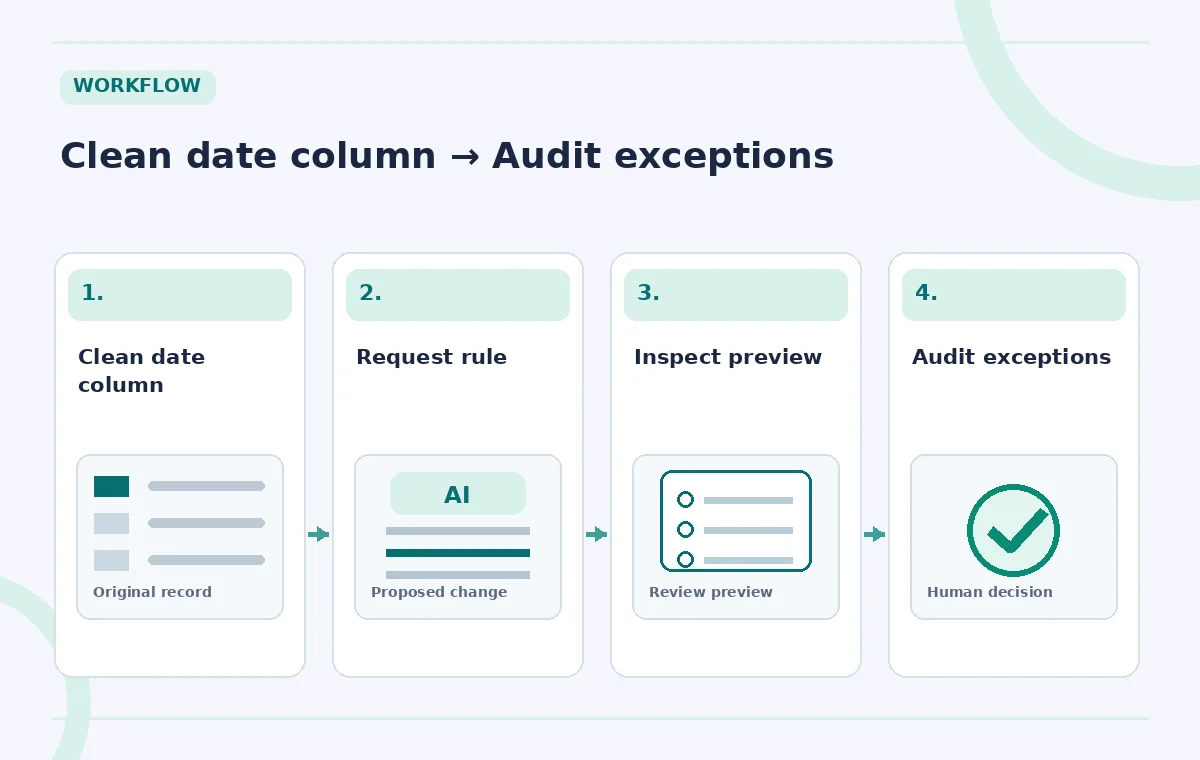
Request a narrow Gemini action and inspect its preview
Google’s documentation says Gemini in Sheets can propose actions such as applying conditional formatting, with an action preview card before the user clicks Apply. In an eligible native Sheets document, open Ask Gemini and request a rule for the specific due-date and status columns. Describe the exceptions explicitly: ignore blank due dates and rows marked received or cancelled. Do not simply say ‘highlight bad rows.’ Examine the preview card and configuration before applying. Gemini is not guaranteed to infer your organization’s definition of overdue from a casual prompt. If the preview targets an entire sheet or confuses status labels, revise the request instead of accepting the first version.
Compare risky formatting with the intended logic
The comparison diagram illustrates a mock row where ’10/18′ is stored as text, another with a blank due date, and a third where a past date belongs to a completed delivery. A naive rule may flag all three. The intended rule checks that a usable date exists, compares it with the selected review date, and looks at the final status. These example cells are invented to explain the concept; they are not output captured from Gemini. An AI-proposed rule can be syntactically plausible while still misclassifying a real row. Read the actual rule expression and applied range, not only the colored preview.
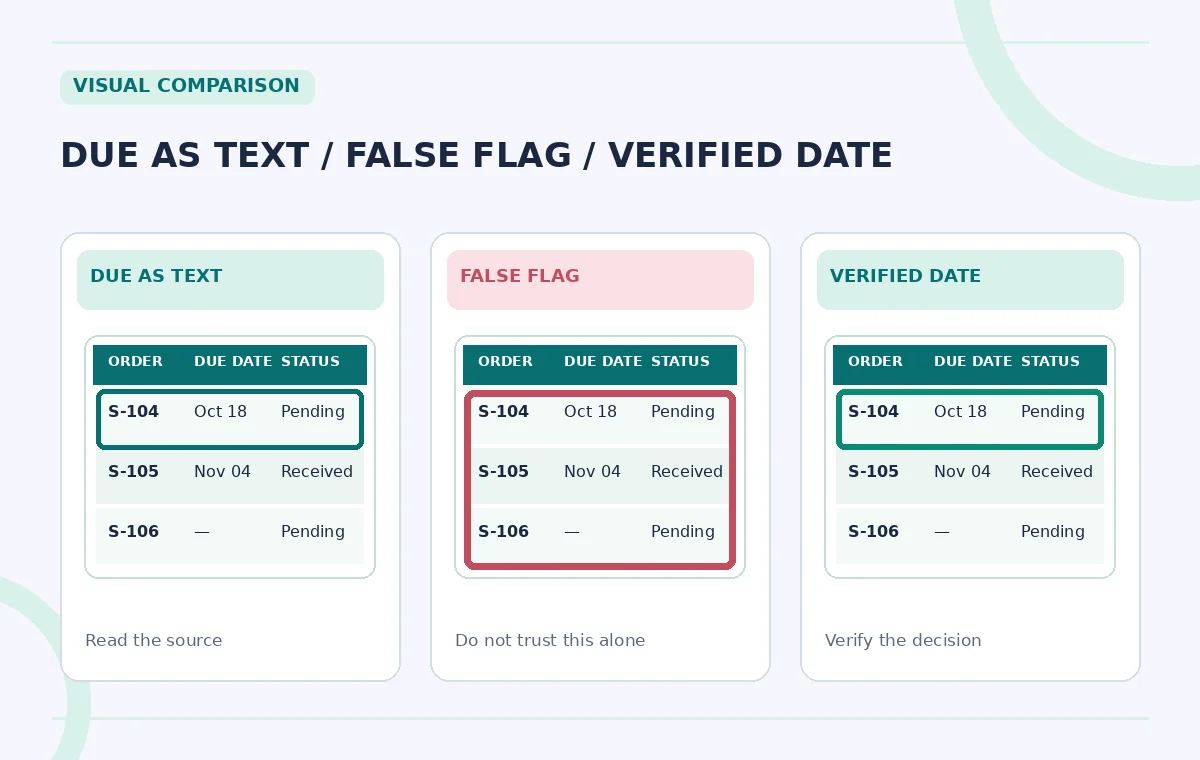
Test boundary rows before using highlights operationally
Create a short test grid in the duplicate sheet. Include yesterday, today, tomorrow, a blank, a text date, and a received order with an old due date. Record which cells the team expects to be highlighted, then compare that prediction with the applied rule. Pay special attention to locale-sensitive formats such as 03/04, which may mean March 4 or April 3. If the rule uses the volatile TODAY function, document that highlights may change automatically after midnight. A frozen reference date may be more appropriate for an archived weekly report. If a result differs, fix the rule or source data before notifying anyone.
Separate the alert from procurement approval
After the test, filter the red rows and inspect their corresponding records: supplier confirmation, actual delivery, and assigned owner. Flag a probable delay for follow-up, but do not use color alone to order duplicates, cancel requests, or promise delivery to participants. The real-world consequence of a false alert can be wasted donations or an unnecessary replacement shipment. Add a simple reviewer field for ‘checked against order log’ and a date of review. When a status is disputed, leave the decision unresolved until the owner confirms it. The diagram places the rule, source record, and human decision in three separate lanes.
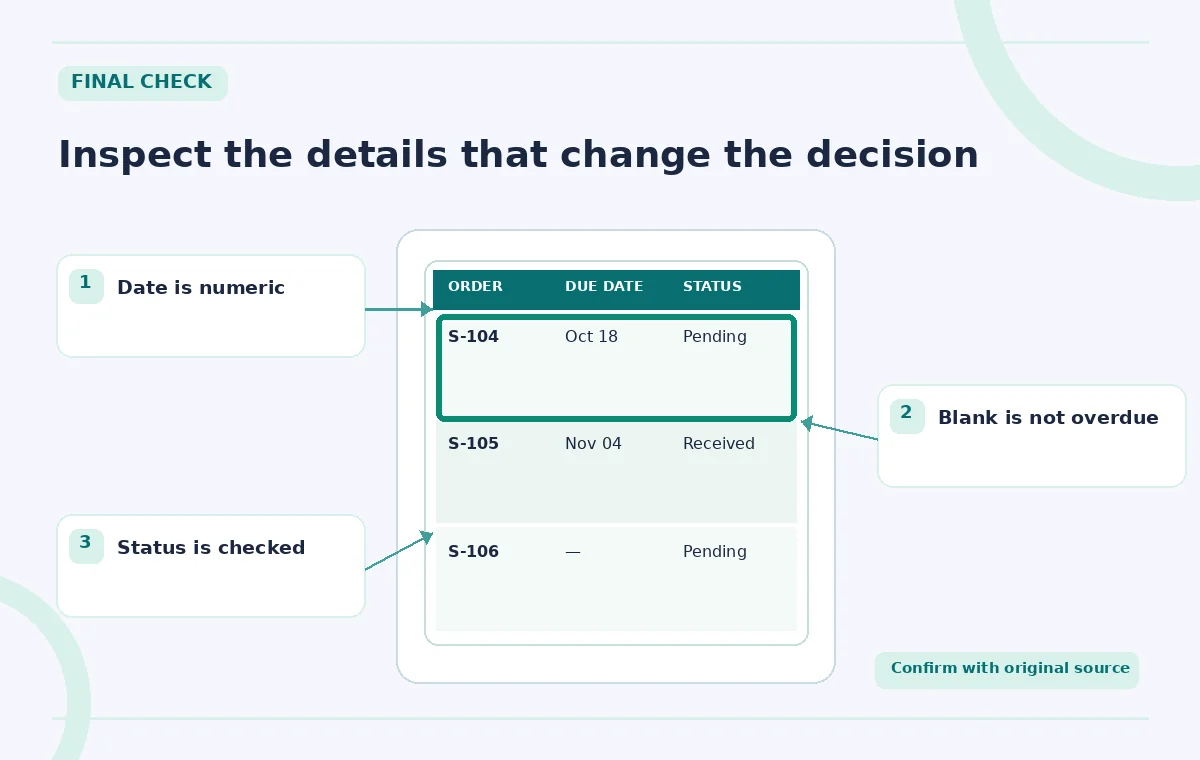
Explain access, privacy and plan limitations
Gemini’s spreadsheet capabilities require an eligible Google Workspace or Google AI plan, and Google’s help pages describe language and rollout restrictions. The interface and available actions may change by account. Avoid putting private donor details, home addresses, or personal notes into a prompt merely to request a formatting rule. Restrict sheet sharing to people who need the records, and use placeholder values when training volunteers. For this tutorial, all order IDs and dates are fictional. We have reviewed product documentation rather than operating a paid Workspace account or testing a particular organization’s data. The process is designed to remain useful when an individual button label changes.
Publish a readable tracker with an audit trail
Document the final rule range, formula, meaning of each highlight, person responsible for reviewing it, and next check date. Keep a plain-text status field so staff who cannot distinguish colors still understand which orders need attention. Ensure the formatting does not hide a delivered status behind an alarming background. When the tracker is exported or reused, recheck both dates and formatting in the destination. A handoff note such as ‘Red = possible overdue; verify with supplier before action’ is more helpful than simply announcing that Gemini cleaned the data. The deliverable is a reviewed spreadsheet, not evidence that every flagged shipment is late.
How We Research
We consulted Google’s official Collaborate with Gemini in Google Sheets instructions for supported actions, preview-and-apply behavior, and eligibility requirements. Date tests and highlighted rows in the diagrams are invented teaching examples. We did not operate Gemini on live supply records or measure error rates; readers should verify feature access and formula behavior in their own Sheets environment.
Frequently Asked Questions
Google documents conditional formatting among supported Gemini actions on eligible accounts. Review the action preview and its range before applying it.
No. A formatted cell reflects the rule and source values, both of which need verification against the actual order log.
Text that looks like a date can compare or sort differently from an actual date value and may produce false alerts.
Not automatically. Treat a blank as missing information unless your organization has a documented separate rule.
No. Google lists eligible Workspace or Google AI plans and other availability restrictions for the feature.