
A neighborhood park association needs volunteers for a Saturday litter pickup. Its coordinator wants a quick signup that asks for a shift, a first name and a way to send logistics. It does not need home addresses, birth dates or medical histories. Gemini in Google Forms can draft a new form from a description, but a plausible question is not necessarily an authorized question. This hypothetical workflow treats the AI draft as a starting outline, then checks privacy, answer options, publication settings and the responder’s experience before sharing a real link.
Write a data-minimizing brief before opening Gemini
Define the actual decision the organizer must make: how many people will attend the morning or afternoon shift, how to contact them about a weather cancellation, and whether they need basic equipment. Write the exact allowed fields first: preferred name, shift selection and optional contact email if the association cannot use another agreed channel. Do not ask for exact date of birth, address, employer, disability information or an unrestricted notes field merely because a generic registration template suggests it. Specify who will see responses, how long data will be kept and how volunteers can request a correction. The brief should include a plain-language purpose statement, not an imaginary privacy assurance. If a contact method is required, explain why it is required and offer an alternative where practical.
Use Help me create a form in a new Google Form
Google’s official help says eligible Google Workspace or Google AI users can open a new Google Form and prompt Help me create a form; the standard feature is on desktop, while some experiments also support mobile. Ask for a Saturday park-cleanup signup with only the approved fields, two shift options and a short, non-sensitive confirmation message. Review the generated draft before selecting Create form. Do not use a production form as a scratchpad: the documentation warns that trying this feature on an existing form can replace it rather than editing questions in place. Access to Drive, Gmail, Chat and external context is limited to specific experimental users, not an ordinary entitlement to assume for every account.
Audit each field against an actual organizing need
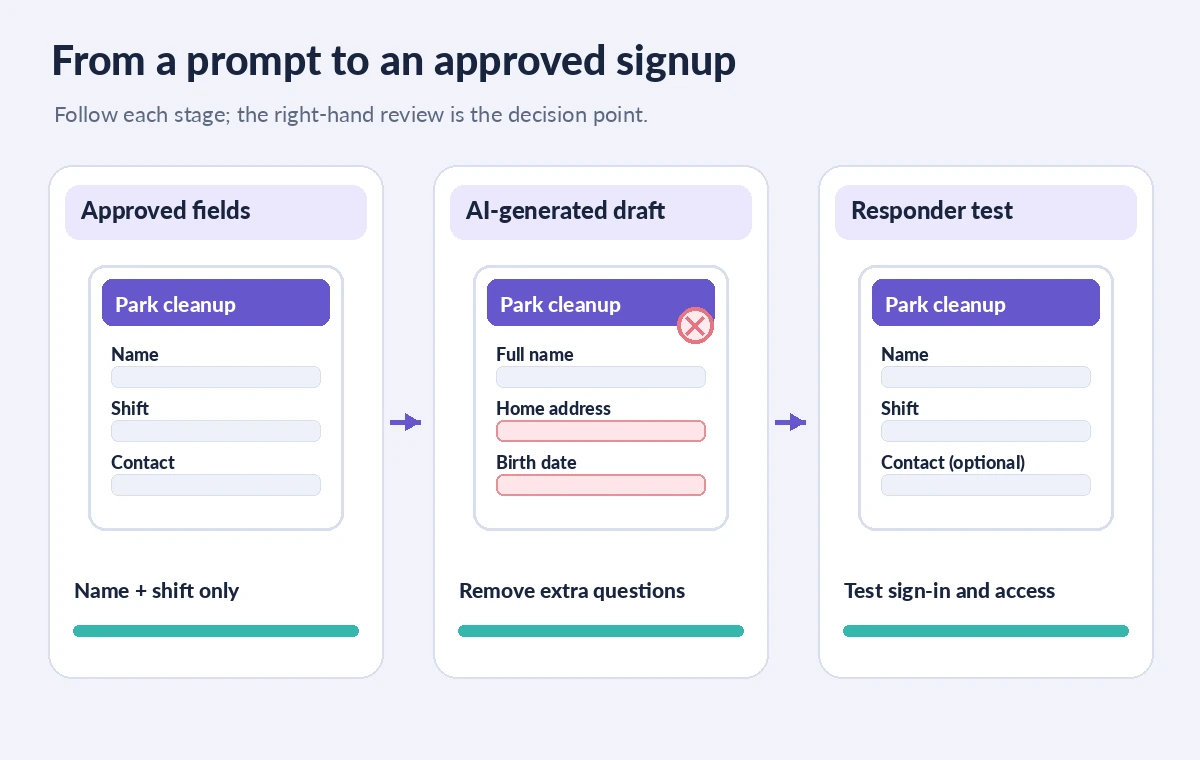
Read the new form from top to bottom with the original requirement sheet beside it. Look for mandatory phone numbers, emergency contacts, unsupported consent boxes and duplicate ways of collecting identity. A single free-text field for special requests may invite sensitive disclosures; replace it with carefully scoped equipment options or a separate private contact channel. For shift selection, make sure the answer choices precisely match the posted schedule, with the time zone and meeting point explained in the introduction. Delete any question whose answer nobody is assigned to use. The illustrated form comparison is an instructional mockup, not a screenshot or output from a live Gemini test.
Verify publishing, sign-in and email collection settings
Google Forms requires publication before responders can access a new form. Before publishing, open Settings and inspect the email collection option, whether sign-in is required, whether respondents can edit answers and whether responses are limited to one submission. Google explains that a one-response limit requires people to sign in to a Google Account; for a public community cleanup, that may exclude volunteers who do not have one. If your only purpose is headcount, consider whether email collection is needed at all. Avoid saying the form is anonymous if a verified email is being collected. Confirm where response data goes and which organizers can access it.

Test the responder view with harmless sample entries
Use two invented signup identities, not real volunteer details, to test the morning and afternoon options. Verify whether required questions actually prevent empty answers, and that confirmation text tells responders what happens next without implying they are automatically accepted into a limited-capacity shift. Preview the form in a private or separate browser session where possible to observe any sign-in barrier. Check labels on a narrow screen, keyboard navigation, error messages and whether a participant can understand the data-use statement. Delete test responses and related exports according to the team’s test-data procedure. A good-looking edit screen is not evidence that public respondents will see a usable form.
Keep the signup accurate as plans change
If a morning shift fills or a meeting location changes, edit the answer choices and description deliberately instead of asking Gemini to regenerate everything. Record the date of the change so staff know which exported responses correspond to the old schedule. A form that has been shared can spread widely; changing a question’s meaning after dozens of responses can make the response sheet misleading. Preserve any essential mapping between earlier and updated options. Assign one coordinator to reconcile the response count and send a human-reviewed update. Never assume that an automatically generated confirmation or suggestion provides a real staffing guarantee.
Restrict response access and plan deletion
Treat names and contact details as an operational list, not a permanent community database. Share the response spreadsheet or form-editor access only with staff who need to organize the event; public collaborators do not automatically need participant identities. Define when the roster will be deleted and how corrections or withdrawals will be handled. Do not paste real signup exports back into a general AI prompt for a summary unless the organization has specifically approved that processing. If a volunteer needs to disclose a safety accommodation, provide a separate confidential process instead of asking for diagnoses in a general form. Keep a copy of the final blank questions for accountability, without retaining personal responses indefinitely.
Release the link only after a named approval
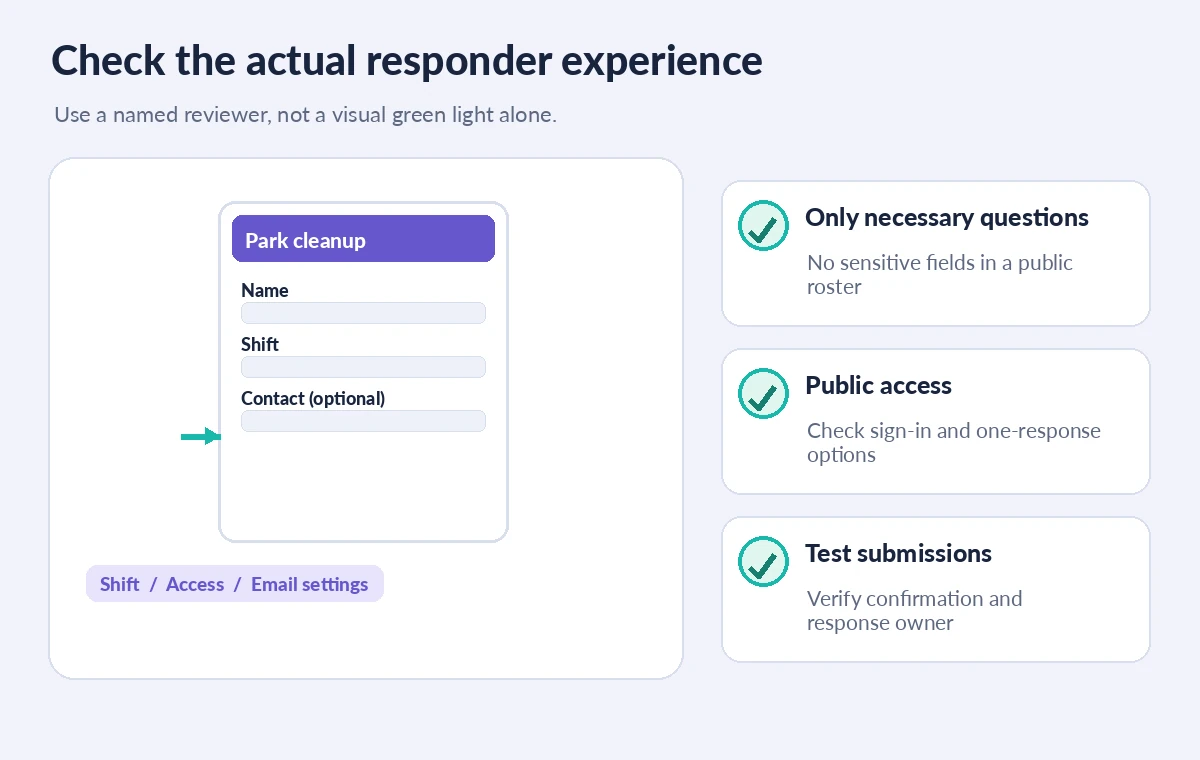
Ask another coordinator to confirm the meeting time, field labels, privacy statement, response ownership and any capacity limits against the approved event plan. Check the exact responder link instead of the editor URL and test it without administrator access. Confirm that publication and collection settings are active and that any closing date will not accidentally reject late volunteers who were invited. Keep a manual signup alternative for people unable to use the digital form. The useful outcome is a reliable, minimally invasive roster; the AI feature is only a drafting convenience. If the questions collect more than the event requires, revise them before inviting anyone.
How We Research
We reviewed Google’s official Create a form with Gemini in Google Forms guidance for eligibility, draft creation and the warning about replacing an existing form, plus Publish and share your form with responders and View and manage form responses. We did not create a live account, process volunteers’ information or test a real sign-up. All diagrams show hypothetical field states. Verify account eligibility, organization policy and privacy requirements for your location.
Frequently Asked Questions
Do not assume that. Google warns that Help me create a form on an existing form is not supported as an editing workflow and can replace the form. Begin in a new form.
No. Google documents eligible Workspace or AI plans, with some experimental access. Check feature availability in your actual account.
Google says its one-response limit requires respondents to sign in with a Google Account. Check whether that is suitable for your audience.
Only when there is a specific, approved and communicated operational need. A park-cleanup shift signup usually needs much less information.
Open the actual responder view, submit harmless sample entries, check required fields and sign-in rules, then verify that data reaches the authorized organizers.