
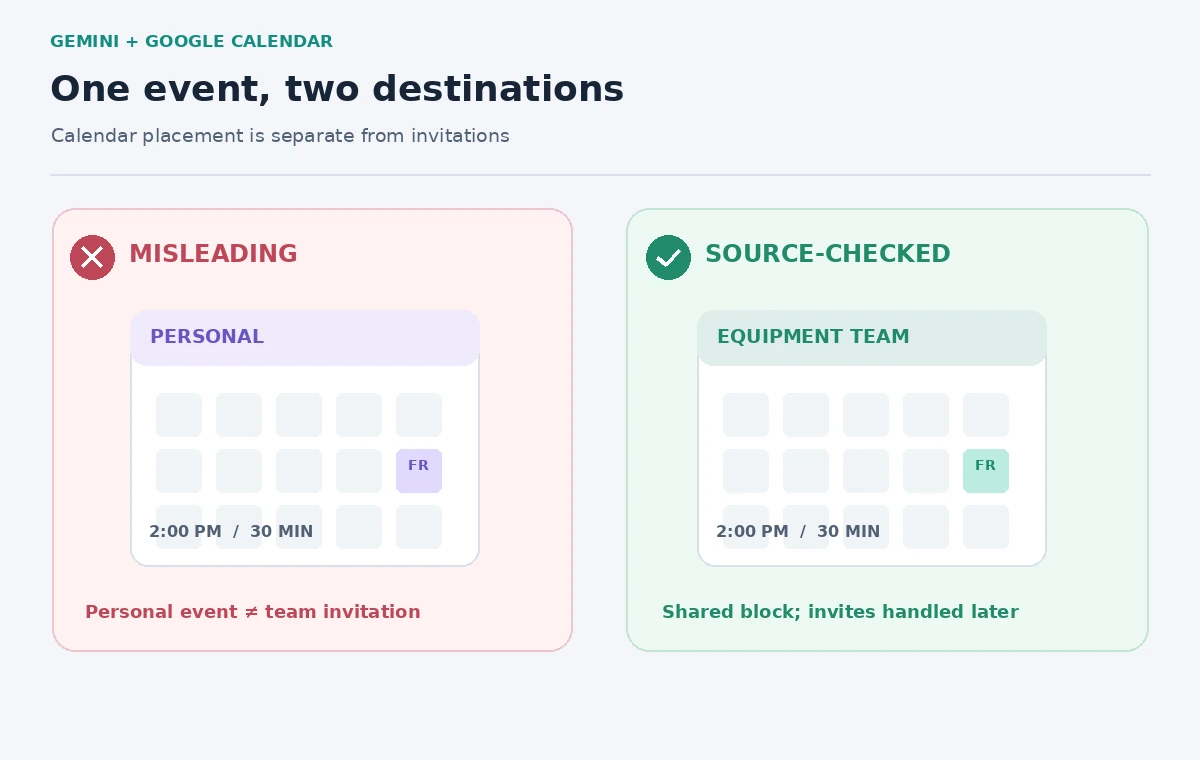
A volunteer equipment team wants a 30-minute check of the storage cabinet before lending out folding tables. The fictional coordinator has a personal calendar and an “Equipment Team” shared calendar. If Gemini makes an event on the personal calendar, the coordinator may see a reassuring block while nobody else has the right schedule. A second mistake would be to assume that creating an event also invited the two people who should attend.
Google documents event creation and management through Gemini Apps connected to Google Calendar. It also explains that events go to the default calendar unless another calendar is specified, and that Gemini Apps cannot add or invite guests to events. The practical task is therefore not “ask AI to schedule everything.” It is to create a provisional event deliberately, verify its destination, and complete any participation workflow in Calendar itself.
Separate the event request from the attendance request
Write down the request before starting: “Equipment check, Friday at 2:00 p.m., 30 minutes, Equipment Team calendar.” The exercise assumes the storage cabinet and the time have already been approved by the organizer. Keep the list of prospective attendees in a separate note. Creating a calendar item documents a proposed or agreed time; it does not create a documented invitation or a reply from anyone who might attend.
Also specify which Friday you mean with a complete date and the relevant time zone. Relative phrases such as “next Friday” can become ambiguous around travel, weekends, and daylight-saving changes. For the teaching scenario, do not invent real volunteer addresses or put identifiable contact data into the AI prompt. The calendar itself remains the authoritative view of where the event landed and which account can see it.
Connect the supported Calendar app to Gemini
In a supported account, sign in to Gemini Apps using the same account used for Google Calendar. Google’s official instructions describe connecting the Google Workspace app for Google Calendar tasks; if it is not connected, Gemini can offer a connection flow. Review the data implications and organizational settings before enabling a connection for team work. If access is restricted, stop rather than borrowing someone else’s login.
Gemini can work with a default calendar and can target secondary or shared calendars when the user specifies one. That flexibility is exactly why the destination must be part of the prompt. Do not treat a successful assistant response as proof the item was created on the intended calendar; use the linked event and the native Calendar interface to check the calendar name after the action.

Use a prompt that names the destination and leaves guests out
A suitable instruction for this invented exercise is: “@Google Calendar create a 30-minute event called Equipment Cabinet Check on the Equipment Team calendar on [full date] at 2:00 p.m. in [time zone]. Do not claim anyone was invited.” The bracketed information should be replaced only with facts from an approved schedule. A short, plain event title makes a misfiled booking easier to spot.
If Gemini asks for confirmation, inspect the proposed details first. If it appears to be using the personal calendar, cancel or correct the action before trusting it. Avoid vague follow-ups such as “send this to everyone,” because Google explicitly identifies invitations as a task Gemini Apps cannot perform in this workflow. A human can later add guests in Google Calendar if permitted.
Inspect the event instead of trusting the chat confirmation
Open the event directly in Google Calendar. Check four fields independently: event title, day and start/end time, time zone, and destination calendar. A personal calendar event that happens to be visible alongside a team calendar is still in the wrong place. Shared visibility can also depend on calendar permissions. The diagram below shows two different states, not a screenshot of Gemini output or a measured failure rate.
Confirm whether the event is intended as an internal block or a meeting. If it is a task block, keep the guest list empty by design. If participants must attend, add the names through the native Calendar interface, inspect the invitations, and ask recipients to acknowledge them under the team’s usual process. Seeing a guest field populated does not prove the person accepted.
Correct a mistake without silently altering other schedules
Google describes editing and canceling Google Calendar events from Gemini Apps, but it also warns that some details and connected-calendar cases have limitations. An ordinary, controlled correction is to open the original event, confirm ownership, and change the destination or time in Calendar with the right permissions. Avoid creating a second event as an untracked “fix,” since two overlapping events can mislead other team members.
If an accidental guest notification was sent through Calendar, undoing an event change may not undo that email. Tell the organizer what happened and send a plain correction where appropriate. Keep the corrected event link in the team’s equipment log so the next person can distinguish the authoritative entry from a duplicate or an outdated reminder.
Handle multiple calendars, dates, and regional settings deliberately
Many organizations have separate calendars for equipment, rooms, public events, and staff absences. Naming the target calendar helps, but a similarly named personal calendar may still cause confusion. Confirm the account and color legend in Calendar; then check the selected calendar field rather than trusting an icon color alone. If an event crosses time zones, verify the displayed local time for both organizer and team.
The example uses Friday at 2:00 p.m. as a placeholder, not a real booking. A reader should choose an actual approved date and avoid distributing the example’s time. If the event relates to a room reservation, check the venue’s booking system independently. A calendar item does not by itself reserve an external room, grant site access, or authorize equipment removal.
Apply a three-part release check
Before telling the team the schedule is ready, the reviewer opens the actual event and confirms it belongs to Equipment Team, starts at the agreed time, and has a clear participation status. Record “calendar block created” separately from “guests invited” and “guests accepted.” Those are distinct actions with different evidence. The final quality-control illustration marks precisely these three points.
To share an update, write an exact statement such as “Equipment Team calendar now has the Friday inventory check; guest invitations have not been sent.” This may feel overly careful, but it prevents an AI-generated summary from turning a scheduling convenience into a commitment by people who never received the event. Accuracy is more valuable than an effortless-looking calendar.

Know what is and is not verified by this method
This workflow verifies event metadata, not organizational consent or the physical availability of storage space. Google’s Help Center notes that Gemini Apps may produce incorrect or outdated information and urges readers to inspect sources. Account settings, connected-app permissions, and platform behavior can change. The safest path is to verify the final event with the product that owns the calendar records.
For very small teams, manually creating the event may be faster than checking AI output. Gemini becomes useful when someone already works in conversational planning and needs to turn an agreed plan into a precisely targeted calendar entry. The human review still supplies the missing assurance: who should see it, where it lives, and what action remains.
How We Research
On November 4, 2026, we checked the official sources Google Gemini Help: Create and manage calendar events and Google Calendar Help: Share your calendar with someone. We reviewed Google’s instructions for creating and managing events and checked the distinction between default, secondary, and shared calendars. The two-calendar equipment scenario, dates, and labels are fictional. We did not connect a Google account, create a live event, send invitations, or claim an observed result. Feature visibility depends on connected apps and account settings.
Frequently Asked Questions
Google documents support for secondary and shared calendars when users specify a different destination. Always open the created event to verify the calendar field.
No. Google lists adding or inviting people as unsupported through Gemini Apps. Add guests, if authorized, in Google Calendar.
Google says Gemini normally creates the event on your default calendar, which may be the wrong destination for team work.
Not necessarily. Verify room access and reservations in the system that controls the room.
Treat it as a prompt to inspect the linked event. Confirm calendar, date, time zone, and invite status in Calendar itself.