
A neighborhood coding club receives a ZIP containing a small volunteer signup app. The donor says it works, but the recipient has not checked its project configuration. A terminal assistant is useful for reading a codebase, yet trusting an unfamiliar folder can also enable settings, hooks, and tool connections supplied by that folder. The safe question is not whether Gemini can summarize the repository; it is which local capabilities should be active before anyone inspects it.
Gemini CLI documents Trusted Folders as an optional security control that restricts untrusted workspaces. This tutorial uses a fictional donated repository and a proposed inspection routine, not a claim that an actual malicious package was tested. The distinction between folder trust, execution approval, and sandboxing matters: each is a separate boundary with its own settings and limitations.
Identify what arrives with the donated project
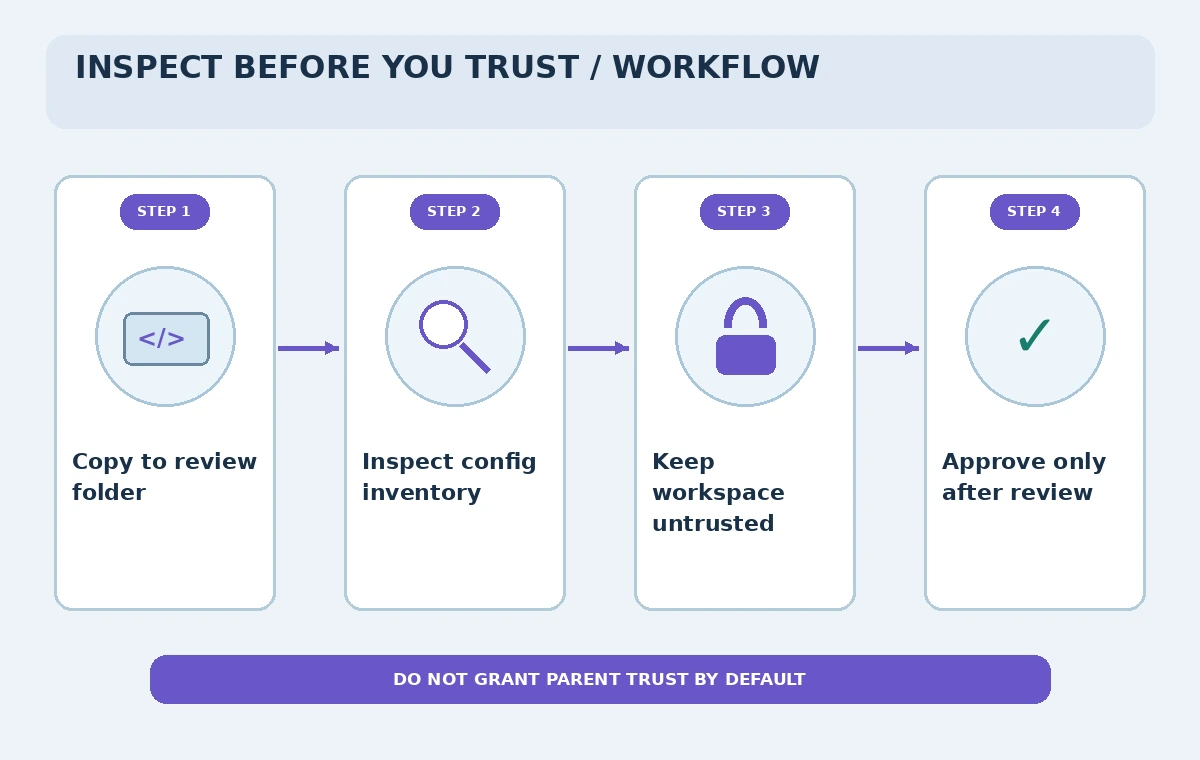
Keep the original archive intact and unpack a copy into a clearly named review directory. Before running install scripts or opening the folder in an IDE with extensions, list the project files and look for executable setup instructions, hidden configuration directories, package scripts, and external service definitions. A README can explain expected operation, but it is not a substitute for examining what the repository actually asks the machine to do.
Write a short manifest of important files: application source, lockfile, project-level Gemini settings, custom commands, hook configuration, skills, and any Model Context Protocol server definitions. In this scenario, the signup app may need only read access for an initial code audit. There is no justification for giving it access to donation records, deployment tokens, or a live membership database simply because its folder is convenient to open.
Enable Trusted Folders deliberately
According to the Gemini CLI Trusted Folders guide, folder trust is disabled by default and can be enabled in the user-level settings under security.folderTrust.enabled. That is a configuration choice, not a universal setting that every installation already applies. Read the official documentation for the installed version and back up existing user settings before changing them.
When enabled, the trust dialog can offer the current folder, its parent, or an untrusted choice. Trusting a parent extends the decision to subdirectories, so never use a broad parent as a shortcut for reviewing one donated repository. For this example, choose the untrusted path while examining the project. Do not bypass the dialog in automation merely to avoid an interruption.
Understand what the restricted state changes
Gemini CLI documentation says that an untrusted workspace ignores project settings and environment files, limits extension management, disables automatic tool acceptance and memory loading, prevents MCP server connections, and does not load custom commands. Those restrictions help contain project-supplied behavior while a reviewer learns what is inside. They should not be described as proof the application code itself is safe.
The discovery screen can identify commands, MCP servers, hooks, skills, overrides, and certain warning conditions before granting trust. Record each discovered item and why it is necessary for the declared app. In the fictional project, an unexplained network tool would be a reason to pause and ask the donor for clarification; it should not silently become part of an ordinary read-only code review.
Separate folder trust from shell execution
An untrusted folder setting does not replace ordinary caution about executing downloaded scripts. Do not run package installation, test runners, migrations, shell commands, or file-writing tools until the reviewer understands what they do and where they operate. The user must still inspect prompts for tool actions; a request that looks like harmless diagnostics could rewrite a configuration file or access external services.
Gemini CLI also documents sandboxing controls, which are separate from Trusted Folders and not enabled by default in every configuration. If execution becomes necessary, use an isolated review environment with a disposable copy and no production credentials. Do not turn on permissive auto-approval flags to make a security test faster. Treat sandbox boundaries as risk reduction, not as an absolute guarantee.
Compare the premature and reviewed paths
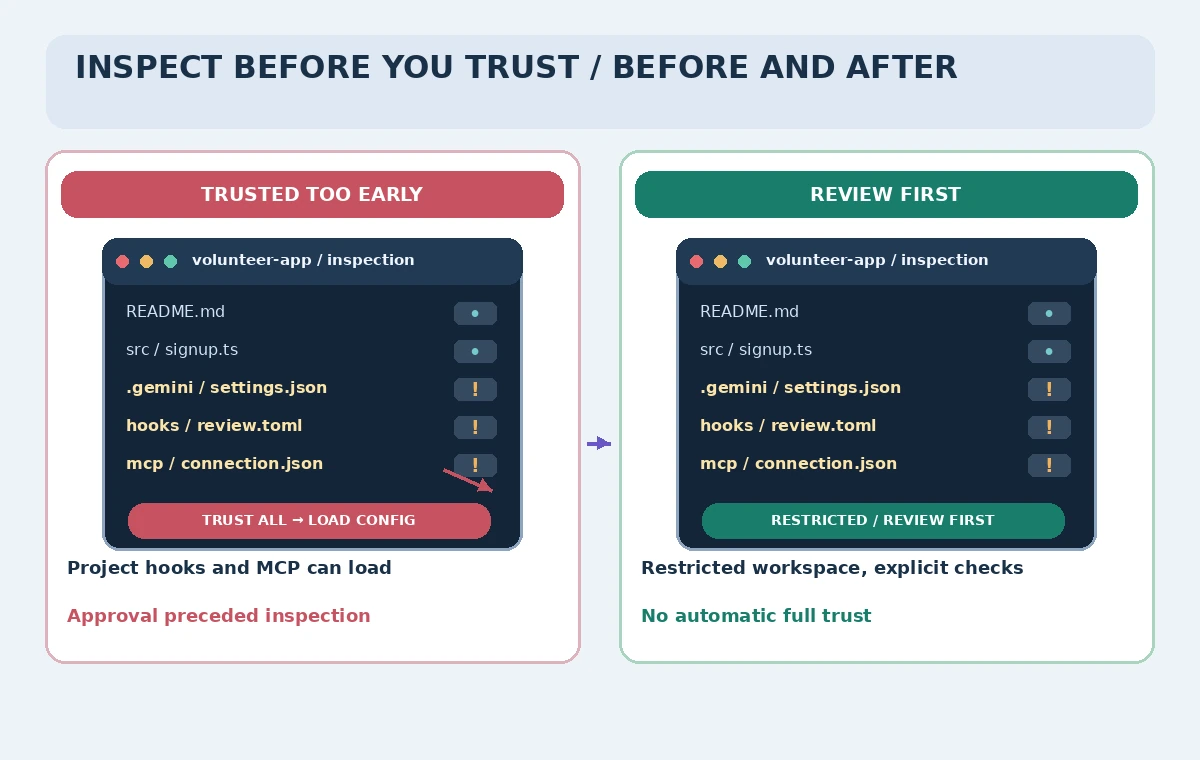
The comparison diagram shows two hypothetical workflows. In the unsafe one, someone trusts the repository on first open and only later notices a project hook and an MCP definition. In the reviewed route, the folder stays restricted while the investigator inventories configuration and decides what is permitted. These are explanatory alternatives, not screenshots or observations of a live exploit.
For a specific review, note the provenance of the archive, the hash of the downloaded file, its declared purpose, and which settings were accepted. A folder trust decision should be traceable to a person and a reason. If the folder changes substantially after inspection, reassess the trust decision rather than assuming the previous review covers all newly added files.
Inspect data access and external integrations
Inventory all potential secrets, API endpoints, database credentials, and outgoing communications. Search configuration files for references to environment-variable names without printing private values into a chat transcript. A volunteer signup prototype might contain dummy records; it should never inherit real donor information or API keys merely to show that the user interface runs.
Check whether a listed MCP server points to a local tool or a remote service and whether it could read directories outside the review project. Ask who administers that service and which permissions it requests. The release gate should separately approve code execution, data access, network access, and publication. Granting trust to a folder is not an organizational authorization for all four.
Document the approval boundary
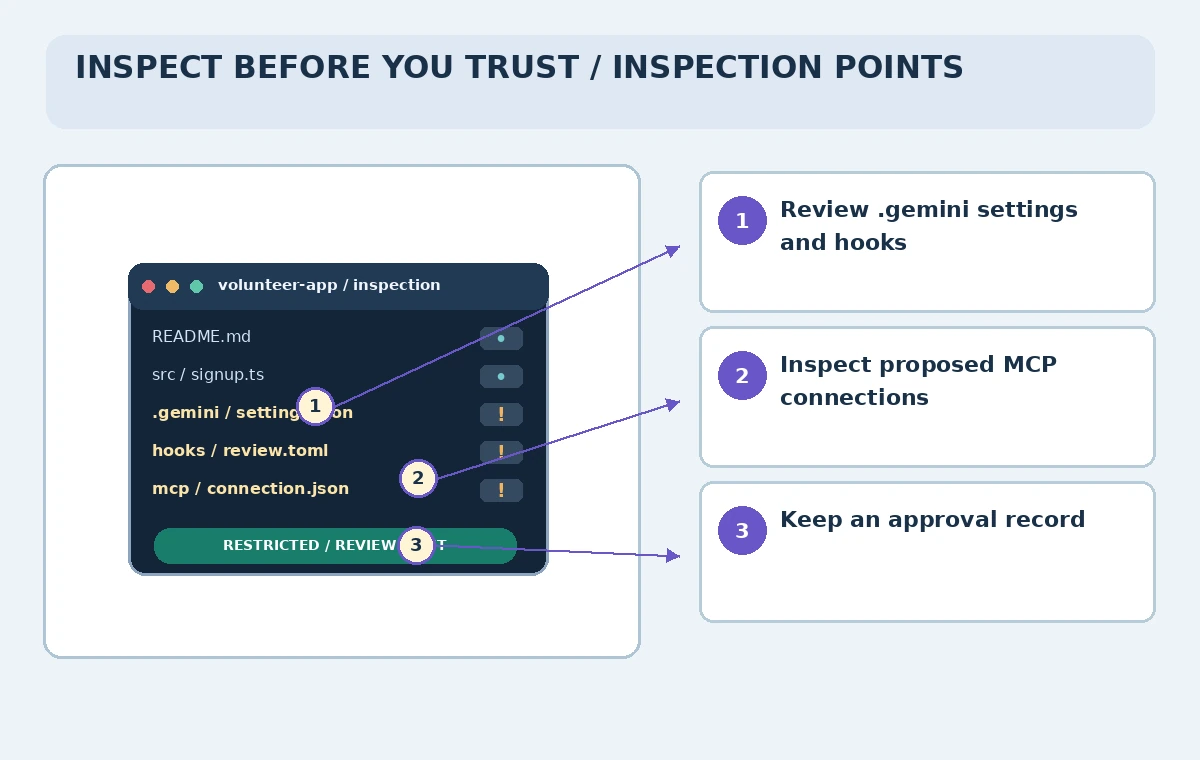
Use a small review record with the project name, source, revision, security findings, required permissions, and remaining open questions. If a hook is unnecessary for inspecting the application, leave it disabled and describe why. If a tool needs approval later, decide on that change only after the person responsible for the machine and its data has reviewed the use case.
The checkpoint illustration highlights three places to look: settings and hooks in the project tree, integration entries that may connect outside the folder, and the final recorded trust choice. A reviewer should be able to reconstruct how the inspection was performed without trusting the screenshot of an AI answer or a donor’s reassuring email.
Re-check trust after changes or automation
A donated repository is not static. Review changes to scripts, configuration, hooks, skills, dependencies, and integration endpoints whenever a new version arrives. If a project was initially safe because it contained only source files, a later addition of a startup script changes the risk. Use version control diffs rather than trying to remember what the folder looked like.
Headless environments need special care: the official guide describes errors or bypass paths when a trust prompt cannot be displayed. For a review pipeline, prefer an explicitly constrained process that records decisions and runs with minimal permissions rather than silently forcing trust. The outcome is a documented inspection boundary, not a statement that every downloaded application has been certified secure.
How We Research
For our November 5, 2026 documentation review, we consulted these named official sources: Gemini CLI: Trusted Folders; Gemini CLI: Sandboxing; Gemini CLI: Configuration. We compared vendor-described features, access prerequisites, and limitations with the steps of a carefully scoped fictional scenario, emphasizing which observations require verification. We did not sign in to a paid account, process private data, run uploaded code, select a real school photo, search an actual organization, deliver an email, or measure performance. The images are original instructional drawings, not screenshots or evidence of tests. Product versions, supported plans, data permissions, and legal obligations can change; verify current vendor help and organizational policy before adopting any step.
Frequently Asked Questions
The official guide says the feature is disabled by default and must be enabled in user settings. Confirm your installed version.
The documentation says MCP servers do not connect while the workspace is untrusted.
Yes. Parent trust also covers its subdirectories, which is why broad approval deserves extra care.
No. Trusted Folders govern project-level configuration and capabilities; sandboxing is a separate execution boundary.
No. The repository and approval states are fictional instructional examples.