
A volunteer conference team needs fifty consistent name badges, but only one approved layout. Figma Buzz can populate a template from a spreadsheet, while its AI Fill option can suggest contextual text in the Bulk edit grid. The useful outcome is not fifty unreviewed generated designs. It is a mapped, privacy-conscious production batch with consistent typography, accurate attendee names and a documented approval gate before export.
Create one badge template with a stable hierarchy
Start with a fictional badge design containing editable Name, Role and Track fields, plus a small optional graphic mark. Keep the name as the visual priority, use an ordinary high-contrast type style and reserve space for longer surnames. Do not put identity-sensitive details on a public generative prompt. Figma’s Bulk create documentation says the process starts from a single asset and connects fields in that asset to spreadsheet columns. Locked template elements cannot be selected for mapping until editing restrictions are handled by an authorized editor. Make a test badge with a deliberately long name, a short title and an empty optional field so overflow is found before any real data is loaded.
Prepare the CSV with one record per approved badge
Use a header row like Name, Role, Track and Image; keep each row to one finished badge. The official import instructions support CSV or XLSX. For images, direct public image URLs may work in either format, whereas embedded images inside cells are supported in XLSX only. Never expose private guest photos through a publicly accessible URL just to automate a badge. For the worked example, use five wholly fictional attendees and a supplied rights-cleared illustration. Standardize capitalization and punctuation in the source data rather than asking AI to guess an attendee’s title. Keep the spreadsheet as the source of record for corrections.
Map template layers to columns before creating assets
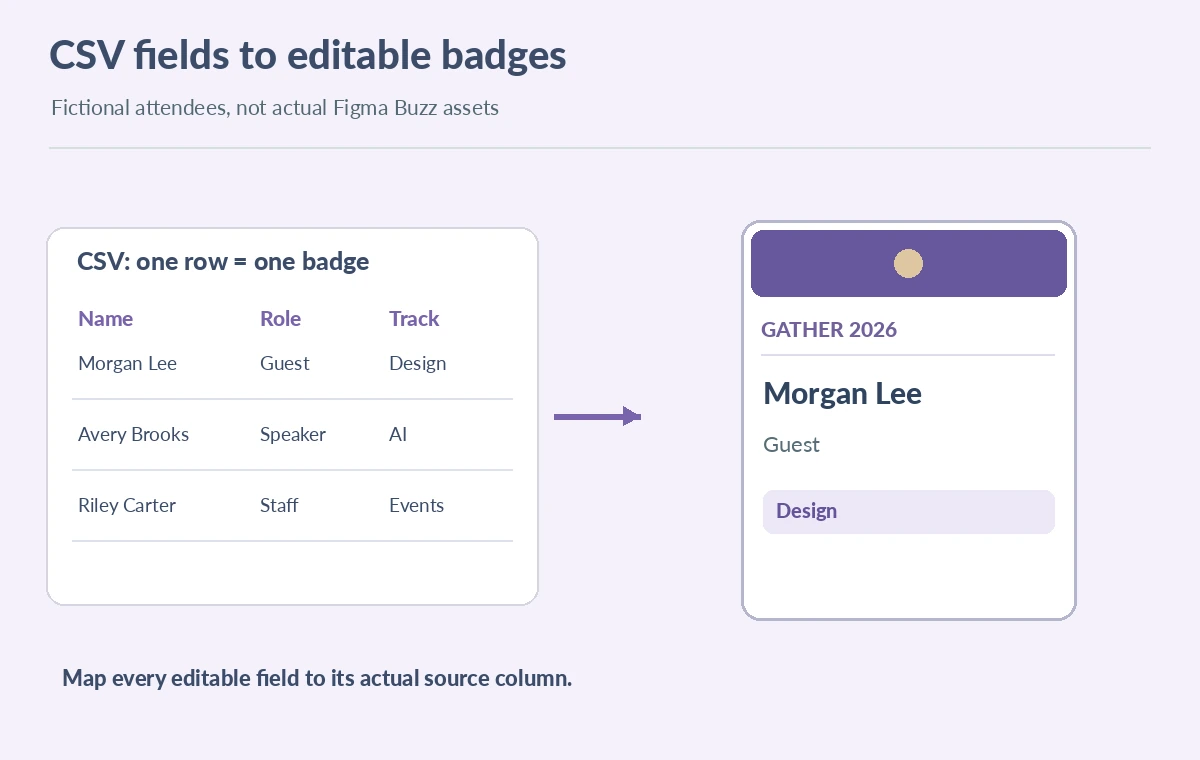
Upload the sheet from Bulk create and select each editable text or image field, then assign it to the matching data column. Figma documents that one object can connect to only one data field. If a badge contains a combined name/title text object, split it into separately editable fields or make a single combined source column deliberately. Check the mapping for a sample first row and the longest row. The mapping diagram uses a three-column spreadsheet feeding a badge preview; it is not an actual Figma screenshot. Only click Create assets once source fields and permission requirements have been checked. Bulk creation is a scaling mechanism, not an automatic fact checker.
Use AI Fill only for nonfactual optional copy
The Figma Bulk edit guide documents AI Fill as a way to generate contextually varied content by dragging the oval fill handle. This is not the same as the CSV import feature, and AI Fill should not rewrite names, job titles, badges or event dates. A safe task is suggesting short, fictional welcome slogans for a non-personalized practice board, with each suggestion reviewed and manually approved. Keep official names, tracks and attendance categories strictly source-based. Avoid generating or inventing qualifications for individual attendees. Distinguish an AI-generated phrase from a mapped official data field so a reviewer can fix it without rebuilding the entire design.

QA the entire grid rather than one attractive example
After generation, scan the grid for duplicate rows, empty images, clipped names and inconsistent vertical alignment. Open edge cases: the longest name, the shortest label, a missing optional image and a role with punctuation. Verify that font weight and contrast survive print or display scaling. A five-badge visual sample is not evidence of how a fifty-badge real run would behave. In a live production batch, record the number of imported rows and exported files and reconcile them manually. Distinguish “content error” from “layout error” in the review sheet: fixing a misspelled name belongs in the source data, while increasing name-field width belongs in the template.
Apply permission and export controls
Figma’s export instructions say organization approval settings may require assets to be approved before export, and files can be exported as PNG, JPG or PDF for static assets. Treat that approval as a possible workspace requirement, not proof that all accounts are configured the same way. Select the intended assets, choose a suitable format, and proof one file at actual badge size before distributing the full set. Review photo rights, private attendee details and accidental public sharing separately. If volunteers must revise badges, provide controlled template access rather than an unrestricted spreadsheet of guest information.

Handoff the source mapping and a correction plan
Deliver the final badges with the last approved spreadsheet, field mapping, template revision and a small exception report. Include a policy for late name changes: edit the authoritative row, regenerate the affected badge and replace only that export. Keep the design source organized by event or print run; do not silently mix versions. The final diagram illustrates a simple gate—data proof, layout proof, export proof—before distribution. We did not operate Figma Buzz or run a sample spreadsheet through a production account. This is an editorial workflow based on documented features and ordinary print-quality controls.
How We Research
On October 28, 2026 we reviewed Figma’s Bulk create guide, Bulk edit and AI Fill instructions and export/approval help. We distinguish documented product behavior from our proposed badge QA checklist. All names, badges and spreadsheet rows in the illustrations are fictional. We did not test account limits or claim successful automation.
Frequently Asked Questions
Yes. Figma documents CSV and XLSX imports with a header row and one asset per subsequent row.
No. Use the authoritative spreadsheet for factual personal fields; AI Fill is better reserved for reviewable optional creative text.
Figma documents embedded images in XLSX cells only; CSV can use direct publicly accessible image URLs.
Locked or restricted template elements may not be editable by your account.
Export is supported, but organization approval settings may require approval first.