
A nonprofit receives a monthly donation spreadsheet exported from several collection systems. Some donor reference IDs begin with zeros, dates use inconsistent punctuation, and amount cells include mixed numeric and text formats. Staff want a clean table for a finance review, not a tool that silently changes who gave what. Microsoft’s Copilot in Excel now documents a clean-data skill that inspects anomalies and proposes corrections for users to review. This hypothetical workflow treats those proposals as unapproved edits until the team checks row identity, date interpretation, and financial reconciliation. It is not accounting advice and does not imply that Copilot verified real donations or regulatory compliance.
Freeze the raw export and record its context
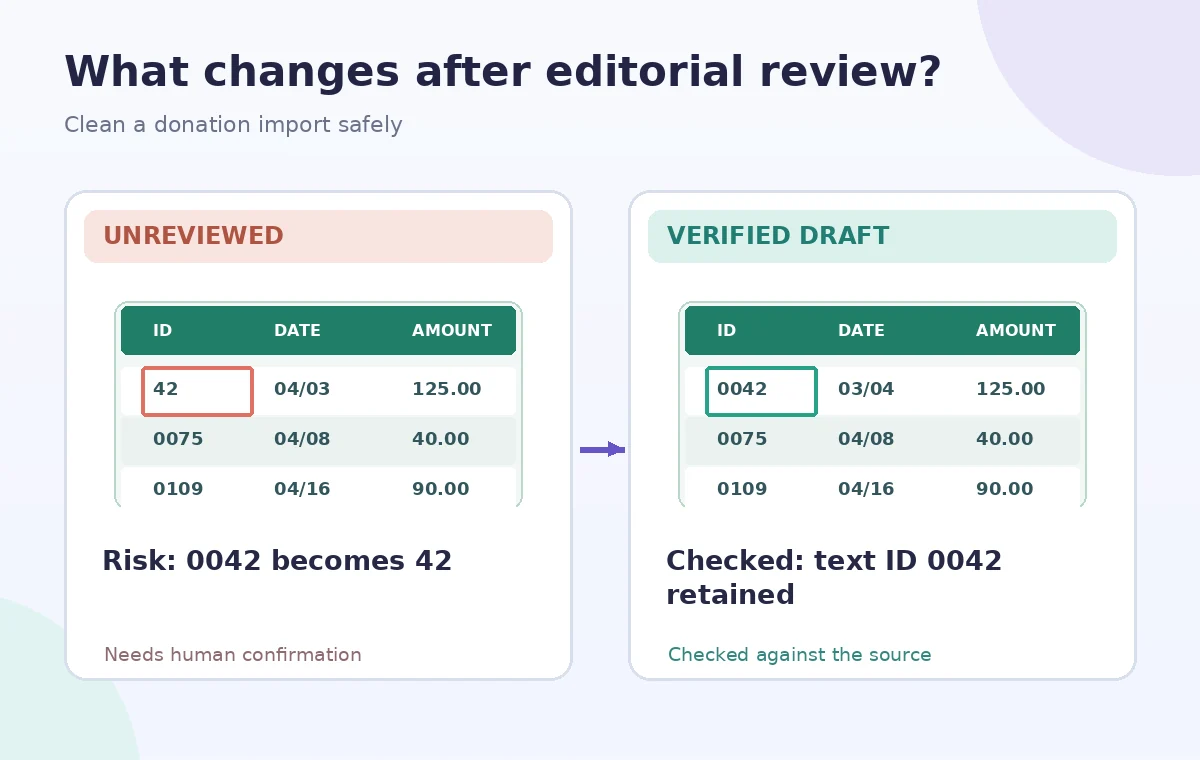
Save a read-only original with the export date, source application, currency, and expected reporting period. Record the number of data rows, unique transaction IDs, and sum of amounts before any AI assistance. Establish whether a reference number like 0042 is an identifier, not a quantity; converting it to 42 would destroy a meaningful part of the identifier. Mark columns that must never be changed automatically, including external transaction ID, currency code, and approved amount. If data contains donor names or bank details, apply the organization’s confidentiality rules before opening connected AI features. Work from a copy, not the authoritative accounting import.
Check availability of the clean-data skill
Microsoft’s Copilot in Excel documentation describes @clean-data as a built-in skill that detects issues including extra spaces, inconsistent dates, duplicate values, and wrong data types. It explains proposed changes and allows the user to decide which ones to apply. Microsoft also says this capability is rolling out and may not be available to every customer. Depending on the current interface, you can invoke it with @clean-data or choose it from the Skills menu in Copilot. Confirm access in the actual tenant and keep a manual Excel cleanup alternative ready rather than implying an unavailable button is universal.

Tell the skill which fields are protected
Describe the narrow goal: identify potential formatting inconsistencies in the working copy without altering transaction IDs, amounts, or donor identifiers. Ask for an explanation of each proposed edit and the affected columns. The skill may still suggest a change that violates the team’s data dictionary, so instructions in a prompt are not a substitute for checking. Avoid the vague instruction ‘clean everything.’ An extra space after a venue name may be harmless; an extra digit in a payment reference can be essential. Use known column types and source export rules to judge which suggestion is legitimate.
Separate cosmetic normalization from identity changes
Review suggestions in categories rather than accepting them all. Removing accidental spaces around a note may be low risk, while changing ‘000927’ to a number is high risk. Duplicates are also ambiguous: two donors may contribute the same amount on the same day, and repeated reference IDs may signal an import error rather than something to delete. Mark proposed fixes as accept, reject, or investigate, with a reason. Compare flagged rows with the original export before taking action. A recommended cleanup is useful for triage but does not prove that the source system was accurate.
Treat date ambiguity as a factual question
A text value like 03/04/2026 could refer to March 4 or April 3 depending on the export locale. Never let an inferred conversion overwrite such dates simply because a consistent display is attractive. Identify the originating locale and date format from the system owner, then parse a sample of values against transaction records. Keep the original date string alongside a normalized date in a separate column until signed off. Excel can standardize formatting, but it cannot resolve missing factual context without evidence. Check time zones if timestamps were generated across locations.
Protect currency and numerical totals
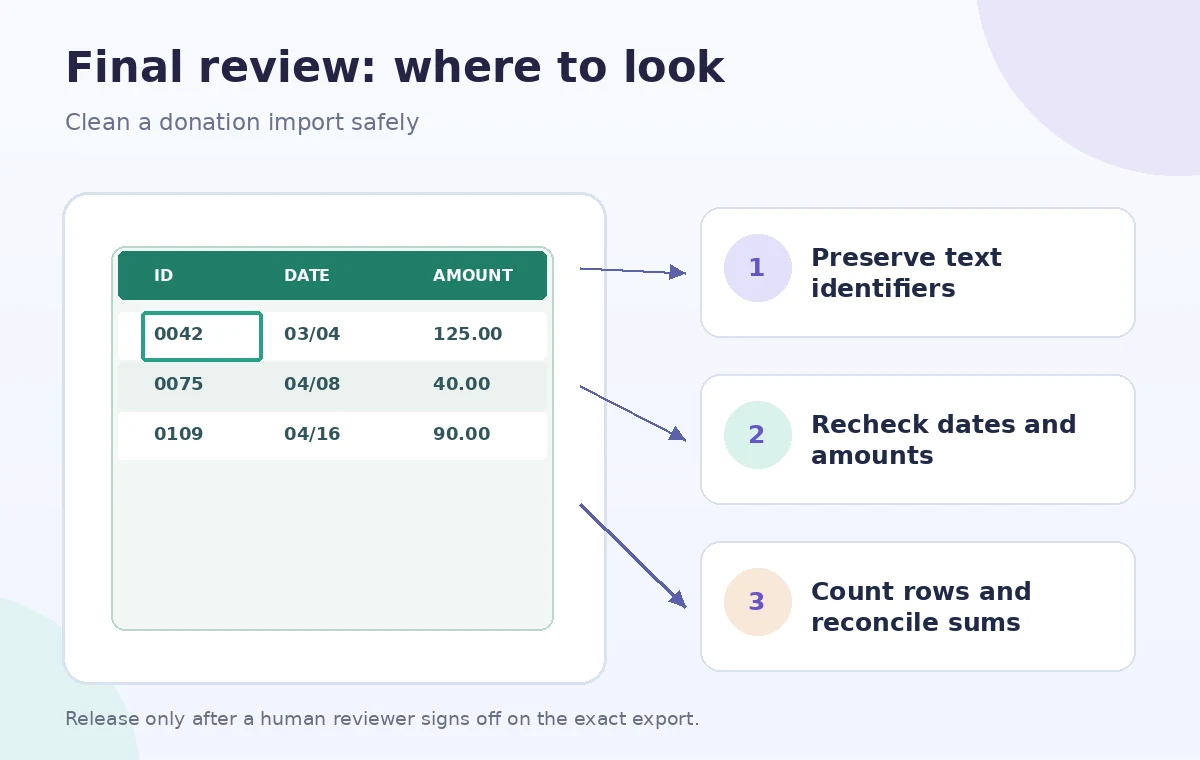
A string such as ‘1,250.00’ can be misread in a locale that uses different separators. Validate the currency and decimal convention before coercing it to a numeric value. After any accepted cleanup, compare the amount sum, minimum and maximum, negative adjustments, and total row count with the frozen original. Reconcile against the authorized payment report rather than trusting only the workbook. A zero-difference total is helpful but not sufficient: two altered amounts can cancel each other. Inspect the transactions associated with every amount conversion. Do not use AI output as a substitute for a finance team’s approval process.
Apply approved fixes in small groups
Accept formatting changes by column or category and compare the resulting cell range immediately. Microsoft’s skills guidance emphasizes user control over proposed corrections; use that control instead of a single mass-apply step. Keep an undo path or save incremental revisions so a reviewer can reproduce the transformation. Where possible, perform risky transformations in new columns and validate them before replacing original values. Reopen the workbook to check that IDs preserved as text still display with leading zeros and that sort and lookup operations use the intended types. Avoid saving over the only copy of the raw export.
Document the audit for the finance owner
Create a change register with source row, affected field, old value, proposed new value, decision, and reviewer. List unresolved exceptions separately rather than forcing them into a tidy report. Give the finance owner a comparison of row counts, transaction IDs, and independently reconciled totals. Ask for sign-off before anyone imports cleaned data into accounting or donor systems. The clean-data skill can help locate suspicious formatting, but it does not authorize correction of donor identity, payments, or tax documentation. Human supervision matters most where a change is numerically subtle and looks plausible.
Use a repeatable, evidence-led process
Archive the untouched export, data dictionary, working copy, accepted changes, rejected suggestions, and approval record. Recheck the current Microsoft support page at each rollout because skill availability and interface labels may change. The drawings show illustrative rows, including a hypothetical leading-zero identifier; they are not screenshots of Copilot or a live donation table. We did not run Excel Copilot, process donor records, or measure accuracy. The reliable practice is to preserve raw evidence, apply only inspected changes, and reconcile the result with an independent source of truth.
How We Research
The documented feature claims in this guide come from these first-party sources, checked for this editorial draft: Microsoft Support — Copilot in Excel built-in skills and Microsoft Support — Use skills with Copilot in Excel. We checked the Microsoft-managed clean-data skill, its @mention invocation, types of issues it may detect, and Microsoft’s stated staged rollout. The method separates reversible cosmetic fixes from changes to identifiers, dates and amounts. We built the hypothetical scenario and four conceptual diagrams to illustrate where the reader must check evidence. They are not screenshots, transcripts, generated results or measurements from a live account. We did not use the products on customer data, confirm a plan entitlement in a real organization, run performance tests, or guarantee compliance, safety, eligibility, commercial rights, or financial correctness. Recheck source dates, platform permissions and tool availability immediately before a real workflow, and ask the responsible subject expert to approve the final output.
Frequently Asked Questions
Microsoft lists extra spaces, inconsistent date or number formats, duplicate values, and incorrect data types among the issues it can detect.
No. Microsoft says the skill is rolling out and may not be available to all customers.
No. Protect identifier columns as text and verify the original value before applying any proposed change.
No. Check row count, transaction identities, individual changed amounts, and an independent payment report.
No. Use the skill to identify possible issues, then have the authorized owner approve changes before importing them elsewhere.