
The attraction of Descript is simple: you can cut spoken video by cutting transcript text. That makes it approachable for webinars, interviews and training clips, but deleting words without listening can create jump cuts, missing context or inaccurate captions. This guide takes one hypothetical fifteen-minute interview through a sensible editing process. It explains how to decide what to remove, where to review the underlying video and what to verify before exporting; it does not claim we personally completed a benchmark edit.
Define the output before importing any footage
Decide who will watch the clip and what question it answers. A social teaser might promise one clear insight in forty-five seconds; an internal tutorial may need the full procedure and a slower pace. Write the output duration, aspect ratio, brand requirements, caption language and reviewer. These constraints make transcript editing purposeful rather than an open-ended cleanup exercise. They also determine what material can be removed without changing the speaker’s meaning.
Before uploading, confirm you have the right to use the recording and that participants understood the distribution context. Protect customer calls and confidential interviews according to your organization’s access policy. Keep the untouched original in a controlled location. Descript is an editor, not a substitute for consent, a legal hold or a source-of-truth archive.
Import and check the automatic transcript
Start a project and upload the source recording. Descript links its transcription with media timing, so selecting words corresponds to specific audio and video. Listen through an opening section while reading the transcript. Correct proper nouns, numerical amounts, product names and speaker assignments. That pass matters because a false transcription can tempt an editor to cut an important phrase or publish a misleading subtitle.
Mark the strongest answer and the surrounding context, not just the punchiest sentence. When a speaker says “we could do that if testing succeeds,” removing “if testing succeeds” changes the claim. Create a short paper edit identifying the proposed beginning, supporting material and end. Keep a version or duplicate of the original edit plan so a reviewer can ask to restore a missing caveat.

Cut words while preserving natural speech
Descript’s documentation states that deleting transcript text removes the corresponding media, and moving text moves media. This makes it fast to remove tangents, but syntax is not pacing. Play the edit from several seconds before each cut to several seconds after it. Listen for clipped breaths, harsh consonants, awkward pauses and missing context. A transcript can read perfectly while the audio edit sounds mechanical.
Use bulk filler-word removal selectively. An “um” that genuinely interrupts thought may be safe to remove, while a hesitation that conveys uncertainty can be part of the meaning. Descript describes options for removing filler words and shortening gaps; preview instead of blindly applying them over a long interview. For video, watch the cut too: mouth movement and hand gestures may reveal transitions even when the audio sounds fine.
Build scenes without obscuring the message
The Scene Editor is where Descript places visual elements such as footage, text, images, shapes and captions. Treat a scene as the visual context for a line of script. Build an introductory shot, a main interview shot and any necessary demonstration, keeping the visual sequence aligned with spoken content. Use a second camera angle or relevant B-roll to cover a distracting cut only when it illustrates what the speaker is discussing.
Avoid inserting generic AI visuals that imply a real event or product feature without supporting footage. If you show a software interface, verify it is current and labeled accurately. Keep on-screen names and figures consistent with the reviewed transcript. A strong edit is usually less visually busy: a clear title, legible captions and purposeful supporting scenes beat an overload of transitions.
Enhance audio without masking defects
Studio Sound can help reduce noise and echo, according to Descript’s official feature documentation. Apply enhancement to a short sample and compare it against the source at matched listening level. Aggressive processing can change natural consonants, remove quiet words or create artifacts. Do not assume that a one-click effect repairs overlapping speakers, distant microphones or severe clipping. Return to the original where needed.
Review loudness continuity between cuts and any background music, paying special attention to passages where viewers rely on speech for instructions. If there are several participants, listen for inconsistent levels. Leave room for silence and breaths rather than compressing every pause. A person who has not seen the transcript should be able to follow the final video without guessing what was removed.

Create and verify captions
Descript can produce captions and export subtitle files. Its subtitle export documentation lists SRT and VTT with options for speaker labels and line length. Choose whether the deliverable needs captions baked into the picture or a separate selectable file; they are not interchangeable. Export a short sample and verify timing on the actual platform used for distribution, since line wraps and font rendering vary.
Correct names, technical terms and the exact numerical claims in caption text. Inspect moments where the speaker changes, where music masks a phrase or where a cut shifted timing. Use sufficient contrast and avoid covering important interface controls. Caption accessibility is a practical quality test, not something proved merely by enabling an automatic feature.
Build review and approval into the edit
Send a reviewer a version with a specific question: Are the quotations faithful, are the calls to action accurate, and are any sensitive details visible or audible? Ask them to review both meaning and presentation. Keep feedback in one place, make the final changes and recheck affected timestamps. If you change a script line, do not assume the rendered audio or lip sync will be acceptable without playback.
The editor should be able to explain every cut that changes the apparent flow of an interview. Mark modifications that could materially change context and retain a way to compare them with the source recording. For paid promotion or educational claims, confirm evidence and usage permission separately. A polished image cannot turn an unsupported statement into a true one.
Export, inspect and archive
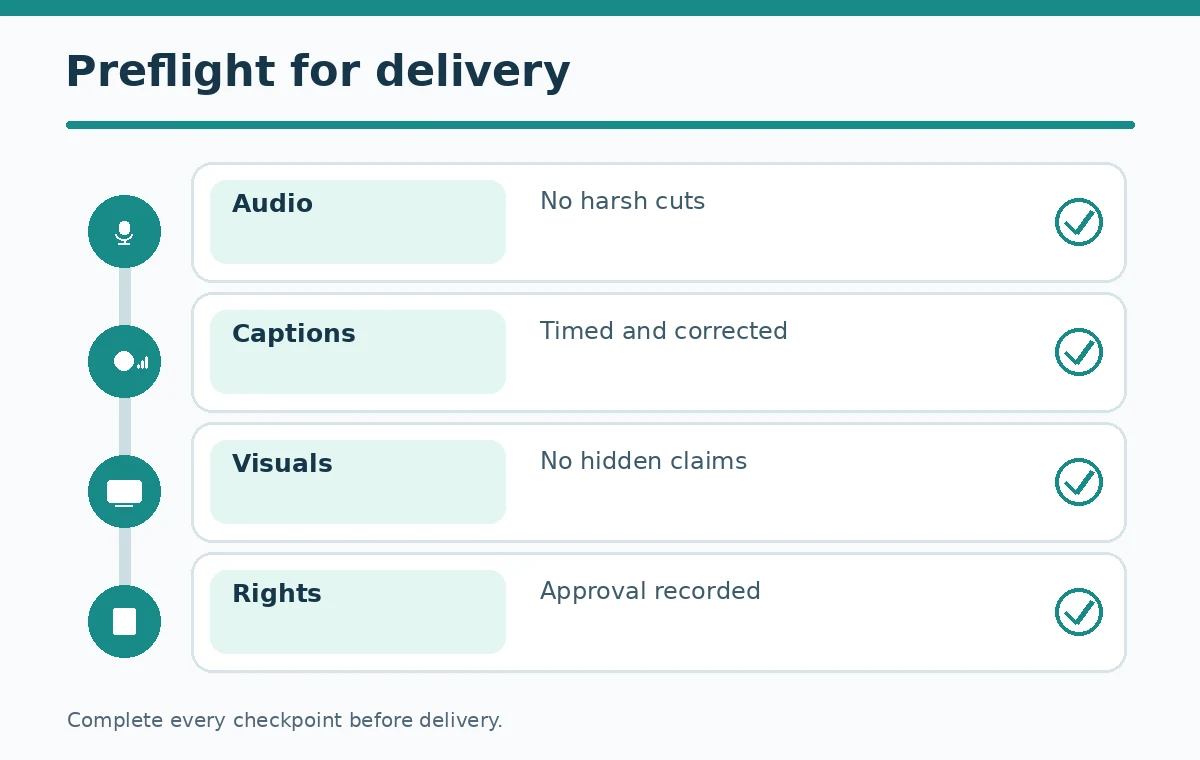
Before final export, confirm orientation, resolution, file format, subtitle method and whether any plan watermark applies. Descript’s current feature page describes direct exports and share links, but exact availability differs by plan. Render a local video and watch it from beginning to end. Verify the first and last frames, section transitions, captions, audio quality and any required disclosure.
Archive the original media, an approved transcript, the reviewed edit, the delivered video and the caption file when applicable. Record the software version or workflow date, not because that proves quality, but because collaborators need to reproduce a correction. For a faster but disciplined cycle, keep a standard checklist and remove steps only when the risks truly do not apply.
How We Research
We examined the Descript text-based editor guide, Descript scene editor overview, Descript subtitle exports, Descript video editor overview. We compared documented capabilities and plan restrictions with a concrete editorial use case, separated billing units and described limitations where the supplier documentation is not a full test. We did not operate a paid account, independently benchmark accuracy, or verify subscriber-specific checkout totals. Facts reviewed on October 27, 2026; plans and interfaces may change.
Frequently Asked Questions
Yes. Descript documents transcript-linked editing: removing words removes the associated media, and moving transcript text can rearrange the recording.
No. Preview results and preserve meaningful hesitation or contextual cues. Automatic removal can create unnatural cuts.
Its help center documents export of both SRT and VTT, including controls for speaker labels and subtitle line formatting.
No. It can enhance some noisy or echoing audio, but overlapping speech and badly clipped source material still need manual review or rerecording.
Watch and listen to the exported video all the way through, comparing sensitive quotations and figures with the original source.