
A fictional teacher films a short class experiment while an air purifier hums behind the camera. The explanation is clear, but a student asks a quiet question from the back of the room. Microsoft Clipchamp offers AI noise suppression for audio on the editing timeline. Removing the hum may improve clarity; aggressive processing can also change how faint speech is perceived. This guide puts the quietest important words at the center of the edit and keeps an untreated copy available for comparison.
Decide what must remain audible
Identify the essential audio before processing: the teacher’s instruction, the student’s question, the experiment’s distinctive sound, and any verbal safety reminder. A low fan hum is expendable; a whispered question or warning is not. Listen with headphones and mark the difficult segments on the timeline. The hypothetical class footage includes a soft question at the end of a sentence and a short sound cue when equipment is switched off. These details are teaching examples, not observed results from a test clip. Obtain the school’s required consent before recording or sharing any student voices, and avoid uploading files containing protected information without authorization.
Import media and keep an untouched version
Microsoft’s Clipchamp documentation begins with importing media and placing it on the timeline. Create a working copy of the project or duplicate the source before applying AI cleanup. Preserve the original audio asset, because later listeners may need to distinguish a genuine word from a processing artifact. Record the video frame rate, basic export target and intended audience so the sound edit does not become divorced from the lesson. A simple before/after comparison is more useful than a fabricated “noise reduced 90%” figure. If the original recording clips or distorts severely, noise suppression cannot recreate verified missing information.
Detach audio from video for editing
The current Microsoft guide distinguishes standalone audio from video that still contains embedded audio. On the personal Clipchamp editor timeline, select the video clip, open the Audio tab of the right property panel, and use Detach audio. The detached sound appears on a separate timeline track while the video becomes muted. For an imported audio-only file, detachment is not needed. Confirm that the track you are processing belongs to the intended take, particularly when you also recorded a second microphone. Avoid deleting the original media in a way that could break the ability to restore the untreated sound later.

Enable suppression and listen to the quietest words
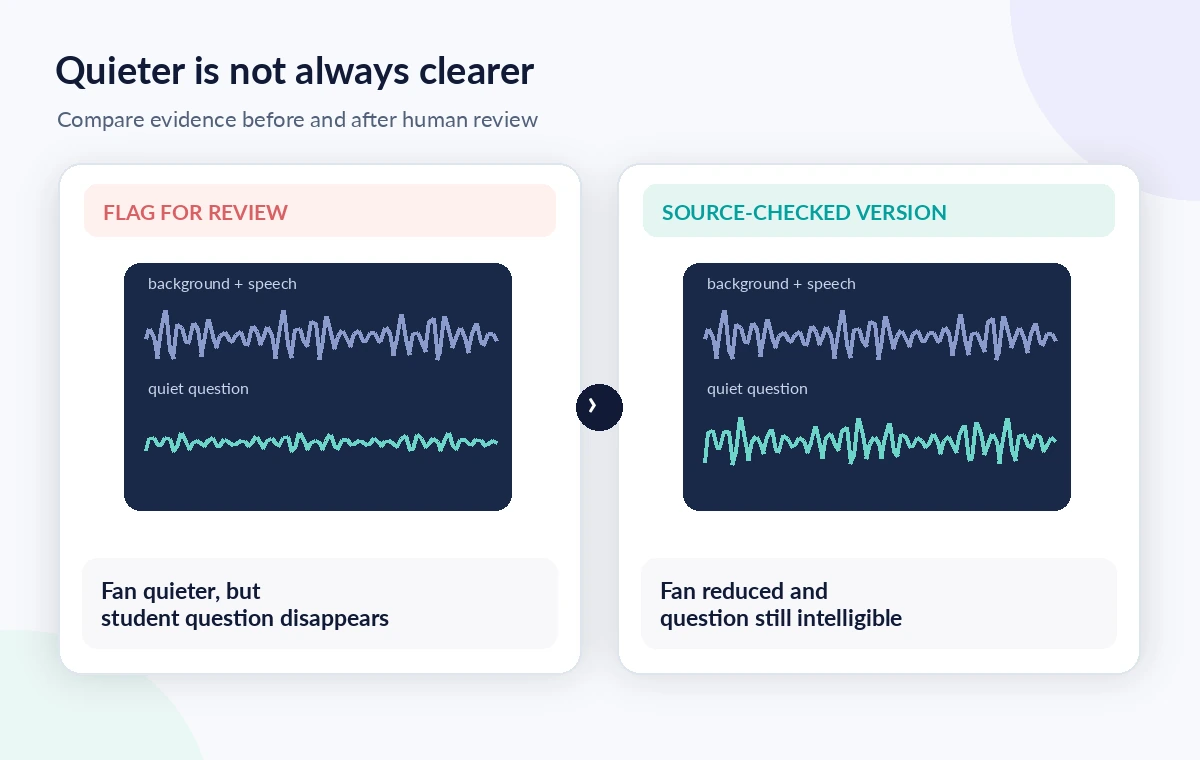
Select the audio asset and turn on Noise suppression in the Audio panel. Microsoft says it reduces background noise, hum and echo, but does not promise perfect separation of every speaker. Immediately listen to the student question and the teacher’s final consonants, not only the loudest sentence. Does the first word still exist? Are short sibilants rounded off, or does the voice sound hollow? Toggle the effect off for a true A/B comparison at matched listening volume. Write a note of any passage that becomes less intelligible. If the important words disappear, reconsider whether the original is actually more informative.
Compare pauses, room tone, and sound cues
A classroom lesson is not only speech. A sudden switch click, equipment tone or audience reaction may explain the visual demonstration. Evaluate whether suppression makes those cues confusingly quiet. In a conceptual diagram, the unwanted hum is a continuous band while the student’s words occupy a short low-level interval; these are illustrative shapes, not measurements. Watch the video as you listen so you know whether a sound is actually part of the experiment. If an ambient cue matters, retain a clearly attributed section of original sound or document the editorial choice. Do not insert fake reactions or recreate words the recording never captured.
Avoid confusing editor cleanup with player settings
Microsoft separately documents noise suppression in the Clipchamp video player for work accounts. A viewer or video owner can toggle playback noise suppression, which is distinct from processing detached audio on the editing timeline. Do not tell a team that a player’s toggle permanently edits the exported file. Confirm which Clipchamp experience you are using and whether a work or personal account has the described interface. Availability, admin settings and export options may differ. For a reviewed learning resource, export the intended version and then check the actual delivered file on a different device, rather than assuming a preview accurately represents every playback context.
Protect privacy and accessibility
If the student question is too faint even in the original, add an accurately checked caption only when a reviewer can determine the words. Mark unintelligible speech honestly; do not let a speech tool invent the content. If a caption paraphrases a question, label it as a summary rather than a direct quote. Get permission for student voices where applicable, follow retention rules, and avoid posting class materials publicly without the required consent. For learners with hearing loss, consistent captions, adequate voice level and a transcript matter more than the presence of a noise-cleanup feature alone. Review captions after any timing changes to the edit.
Perform a final listening and export audit
Listen from start to finish through speakers and headphones at ordinary volume, focusing on soft speech, technical terms, short pauses and the experiment’s audio cues. Compare the delivered file with the archived original. Ask an independent reviewer unfamiliar with the editing process whether they can follow the question-and-answer exchange; record uncertain words rather than assuming their interpretation. Inspect export audio settings for compatibility with the class’s learning platform, then archive the source and edited version with clear names. This workflow describes a hypothetical editorial scenario based on Microsoft support material; it does not claim a measured Clipchamp noise reduction result.

How We Research
For this article, we cross-checked the feature workflow and limitations against the official Microsoft Clipchamp Support: feature documentation and Microsoft Clipchamp Support: additional technical guidance. We used those named vendor sources to describe interfaces, supported uses, and availability caveats as documented in October–November 2026. We also reviewed the logical evidence boundaries of the illustrative scenario: which statement is a source claim, which is an inference, and which requires a person to approve. We did not access a customer workspace, run a controlled product trial, inspect private recordings, or measure model quality. Plans and interfaces can change; check the linked vendor guidance again before relying on a specific control.
Frequently Asked Questions
Microsoft documents AI noise suppression for audio, including detached audio from a video clip; results need listening checks.
For the personal Clipchamp editor workflow described by Microsoft, detach the video audio before applying timeline noise suppression.
No. The player toggle changes playback listening behavior; timeline editing of detached audio is a separate workflow.
Compare the untreated source, preserve it, and do not invent missing words. Use only verified captions or mark speech as unintelligible.
Not automatically. Preserve real instructional cues, speaker context and sound that is necessary to understand the experiment.