
A garden reel can feel lively when each shot arrives on a musical beat, but a beat-aligned cut is not necessarily an understandable cut. Canva Beat Sync offers manual beat markers and, for eligible paid plans, automated synchronization through Sync Now. The editorial challenge is to preserve enough time for viewers to recognize a watering action and read a sign that gives the opening hours. This guide creates a reversible sequence from five fictional vertical clips, compares manual timing with automatic synchronization, and sets out specific ways to proof it without claiming a real account-generated result.
Outline the message before the soundtrack
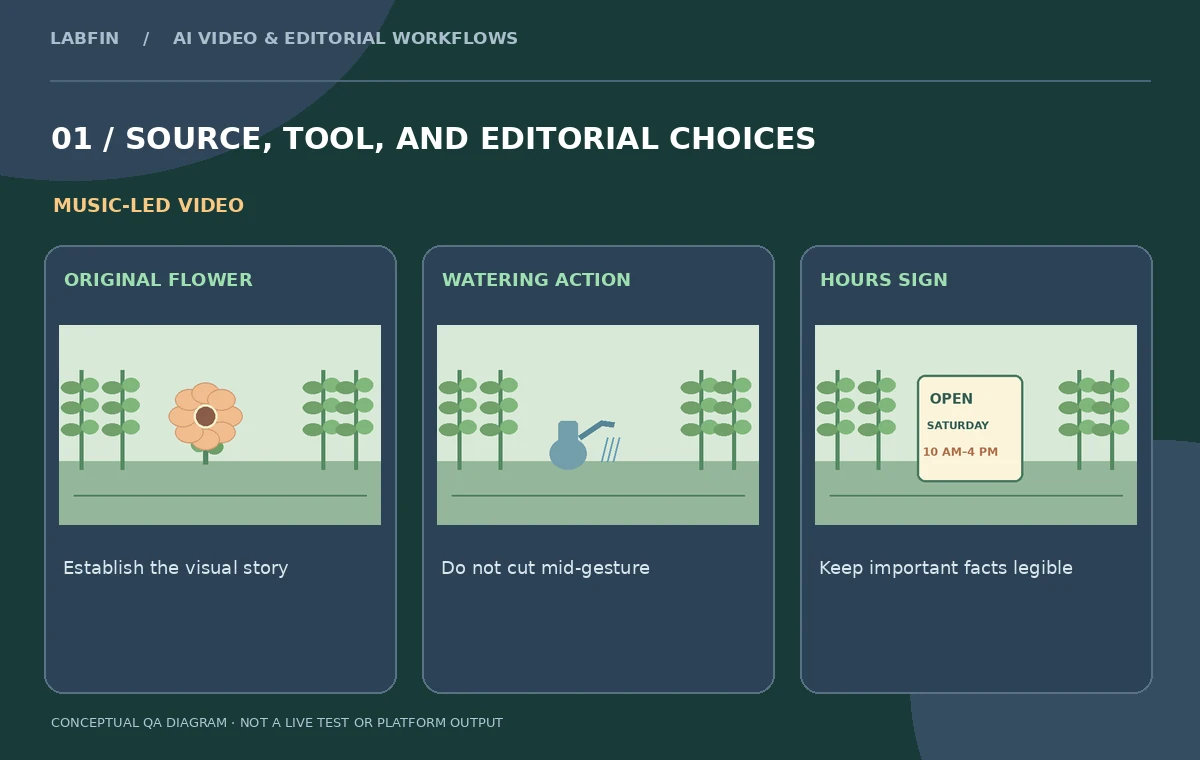
Write a tiny shot list: show the garden, show watering, introduce the volunteer, display the opening-hours sign, and end with a clear invitation. Each shot has a minimum readable duration. The hours sign deserves longer than a purely decorative flower close-up, and a face should not be cut at the instant someone begins a gesture. Decide which clip can compress and which cannot. This protects the message when an automatic timing tool moves scene boundaries. A video can achieve technical rhythm while failing its purpose if the only practical information flashes by too quickly for a viewer to act on it.
Choose a licensed music bed with a useful pulse
Select music with an identifiable rhythmic structure and confirm the license allows the distribution channels you intend to use. Canva describes Beat Sync as a way to align video clips and design elements with music beats. It is not designed to align speech syllables to music, and its documentation explicitly distinguishes spoken voice snippets from supported beat synchronization. Build the first timeline with a comfortable music level, but prioritize any natural sound that carries meaning, such as the volunteer telling visitors where to enter. If the track has an extended quiet introduction, avoid forcing every cut to occur there; the first image may need to establish place before rhythmic editing begins.
Understand manual markers versus Sync Now
Canva states that free users can expose beat markers and manually snap clips to them, while its automated Sync Now function is a Pro feature. For a fair workflow comparison, duplicate the project and retain the original unsynchronized layout. In the manual version, reveal the beat markers and drag short visual clips to selected positions. In the automated version, if the account includes Sync Now, apply it and inspect the resulting sequence. Do not promise the automation is available to all accounts or that it understands the garden’s narrative. The manually timed version is a reference, not automatically a superior edit.
Protect critical sign-reading time
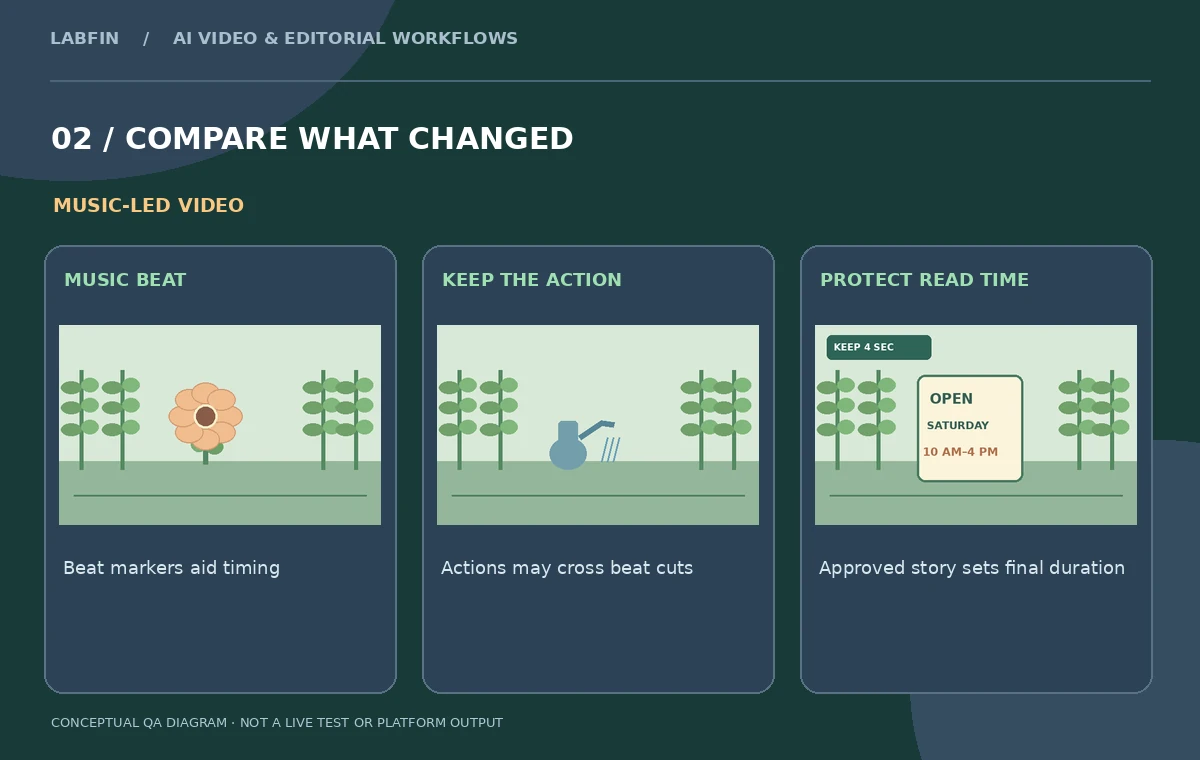
The opening-hours sign is the main factual information in this reel. Give the audience adequate time to read the sign on a phone held at normal viewing distance. If a synced sequence jumps away from the sign at a strong beat, extend that clip or overlay a legible text version in a separate approved design. Check whether the text sits below app interface elements in a 9:16 crop, and leave safe space at the bottom. Rhythm is not a reason to omit the words “Saturday” or a closing time. If the sign is obscured by foliage or motion blur, use a different source clip rather than relying on AI to reconstruct it.
Use the cuts to clarify actions
One shot begins with a volunteer lifting a watering can and ends when water reaches the soil. A cut exactly halfway through the movement can look like a physical jump. Shift a beat-aligned boundary to the start or completion of the action and compare both options in continuous playback. Another shot shows a hand placing a plant tag; that clip may need to linger on the final position rather than switch during the action. The goal is musical coherence combined with visual continuity. When the storyboard’s important events happen between beats, editorial judgment outranks a rigid snapping grid.
Check how page duration and audio trimming interact
Canva’s Help Center notes that video and animated elements can influence page duration, and that editors can adjust duration through the page controls. It also documents trimming audio and adjusting volume. After applying synchronization, inspect all page or clip durations, the audio start position, and the final tail. Verify that no unwanted blank page appears, no plant detail becomes a nearly invisible flash, and the closing invitation is neither clipped nor left on screen for an oddly long silent pause. Capture the sequence length and final music end point in the review notes; export behavior should be checked in the rendered MP4 as well as in the editor preview.
Compare three passes without fake engagement metrics
Create a manual beat-marker version, an automated Sync Now version where available, and a human-edited hybrid. Review them in random order with the same music level to judge which one best communicates the opening hours, volunteer role, and story. Do not assign fabricated retention rates or assume more rapid cuts create better performance. Record observable issues such as unreadable signage, chopped gestures, hard audio stops, or missed emphasis. If an editor prefers the hybrid, list the two or three cut boundaries that were adjusted after synchronization. Such notes make the choice reproducible and preserve a clear account of what was edited by the tool versus the person.

Export a mobile-proof reel
Preview the final cut full screen at actual phone dimensions, not only in a large desktop canvas. Confirm that the garden sign can be read, captions do not collide with platform overlays, and the licensing terms match the distribution plan. Export an MP4 and listen to the beginning and end for abrupt audio boundaries. Keep the original unsynced storyboard, selected music metadata, and final duration table with the editable Canva design. This makes later updates possible if opening hours or event details change. Canva’s documentation supports its beat tools; the garden reel pictured here remains a conceptual teaching example, not a demonstrated platform export.
How We Research
This Canva Beat Sync guide is independent editorial guidance grounded in official documentation: Canva: Beat Sync feature and plan distinctions; Canva Help: trim audio and adjust video duration. The illustrated scenario is a fictional 25-second portrait garden reel with a plant close-up, a watering action, a volunteer portrait, a sign bearing the opening hours, and a licensed rhythmic music track. We checked the vendor-described capabilities and important eligibility conditions, then mapped a sequence of editorial reviews that readers can repeat with their own authorized media. The images are original teaching diagrams, not product UI screenshots, generated exports, results of a live account test, or measured benchmarks. We did not upload private recordings, access a paid vendor account, run a real A/B experiment, measure performance, or verify hypothetical timecodes. Retain source assets, check current plan availability and privacy settings, and review exported media and metadata before publication.
Frequently Asked Questions
Canva documents manual snapping to beat markers for free users and Sync Now automation for Pro users.
No. Canva describes synchronization to music beats, not speech snippets.
No. Adjust boundaries when an action or readable fact needs more time.
Watch the exported MP4 at phone size and check signage, overlays, music and captions.
An unsynced reference, a synced version where available, and a manually corrected hybrid.