
A prompt can generate a dozen plausible LinkedIn slides, but the result often fails because it lacks a coherent argument. The first page makes a dramatic promise, the middle slides repeat generic advice, and a fabricated statistic appears as though it were sourced. Readers need a clear sequence of useful information, not the visible output of a text generator.
This article focuses on LinkedIn document posts: a multipage file attached to a feed post, commonly shared as a PDF. LinkedIn’s documentation lists supported document formats and explains that the document itself cannot be edited after uploading. The workflow below covers the draft, page design, source checking and final caption; it does not claim that any AI-made format guarantees reach or engagement.
Start with one teachable point rather than a long prompt
Choose a reader problem narrow enough for a short sequence. “How to review three AI-written claims” is more suitable than “everything about artificial intelligence.” Write a one-sentence thesis and define the change you want after reading: understand a trade-off, apply a small method, or inspect an error. If you cannot identify the takeaway, more slide variations will not improve the piece.
Gather a short evidence packet before generating copy. Keep an original source URL, date, exact fact and any uncertainty beside each statistic. When you lack measured results, use an explicitly illustrative example rather than creating performance percentages. Ask the assistant to draft a sequence only from that packet and to flag gaps instead of filling them with plausible-looking claims.
Map each page to one part of the argument
A practical six-page draft might use an opening problem, context, a worked example, a common failure, a simple checklist and a final takeaway. Six is merely an editorial example, not a platform requirement or ranking rule. Ask the model to write a specific headline for every page and one supporting sentence that advances the story. If two pages say the same thing, merge them.
Use a page map with columns for page number, reader question, evidence, visual and unresolved issue. The model can help compress wording but should not decide that a source is reliable. A strong narrative preserves qualifications: if the data describes a particular survey population, the page must not imply that it applies to every professional.

Design slides to survive the small mobile preview
Use a large title, restrained text and one useful visual relation per page. A simple timeline, before-and-after example or labeled process can convey meaning faster than a paragraph. Color alone should not encode categories; labels and shapes should also distinguish them. Reserve space for source context or qualification when a claim needs it. Avoid screenshots full of tiny interface text.
Choose a consistent page size and check all slides together rather than designing each in isolation. The first page should identify the subject plainly without a sensational unsupported outcome; the final page should offer a usable summary or next step. Test the exported file on a phone at normal viewing size. If a claim becomes unreadable, shorten the copy or redesign the figure.
Draft the accompanying caption separately
The PDF pages and the post caption have different jobs. Slides explain the method; the caption provides context, explains why the post matters and invites a relevant question. A workable sample prompt is: “Using these six approved slide headlines, write a two-paragraph introduction for operations managers. Do not add outcomes, statistics, testimonials or client names. Include a neutral closing question.”
Check that the caption does not promise a result absent from the slides. Avoid generic engagement bait and unnecessary hashtags. A good caption can state an honest limitation, such as “This is a sample review workflow, not a study of accuracy.” That sort of specificity is more useful than an inflated success claim.

Export and verify the LinkedIn document format
LinkedIn’s official help page supports sharing PDF, PPT, PPTX, DOC and DOCX documents and specifies size and page limits. Prefer a flattened, readable PDF when layout fidelity matters, following its guidance. This is a document upload, not an automatically generated animated carousel; animations in documents do not carry through as moving visuals.
Check that the actual file opens, every page is ordered correctly, fonts render, links are safe and there is no hidden draft label or internal production identifier. LinkedIn says the document description can be edited later but the uploaded document cannot be replaced in the same post. Catch errors before publishing instead of relying on a post-publication fix.
Run an evidence and accessibility review
For each factual page, ask a reviewer to compare the displayed wording with the primary source and check that caveats remain nearby. Keep the source packet outside the AI prompt output. When the content is educational, consider putting citations in the caption or a clear source note without crowding the figure. If a statistic is illustrative, mark it as such directly in the visual.
Give your document a descriptive title, use strong contrast and do not rely on decorative icons to explain the entire method. LinkedIn notes that viewers can download documents as PDF for accessibility. A separate plain-language summary in the caption also benefits people who cannot easily navigate a dense multipage graphic.
Use a publication checklist rather than engagement promises
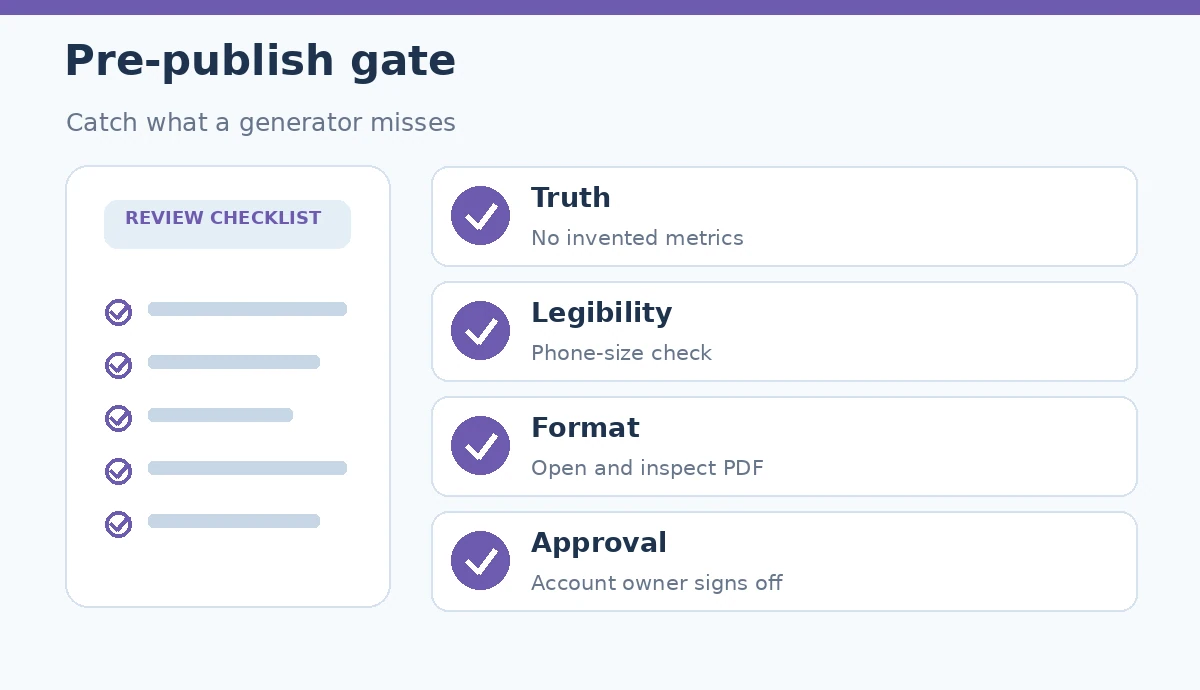
Before posting, confirm the intended audience, core message, source accuracy, spelling of names, visible qualifications and mobile legibility. Have the proper account owner approve the caption and file together. Save the approved export and the page map so a correction or future update can be traced back to the original decision.
After publication, learn from substantive comments and questions rather than treating view count alone as proof of useful content. If readers misunderstand a slide, revise the working file for the next publication. The goal is to teach a small idea accurately; the platform does not promise that an AI-assisted PDF will outperform other formats.
How We Research
We consulted LinkedIn’s official document-upload instructions and Buffer’s documentation about AI-assisted social copy, reviewed October 26, 2026. The six-page example is an original editorial exercise, not a platform recommendation or tested engagement formula. We did not publish a test post or measure reach.
Frequently Asked Questions
Yes. LinkedIn documents uploading PDFs and other office documents to a post. Review the current official file requirements before exporting.
LinkedIn says you can edit a document description or remove a post, but you cannot edit the uploaded document in place. Inspect the file first.
No. Quote only verified information with the relevant context. Label illustrative numbers clearly instead of presenting them as measured findings.
Use enough pages to teach one idea clearly. A six-page map is an example workflow, not a required or optimal LinkedIn length.
Headlines, labels, contrast, page order, the meaning of charts and whether important source qualifications remain readable.