
A quiet product reel shows a barista setting down a ceramic mug, pouring coffee, and sliding the cup across a wood counter. The original camera clip has usable room ambience but no close microphone on the pour. Adobe Firefly Generate Sound Effects offers a way to draft extra sound cues from an English prompt and optional vocal timing, but a clean effect must not turn an invented demonstration into documentary evidence. This guide builds a four-cue plan, judges alternatives against the actual pictured motion, and keeps the untouched source track available. The waveforms and kitchen illustrations are conceptual drawings, not generated audio or screenshots of Firefly.
Map the actual actions before asking for audio
Start with a locked thirty-second-or-shorter working segment if that fits the current editor, then create a cue sheet from the source clip. Mark cup contact, the first visible stream of coffee, the end of the pour, and the short slide across the counter. Give each event its own in and out points instead of writing a broad prompt such as “busy coffee shop.” Preserve the source audio as a separate muted or low-level track for A/B review. Note whether a person speaks anywhere in the video. A sound-effects tool must not be used to invent an audible customer endorsement or a line of conversation that the person never said.
Check what Firefly actually generates
Adobe’s Firefly video editor guide describes Generate Sound effects in the editor beta, including English prompts, optional voice timing, a duration slider, four audio variations and addition to the timeline. Its general sound-effects documentation distinguishes effects and ambience from music and speech. This is a cue-generation workflow, not automatic restoration of audio recorded on location. Browser, account and credit access can vary, and recording a vocal guide requires microphone permission. Do not assume a generated sound is licensed for every use without reading the applicable terms for your account and distribution channel.
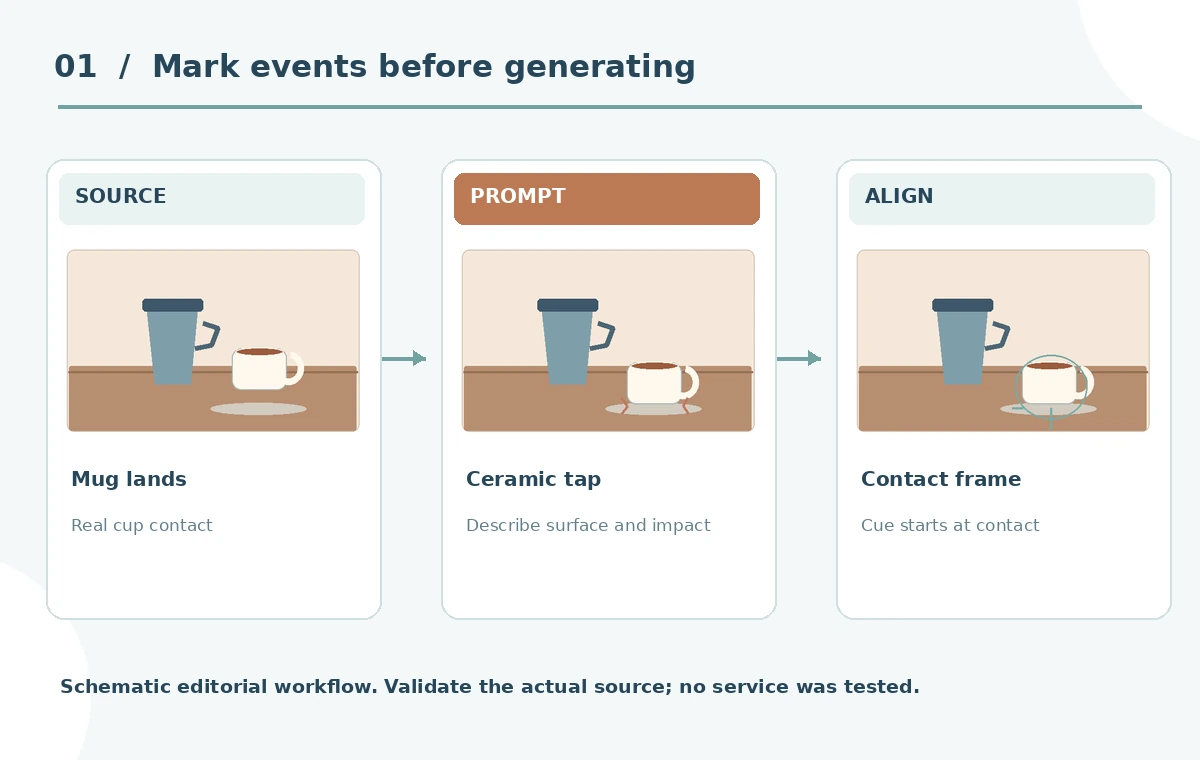
Write a distinct prompt for the ceramic cup
For the first event, describe one dry ceramic mug touching a solid wooden counter in a relatively quiet indoor room. Specify a short, rounded contact rather than a ringing metal chime. Ask for no voices, no applause and no background soundtrack. Put the event at the point where the mug bottom visibly touches the surface. Audition several variations against a frame-by-frame check of hand movement. If the mug appears to land gently but the effect sounds like a heavy glass dropped on tile, reject it even if the audio sounds professionally recorded. The object material and visible speed, not novelty, determine fit.
Use timing controls for the liquid pour
Place the playhead near the visible start of the stream. A prompt such as “steady thin stream of hot coffee entering a ceramic cup, small liquid splashes, indoor close-up” gives more material and action context than “pouring noise.” Firefly’s optional Voice timing can help shape when the effect rises and stops. Your vocal guidance is a timing input, not text to reproduce as speech. Generate alternatives, then trim or shift the chosen waveform so that the liquid does not start before the stream becomes visible or continue audibly after the stream ends. Keep the sound proportionate to the quiet scale of the shot.
Compare four variations fairly instead of choosing the loudest
Firefly documents four variations per generation. Play each against exactly the same clip and at similar monitoring loudness. Use a simple rubric: correct material, correct attack, plausible decay, absence of strange voices, and an ending aligned to the pictured action. A louder, brighter candidate may initially sound impressive but distract from a gentle café scene. Keep the duration slider and prompt fixed for a fair first comparison. If none fits, change one description element at a time, such as the surface or pouring strength, and treat the new set as a separate round. The diagram depicts a suggested review grid, not measured model performance.

Mix the new cues with existing room ambience
Place cup tap, pour and cup slide on independent audio clips so each can be lowered or discarded. Keep the real source atmosphere underneath where useful. Fade cue edges to avoid digital clicks, but do not blur a sharp contact so far that it loses sync. Check peak levels and compare on headphones and speakers; a quiet reel should not suddenly sound like an action trailer. If a licensed music bed exists, adjust effects around it rather than generating a musical track through a function Adobe explicitly describes as sound effects. Keep version names tied to the original take and approval status.
Protect the difference between an illustrative ad and evidence
For an explicitly staged product advertisement, designed sound can be an accepted part of the edit. For footage presented as a factual record, generated sounds may change the viewer’s interpretation of what happened. Do not fabricate a crash, siren, crowd reaction or spoken response as if it occurred. For an educational video, a clear note that Foley is illustrative can avoid confusion. Retain the unaltered camera audio and the editorial prompt record. Permissions for the visible person, uploaded video, original soundtrack and any synthetic voice timing should be documented before files leave the organization.

Run a frame-accurate export acceptance pass
Watch the completed clip at normal speed, then inspect the few frames around each event. Verify that no cup tap precedes contact, no pour continues after a visible stop, and no slide sound survives a cut. Listen for abrupt tails when the visual edit changes angle. Export one candidate with designed Foley and one with original sound for the reviewer, plus a cue sheet stating which effects are AI-generated. Do not claim the illustrated waveforms represent actual generation results. Approval comes from a human editor who has compared the source, picture and mix and documented any intentionally synthetic audio.
How We Research
We read Adobe’s Firefly video-editor instructions and its sound-effects scope notes on October 28, 2026. We did not generate audio, record a voice timing track or compare Firefly outputs. The barista, four candidates, waveforms and timeline are original explanatory illustrations rather than test findings.
Frequently Asked Questions
Adobe describes this tool as sound effects and ambient sounds, not a music or speech generator.
Adobe documents four variations for each generation in its video editor instructions.
The optional Voice timing input lets you guide duration and intensity; it does not authenticate an on-camera event.
No. Keep it for source comparison and retain meaningful atmosphere unless the project calls for an openly designed soundtrack.
No. They are editorial diagrams; evaluate actual exports before claiming a successful result.