
A small science podcast records two speakers with separate close cameras and a third wide camera. Editing the conversation manually requires choosing whose face to show at every exchange, sometimes without changing the master audio. DaVinci Resolve Multicam SmartSwitch analyzes the angles and can suggest a first camera-switching pass, but its decisions are editorial starting points, not proof that a listener understood the conversation better. This workflow covers camera synchronization, wide-shot logic, awkward interruptions and a final shot-by-shot audit. Its three-camera portraits, edit timeline and switching diagrams are drawn examples rather than Resolve captures.
Prepare three angles and one trustworthy master track
Label camera A as Host, camera B as Guest, and camera W as Wide before assembling a multicam clip. Sync the camera files using valid timecode, waveform or a visible clap. Keep a separate, clean production mix or designated reference audio if one was recorded; switching a camera angle must not accidentally switch microphone levels. Add a short source log for dropped frames, camera restarts and moments when speakers talk together. A synchronized multicam source is a prerequisite for the suggestion system; the tool cannot fix incorrectly assigned speakers or a one-second picture offset. Save a copy of the uncut source and media relink data.
Confirm the Studio-only SmartSwitch feature
Blackmagic’s Resolve 20 New Features Guide introduced Multicam SmartSwitch as a Studio-only Edit page tool. Its instructions start with a multicam clip placed on the timeline, followed by the right-click Multicam SmartSwitch command and Analyze. The latest DaVinci Resolve product page identifies the current application family; current builds may move controls, so verify the installed version and license. The documented analysis considers audio plus visual details such as mouth movement and close-up versus wide shots. It should not be confused with automatically generating a script or replacing the editorial judgment of a multicam operator.

Set practical rules for a discussion, not an action montage
For the hypothetical eight-minute interview, begin with a wide view as the presenter introduces the guest. Use close shots for longer uninterrupted explanations, returning to wide when both laugh or interrupt each other. SmartSwitch settings documented by Blackmagic include Minimum Edit Duration, Edit Change Delay and wide-angle controls. Too short a minimum can make rapid comments visually exhausting; too long can leave the viewer on a silent person during a key answer. Write a small decision rule in advance: use wide coverage during overlapping speech, and allow a deliberate close-up only when it improves comprehension.
Run the proposed angle analysis on a saved duplicate
After creating and placing the multicam clip, choose the available SmartSwitch settings and Analyze. If the interface exposes audio-only fast analysis, note that this relies on different information from a full video-and-audio pass; avoid comparing the results as if they used identical inputs. Keep the camera identities and source audio unchanged between trials. Render a work-in-progress with a visible camera ID burn-in or export an edit decision list where available. The suggested switches are provisional. The tool can be mistaken about an off-camera remark or a person who nods while another is speaking.
Inspect interruptions and long responses closely
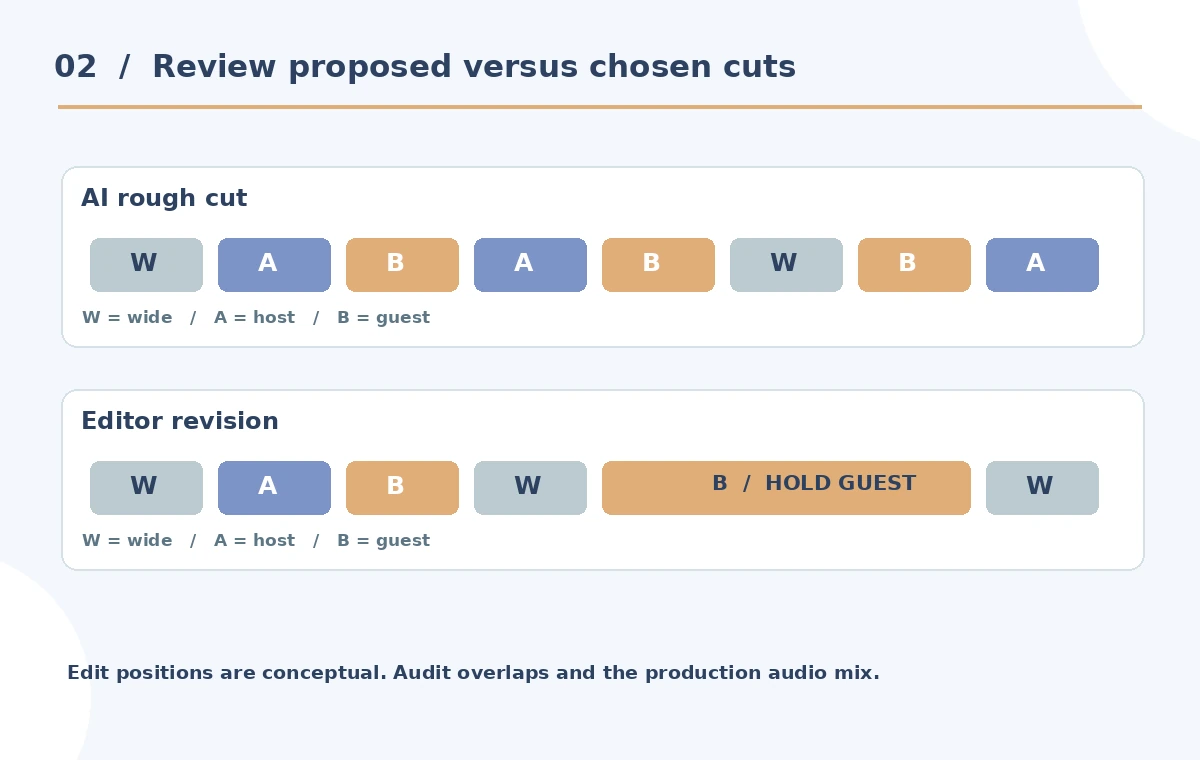
Locate three challenge moments: the host saying “right” under a guest answer, a shared laugh, and the guest pausing before an important conclusion. These are exactly where an automatic system can create distracting cuts. Check whether the host’s short acknowledgment caused the camera to jump away from the guest, whether a wide shot would read better, and whether the cut landed on a natural pause rather than mid-word. Keep the microphone mix stable. A technically correct active-speaker match can still be a poor storytelling choice; the timeline diagram intentionally shows a proposed cut beside an editor-approved revision.
Edit angle changes without rewriting the conversation
Blackmagic documents changing the chosen angle after analysis or adjusting edit points with regular trim tools. Preserve the actual spoken words and avoid using angle changes to hide a semantic deletion. If you remove a statement for length, verify that adjacent statements do not gain a misleading new meaning. Look for eye-lines that jump across screen direction and for moments when the active speaker is hidden behind another person in the wide shot. Reopen source footage whenever a facial expression seems inconsistent with the selected audio. Camera switching is not permission to manufacture agreement or reaction shots.
Set a review sheet for the whole multicam program
Create columns for timestamp, current angle, desired angle, speaker, reason for change, and reviewer initials. Audit a sample at every edit boundary, then watch the entire video continuously to judge rhythm. Make sure the wide camera is usable at the beginning and end and that captions are not obscured by changing face placement. Monitor audio across every switch, particularly if the system was allowed to affect video and audio together. Mark a rejected candidate as “needs change” rather than giving it a pass simply because analysis finished. The diagrams are examples of possible checks, not measured switch accuracy.

Finish with source-based approval and accessible delivery
Export the selected cut and review it with the speakers or producer where appropriate. Preserve the multicam source, the unaltered production mix, the original automatic suggestion if retained, and the editorially revised timeline. Ensure subtitles identify the correct speaker and do not jump ahead of the active dialogue. Confirm no camera drift or dropped frames and check that the final master matches the desired delivery frame rate. SmartSwitch helps reduce initial editing work; it does not create a warranted claim of unbiased framing. Only a human review of the actual source can approve that claim.
How We Research
We consulted Blackmagic’s Multicam SmartSwitch feature guide (Edit page, pages 51–54 of the April 2025 guide) and its current Resolve product site on October 28, 2026. We did not process a three-camera recording or benchmark time saved. All speakers, camera IDs, proposed edits and acceptance diagrams are invented editorial teaching examples.
Frequently Asked Questions
Blackmagic documents AI Multicam SmartSwitch as a Studio-only feature.
Its documentation describes audio and visual cues, with an audio-only fast option in certain settings.
Yes. The guide describes selecting a different multicam angle or trimming the cut.
Yes. A consistent master track prevents audible camera-dependent jumps and preserves provenance.
No. Its first pass needs human decisions about context, pacing, expression and consent.