
A neighborhood woodworking workshop asks volunteers to request replacement drill bits, blades, and safety supplies through a simple form. The person submitting a request may know the equipment, but only the purchasing coordinator is authorized to place an order. Power Automate Approvals can send that decision to a named reviewer. The important design detail is not the notification itself: it is stopping the purchasing branch until an actual approval response is available. All examples here are fictional, not the result of a live account test.
Define the purchase request as a proposal
Begin with a form or Microsoft Lists record containing the requester, item name, estimated quantity, cost estimate, reason, urgency, and required-by date. Use a unique request ID such as TOOL-042. Store `requested` as the initial state rather than `approved`. If the requester supplies a vendor link, treat it as a suggestion, not authorization to pay that vendor. Include a place for the coordinator to correct unit descriptions or ask for more detail.
Identify the person who may approve purchases at each spending level in a policy maintained outside the automation. A flow that sends a message to the wrong person can create a formal-looking but invalid response. Distinguish approval of a purchase from confirmation that stock has actually arrived; receiving and inventory updates require later steps.
Choose the approval action for a real decision gate
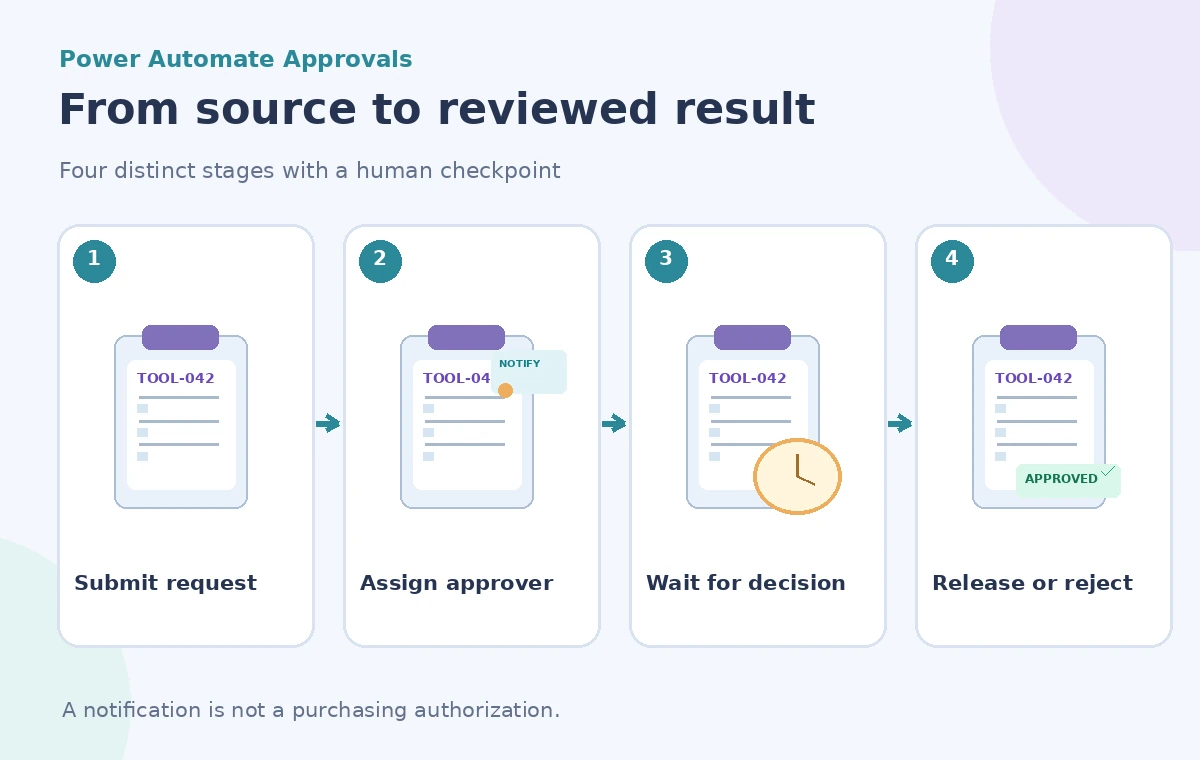
Microsoft documents several related Approvals actions. `Start and wait for an approval` creates the approval and pauses the flow until the decision criteria are met or the action times out. `Create an approval` sends the request but does not itself block following actions; `Wait for an approval` is needed if that split design must collect the response later. Do not conflate the three actions when designing a purchasing gate.
For a single coordinator, the basic Approve/Reject path may be enough. If multiple approvals are required, Microsoft provides first-to-respond, everyone-must-approve and sequential patterns with different completion rules. Select a type that matches written purchasing policy rather than the option that makes a demo complete fastest. This is a business control, not simply a visual preference in a workflow editor.
Include evidence in the approval request
Use the Title and Details fields to present TOOL-042, the requested item, the estimated total, the purpose, and the policy reference. Include a link to the source record so that an approver can confirm current pricing and necessity. Microsoft explains that approval requests can reach reviewers through notifications and the approvals center. The email notification should not be mistaken for the final approval outcome.
Keep sensitive payment details out of broad notification text. If a quote expires or the price changes, return the request for a new review rather than assuming an older approval covers any higher amount. A link to an approved equipment budget should point to the actual authorized source, not a document generated by the flow itself.
Branch only on the returned response
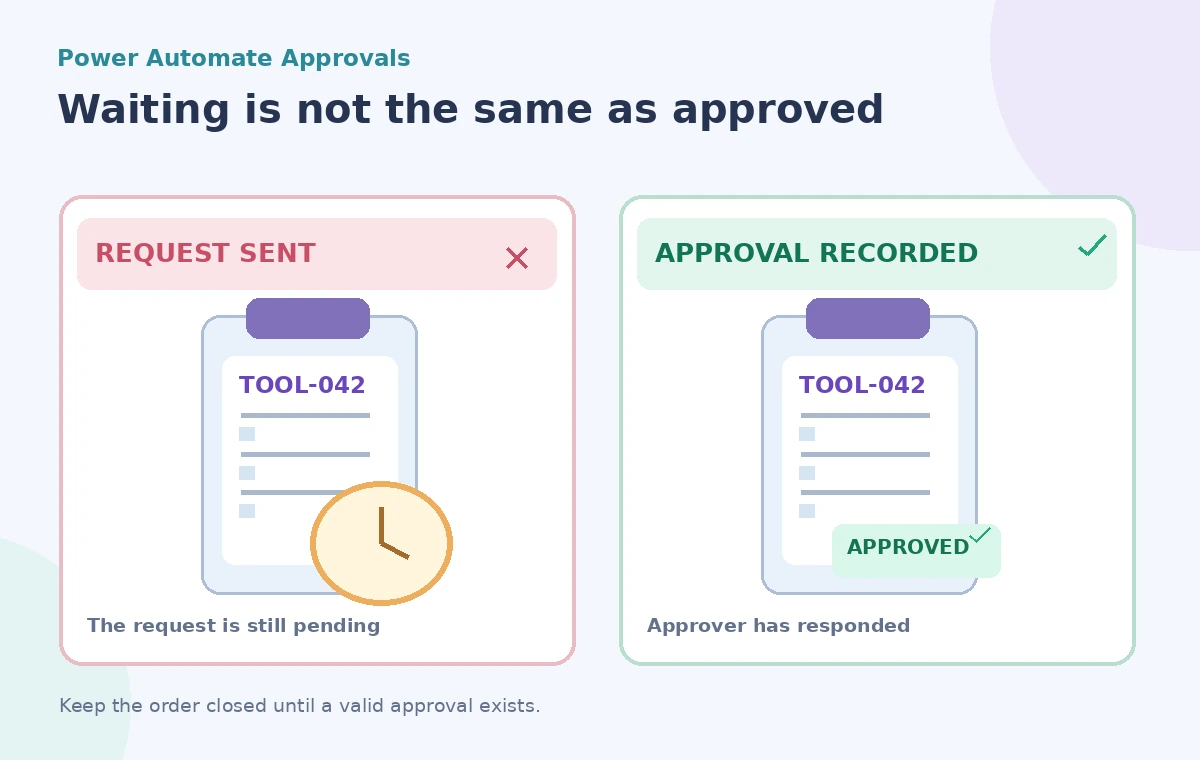
After `Start and wait for an approval`, use a condition on the action’s response output. Microsoft documents an Approve/Reject choice and distinguishes the resulting value from a message that an approval was created. Release the next purchasing step only on the exact approved outcome. A rejected request should be marked rejected, and the requester should receive the reason or an appropriate next action.
For a request that times out or encounters a service error, do not silently select Approve as the default. Mark it `pending review` or `needs intervention` and alert the coordinator. Similarly, a manually canceled request should not be able to trigger a purchase from a late response without a reconciliation check against the current request status.
Stop duplicate orders at the handoff
One approval may generate one authorized order, but networks and automation retries can create duplicate downstream operations unless the purchasing system enforces uniqueness. Before issuing the order, check whether TOOL-042 already has an order ID. Store that ID and the approval reference atomically where the purchasing system allows it. Replaying a successful approval response should not purchase a second set of blades.
The comparison graphic illustrates the difference between a sent request and an actual approved decision, not a claim about Power Automate’s measured behavior. In a test environment, simulate a delayed response, two close submissions, and an accidental rerun after a connection error. Inspect both the flow history and the destination order system.
Separate authorization, purchase and receiving
An approver may accept the need for a replacement part, but the supplier can still be out of stock or change the order. Track `approved`, `ordered`, `shipped`, and `received` as independent states. Avoid using an approval badge as evidence that a physical item is already on the shelf. If the purchase exceeds the authorized amount, send it back for a fresh decision rather than just editing the price in the existing record.
If procurement staff use an external ordering portal, verify whether the connector submits a real order or only writes an internal task. The action’s name may sound final even when it has created a draft. Manual review is appropriate whenever an automated submission would create a legal or financial commitment.
Check environment and permission prerequisites
Microsoft’s approvals documentation describes Dataverse-based approval records and prerequisite licensing or environment configuration. In a new environment, provisioning may require administrator privileges or an initial setup. Review those requirements before treating the flow as portable between tenants. Use a service identity and access model approved by the organization’s IT team; avoid granting purchasing permissions to every form submitter.
Also document how approval records, request attachments and audit histories are retained. Permission to read a form entry should not automatically include access to vendor banking details. Test the flow with separate requester and approver accounts, not only the owner’s account, to catch accidental privilege assumptions.
Document the exact release conditions
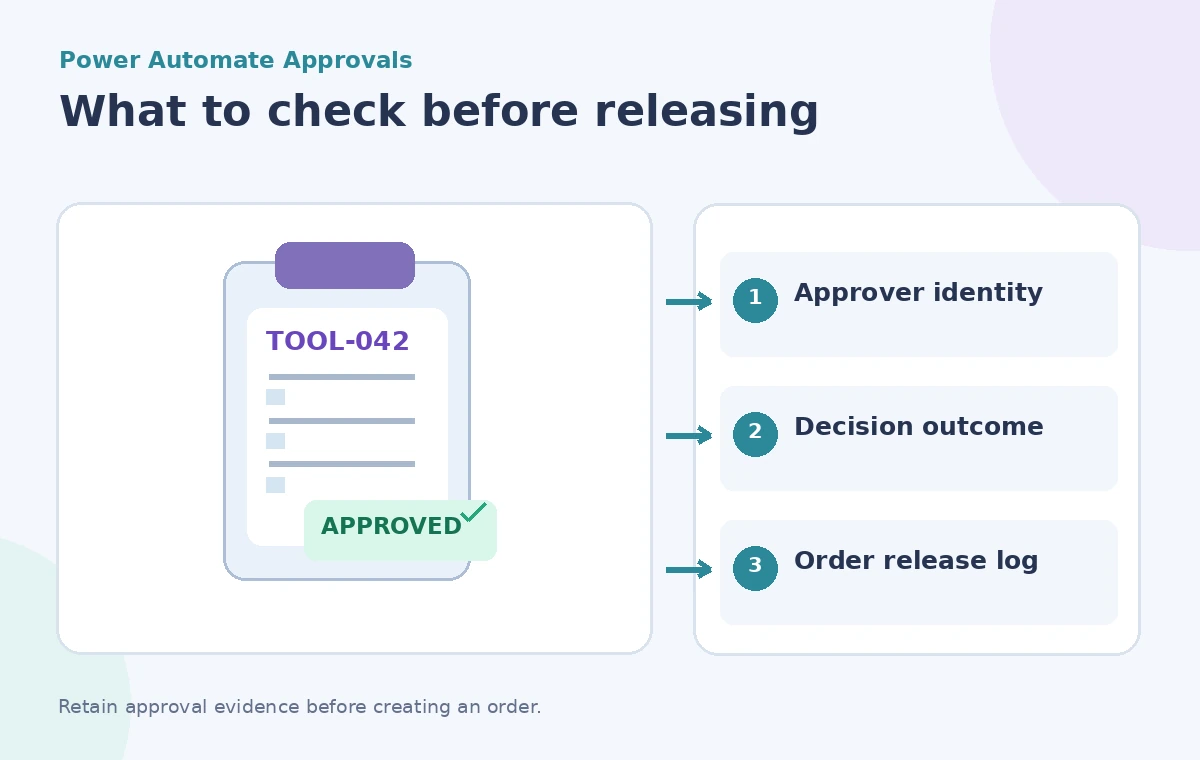
Before enabling live ordering, write a short decision table: request created means no order; approver rejects means no order; no response means no order; approval recorded plus unchanged cost and valid request ID permits the authorized purchasing step. Verify each branch with test records that cannot reach a real supplier. Preserve the approval timestamp, approver identity, source record and the eventual order number for reconciliation.
Power Automate can deliver the request and capture a decision. It cannot decide whether an inappropriate purchase is justified or whether a shipment arrived. That responsibility remains with the coordinator and the people who maintain the actual inventory.
How We Research
For this November 2026 editorial review, we consulted these named primary references: Microsoft Learn: Get started with approvals, Microsoft Learn: Differences between approval actions, Microsoft Learn: Create approval flow. We checked the described capability, scope, documented limitations and approval boundaries against the hypothetical use case above. We did not use a live account, upload real client files, conduct a vendor benchmark, or measure recognition or retrieval accuracy. The diagrams are original teaching illustrations, not screenshots or measured product outputs. Confirm current feature access, fees, security terms and interface labels in the official sources before deploying this workflow.
Frequently Asked Questions
No. Microsoft says Create an approval sends the request without blocking; use Wait for an approval or Start and wait for an approval.
Do not mark the request approved. Handle timeout or interruption as pending action and notify the owner.
Yes. Microsoft documents sequential approvals, subject to the selected approval configuration and prerequisites.
No. Approval authorizes the next step. Record actual ordering and receiving separately.
Use a unique request ID and check whether an order was already created before running the purchasing action again.