
A fundraising coordinator needs to release a newsletter PDF that lists a public service line alongside several private donor telephone numbers. A broad request to “remove all phone numbers” might erase the official help line readers need. Missing one donor number is a privacy failure; hiding a phone number with a black rectangle that leaves the text recoverable is another. The correct task is selective, irreversible redaction with a final document inspection.
Adobe documents natural-language redaction through Acrobat AI Assistant for eligible paid users with the app language set to English. The assistant proposes matching instances and asks for review before the information is permanently removed. The newsletter in this guide is fictional, and the diagrams illustrate review decisions rather than screenshots or claims that we processed real personal data.
Classify public contacts and private records before prompting
Create a release inventory with categories: private donor phone, private residential email, public helpline, general postal address, and contact information that is uncertain. Ask the organization which fields have consent for publication. Do not assume that every digit string is personal data or that a number already printed on an old brochure remains authorized today. Use an approved internal list as the source of truth.
Work from a local copy of the PDF in an appropriate secure location. Record the original file hash and the revision date so that editors can distinguish the unredacted master from the public copy. Do not send the unredacted source to unrelated reviewers. If access rules forbid cloud-assisted document analysis, choose an approved local/manual redaction workflow instead.
Check plan, language, and file preparation
Adobe’s October 2026 instructions say Redact text with chat requires a paid Acrobat account and the app language set to English; availability depends on supported tools and actions. Confirm that the AI Assistant redaction option actually appears in the installed release. Do not substitute an older highlight or ordinary drawing tool and describe it as verified redaction.
Before editing, inspect whether the newsletter is searchable text, a scan, or a mixture. OCR errors and text layered behind images can hide matches. Keep copies of the pages with expected private fields and identify the public line by exact approved wording. A blind “redact all” is the wrong starting point when similar fields have different release permissions.
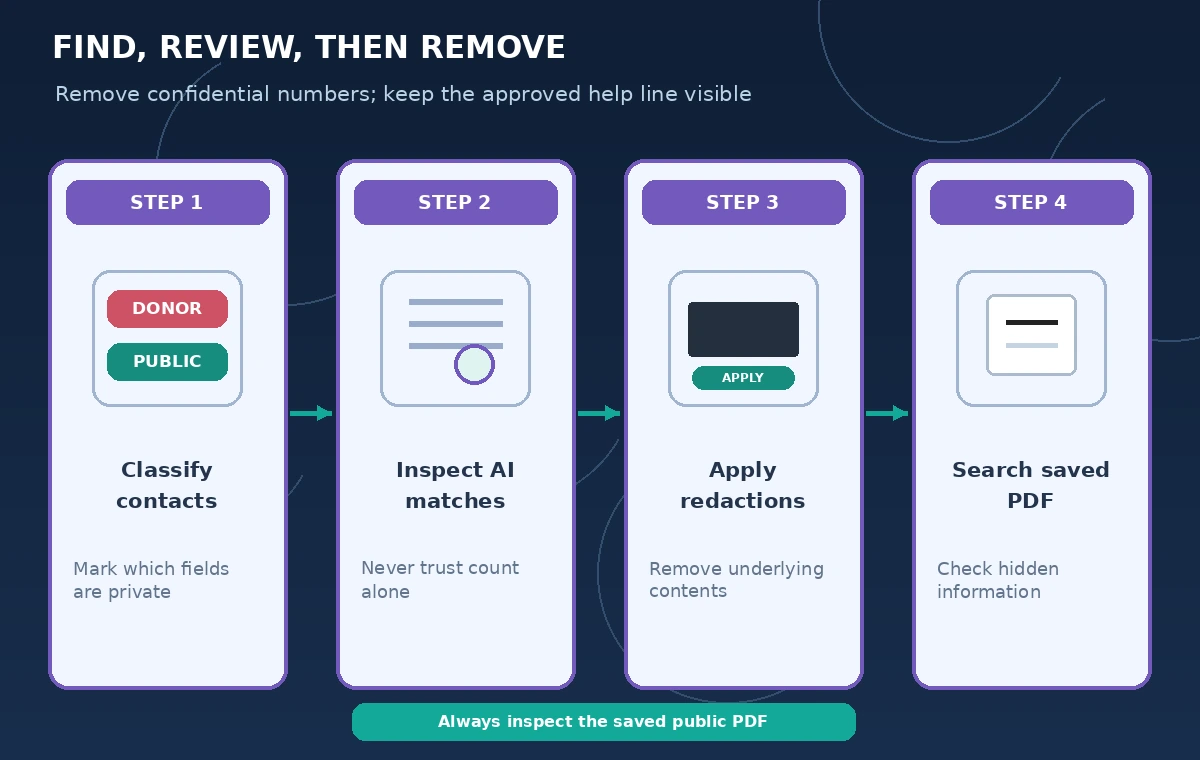
Start with a narrowly scoped instruction
Ask for the private donor phone numbers in the donor contact section, rather than all phone numbers in the document. Acrobat explains that AI Assistant identifies matching text by meaning, shows highlighted previews, and presents counts of found instances. A count is a search result, not proof that every confidential field has been found. Verify the matches against the approved source inventory.
Use the preview to decide which numbers belong to donors and which are public contact information. If the tool offers several matching items, inspect them one by one with its navigation controls. Treat formatting changes, country codes, spaces, and line breaks as plausible reasons why matching can be incomplete or overly broad.
Protect the published help line from over-redaction
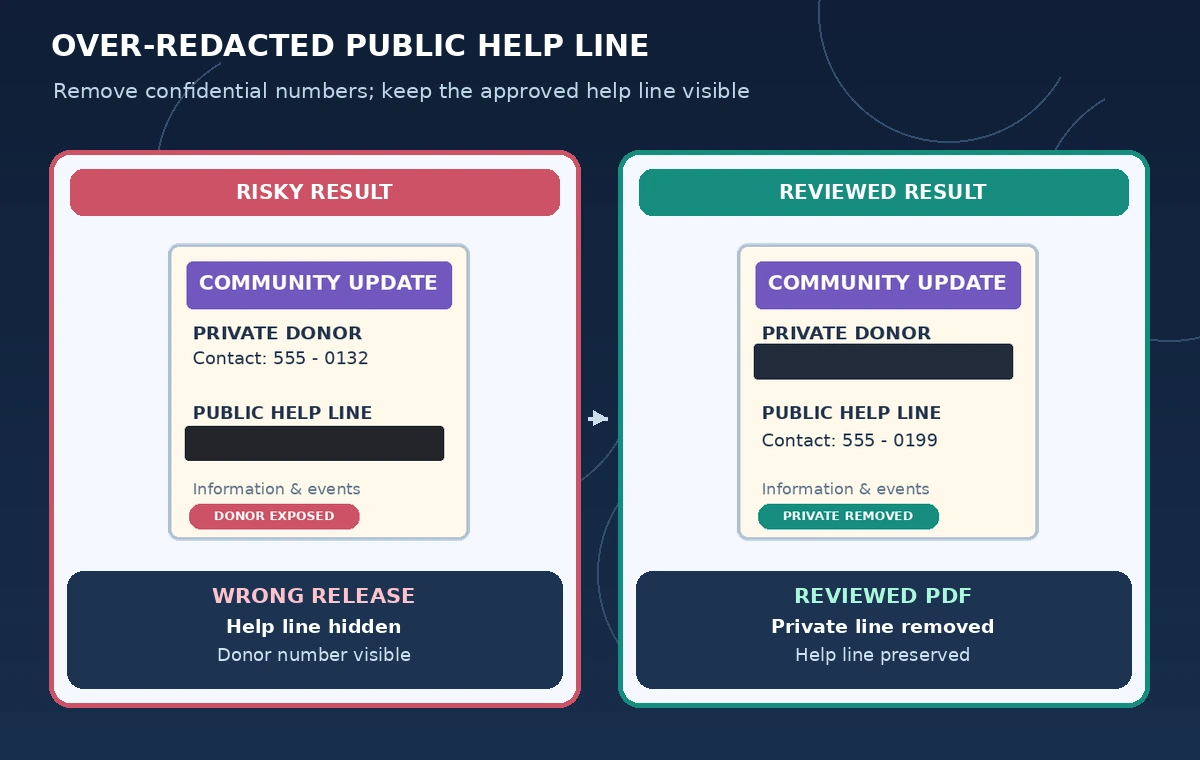
The comparison graphic shows two states. In the misleading state, the public help line is blacked out while a donor contact remains visible. In the reviewed state, the donor entry is actually redacted and the approved public line is legible. Those visuals are invented examples, not representations of Acrobat detection results.
Adobe documents a “Don’t redact this” option while reviewing matches. Use it when an item clearly belongs to the public category. Do not decide from formatting alone; a public-looking telephone number may actually be personal. Verify against an independently approved contact list, then record the reason an ambiguous number was kept or removed.
Apply actual redaction and remove hidden information
Only after inspecting proposed matches should the operator choose to apply redactions. Adobe’s workflow describes a confirmation dialog and a Remove metadata and hidden document information option. Keep that protection enabled when appropriate. The irreversible operation is intended to remove underlying content, not merely place a visual overlay over it.
Create a new filename such as newsletter-public-reviewed.pdf and protect the original master. Once saved, Adobe warns the redacted content cannot be recovered. That is a reason for a versioned backup and a second reviewer, not a reason to make the editor skip the permanent removal and distribute an insecure annotated copy.
Audit image layers, searches, and accessible content
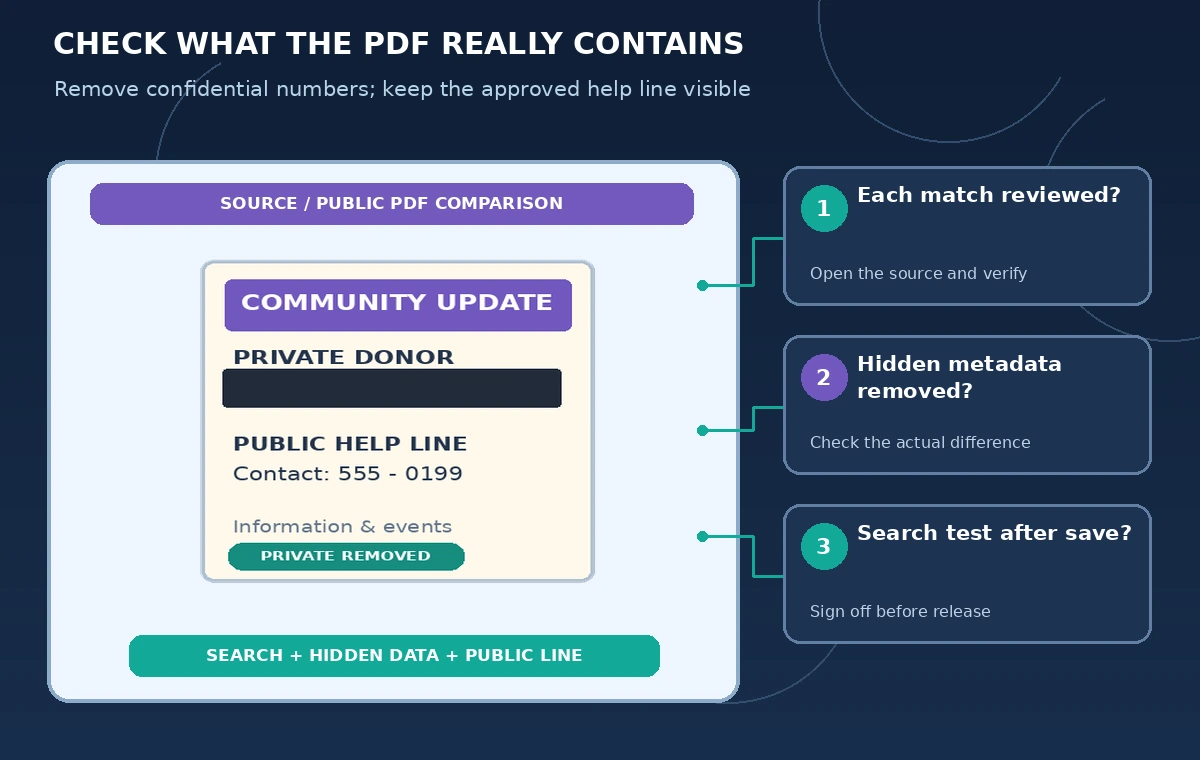
Open the public copy in a different PDF viewer. Search for several private donor numbers and names known to appear in the master; confirm they do not appear in searchable text, copy/paste output, accessibility reading order, attachments, comments, or hidden information. Also inspect every page visually at normal and high zoom, including scans and images that may not have been searchable.
Confirm the public help line remains readable and is announced correctly by assistive technology. A PDF that is private but unusable is not a good public document. If the publisher needs to preserve public contact details in tags or links, validate those separately; removal of private content and accessibility of the remaining content are two independent checks.
Escalate uncertainty instead of treating AI matches as proof
If AI Assistant highlights a number without enough context, stop and ask the document owner or privacy reviewer. If a scanned inset has blurred small print, do not interpret “no matches” as “no private data.” Manually inspect or replace that inset. The AI feature assists detection, but accountability for what is shared remains with the organization.
For documents subject to retention obligations, confirm whether an unredacted preservation copy must be retained in a restricted archive. Do not overwrite originals or delete evidence because the public export should be clean. Keep a signed release record recording which version was checked, what tests were performed, and who authorized distribution.
Use a final, repeatable release checklist
Check every redacted page, selected public number, hidden-data removal, searchability, accessibility, file naming, and sharing destination. Have a second person follow the checklist on the saved public PDF rather than watching only the editor’s live session. A correct preview before saving is not enough; the distributed file must be the verified version.
When a new donor is added to the newsletter later, treat it as a new revision and rerun the review. Do not copy the old release approval onto the new document. The practical benefit of AI is quicker candidate discovery; the accuracy and privacy guarantee come from the careful review of the actual saved PDF.
How We Research
For the November 5, 2026 documentation review, we consulted named official sources: Adobe Acrobat: Redact text with chat; Adobe Acrobat: Edit PDFs via chat overview; Adobe Acrobat desktop release notes. We compared stated feature capabilities, plan and permission limits, and user review steps with the hypothetical scenario above. We did not log in to, benchmark, or run the named service on live customer data. All characters, media, outputs, and figures in this guide are illustrations rather than observed results. Recheck vendor documentation, organization policy, and local requirements before using the workflow on a real project.
Frequently Asked Questions
Adobe describes paid-user and English app-language requirements for Redact text with chat; inspect current eligibility and supported tools.
No. A visual covering may leave underlying text recoverable. Apply a genuine redaction operation and test the exported PDF.
Adobe documents reviewing matches individually and choosing Don’t redact this when appropriate.
Adobe warns that properly applied redactions are not recoverable after saving; retain a secure original if policy allows.
No. The examples and diagrams are fictional and were not produced by testing Acrobat on real donor records.