
A volunteer repair clinic has a simple announcement: doors open for check-in at 1:30 p.m., demonstrations begin at 2 p.m., and repairs depend on volunteer capacity. A beautiful AI infographic that says “All repairs free and guaranteed” would be a serious mistake, even if the layout looks polished. The problem is not the illustration; it is an invented promise.
Google documents infographic and slide-image generation in Google Slides as beta functionality for eligible users. The infographic output is an image, not automatically a collection of editable slide shapes. This walkthrough uses a fictional clinic brief to show how to prompt, inspect, and publish only verified event information. Availability and UI labels can vary with account eligibility and updates.
Write a verified event brief before designing
Create a single source sheet approved by the event organizer. It should contain the location, actual check-in time, demonstration start, eligible object types, service limits, and an exact contact channel. Mark every unresolved detail explicitly. If the organizers have not decided whether electrical repairs are accepted, write “not confirmed” in the working brief instead of using a blank that the AI might fill with common expectations.
Distinguish three different statements: free attendance, no-charge diagnosis, and guaranteed free repair. They are not equivalent. If the clinic offers only demonstrations, show that clearly. For this exercise the precise fictional rule is “check-in at 1:30; demonstrations at 2:00; repairs subject to volunteer capacity.” Use it as the non-negotiable content checklist for every generated candidate.
Choose an infographic rather than an editable slide
Google’s help page describes an Infographic option under Help me visualize in Slides, alongside separate options for creating images and slide images. The generated infographic is an image inserted onto a slide. That matters for proofreading: individual text lines may not be independently editable like native text boxes, and visual changes may require regeneration or a separate overlay designed by hand.
Use a deliberately plain slide with the verified brief visible as your working reference, then use the appropriate infographic path if your account has it. Google describes these specific image-generation features as subject to eligible Workspace or Google AI plans, with beta warnings on slide and infographic images. If the control is absent, use ordinary Slides text boxes and shapes instead of pretending the feature is universally available.
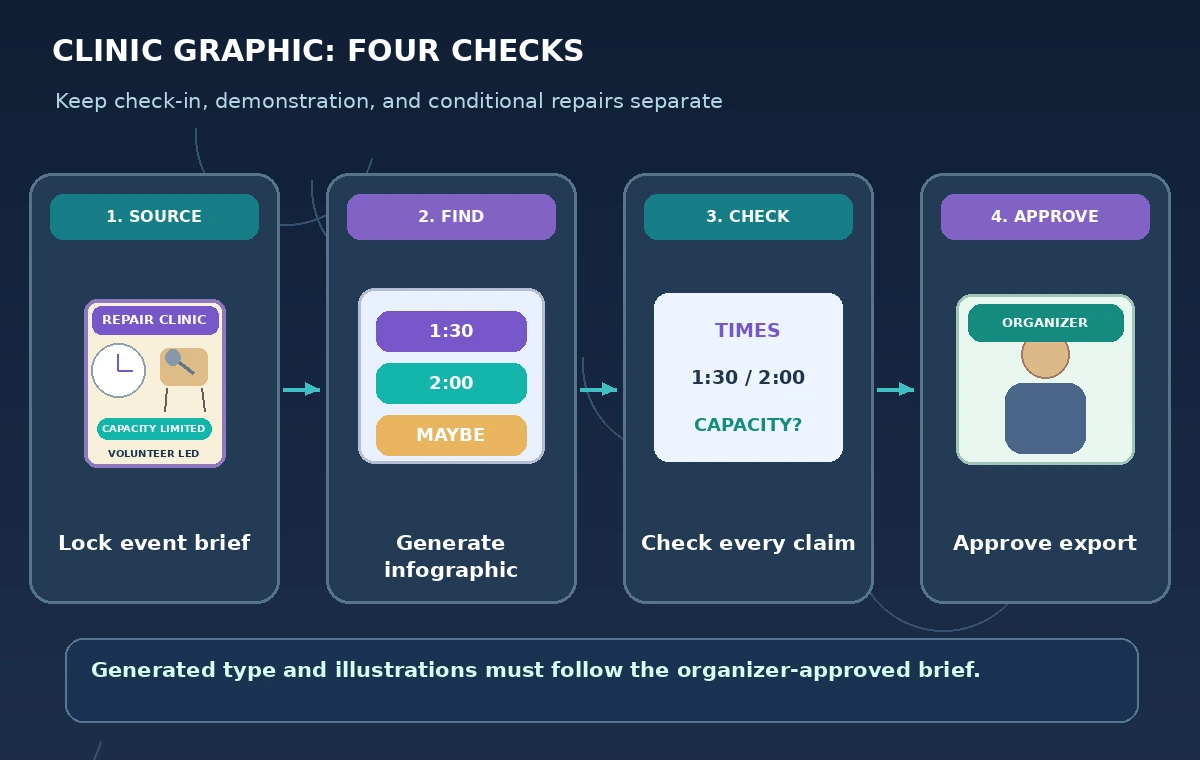
Prompt for a diagram with a truthful service boundary
Provide the exact organizer-approved sentences in the prompt. Ask for a three-part timeline: arrive and check in, watch the demonstration, ask a volunteer about possible repair. Tell the system not to add prices, guaranteed outcomes, walk-in capacity figures, accessibility claims, or unverified equipment eligibility. Include visual instructions such as high contrast, large type, and one identifiable clock for each phase.
The central service boundary should be visible: “Repair assistance depends on volunteer availability.” Do not hide it in microtype while giving a giant “FIXED TODAY” headline. Request short labels rather than paragraph blocks; dense generated text is harder to read, especially when rendered as pixels. Treat every generated word and number as unapproved until it is compared line by line with the brief.
Check clock times, order, and conditional statements
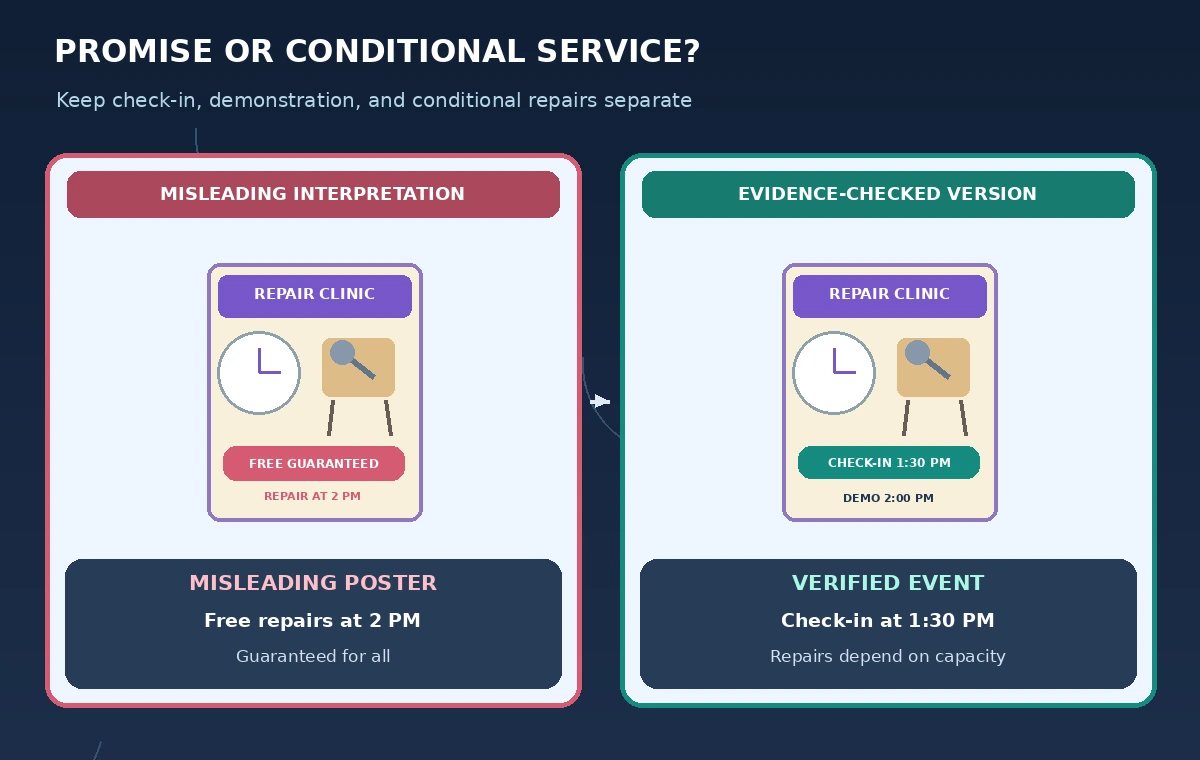
Compare the candidate graphic against a checklist, not your memory. Are check-in and demonstrations in the correct chronological order? Is 1:30 p.m. labeled as check-in rather than repair start? Does the service statement still say “may” or “subject to capacity” rather than “will”? Does any pictogram imply that an electrical appliance is accepted when the event has not approved electrical work?
The sample comparison diagram places the misleading “FREE REPAIR GUARANTEED” panel next to a correct panel showing two separate times and a conditional service note. This is a conceptual edit illustration, not a product screenshot or a measurement of Gemini’s actual behavior. The point is that a visually persuasive diagram can conceal a false event policy until a human checks it.
Avoid ambiguous icons and misleading accessibility claims
An icon of a wheelchair ramp can be interpreted as a verified accessible route, not just a design decoration. Do not add accessibility symbols unless the venue has approved the claim after checking its entrance and route. Similarly, a crossed-out power plug could imply a formal policy ban when the organizer is still evaluating electrical repair eligibility.
Use straightforward illustrations: a registration desk, a demonstration workbench, and a volunteer conversation. Put the constraints in readable words. Check that any map pin names the correct entrance and that text does not appear inside a photograph with weak contrast. If the generated image cannot be fixed without corrupting its typography, rebuild the information with normal Slides elements.
Test readability on a phone and a printed sheet
A graphic can look excellent on a 27-inch monitor and become unreadable in a mobile event reminder. Export or preview it at actual intended sizes, inspect the smallest words, and verify that arrows still point to the correct step. Ask a reviewer unfamiliar with the event to answer three questions using only the graphic: when do I arrive, what starts at 2 p.m., and is a repair guaranteed?
If the reviewer cannot answer unambiguously, simplify. Do not try to recover clarity with additional illustrations; remove nonessential decorations and increase the space around the time labels. The relationship between headline, three stages, and service condition should remain clear even in grayscale. Keep a text version in the accompanying event page for accessibility and search.
Separate the draft image from publishable information
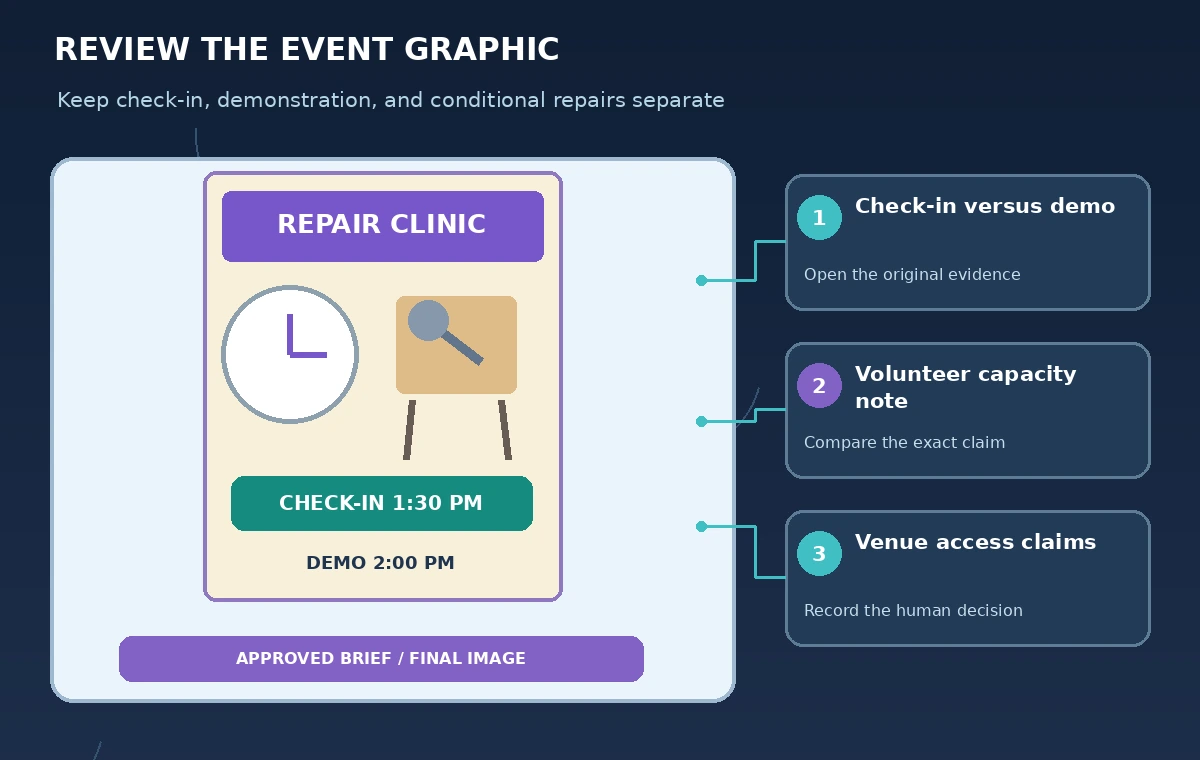
Keep the generated image in a draft slide with a note linking to the signed-off event brief. Have the program lead approve the wording and the venue contact approve location statements. Record the version used for the final export so later scheduling changes can be traced. A graphic regenerated after approval must go through the same wording check again; image generation does not preserve previous authorization.
Do not present this image as a screenshot of the clinic, and do not imply that a pictured volunteer agreed to participate. Use obviously illustrative people and tools. The final public graphic should explain the event accurately, not suggest that the AI visually predicted who will attend or how many items will be repaired.
Document the boundaries of the feature and your review
For this article we checked Google’s official help for Gemini-assisted image, infographic, and slide creation, including account eligibility and the beta status of infographic images. We did not access a Workspace account, generate a real infographic, print a poster, or verify an actual clinic site. All times, rules, and drawings here are hypothetical instructional examples.
The defensible workflow is simple: lock the approved brief, request a visual treatment, compare every claim with the brief, and sign off on the exact exported version. Infographic generation can speed up layout exploration; it cannot approve the organization’s services, capacity, or safety policy. Keep those decisions in the hands of the event staff.
How We Research
For the November 5, 2026 documentation review, we consulted these named official sources: Google Docs Editors: Generate and edit images with Gemini in Slides and Vids; Google Docs Editors: Collaborate with Gemini in Google Slides. We compared their stated feature capabilities and eligibility limits with the workflow described above. We did not run the named service or test real customer records; all cases, outputs, and diagrams are hypothetical. Check current product documentation, plan access, and organization policies before use.
Frequently Asked Questions
Google describes this infographic output as an image. For separately editable wording, rebuild key labels using native Slides objects.
No. Google lists eligible plans and beta access conditions; check what appears in your specific account.
Avoid doing so. Only publish service commitments that the event organizer has approved.
Correct the source brief, regenerate or replace the affected text, then recheck the entire exported image.
No. The displayed diagrams are original conceptual illustrations of a hypothetical workflow.