
A railway volunteer archive has a low-resolution recording of a platform inauguration. The footage contains a faint platform number above a moving crowd, and the archive wants a larger version for an exhibit. Blackmagic Design documents Studio Super Scale as AI-assisted high-quality upscaling, including Enhanced modes with sharpness and noise controls. But generated detail is not historical evidence. This hypothetical editorial workflow keeps the original video authoritative and treats any new character shape or edge as a potential enhancement artifact rather than proof of what a station sign once said.
Inventory the archive footage before enhancement
Identify the original file, source format, frame rate, aspect ratio, interlacing, and whether any previous restoration has already been applied. Keep a read-only preservation copy with a documented checksum. If the footage comes from an old DVD or broadcast capture, check whether compression blocks or field combing already distort lettering. Upscaling does not solve every acquisition defect and may make some artifacts more noticeable.
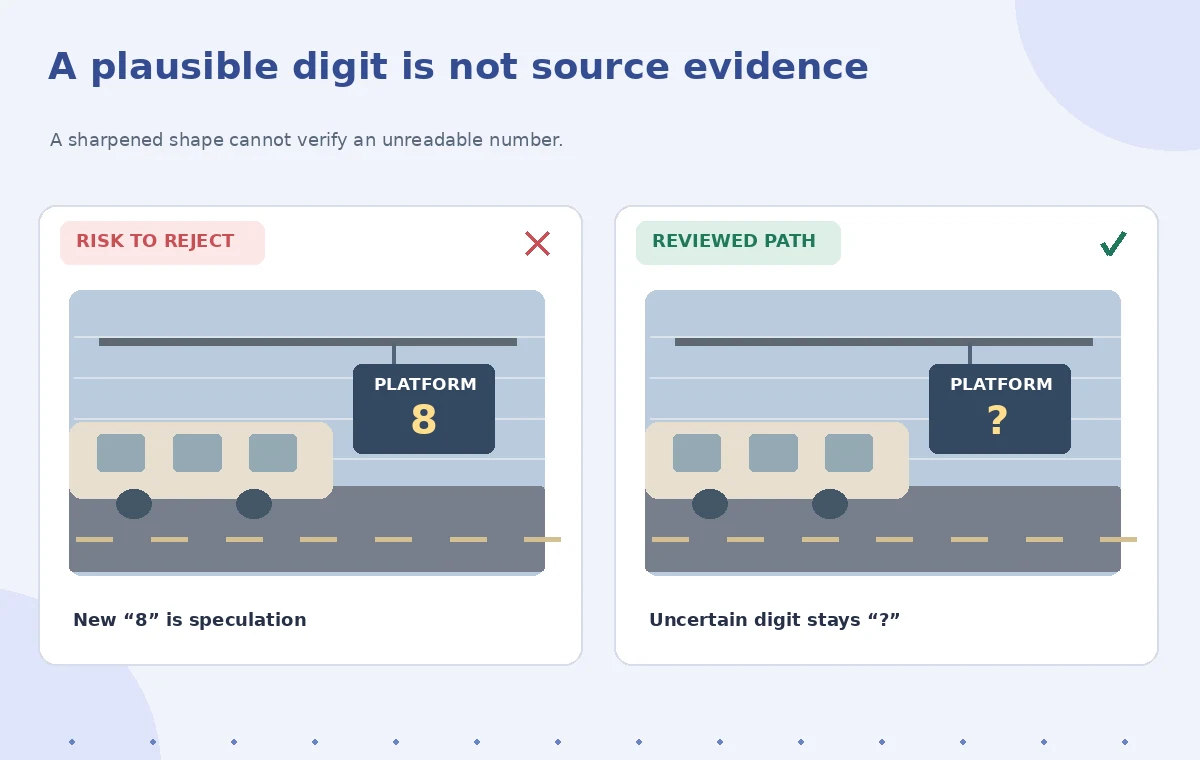
Create a log of the frames where the platform sign appears and whether the number is actually legible at source resolution. Note ‘uncertain’ rather than guessing from a nearby station map. If separate dated photographs support the sign’s identity, retain them as independent context, not as proof that the AI upscaled video has recovered a specific digit.
Confirm that you have Studio and suitable hardware
Blackmagic lists Super Scale among DaVinci Neural Engine features available in DaVinci Resolve Studio. The free and Studio editions have different capabilities, and a project guide should not imply this high-end feature works in every free installation. Check the installed Resolve version, hardware, memory, and processing limits. The official Studio documentation notes that Super Scale is computationally intensive.
Plan short-range previews rather than processing the whole archive immediately. Work with a small segment containing the critical sign, a moving face, and a relatively static wall. A preview can reveal whether a chosen mode is worth the time and whether image details become more stable or more speculative across several frames. Do not promise a processing-speed estimate without benchmarking the actual machine.

Choose a mode deliberately
Blackmagic’s Resolve 20 features guide documents 3x Enhanced and 4x Enhanced modes with adjustable Sharpness and Noise Reduction; prior versions also documented 2x Enhanced. Choose an enlargement factor based on output requirements rather than the largest available number. The media Inspector or Clip Attributes controls may differ by installed edition, so consult the version-specific manual for the precise UI.
Compare conservative and stronger settings on the same short clip. Excessive sharpness may turn JPEG-like block edges into rigid linework, while excessive denoising can erase film grain and useful context. Retain matched crops of the original and each candidate so that reviewers can compare actual input information rather than simply preferring the version with the cleanest appearance.
Treat sign characters as high-risk regions
A train platform numeral is a factual detail, not decorative texture. Zoom into the original to establish whether a candidate digit has enough pixels to be read reliably. If the source is inconclusive, the enhanced result must not become a new claim. The instructional comparison depicts a ‘3’ being visually interpreted as an ‘8’ after aggressive restoration; it is a schematic warning, not a tested finding about the product.
Mark other high-risk details: destination boards, carriage numbers, badges, banners, and dates printed on an opening sign. These can influence public interpretation of a historical record. Where an archival caption needs a number, derive it from independent reliable documentation and cite that source, or describe the number as unreadable in the video.
Check motion, not just a single clean frame
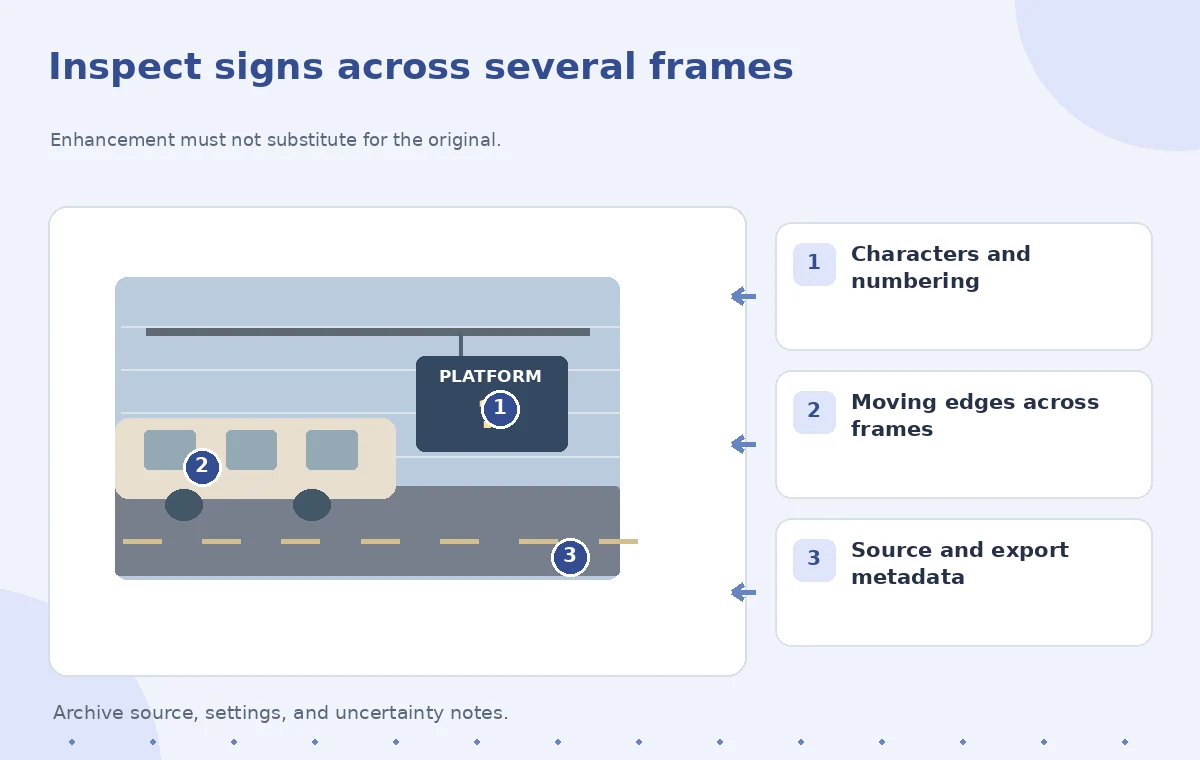
Play several seconds before and after every flagged frame. An enhanced letter may look plausible in one still but flicker, bend, or turn into a different shape as the camera moves. Look at edges of moving coats, handrails, cables, and faces. If a deinterlacing pass is needed, handle field order carefully and avoid creating a synthetic motion artifact before Super Scale even runs.
Compare the same movement at native size and at intended exhibit display size. Review on a display similar to the museum monitor. A strong zoom that makes the subject seem sharper may still be inappropriate for a documentary presentation if it exaggerates uncertain detail. Treat stable-looking pixels as a rendering outcome, not newly recovered evidence.
Balance upscale processing against export quality
If the project includes many clips, proxies or optimized media can reduce editing friction, as described in Blackmagic’s documentation. Keep clear separation between working previews and the final archival deliverable. Avoid transcoding through several lossy generations or cropping away a relevant corner label. Set the export aspect ratio and frame rate deliberately, and inspect the file after encoding.
Test whether subtitles, museum source notes, and date captions remain readable on the target screen. They should be created from verified metadata and placed in edit-friendly layers, not hallucinated into the footage. Keep the untouched audio unless its own documented restoration is required; a visual enhancement pass should not silently alter narration.
Combine AI Tools with Human Review
Make the exhibit label distinguish source and enhancement
The final exhibit should state that the archival video was digitally upscaled, especially when display visitors might treat it as a pristine original. Retain the source identifier, capture date if known, and a clear note about unknown details. If another archival document establishes the platform number, cite that document separately from the upscaled clip. This protects the collection from a future editor copying a generated numeral into the catalog as fact.
Provide a side-by-side option for curators where possible: source resolution alongside the enhanced display. That makes the restoration transparent and can be educational for visitors. A conservation record should list the settings and software version, not a fabricated quality score or claim that every reconstructed detail is authentic.
Perform an archival release review
Have a curator or archivist verify factual annotations and a video editor inspect compression, motion stability, and signage at full output size. Check that the source remains accessible and that the enhanced master is linked to, not substituted for, the original. If critical signs are still unreadable, leave them unresolved rather than using the enhanced output as a visual ‘answer.’
This article relies on official Blackmagic product information, not a run of Super Scale on the railway clip. The 480p footage and comparisons are imagined examples, with no fabricated before-and-after measurements. The purpose of the workflow is high-quality public presentation with historical uncertainty preserved, not a promise to recover details that the camera never recorded.
How We Research
We reviewed primary documentation for the current feature scope and implementation: Blackmagic Design: DaVinci Resolve Studio; Blackmagic Design: Resolve 20 New Features Guide; Blackmagic Design: Resolve overview and Neural Engine. The article analyzes a hypothetical, editor-led scenario against those sources and highlights failure points that can be independently checked. We did not use a paid product account, run a controlled accuracy study, or claim measurements from actual source footage, calls, photographs, or translations. The included diagrams are conceptual instructional artwork rather than screenshots or empirically measured before-and-after results. Product capabilities, pricing, languages, availability, and user interface labels can change; confirm current product and account documentation before deploying the workflow.
Frequently Asked Questions
No. It generates an enhanced image from available data; newly sharp details are not independent historical evidence.
Blackmagic lists Super Scale as a Studio Neural Engine feature, so check your installed edition and license.
None. Match the intended deliverable and evaluate artifacts, motion, and processing requirements on the specific clip.
Do not assert that number without corroborating source evidence; label the original detail uncertain.
Yes. Preserve the original and document every enhancement and exported derivative for archival traceability.