
A community workshop receives maintenance requests for loose cabinet hinges, a flickering hallway light, and a damaged entrance ramp. Volunteers track the requests in Asana, where Smart Fields can suggest custom fields and autofill supported field types. The temptation is to let a generated label set the work order. But a subject line saying ‘urgent’ is not a safety assessment, and a vague description may omit the one detail a facilities lead needs. This hypothetical guide focuses on AI-assisted classification, transparent uncertainty, and an approval boundary. A suggested field value becomes useful when a person can trace it to the report and decide what action is actually warranted.
Define the request schema before generating fields
Agree on what the project needs to know before inviting Asana AI to organize it. A useful repair intake has location, equipment, reporter, description, observed risk, photo reference, and contact for clarification. Add one categorical field for request type, such as electrical, furniture, or access route, and a separate manually controlled field for approval status. Avoid placing ‘urgent’ and ‘authorized to repair’ in one field: the former may be a claim by a reporter while the latter requires a responsible manager. Preserve the unedited report in the task description. If a new field cannot be explained in one sentence to the maintenance team, reconsider its purpose before adoption.
Check Asana Smart Fields permissions and field options
Asana’s official Smart Fields help describes AI-recommended custom fields and an option to Add, Remove, or Add and Fill a suggestion. It also documents autofill for existing single-select and multi-select custom fields. Check the actual plan and project permission settings before presenting an instruction to colleagues, because feature access and workspace policy vary. An existing shared global field may be a better choice than a near-identical new field. Inspect the proposed list of choices and confirm that they match the shop’s established terminology. Do not assume the AI can reliably produce a free-form severity assessment or make purchase approvals simply because it can fill a category.

Prepare five representative fictional intake cards
Make a safe test copy of a project using invented requests, not personal telephone numbers or sensitive records. Include a clearly stated furniture repair, a report mentioning an entry ramp, a vague ‘broken thing’ message, a duplicate task, and a request whose title contradicts its description. For each card, write the correct category, the missing facts, and who should decide next. The test set is small on purpose: a human can audit every proposed value. Its role is diagnostic rather than statistical, so do not present correct classifications among five examples as a model accuracy rate. Save a record of the intended labels before you run autofill.
Distinguish a suggested category from a priority decision
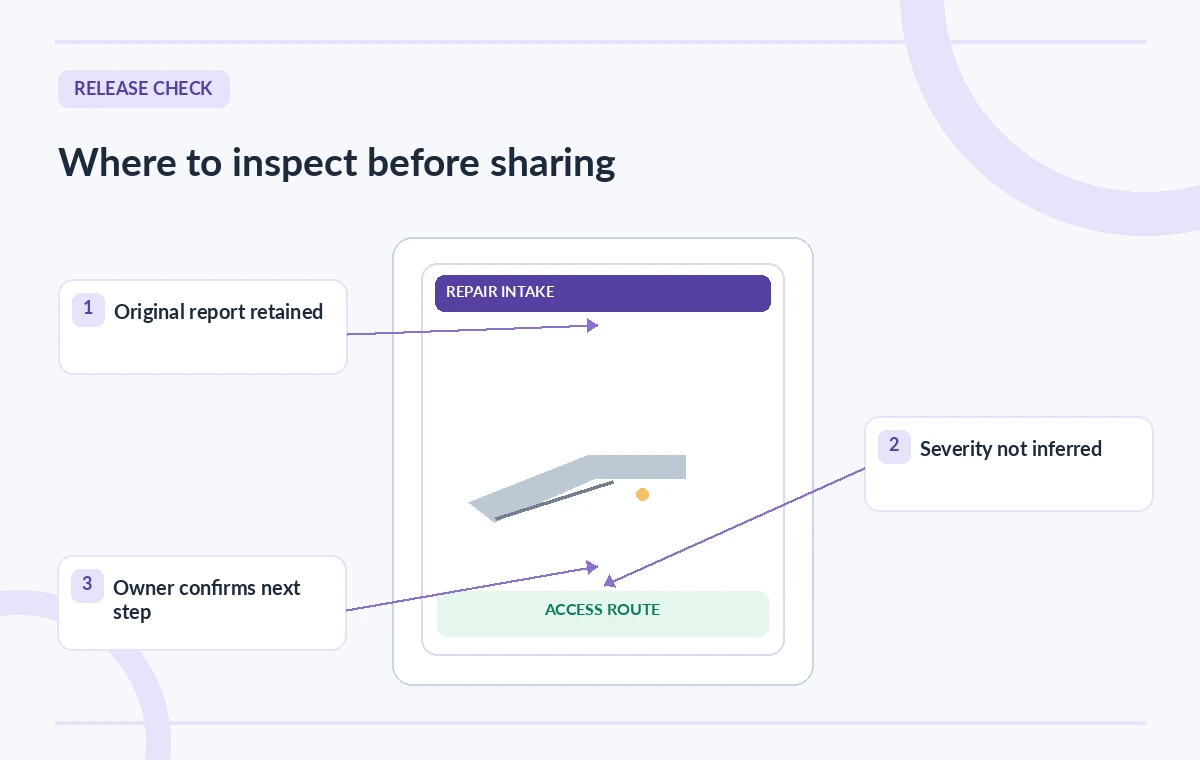
The comparison diagram uses three invented stages: an unclassified ramp request, an unjustified ‘low priority’ shortcut, and a reviewed access-route category awaiting a safety lead. AI often works on task text, which may not contain the dimensions of a damaged ramp, current accessibility impact, or applicable facilities rules. A label such as ‘access route’ can help route the report, but it cannot establish that a situation is safe or that a repair contractor should be dispatched. Treat generated category and priority as separate concepts. If the report could involve immediate danger, use the organization’s existing urgent reporting procedure instead of waiting for an Asana autofill operation.

Autofill narrowly and examine disagreements
When Smart Fields or a supported existing custom field offers autofill, start with the category field rather than cascading through every status. Compare each suggested selection with the original description and any attachments. Confirm that multi-select values have not added mutually inconsistent categories. If a task says ‘intermittent buzzing near the front door,’ the evidence may support electrical review without supporting a confident fault diagnosis. Mark ambiguous entries ‘needs clarification’ or leave the field unresolved, according to the project’s conventions. Asana documents an undo option for the last autofill; still, maintain a simple review log because collaborators may make subsequent changes while the intake list is being checked.
Route work through the designated owner
Build a handoff that leaves authorization with the appropriate staff member. A coordinator can filter tasks by reviewed category, assign an owner for investigation, and ask for supporting measurements or photographs. They should not automatically change a status to ‘approved,’ schedule a contractor, or tell a reporter that a fault has been fixed. Show the distinction visually: original intake on the left, suggested tag in the center, and a human decision gate on the right. This avoids a subtle operational failure in which a tidy dashboard looks finished even though nobody confirmed a location, estimated cost, or the need for accessibility accommodations.
Protect personal information and audit changes
Maintenance requests can inadvertently reveal home addresses, employee schedules, or other personal details. Only include the information needed for routing, and use the workspace’s ordinary permission controls for sensitive records. Keep project admins aware of who can create fields and who can change approval statuses. The Asana AI suggestion should be documented as a source of draft metadata, not as the source of the original report. If your team adjusts the field vocabulary, review old classifications for consistency and consider whether the same category now means something different. A modest change log with reviewer, date, original value, and corrected value makes follow-up easier.
Measure usefulness by decisions corrected, not automation volume
After a controlled trial, ask reviewers whether sorting by the proposed fields actually helped them find the right tasks and which requests still required follow-up. Look for unclassified tasks, duplicate entries, and categories that are too broad to support real routing. Confirm that every reported access concern reached the correct person, regardless of its generated label. Explain the exception-handling procedure to volunteers before expanding use. A responsible outcome may be slower intake with better information rather than a larger number of automatically labeled tasks. Revisit Asana’s help pages when feature access or field behavior changes; no live organizational workflow or reliability benchmark was tested for this article.
How We Research
We reviewed Asana’s official Smart Fields help article for field recommendations, single-select and multi-select autofill, reuse of global fields, and undo behavior. The workshop, intake records, category decisions, and illustrations are fictional teaching examples. We did not run Asana AI on real facilities data, evaluate a safety risk, or verify account-specific entitlements.
Frequently Asked Questions
Yes. Asana describes AI suggestions that can reuse existing fields or propose new ones; review them before adding.
Its help documentation describes autofill for single-select and multi-select custom fields. Other field types should not be presumed supported.
No. A category aids routing, while urgency and authorization require the responsible person and sufficient evidence.
Keep the original report, request clarification, and leave the uncertain category unresolved under your team process.
Asana documents an option to undo the last autofill. Maintain a change log for broader collaborative revisions.