
A local parks group is preparing a two-page walking guide. One spread contains a colorful map with a marked accessible route from the east entrance to a garden viewing platform. Adobe InDesign can generate alternate text for placed images, giving editors a starting description without typing every word from scratch. But a line such as ‘illustrated park map’ does not communicate where the accessible route begins, where it goes, or whether the drawing contains restrictions the reader needs. In this fictional example, the map is a teaching graphic rather than surveyed navigation data. The editor’s task is to confirm every route-related statement against an approved accessible route description before exporting the document.
Decide what the map must communicate in words
List the information a nonvisual reader needs to use the spread: the map’s purpose, named entrance, path direction, destination, relevant landmarks and any limitations that have been confirmed. Write these facts from an official route guide or staff-approved source; do not estimate distances or wheelchair access from a drawing. The image may show decorative trees, benches and a lake, but these do not necessarily belong in the alt text. If the route is too complex for a concise alternative, provide a nearby full text description or accessible directions in the main document. Alt text supports the content; it should not carry critical navigation details that have no other verification.
Place the graphic and identify its export role
InDesign’s current help explains automatic alt text for placed images, with a badge on the image frame indicating generated text or errors. Keep the map’s actual file and the approved route notes together in the project. Decide whether the placed artwork is informative or purely decorative. A map conveying a route is informative; a repeated ornamental leaf motif may be marked decorative through appropriate export settings. Do not duplicate a lengthy caption verbatim without considering how screen-reader users will encounter both. Check that the map’s visual legend, route labels and surrounding caption agree with the authoritative route notes before asking AI to describe anything.
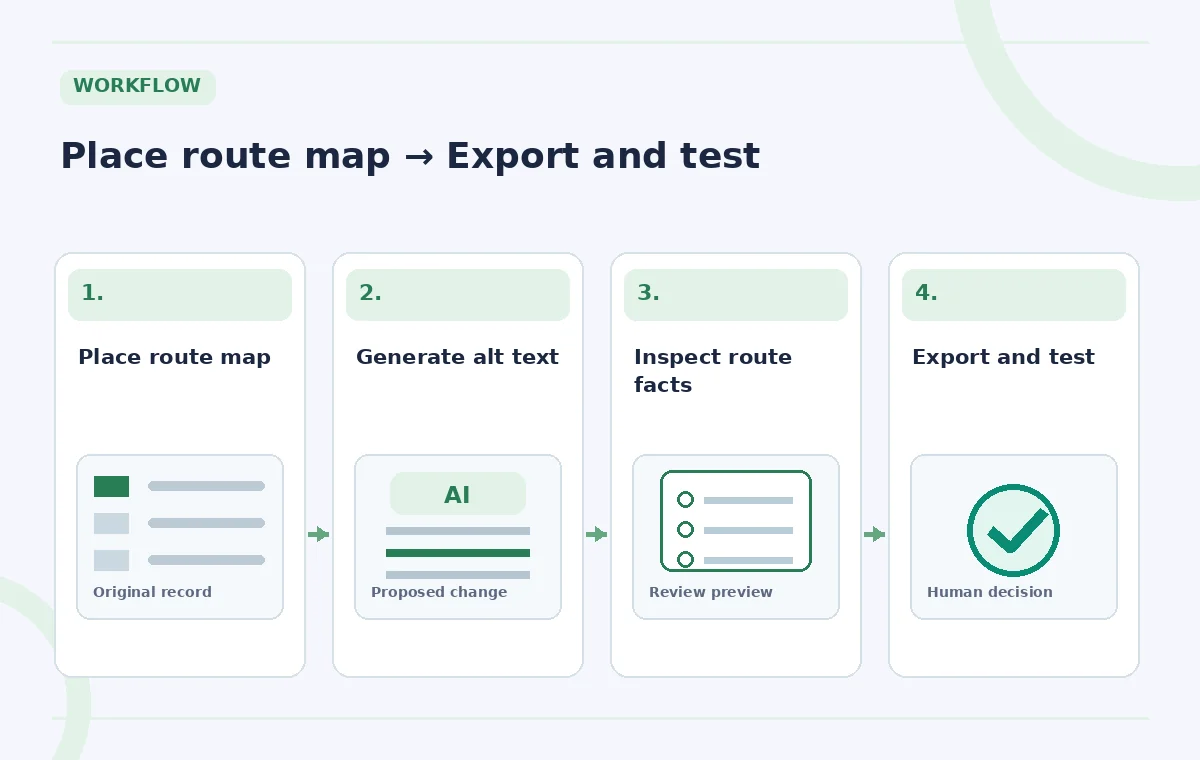
Inspect the generated description in Object Export Options
InDesign documentation describes opening Object Export Options to review alt text, including an icon shortcut and the ability to regenerate text. When automatic generation is enabled, placing an image can produce an initial description; availability and credits depend on the user’s configuration. For a manually triggered path, choose Custom in the Alt Text Source settings and generate a suggestion. Read the result out of context. Does it name the east entrance, the garden, or the correct path? Does it invent a distance or suggest that every trail is accessible? Generated text may focus on visual colors while missing the route’s meaning. Replace it with checked language whenever necessary.
Contrast visual summary with navigational information
The comparison diagram illustrates three possible descriptions for the same mock map. ‘Green park with winding trails’ is too vague; ‘accessible path begins at west gate’ is wrong in the fictional source; a useful version identifies the east entrance and the route to the garden platform. These descriptions are designed examples, not actual generated outputs. The important distinction is that visual plausibility and navigational correctness are different criteria. Treat all directions, names, lengths and accessibility claims as facts requiring independent approval. If the map is only decorative, choose an appropriate decorative treatment instead of manufacturing instructions from it.

Recheck alt text after cropping or replacing the image
Adobe notes that when an image is cropped or moved within its frame, InDesign can show an outdated-alt-text indicator. A description written for a full regional map may no longer match a crop that excludes the starting point. When a map is revised, compare the object on the actual page against the stored description and source route text. Do not assume a reused linked image brings its approved alternative text along correctly. Track the map file version and the document’s revision date. If route access changes due to construction, update the accessible route notes before regenerating or rewriting alt text; AI must not guess the current path.
Use bulk generation carefully on multi-image spreads
InDesign’s help covers bulk operations for images missing alternate text and removal of AI-generated descriptions. Bulk generation saves time, but it can also create superficially reasonable descriptions that miss the primary purpose of each graphic. Review the new texts individually: a photo of a trail marker, an elevation chart and a route diagram have very different information needs. Adobe notes that older documents may have limits in identifying previously generated alt text after reopening. Do not overwrite manually reviewed descriptions just to make the batch uniform. Maintain a simple inventory of graphic, role, approved alt, reviewer and export version.

Test accessibility after export, not just inside InDesign
Export using the project’s required accessible PDF or EPUB workflow, then inspect what a reading tool actually receives. Confirm the map is associated with the intended text, that headings and captions appear in a logical order, and that the route description does not contradict the nearby directions. A technically present alt attribute can still be misleading. When possible, ask an accessibility reviewer familiar with the audience to check clarity and usefulness. If detailed instructions are required for navigation, include them in the body text rather than squeezing all of them into an excessively long image description. An AI draft reduces typing but does not complete document accessibility testing.
Maintain an approved description for future guide editions
Save the final image file, approved alt text, source map notes, and last review date with the project. Use a clear owner for future updates and specify what triggers revalidation: a new entrance, construction closure, crop, change of route color, or revised symbol key. Editors should not infer that a prior description remains valid because the artwork looks similar. For this scenario, the park and route are fictitious; a published guide must instead cite real access information. The release gate is not ‘the AI generated text’ but ‘the route content is correct, the exported alternative is readable, and the owner signed it off.’
How We Research
We checked Adobe’s official Generate Alt Text for images guide and InDesign release notes for automatic and manual generation, crop warnings, bulk controls and account conditions. The trail map and suggested descriptions are fictional, not surveyed directions. No live InDesign export or assistive-technology user test is claimed.
Frequently Asked Questions
Adobe documents automatic generation where enabled, as well as manual generation and review in Object Export Options.
Only if a trusted, current source establishes that distance. Never infer route length or accessibility from appearance alone.
Adobe uses it to warn that a crop or repositioned graphic may no longer match its earlier description.
Adobe documents bulk generation for images missing alt text, with controls that need individual editorial review.
No. Logical reading order, headings, captions, route accuracy and the exported document still need review.