
An arts center’s front-desk team searches for the emergency action plan before a crowded open-house event. Their shared drives contain a 2025 version, a draft annotated for training, and a signed 2026 plan. Dropbox Dash can search connected content and offers an admin-managed Verified Files feature that can elevate a reviewed document for designated search phrases. That improves discovery, but it does not make an outdated plan safe or authorize an AI to interpret evacuation policy. This fictional scenario shows how a responsible owner can identify the approved plan, verify it for the right search terms, and train staff to check its effective date and contents before relying on a search result.
Choose the governing document before configuring search
First obtain the current plan from the operations or safety owner, not from a generic AI summary. Record its exact title, revision identifier, effective date, approval authority and location. Compare superseded versions and mark them as historical references. If multiple buildings use different evacuation routes, verify that each location’s plan is distinct and has the correct scope. A filename containing the word ‘final’ is not proof of current status. Establish the organizational process for approving changes and communicating urgent corrections. Only when there is a trusted canonical file does it make sense to influence what employees see first in a search interface.
Confirm Dash and connector eligibility
Dropbox’s help documentation describes Verified Files as an admin capability and says verification applies to content from apps connected by admins, not every personal app connection. Check the organization’s Dash deployment and what the search index can access before giving staff instructions. Admins should use the least privileged connection needed, respecting the original source permissions. Do not copy confidential incident procedures into a public test project. The feature makes a selected file more discoverable for designated terms; it does not override access controls or guarantee that everyone can open the document. Verify those assumptions with a normal staff account, not only an administrator account.
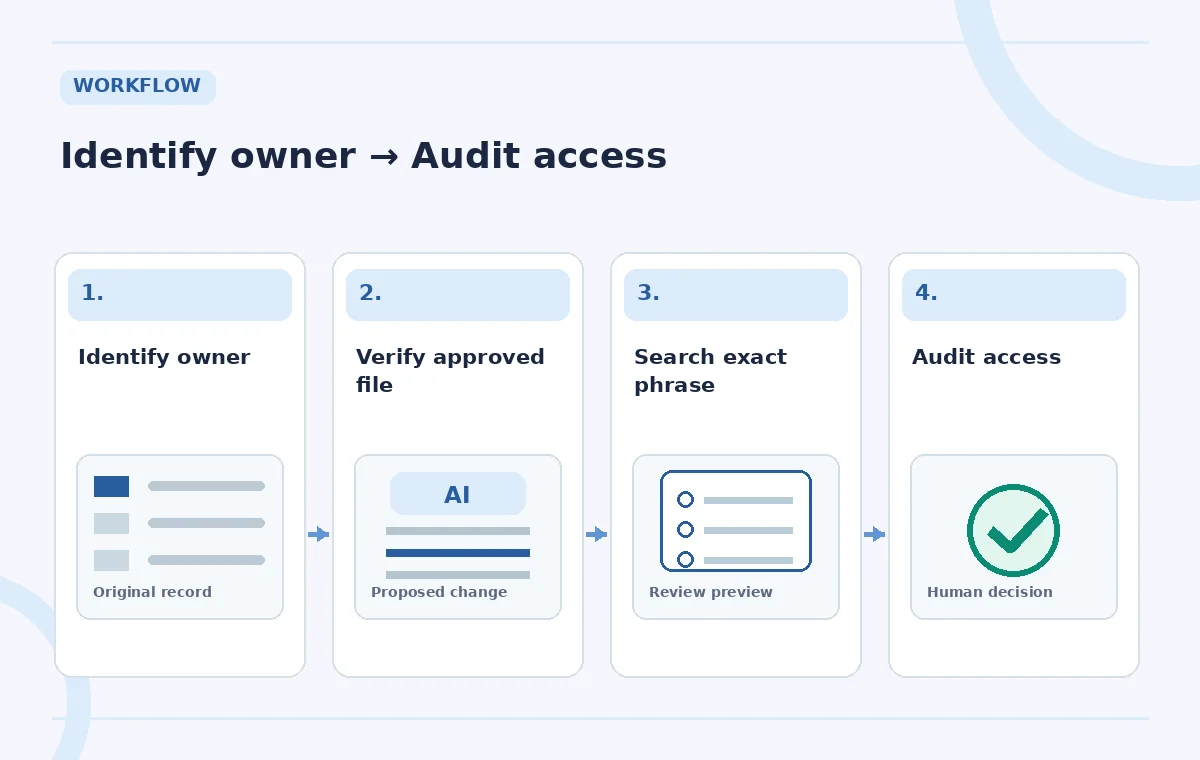
Mark the approved file for exact search language
Dropbox’s admin guidance describes finding the file in Dash search, opening the verification control and adding relevant search phrases. Choose a small list of phrases staff actually use, such as ‘arts center emergency plan’ or ‘evacuation instructions for front desk.’ Avoid extremely broad terms like ‘safety’ that could lead users to the wrong location-specific policy. Double-check that the verification points to the approved 2026 file, rather than an old duplicate with a similar title. Record who added the verification and why. Once completed, the search result may show a verified checkmark and be elevated for the configured phrase, depending on account and connection context.
Distinguish elevated results from proof of correctness
The comparison illustration includes a hypothetical archived plan, an unmarked draft, and an admin-verified current version. The blue checkmark is an editorial governance signal: an administrator reviewed and chose the resource. It is not a cryptographic signature and does not independently validate evacuation routes, legal compliance or effective dates. A file can become inaccurate after verification if a door is closed or the building layout changes. Ask staff to open the file and read the header and instructions, rather than acting on a search snippet alone. Keep archived copies accessible for records but explicitly labeled to prevent accidental operational reuse.
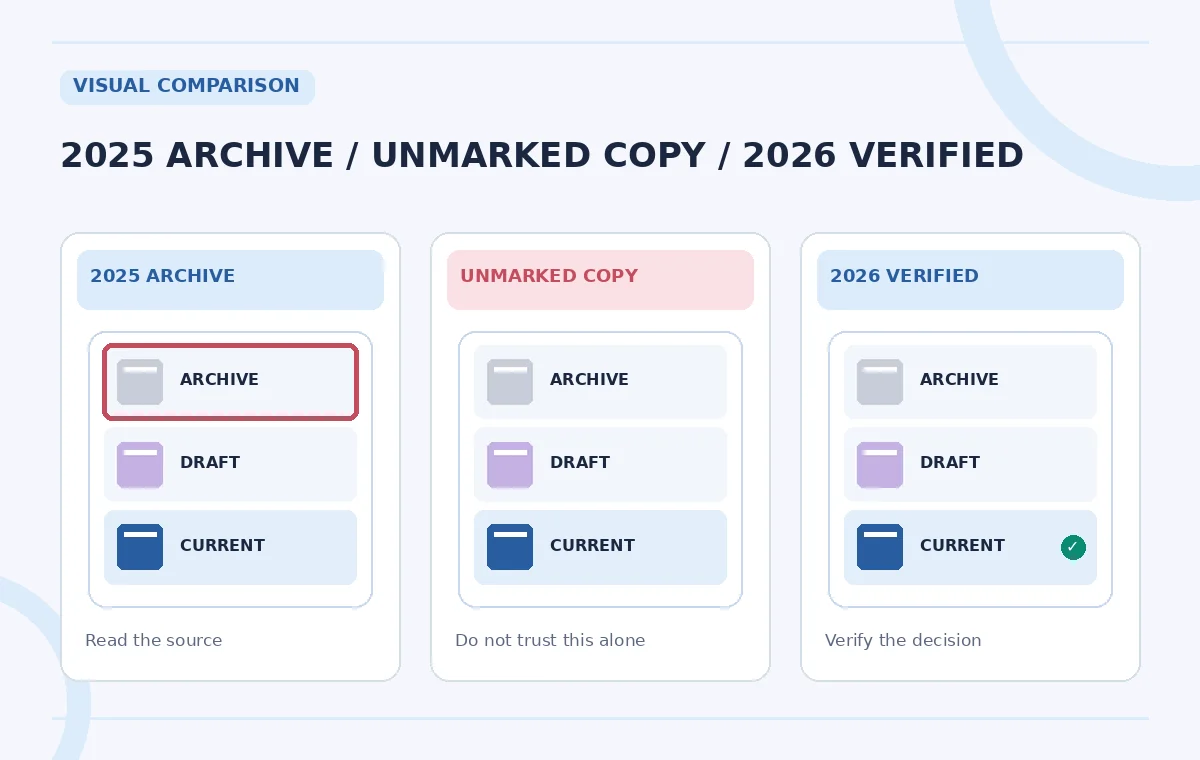
Test the query with an ordinary staff account
Use a permitted staff account to search the exact phrases that were configured. Confirm the expected file appears, opens with appropriate permissions, and contains the current title and approval date. Repeat with a reasonable alternate phrase and note when the expected verified result does not appear. Dropbox explains that the exact designated phrase matters for ranking, so test realistic variants rather than assuming every synonym will show the badge. If the result is missing, check the underlying connector, indexing and access rights before deciding the feature is broken. Do not use a public link as a workaround to a permission problem involving safety procedures.
Keep urgent updates out of stale search loops
Create an ownership rule: when the emergency plan changes, the safety owner updates the canonical source and notifies the Dash admin. If the document is replaced, check whether its verification still points to the correct item, and remove or update stale search terms as needed. Staff should also have a documented channel for immediate safety changes that is not dependent on a search index refreshing. The search feature supports routine discovery; it is not a live emergency alert system. Mark past versions visibly as archives, and include the version in training materials so an old downloaded copy can be spotted quickly.

Use AI chat carefully when answering policy questions
Dash can search and summarize connected content, but any AI answer about emergency procedures should be treated as a pointer to a document, not an instruction to improvise. Disable or separate web search when the question should be answered only from internal approved policies, subject to the interface available. Open the original plan and check the exact section, especially for assembly areas, accessibility accommodations and evacuation roles. Do not let an inferred summary erase exceptions or combine procedures from different buildings. If a question remains ambiguous or contradicts the plan, escalate to the named owner. A verified search result helps locate the source; it does not replace it.
Document renewal and train staff to read the badge
Make a short review log with the plan owner, effective date, verified search phrase, connector, staff access test and next review date. Explain what the blue checkmark means and what it does not mean. Run a tabletop search exercise in which staff locate the plan and confirm the relevant page, without representing a fictional practice as a real evacuation drill. Review the verification whenever the policy changes or permissions are reorganized. Success is not the number of search hits; it is whether authorized people can reliably find the currently approved document and know when they must ask for clarification. Recheck current Dropbox documentation as the feature evolves.
How We Research
We consulted Dropbox’s official How to verify files in search results, deployment limitations, and Dash search guide for admin controls, exact phrase behavior, connectors and search boundaries. The arts center, plan versions and search screenshots are conceptual examples. We did not access a Dropbox Dash tenant or audit a real emergency policy.
Frequently Asked Questions
Dropbox documents Verified Files as an admin capability, with restrictions tied to admin-connected content sources.
No. It signals an administrator has reviewed the selected file for a search term; document ownership and effective dates still matter.
Not necessarily. Dropbox describes exact designated search phrases, so test the terms that staff actually enter.
Dropbox says verified results apply to content from admin-connected apps, not personal connected apps.
Staff should use the current approved emergency plan and official emergency communication channels, not an unverified generated summary.