
A local history group runs a remote training session about cataloging donated photographs. During the call, a presenter shares a decision diagram, revises an example and corrects an earlier description aloud. The final handout needs the correct diagram paired with the correction, not merely the first screenshot in the conversation. Otter Automated Slide Capture can place images of screen shares and slides alongside a meeting transcript; it cannot certify that the slide is current or the speaker’s explanation is true. This fictional scenario focuses on evidence handling, participant consent and the gap between a visual record and an approved training instruction.
Confirm consent and recording scope before the workshop
Tell participants that an Otter Notetaker may join and capture visible slide or screen-share content, not just speech. Obtain any consent required by the organization and local law, and disclose who will receive the transcript and images. Have the host close private windows, account dashboards, unrelated tabs and notification previews before screen sharing. A screenshot may preserve names, chat messages or internal file paths that participants never intended to circulate. If the session includes sensitive donor records, consider a sanitized slide deck or refrain from automated capture. Decide who can approve the resulting reference notes. A note-taking service is not permission to republish someone else’s images or a substitute for a meeting’s own confidentiality rules.
Set up Automated Slide Capture and a source register
Otter’s official help describes Automated Slide Capture by Otter Notetaker for Zoom, Google Meet and Microsoft Teams. Confirm the Notetaker connection and the one-click screenshot feature are configured; the relevant capture setting can be managed under Account Settings, Integrations, then Meetings. Keep a separate register with the presenter name, workshop date, slide deck version and intended audience. Ask the presenter for the original approved PDF or slides after the event. Treat the platform screenshot as a visual bookmark tied to a moment in discussion, not the authoritative master file. Record any changes made to the deck during the session; the screenshot might represent an intermediate stage, especially when the presenter is editing live.
Find the live diagram at the relevant moment
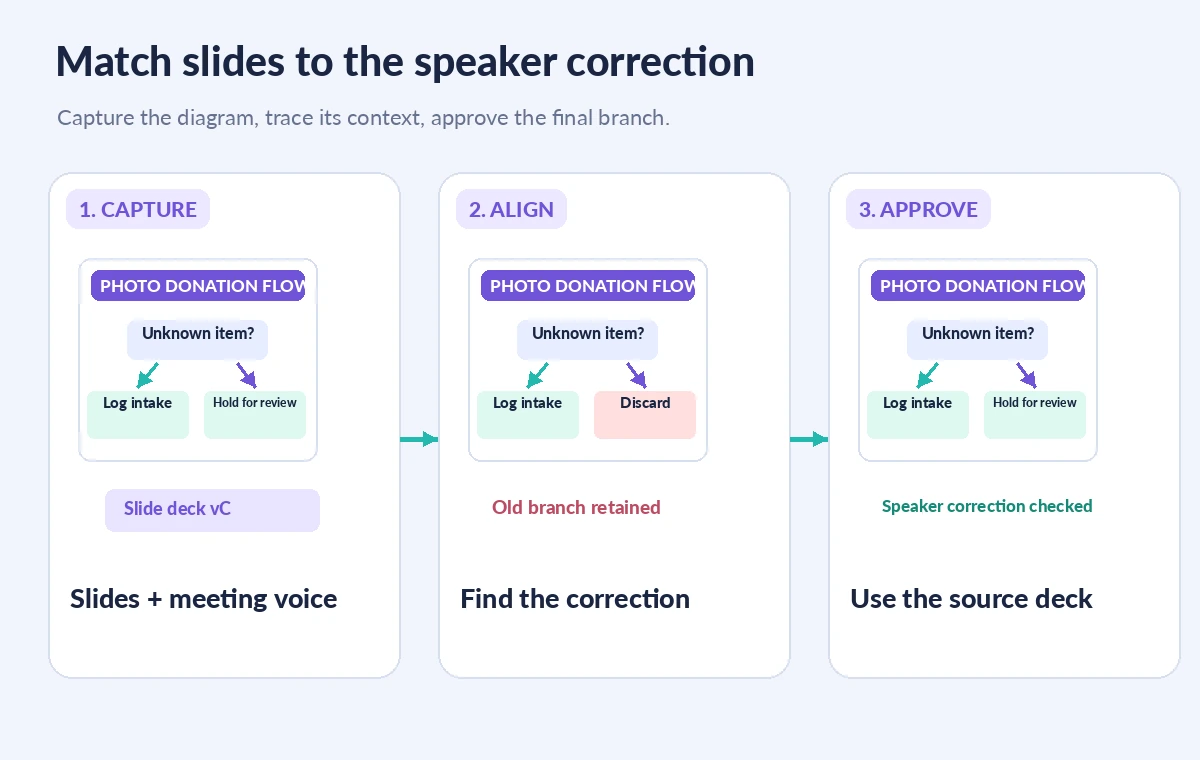
During the meeting, Otter can insert unique slides or shared-screen images into the conversation. Its documentation says the capture preview refreshes at roughly ten-second intervals, so a short-lived transition may not be represented exactly as you expect. When a new decision tree appears, note its spoken title or the time in your own permitted notes. If a crucial annotation is not captured, the help center describes a manual screenshot control inside the conversation; use it only within the agreed recording scope. Avoid turning captured images into a fabricated sequence where every spoken phrase seems synchronized with a matching picture. The visuals and transcript are separate pieces of evidence that need alignment.
Match each branch to the spoken correction
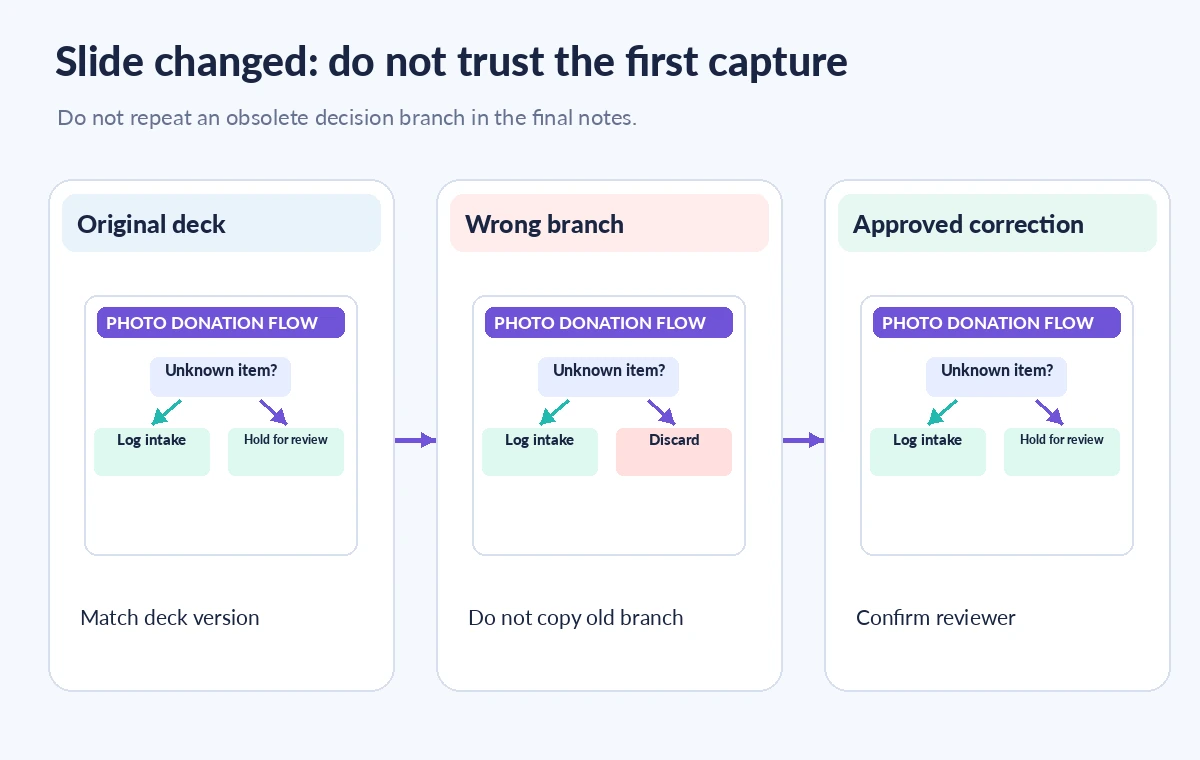
Suppose a slide first routes all uncataloged photos to disposal, then the presenter says that this is a deliberately incorrect example and switches to a revised branch labeled ‘hold for archivist review.’ A searchable transcript might contain both phrases, while the capture may show one or both slide states. Open the relevant transcript span and each adjacent screenshot. Label the early slide as an error example when that is what the presenter intended. Quote only the verified meaning and ask the presenter to review a potentially ambiguous correction. Do not use Otter AI Chat’s answer about a screenshot as independent proof; inspect the underlying image and original deck yourself.
Build a three-part note with traceable evidence
For each important lesson, assemble three fields: what the image visibly shows, what the presenter actually said, and the approved source or correction. A convenient example entry might contain screenshot time 14:20, transcript reference about holding ambiguous donations, and a note that the instructor approved slide 12 of revision C. The illustration below uses invented times and titles, not recorded meeting data. Avoid creating a neat but false one-to-one match: a single visual can remain on screen across several explanations, and a presenter can mention a future slide before showing it. If the source deck and captured slide disagree, preserve the discrepancy and request clarification instead of silently choosing the cleaner screenshot.
Inspect images for accidental private information
Before attaching screenshots to public workshop notes, expand each image and look around the edges, not only at the central diagram. Speaker notes, personal chat notifications, usernames, open browser tabs and filenames can appear alongside a legitimate teaching slide. Delete or restrict inappropriate captures according to the organization’s retention policy; Otter notes that image deletion is permanent, so preserve required approved records first. If redaction is needed, perform it on a copy intended for distribution and verify that the redacted material cannot be recovered through another embedded image or transcript export. Check that the presenter owns or can share third-party figures. A visually clean document is not automatically licensed for publication.
Review a participant-facing recap against the master deck
Prepare a small table of approved takeaway, slide number, transcript passage and reviewer initials. Where the screenshot contains a threshold, date or procedural label, compare every character to the approved deck rather than retyping from a compressed preview. If the presenter corrected a statement verbally, include the correction with attribution after confirmation. Ask a second reviewer who did not assemble the recap to follow the decision branch from its start through its exception path. That review may uncover an arrow or box hidden by a video overlay. Do not rely on slide count as a measure of completeness; one missing safety-critical branch matters more than a dozen duplicate captures.

Export and share only the approved teaching record
Keep the raw Otter conversation access limited to authorized participants and publish a separate, reviewed handout. Otter documents controls for downloading captured images and searching meeting screenshots with AI Chat, but those conveniences do not replace an organization’s sharing policy. If Meeting Summary emails are enabled, inspect recipient settings rather than assuming a private recap stays private. Archive the approved version of the diagram alongside the review decision, not merely a link to a changeable meeting workspace. If someone later corrects a rule, revise the handout and its version number explicitly. The goal is a trustworthy training record with source trails, not maximal automatic capture.
How We Research
Our method was to read Otter’s official Automated Slide Capture Overview for supported meetings, screenshot controls, preview cadence, removal and image search, and its Meeting Summary Overview for email-sharing behavior. No actual workshop, participant, screenshot sequence or transcript was captured or evaluated. Names, slide labels and review examples are fictional; consent and rights decisions require local review.
Frequently Asked Questions
Not necessarily. Its documented preview updates about every ten seconds, so short visual transitions can be missed; review the source deck.
Otter documents a manual screenshot control in the conversation. Use it only with recording consent and appropriate sharing permissions.
No. Use the AI answer for navigation and verify numbers, arrows and annotations against the image and approved source deck.
Otter provides image deletion, but warns deletion is permanent. Follow retention policy and check where copies may have been shared.
Only after checking participant expectations, the email recipients and the content. A reviewed handout is often safer for wider distribution.