
An imaginary local-history museum has three dated photographs and wants visitors to explore a timeline on a large screen. A curator has approved the dates 1912, 1920 and 1934, but generated slide designs can reorder or mislabel events. Microsoft introduced a Copilot skill for interactive PowerPoint slides, including timelines and dashboards, with a rollout described for October 2026. It lets people explore information during a presentation, yet interaction and accessibility vary by device and export format. This guide focuses on a museum timeline with verified dates, keyboard navigation and a static alternative. The dates are fictional examples, not historical claims about a real institution.
Write a short source ledger before prompting
Create a simple approved table with event ID, year, title, one-sentence caption, image credit and the document where each fact was verified. The sample rows are 1912, 1920 and 1934. Give each record a stable ID so a slide-generation step cannot silently merge two events or shift a photo to the wrong year. Decide whether the exhibit must present only three milestones or a fuller sequence. Have the curator approve the text before using AI. A generated interactive slide is a presentation layer, not a historical research tool, and it must not invent a bridge between absent years.
Check feature rollout and licensing
Microsoft’s official help describes Create interactive slide in the PowerPoint Home or Insert ribbon and in the Copilot skill picker. Eligibility depends on access to Copilot in PowerPoint, and the Windows, Mac and web rollout began in mid-October 2026 with a stated target of late October. The button may still be absent from a particular build, account or channel. Confirm platform, app version and administrator policy before scheduling a demonstration. The article does not assume every attendee owns a license: viewers of a shared interactive slide may explore its content without a Copilot license, subject to supported devices.

Build a specific, constrained timeline
Start the documented Create interactive slide skill and choose a timeline category or describe the interaction in a custom prompt. Provide the approved source table, state that only those three dates are allowed and require a visible caption for every event. Ask for controls that expose one event at a time while retaining a clear chronological overview. If the organization uses a Brand Kit or slide theme, apply it without overriding text contrast. Avoid asking the model to improvise archival photographs or source citations. Keep the PowerPoint source file as the editable authority for the presentation workflow.
Understand how interactive slides are edited
Microsoft says these interactive slides are created and updated through Copilot prompts rather than direct ordinary canvas editing. If a date is wrong, describe exactly which timeline item needs changing and provide the approved replacement value. Then inspect the whole slide again, because a targeted revision can have unintended layout effects. Do not assume a regular PowerPoint text box workflow applies to every interactive element. Save a reviewed version and keep a change note showing which facts were corrected. For high-stakes facts, it may be simpler to use a conventional slide that a curator can edit directly.
Review the chronology in every state
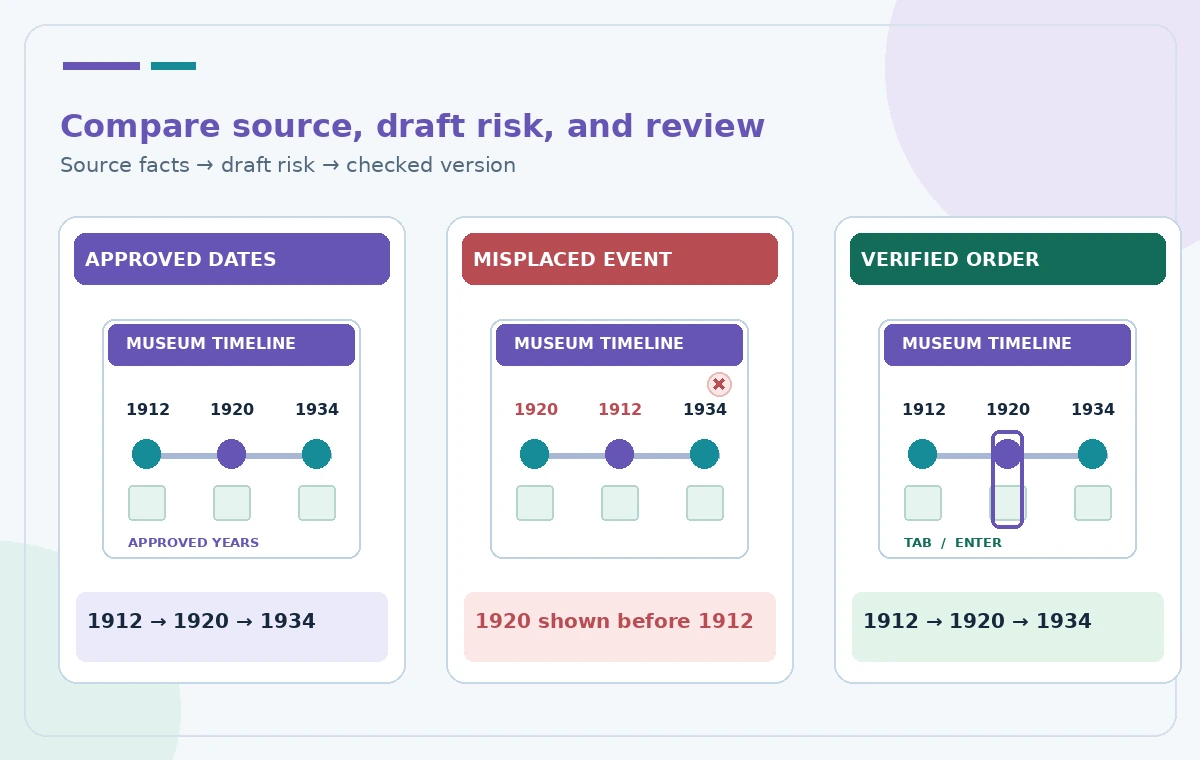
Test first, middle and last events, then return to the starting state. For each screen, verify the year, image attribution, place name and description against the approved ledger. Deliberately check a plausible failure such as showing 1920 before 1912. In the comparison illustration that mistake is hypothetical; it is not a screenshot or recorded Copilot output. Also verify the timeline does not make the 22-year interval visually equal to an 8-year interval unless the graphic clearly communicates that positions represent sequence rather than proportionate elapsed time. The distinction matters when visitors infer historical causality.
Verify keyboard access and focus return
Microsoft’s instructions explain that left and right arrow keys can move between slides, while Tab moves focus into interactive content and through its controls. Tab or Escape moves focus back out, with some behavior differences across Mac and web. Test the actual presentation mode using a keyboard only: enter the interaction, move between events, activate controls, identify the visible focus indicator and leave without getting trapped. A mouse-friendly demonstration is not proof of keyboard accessibility. Check color contrast, captions and any motion sensitivity issues as separate considerations. Provide a reachable help instruction near the display.
Plan for device and sharing differences
The official guidance states interactive slides can be viewed on supported PowerPoint desktop, web, iPad and in Teams scenarios, but iPhone and Android show a noninteractive image. PowerPoint Live attendees can interact independently: their actions are not synchronized with the presenter. This matters for a workshop instructor who expects everyone to see the same expanded event. Explain these differences before a session and use a common static screen when group discussion requires shared context. Test the exact room hardware and presentation setup rather than treating the vendor compatibility list as proof of your deployment.
Make a durable noninteractive handout
Microsoft notes that printing or exporting interactive slides to formats such as PDF results in a static image of slide content, not live controls. Provide an intentionally designed companion page with all milestone dates, titles, descriptions and image credits visible together. Verify the PDF on a phone, screen reader where applicable and printed page; do not assume exporting the active interactive state produces a complete handout. Keep a plain-text chronology for visitors who cannot operate a touch screen. Static content is not a second-class experience when it is easier to scan or cite.

Approve content, interaction and fallback separately
Have a curator sign off factual data, a presentation editor review branding and layout, and an accessibility reviewer test focus order and the static alternative. Recheck after any update to dates or source images. Record the PowerPoint version and whether the session used desktop, web or Teams, since behavior differs. If the interactive control fails on opening day, the display can switch to the complete static chronology immediately. This workflow is hypothetical: it does not claim a live Copilot-generated timeline, hands-on compatibility testing, measured accessibility results or a real museum deployment.
How We Research
We reviewed these named official developer resources: Microsoft Support — Create interactive slides with Copilot in PowerPoint; Microsoft Support — Edit with Copilot in PowerPoint. We checked the documented feature entry points, eligible platforms, administrator or licensing controls, and known sharing or source limitations against the tutorial steps. Editorial examples were designed as hypothetical failure-mode checks, not reports of hands-on testing. We did not have a live account, source files from a museum or nonprofit, user interviews, access to private records, or measured model outputs. Every illustration is original explanatory artwork rather than a vendor screenshot or measured before/after result. Features and entitlements can change. A responsible editor should confirm current product documentation, applicable organizational policy, and the original evidence before putting the workflow into consequential use.
Frequently Asked Questions
Microsoft says these slides are created and revised through Copilot prompts rather than standard direct canvas editing.
On iPhone and Android, Microsoft describes a noninteractive image rather than the full interactive experience.
Microsoft says viewers of a shared presentation can explore interactivity without their own Copilot license on supported platforms.
Microsoft documents Tab navigation into controls and Escape or Tab to return; test the actual platform because behavior can differ.
No. Microsoft describes printed and exported copies as noninteractive images; make a separate complete static chronology.