
A community center receives routine supply questions and urgent building-maintenance messages in the same shared-workflow inbox. Outlook Copilot’s Prioritize My Inbox may help a staff member notice messages about leaks or unsafe stairs, but priority labels are an imperfect sorting aid, not an emergency response system. In this fictional example an email about a wet floor deserves prompt attention even if it arrives with a bland subject. The following workflow distinguishes the Microsoft’s documented feature from the human response process an organization must maintain; no live mailbox or confidential email was used.
Define what deserves immediate attention
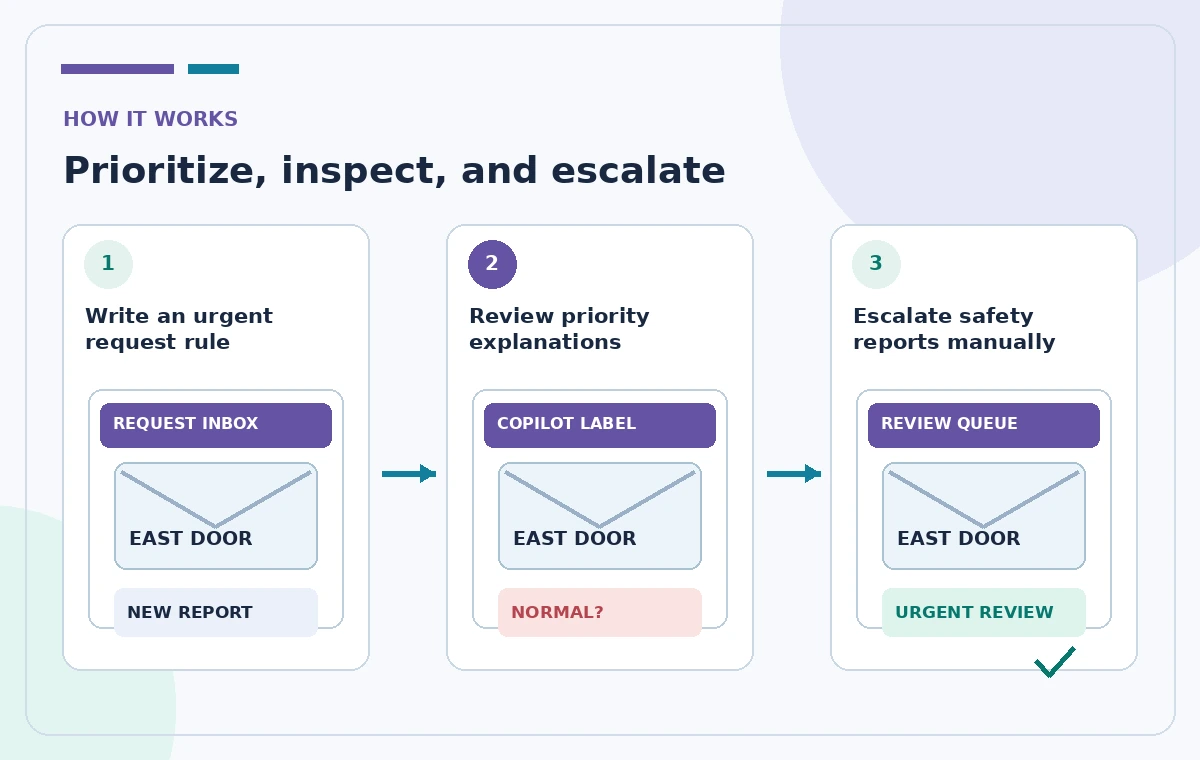
Before enabling automation, ask the facilities owner to write down escalation categories and response channels. Examples might include water near electrical equipment, blocked exits, broken locks, and an inaccessible ramp. Create an explicit contact method for true emergencies: a staffed number or established emergency procedure should not depend on Outlook priority tags. Distinguish requests needing same-day inspection from routine supply purchases. Keep this list short and auditable. A message about a new mop is not equivalent to a report that someone slipped on a wet floor, even if both contain the word cleaning. Rules should support that distinction, not replace a person who can assess risk.
Understand what Prioritize actually does
Microsoft documents three labels: high, normal and low. Copilot reviews messages as they arrive and adds a priority based on factors such as the sender, content and your custom instructions. It can surface a short explanation for a high-priority decision in the reading pane. This is not a mailbox repair assistant and does not promise guaranteed hazard detection. The function works on messages that arrive after it is enabled; older emails are not retroactively classified. Also, the labeling happens alongside normal delivery, rather than delaying the email until the model finishes. Those details matter when staff first assess whether the new workflow is working.
Enable the feature using current controls
Microsoft’s instructions place Prioritize in the Copilot menu in Outlook for Windows and describe a separate onboarding route on Mac and mobile. The feature has been rolling out gradually, so a team member may not see the same controls as a colleague. Start with one authorized account and do not imply that a shared mailbox inherits everyone else’s settings. During setup, supply at least one high-priority instruction. Prefer a phrase describing a genuine request, such as ‘an email describing a blocked emergency exit or water leak,’ over a single keyword like ‘urgent.’ Confirm plan, language and tenant policy with your administrator before using it operationally.
Write positive rules rather than a vague keyword list
Microsoft says instructions can refer to people, companies, topics and the content of a message; phrase-based instructions generally work better than single words. Create a few specific examples such as ‘mentions a safety hazard in an occupied room’ and ‘reports a person cannot use the accessible entrance.’ If your organization has named site coordinators, include those contacts only with permission. Be cautious about overbroad terms: an invitation to a safety webinar is not itself a facilities incident. Avoid putting confidential staff identifiers or personal health details into the customization text when a broader category will do. Keep a dated record of each instruction and its rationale.
Watch a sample of incoming messages carefully
After enabling the feature, staff should inspect new messages across all priority categories rather than looking only at the High filter. In a hypothetical review set, an email reading ‘the floor is still slick by the east door’ might be tagged normal if the subject lacks an obvious emergency phrase. A reviewer must correct the work queue and notify the responsible team even when the label seems calm. Conversely, a high-priority classification may be an administrative request that can wait. Document false negatives and false positives descriptively; do not report accuracy rates unless you actually tested a defined sample. The annotation is guidance, not a safety certificate.

Account for messages Outlook does not evaluate
Microsoft’s support page lists meaningful exclusions: messages delivered to folders other than the Inbox, certain items marked low importance by senders, out-of-office mail, meeting mail, self-sent messages, very short content, non-delivery notices, quarantine items and encrypted messages whose content cannot be inspected. Existing rules that move facilities mail straight to a subfolder may therefore create a blind spot. Build a scheduled manual check of those folders and a direct report route for urgent incidents. If the center has an incident ticketing system, use it as the authoritative queue instead of treating Copilot tags as final case status.
Keep the system from silently changing team priorities
The support guidance states that edits to your custom priority criteria affect future incoming messages rather than relabeling old mail. That means two messages with similar content can show different labels if settings changed between them. Record the change date and test a few hypothetical scenarios with colleagues. Don’t bulk archive messages just because the model marked them low. If triage also uses traditional mailbox rules, document which automation can move or hide email and which only applies a visible label. In this article, no actual message was sent and no model response measured; reviewers should plan their own controlled test under their organization’s email-retention policy.
Give every safety message a human owner
A useful action register contains the original message link, location, problem description, priority assigned by staff, owner, escalation time and closure evidence. The AI priority is only another field. A report becomes resolved when an authorized person verifies the repair or mitigation, not when Outlook shows a high arrow. Forward only the minimum necessary content and respect privacy when a tenant reports a fall or an employee shares contact details. Agree on who checks the queue outside business hours. Automated grouping cannot substitute for the organization making an explicit response-time promise and staffing it.

Review effectiveness and provide a non-AI fallback
After a trial period, compare incidents found through the normal reporting channel with what appeared in the prioritized inbox, using authorized internal records. Record qualitative misses and update instructions cautiously. If Copilot is unavailable, rely on the existing incident contact route and manual checks; do not make emergency reporting contingent on a license. Explain the purpose of priority labels to staff so they do not confuse ‘normal’ with ‘safe.’ Keep procedures for disabling the feature, reverting settings and investigating a missed report. Leadership should sign off on the communication policy, while the facilities supervisor owns actual repairs and escalation decisions.
How We Research
We reviewed the following official developer or help resources for this article: Microsoft Support — Prioritize my inbox; Microsoft Support — Frequently asked questions about Copilot in Outlook. Our editorial method was to compare the documented function, prerequisites, sharing and licensing constraints, and the failure modes that could change a real decision. We wrote an illustrative workflow and an independent human-verification checklist rather than claiming a test of any particular account. We did not receive private user data, simulate real approvals, interview actual participants, verify a real print job or measure AI accuracy. The four accompanying pictures are original conceptual diagrams, not screenshots or measured outputs from these services. Features, prices and access may change; confirm current product details in your account and obtain the relevant policy, privacy or production owner’s sign-off before consequential use.
Frequently Asked Questions
Microsoft says classification runs in parallel with delivery and does not delay incoming emails.
No. The documented feature applies to messages received after it is enabled.
Not generally; messages delivered outside the Inbox are among the listed exclusions. Review them separately.
No. Staff must inspect, prioritize and respond to safety issues under their own policies.
Criteria are customizable and account availability varies. Confirm configuration, permissions and rollout before comparing labels.