
A community center is preparing a two-minute check-in video for new volunteers. It mentions an 8:15 a.m. arrival time, Room 214, and a short explanation of where to sign in. Adobe Express can generate captions automatically and let an editor style them, but speech recognition can turn a room number into a different instruction. This hypothetical production walkthrough focuses on correctness, timing, and visual accessibility. The quoted numbers are examples, not real facility directions or results measured from Adobe Express.
Establish a script and a fact sheet first
Write down the approved arrival time, room number, desk location, and contingency contact before opening the video editor. Match those details to a dated coordinator-approved notice. A spoken instruction may be outdated even when a caption accurately transcribes it, so there are two separate checks: whether the words match the recording, and whether the recording matches current instructions. If the video says an obsolete room number, fix the video or add an explicit correction approved by the owner. Captions should not quietly rewrite speech in a way that conceals the mistake.
Choose the right captioning path
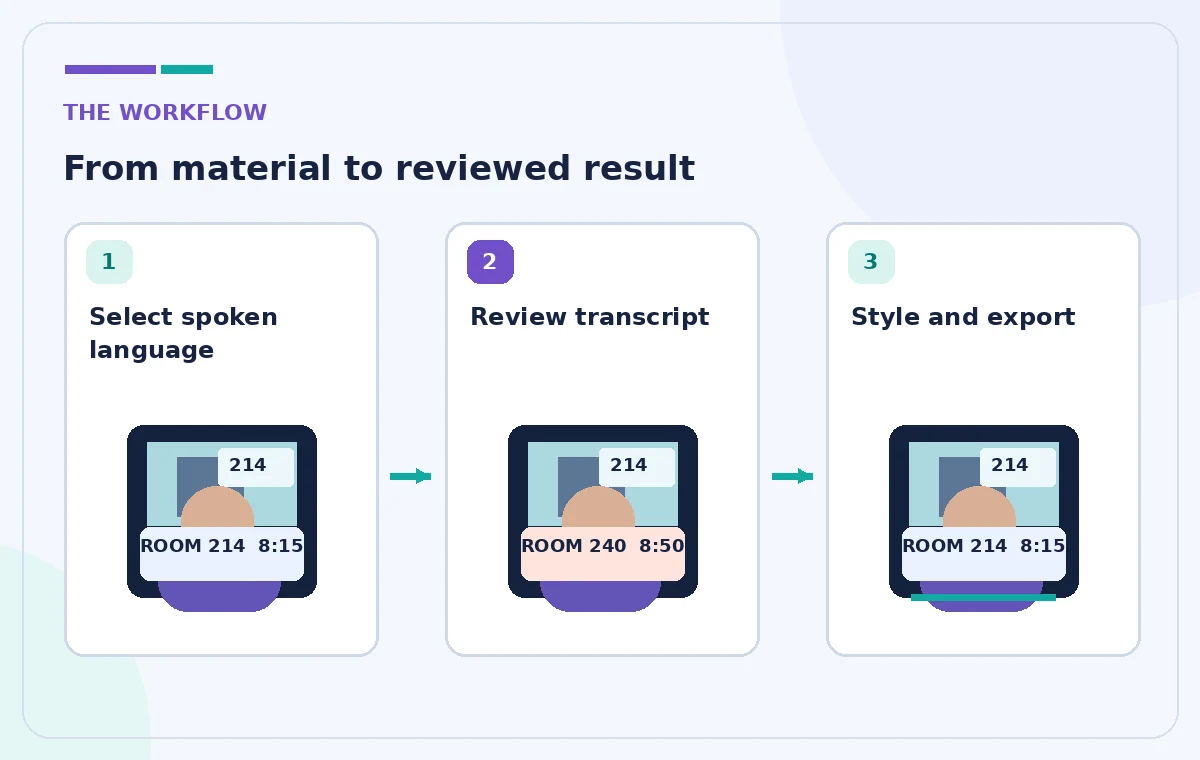
Adobe documents two ways to create captions: directly in a video project through the timeline’s Open captions control, or through a Caption video quick action. In the editor, select the spoken language and media source, then generate and review text in the Transcript panel. In the quick action, choose the language and upload a video, edit caption text, select a style, and download. These are related workflows with different screens, so follow the one available in your account rather than mixing both sets of buttons into one set of instructions.
Check file constraints before editing
Adobe’s video quick action documentation specifies a 1 GB and five-minute maximum for Caption video, along with supported file formats. A two-minute orientation should fit the stated length limit, but the codec and the current account interface still matter. If the upload fails, inspect the original format and keep a local source copy rather than repeatedly compressing it until the voice becomes harder to understand. The quick action’s documented limits should not be generalized to all Adobe Express editor features, and supported languages may differ across tools and updates.
Generate, then audit names and numbers
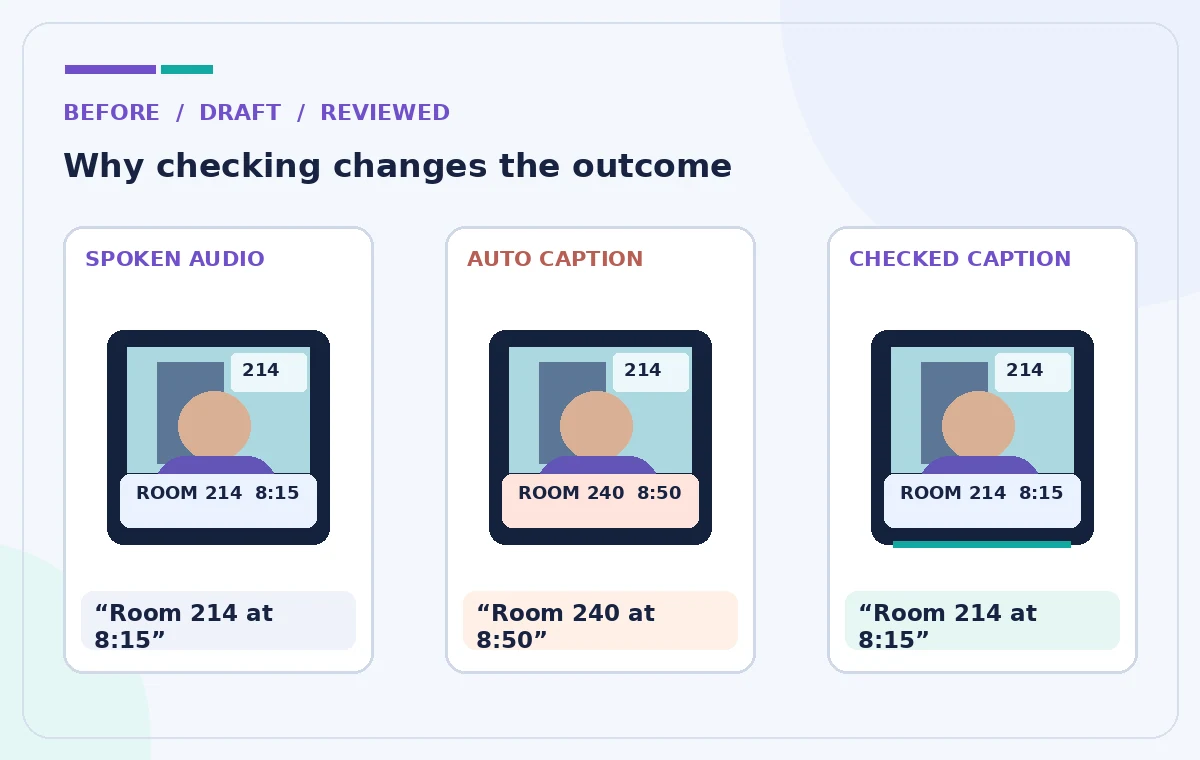
Start from a clean audio source where possible, select the spoken language, and generate the first transcript. Replay each segment containing a time, a room number, a person’s name, an entrance label, or a date. A change from ‘214’ to ‘240’ may look minor on a page but can send volunteers to the wrong location. Spell numbers consistently with the organization’s signage, and use a.m. and p.m. when ambiguity is possible. Correct the transcription only after listening to the corresponding audio; do not use an unrelated document to guess what the speaker probably meant.
Align captions with the spoken beat
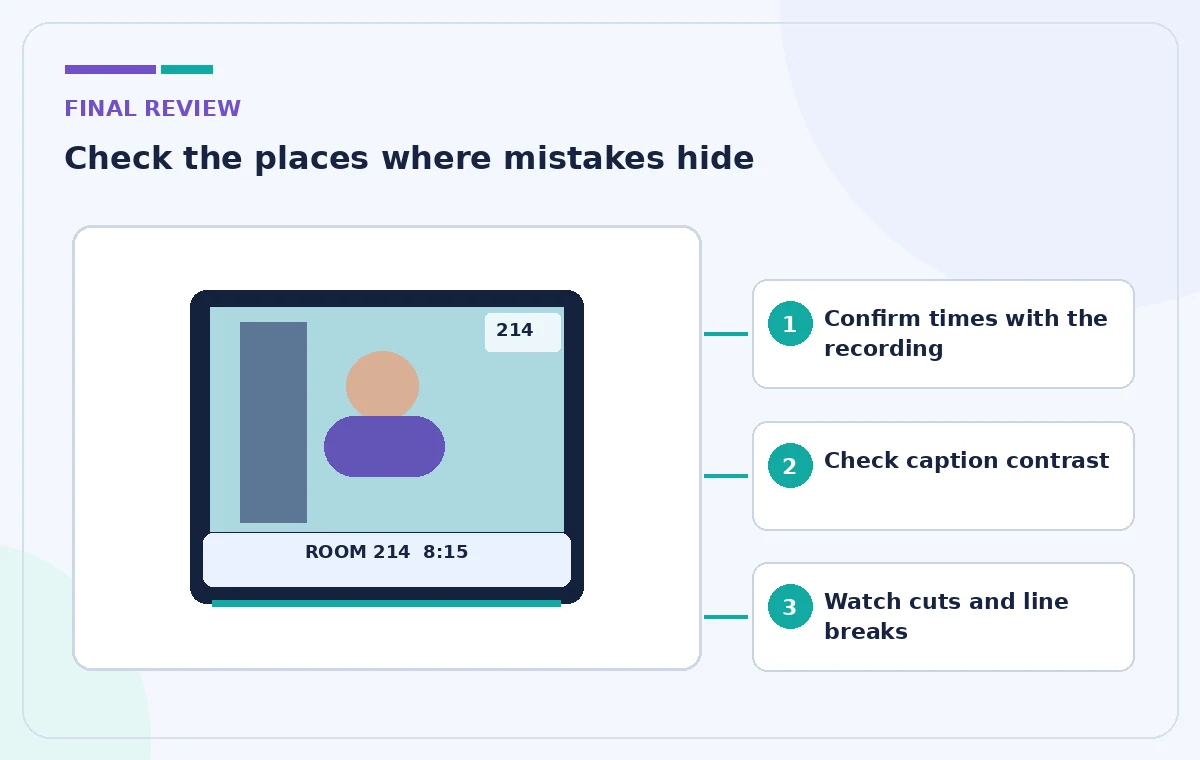
A caption that is correct but appears several seconds late can still mislead a viewer watching steps on screen. Review the timeline where the presenter points to a door, opens a form, and mentions a time. Make sure captions enter with the relevant phrase and disappear after it ends, rather than covering the next instruction. Preserve a short pause at step boundaries when viewers need time to understand an action. Avoid stacking two unrelated instructions in a single long caption, and do not let subtitles block the cursor or the exact room sign that the video is demonstrating.
Make legibility a design check
Use Adobe Express’s formatting controls to adjust font, color, shape, and position. Test the caption treatment over both a dark hallway shot and a bright computer screen; one color alone may not be readable everywhere. Keep text within safe margins and use sufficiently large lettering on a mobile preview. A semi-opaque backdrop can help, but it should not hide essential screen labels. Check line breaks around paired facts such as ‘Room 214’ and ‘8:15 a.m.’ so the two fragments cannot be visually reassigned. A decorative font is a poor choice when numbers are the most important content.
Compare the transcript with the approved instructions
Create a small table with three columns: approved fact, spoken wording, and final caption. For each sensitive item, a reviewer should confirm that all three agree or log a needed source-video correction. If there is a discrepancy, identify whether the speech is wrong, the transcription is wrong, or the underlying plan has changed. This prevents a common failure mode in which someone corrects a caption and assumes the recording is now safe to distribute. The final video and written volunteer notice should not contradict each other about arrival or access.
Export and watch the delivered file
After styling, export through the relevant Adobe Express workflow and play the actual delivered file, not only the editor preview. Check that text has not shifted after encoding, the first and last captions are visible, and there is no awkward gap during scene changes. Watch once at phone size with the sound off and once with sound enabled. Ask a reviewer unfamiliar with the video to read the arrival time and room number from the output; compare their answer with the approved fact sheet. If a correction is necessary, update the source project and re-export rather than layering ambiguous text over an incorrect version.
Keep the claims modest
Automatic captions improve production speed but do not guarantee accessibility, factual accuracy, or legal compliance. This example does not demonstrate a tested recognition accuracy rate or certify that Adobe Express meets a particular organization’s subtitle requirements. If a person needs separate downloadable subtitles, transcription in another language, or a formal accessibility deliverable, confirm that the chosen export method supports those needs. A short human review is not an optional finishing touch when captions contain logistical or safety-critical directions.
How We Research
For this guide we examined the vendor’s official public documentation: Adobe — Caption videos and Adobe — Video quick action requirements. We compared feature names, documented controls, format or access constraints, and supported review steps against the hypothetical scenario above. No live account, proprietary material, consent record, generated media, or measured product result was used. The diagrams are original conceptual illustrations, not screenshots or evidence of real AI output. Interface labels, plan eligibility, credits, availability, and feature limits can change; check the linked vendor pages and your account before following an operational step. Every final fact, instruction, permission and approval still requires an accountable human reviewer.
Frequently Asked Questions
Yes. Adobe documents generation in the video editor and in the Caption video quick action.
Adobe lists a five-minute maximum for the Caption video quick action; do not assume longer files are supported there.
First correct or explicitly update the underlying video and approved instruction. Avoid silently masking incorrect speech.
Adobe provides style, font, color, shape and position adjustments in the documented workflows.
Listen to the corresponding audio, compare it with the current approved notice, then inspect the exported video.