
A facilities coordinator walks through a community center with a maintenance lead to record problems before an event. A microphone can pick up visitors and private conversations even when the coordinator intends to capture only a door hinge and a damp ceiling tile. Zoom My Notes combines personal notes with AI-assisted transcription and organization for supported Zoom, in-person, and other-meeting scenarios. The useful question is not whether it can produce a tidy summary, but whether the team can collect lawful, minimal evidence and distinguish an observed concern from a completed repair. This example is invented and assumes no real recording took place.
Agree on purpose and recording permissions first
Define the permitted scope as facility observations made by authorized staff, not a continuous recording of everyone inside the building. Check the organization’s recording, retention, and consent requirements, including local rules for in-person conversations. Inform participants plainly what will be captured, how AI processing may be involved, and who can read the notes. If a visitor enters the route or declines recording, pause capture and use written observations instead. A private note-taking feature is not a universal exemption from consent rules. Create an offline fallback checklist for rooms where microphones or network connectivity are not appropriate. Avoid storing sensitive location or security-system details in a broadly shared note.
Understand what Zoom calls My Notes in 2026
Zoom’s release notes say My Notes replaced the earlier Notes experience in February 2026, with gradual rollout and desktop and mobile availability that can differ by account and platform. It can combine manual notes with a transcript to produce organized takeaways. Some older help text may still describe the previous AI Companion naming and controls; newer Zoom releases are changing AI labels. Verify the account’s current settings and supported platform before scheduling a workflow around a particular button. Availability in Zoom Meetings, in-person encounters, or third-party meetings should not be assumed identical. An administrator may also restrict note-taking or transcription under meeting privacy settings.

Prepare a short observation template
Create fields for location, observed condition, severity, supporting photograph or ticket, the person who witnessed it, and the next verification step. Use statuses such as Observed, Needs assessment, Scheduled, and Verified fixed; never prefill “Resolved.” For each stop on the route, assign a short, non-identifying label, such as North Entry Hinge, rather than recording an occupant’s name. Agree on a stop phrase for interruptions and a separate channel for hazards requiring immediate action. The AI note should supplement this form, not become the authoritative maintenance database. Clear terms make later summarization easier and reduce the risk of turning a casual suggestion into a formal work order.
Capture concise notes while respecting physical space
Start the supported My Notes session only after permission and participant awareness are confirmed. During the walkthrough, speak clear observations: “East corridor, ceiling tile shows discoloration; maintenance lead will inspect the roof line.” Do not narrate speculation as fact: a stain does not prove a pipe leak. Type important dimensions or serial identifiers directly into the approved work system, especially if automatic speech recognition may confuse digits. Keep photographs separate and follow facility rules about people and restricted zones. If the device begins recording background conversations, stop rather than trusting AI to remove private content later. Record any capture interruption so the handoff does not imply complete coverage.
Compare the AI summary to the firsthand observations
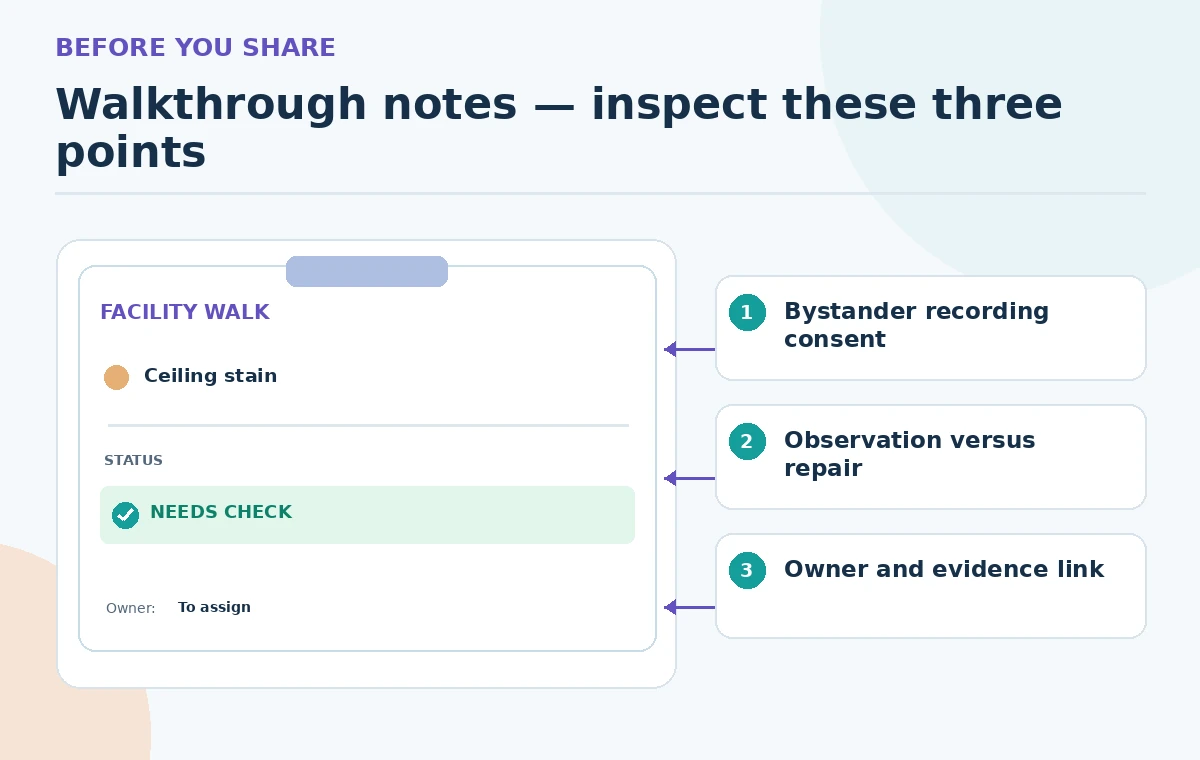
After the session, review the My Notes output next to the staff checklist and any permissible transcript or audio evidence. An AI summary may collapse “investigate the damp tile” into “repair the roof” or interpret “we should call a technician” as a confirmed appointment. Flag these as unsupported status changes. Look for missing negative findings as well: a door that works is not a completed repair, but it may help identify which entrance was actually inspected. In the diagram, an unverified summary reports a repair as completed while the checked log correctly retains an open assessment. That is a hypothetical editorial comparison, not a captured Zoom result.

Separate action ownership from inferred responsibility
If a maintenance lead suggests that someone else might handle the problem, do not assign that person without explicit confirmation. A usable action item records what is needed, who accepted responsibility, when the next review will occur, and how completion will be evidenced. Keep suspected defects distinct from confirmed safety hazards and route urgent issues through the center’s established escalation procedure. The AI can help organize observations, but it does not know contractual responsibilities, permit requirements, or who is on call. Make a separate reviewed task entry in the official facilities system instead of forwarding an AI summary as an order to every contractor.
Review access, transcripts, and retention settings
Zoom describes My Notes access through its workplace surfaces, including Zoom Hub and related documents, with rollout-dependent behavior. Before sharing anything, check whether notes include transcripts, voice material, automatically expanded text, and linked meeting context. Limit recipients to those who need maintenance information and remove private bystander material when the approved retention process permits. Evaluate whether a raw transcript is necessary at all once verified action items exist. Deleting a share link and deleting source data are different operations; follow the organization’s retention policy and available platform controls. Do not promise every organization has the same deletion or storage configuration.
Create the human-verified handoff
Present each issue as a short ticket: exact location, observed evidence, status, next action, accepted owner, and review date. Ask the maintenance lead to approve the record before it is sent to operations staff. Use “not observed” only when the area was genuinely inspected; silence in an AI summary is not proof that a safety check occurred. Keep the original inspector’s notes available to authorized reviewers for disputed entries. When a task is finished, require a separate proof step such as a reinspection or signed work completion rather than editing the old note to look certain. A record that states uncertainty clearly is more useful than a confident but incorrect summary.
Set boundaries for future walkthroughs
Retain a reusable checklist and staff briefing on consent, interruptions, private spaces, and verification of AI-generated action items. Confirm the latest Zoom features and administrative defaults before each new implementation, especially after a software upgrade. Track corrections in the maintenance system and feed consistent terminology into future staff training, not into a claim that the model learned permanently from one meeting. This article does not document a real premises inspection, capture someone’s voice, or establish the lawfulness of recording in any particular jurisdiction. It provides a general editorial procedure that must be adapted to local policy and legal advice.
How We Research
This article uses named first-party documentation: Zoom Support — Release notes for My Notes and Zoom Support — Release notes for Zoom Meetings and Zoom Support — Release notes for Workplace app. We checked the described capabilities, availability notes, current feature naming, permissions, and workflow limitations, then built an independent fictional editorial scenario for verification. The example materials, images, outcomes, and approvals are conceptual, not the result of operating a customer account. We did not execute a model run, inspect private records, measure accuracy, or certify the depicted activity. Readers should confirm the latest vendor instructions and organizational permissions before applying the workflow.
Frequently Asked Questions
No. Zoom release notes describe the My Notes experience introduced in 2026 as a replacement with AI-assisted transcription and organization.
Zoom describes supported in-person and other-platform scenarios, with availability depending on platform, settings, and rollout.
No. Follow applicable recording law, institutional policy, and the expectations of people who may be captured.
No. Completion needs independent work evidence and a human status update.
A checked maintenance ticket containing only the details needed for the assigned task, not a broad raw transcript.