
A small museum wants a silent three-slide exhibit loop introducing a ceramic bowl, a craftsperson’s tools, and the exhibition hours. A designer has prepared readable slides in Canva and wants them to transition gently on a lobby screen. Canva Magic Animate can suggest animation styles and apply movement across a design, but the first result may be too energetic or fast for visitors who read slowly. This instructional scenario prioritizes accurate captions, stable focal points, sensible timing, and a static fallback. Its storyboard drawings are conceptual, not a claim that Canva generated a particular clip.
Lock the words and layout before introducing movement
Finish the still version first. Use one main photograph or illustration per page, a descriptive title, and brief approved exhibit text. Keep object names, dates, and visitor instructions in editable text rather than embedding them in a busy graphic. On a lobby display, the audience may view the screen from several steps away, so test the smallest type size at realistic distance. Establish a steady left or top alignment across slides to reduce eye travel. Put the hours and accessibility information on a sufficiently long hold. Motion should help visitors notice the work, not become an excuse for making a poor static composition.
Check Magic Animate access and the right use case
Canva describes Magic Animate as an AI-powered option that recommends motion to match a design. Its animated-presentation guidance identifies availability under Canva Pro, Teams, Education, and Nonprofits, so confirm which plan the museum actually uses. In the editor, select Animate and choose Magic Animate from the available options; labels and placement may evolve. The feature can propose an overall treatment, but it cannot decide whether a moving image is appropriate for a conservation story or an accessible venue. Agree in advance that the review may reject animation entirely if visitors need a calmer display.
Use a storyboard with distinct content beats
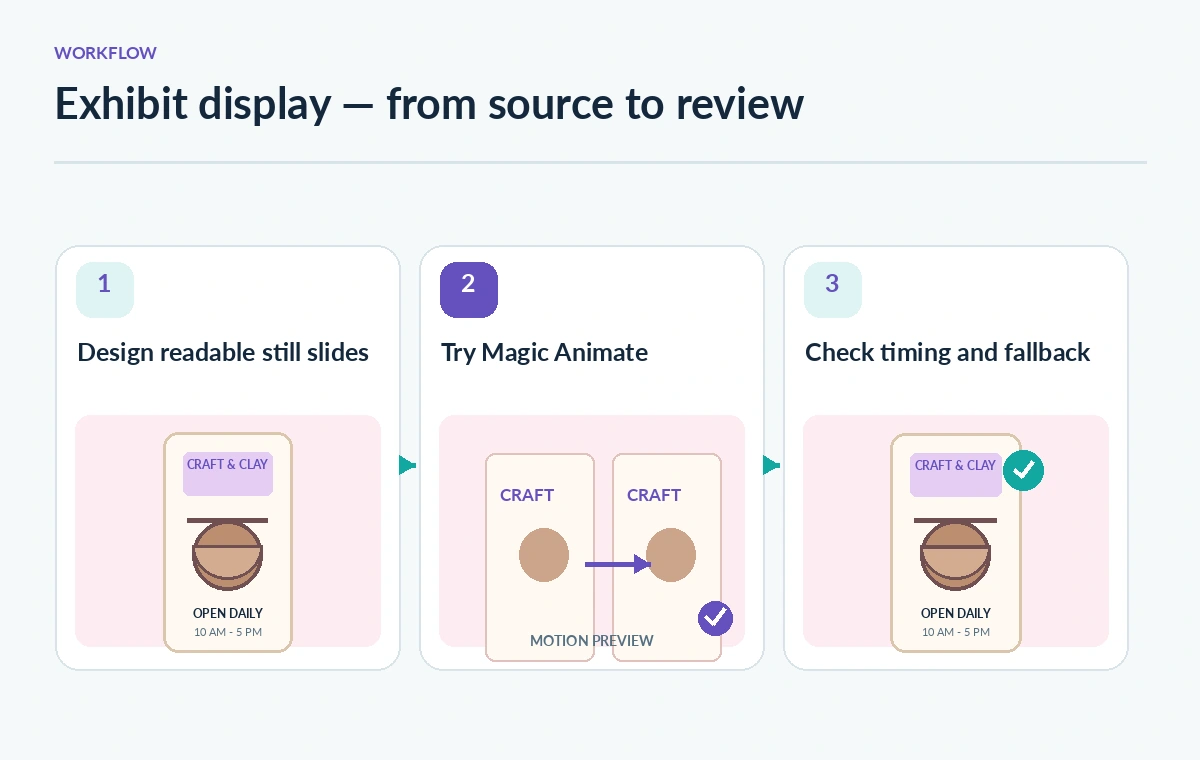
Plan three beats that answer separate questions: What is the object? How was it made? When can visitors see it? Draw the screen area, title, image, caption, and safe edges on paper before generating motion. Include a simple intended transition such as a fade rather than asking for a cinematic movement that reveals no new information. The scene illustration in this guide uses a bowl, a carving tool, and a schedule card to show those three beats; it is not a copied Canva UI. Keep a record of which information should be visible simultaneously, especially captions paired with objects.
Apply Magic Animate and preview the complete sequence
Use the Animate control and review Canva’s suggested animation rather than approving the first preview by default. Inspect page transitions, entrance motion, text movements, and timing together. A title that flies in after the object photograph may force visitors to restart reading, while an overlapping dissolve can briefly make two captions unreadable. Canva also supports other animation controls and manual changes, so Magic Animate is a starting point rather than a fixed final style. If the result makes the museum object look as though it is physically changing, choose a more restrained transition to avoid misleading representation.
Replace decorative motion with a predictable rhythm
A calm loop needs stable screen time. Remove animations that bounce labels, spin interpretive arrows, or move large bright shapes across the center of view. Prefer a brief transition followed by a fixed display that gives visitors time to finish the longest caption. Do not publish an arbitrary universal reading speed; test actual text with intended visitors or staff unfamiliar with the copy. If the schedule page is important, do not let it be the shortest beat simply because it has less imagery. Maintain consistent sequence order so repeat viewers understand the loop without surprise.

Compare a failure case with a visitor-ready revision
The process diagram shows how a still slide becomes a proposed animated sequence and then a reviewed one. The comparison illustration shows a poor state with moving title and unreadable short holds versus a corrected state with stationary labels and clearly separated transitions. These images are editorial drawings only. In a real project, export a short test, watch the loop several times, and note where attention jumps away from the object. Ask a second reviewer to confirm that dates, names, and directions are unchanged from the approved static artwork after the animation tools are used.
Prepare for people who prefer reduced motion
Canva documentation mentions a Reduce motion setting that simplifies animated behavior in supported environments, but do not assume every kiosk or exported MP4 inherits that device preference. Create a separate static slide sequence or still image sheet that communicates all the same facts without animated entrances. Consider a slower, lower-motion primary loop as well. Avoid flashing, rapid zooms, sudden repetitive movement, and effects that simulate camera motion without need. Have the museum’s accessibility lead review the plan against its actual audience and display equipment. This is an accessibility design choice, not a certificate of compliance from the AI tool.
Check export, loop seams, and lobby hardware
Canva can export animated designs in formats including video or GIF, with specifics depending on the design and plan. Test the actual file on the intended display rather than trusting an editor preview. Verify resolution, aspect ratio, clip duration, and whether the first and last frames make an awkward jump at the loop seam. Check the entire frame for text being cropped by television overscan or mounted screen edges. Do not depend on sound to convey information if the lobby display will be muted. Save the original editable design and a static version before producing final signage.

Approve the exhibition message, not just its polish
Before handing the file to the gallery technician, compare all captions to the museum’s approved object labels and hours. Make sure movement has not implied a false causal story or altered the order of exhibits. Ask staff to watch at the real display distance, including someone who was not involved in the design. Archive the chosen animation settings, static fallback, and export version with a dated note. If the tool, plan, or export format changes, the approved content remains the source of truth. This article offers an instructional workflow, not a measured claim about visitor comprehension or a tested Canva file.
How We Research
This article was researched using the named official product documentation: Canva — Animated presentation maker and Canva Help — Apply, change, or remove animations and Canva — Magic Animate overview. We checked the described features, interface entry points, documented access conditions, and limitations relevant to this exact scenario, then developed a human-verification workflow. The scenario, graphics, sample material, model outcomes, approvals, and examples are editorial illustrations, not an account test. We did not operate a customer workspace, measure speed or accuracy, capture actual UI screenshots, or verify private project policies. Confirm current entitlements and instructions in the official documentation before acting.
Frequently Asked Questions
Canva describes it for Pro, Teams, Education, and Nonprofits plans; verify the current account and available controls.
No. Preview the entire sequence with real text and test reading time with people.
Do not assume so. Produce and review a separate low-motion or static version.
Canva supports video and GIF exports; test the file and loop seam on the actual signage player.
Usually keep essential labels stationary long enough to read, and use motion only where it serves the explanation.