
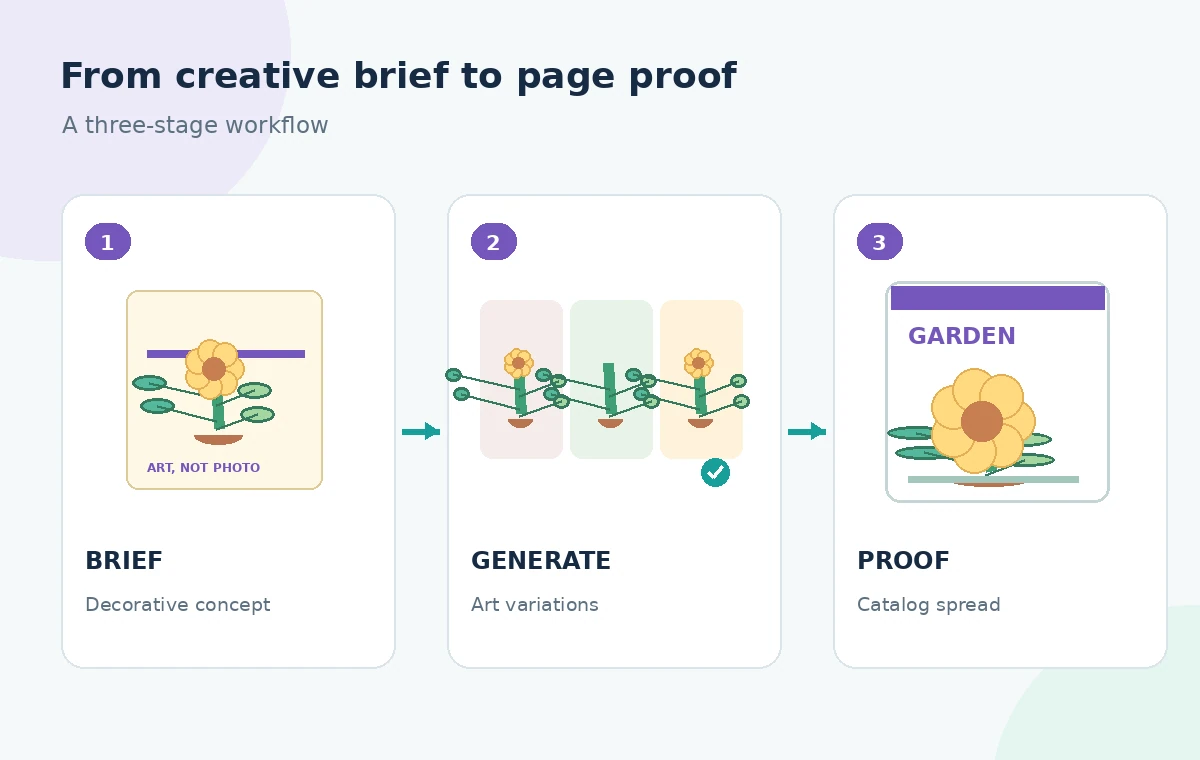
A small seed company wants a welcoming illustration for the opening page of a spring catalog. The creative brief calls for a stylized garden scene, not a photograph that claims to show a particular seed variety. Adobe InDesign includes a Firefly-powered Text to Image feature for generating image variations inside the layout. That can help designers explore a decorative opening visual, but it cannot establish what the seeds will actually produce. The responsible distinction is simple: use generated art to convey a mood, then use verified photography and supplier records for variety-specific product claims. The images below are original explanatory illustrations, not InDesign output.
Define what the image is allowed to represent
Begin with a page map. The decorative illustration may show an imagined raised bed, tools, leaves, and sunlight, but a listing for a named tomato variety should rely on approved product imagery. Identify which parts of the catalog communicate mood and which parts make factual promises about color, shape, yield, or growth. Write this boundary into the brief before generation. A beautiful invented purple tomato on a product card would invite a customer to believe that a sold variety looks that way. Keep the concept image in an unmistakably editorial position such as an opener or section divider.
Launch Text to Image within the layout
Adobe’s current InDesign help describes opening Window > Text to Image, entering a prompt, and choosing between Photo and Art formats. The panel provides variations, and advanced settings can refine the request. Use an Art-oriented prompt for a visibly illustrative treatment rather than a photorealistic fake crop sample. The panel and available model choices may change across versions and accounts; confirm the live UI. Treat generated variations as candidates, not completed proof assets. Keep a copy of the catalog before you replace a placeholder and retain the written brief for later review.
Write a prompt that avoids false variety claims
Describe composition and style, not undocumented biological details: ‘Flat editorial illustration of a community garden path with broad leaves, seed envelopes, soft morning light, open space for a heading, no readable packaging labels.’ If the result includes invented brand marks or tiny pseudo-text, do not pass those off as real. Ask for a composition with a quiet area so the editorial headline remains readable. A specific cultivar name should not be generated into the picture; typeset verified names as editable text elsewhere. This separation lets an art director change copy without regenerating imagery.
Evaluate variations against a page grid
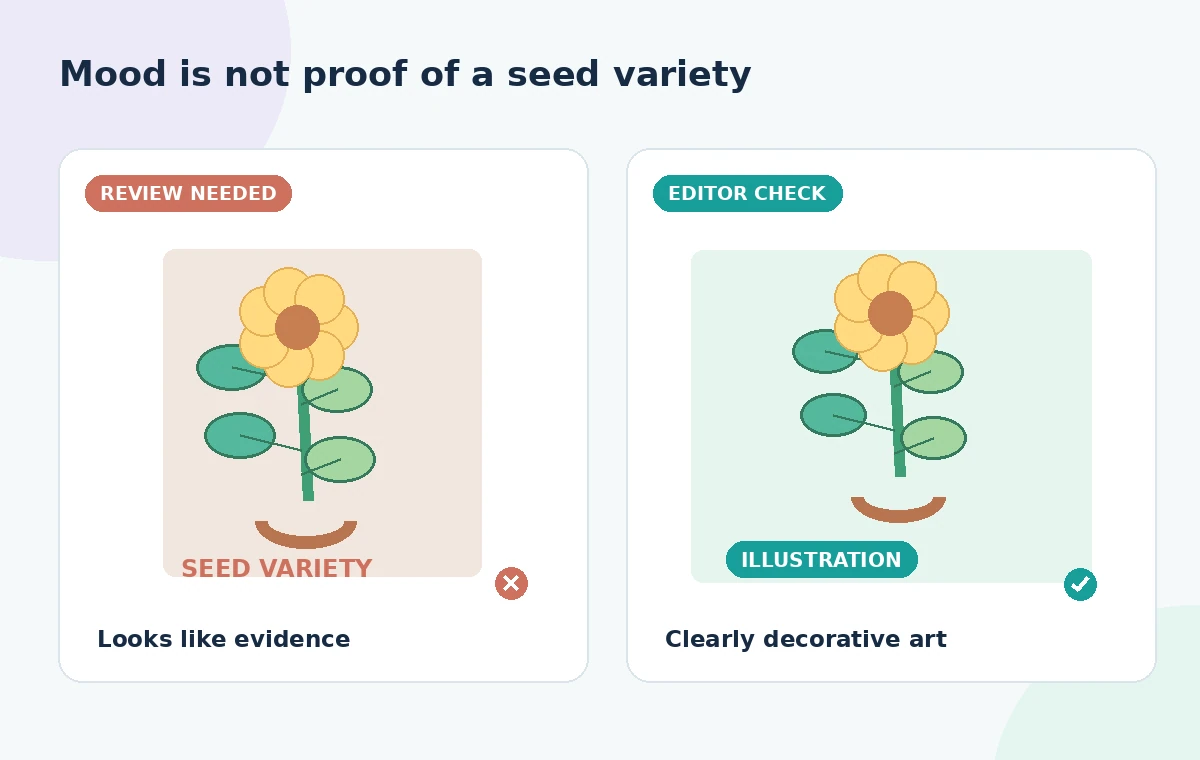
Place promising concepts in the actual page dimensions and inspect focal points, cropping, and balance with the heading. A high-detail variant may be visually exciting at full size but turn into an unrecognizable texture in a small catalog panel. Compare two or three candidates based on clear criteria: does the image support the story, is space available for type, and does the artwork look intentionally illustrative? The comparison diagram contrasts a misleading product-like panel with a safer decorative opener. These are drawn examples for editorial decision-making, not measured results or screenshots of Firefly generations.
Separate illustrations from evidence-based plant photos
Inside product pages, use supplier-approved or independently photographed images that genuinely depict the named product, with captions that state what is shown. Record a source and license for each factual photo. Do not allow a generated illustration to become visual evidence for germination rates, color uniformity, plant size, or seasonal availability. Even a harmless leaf shape can become misleading when placed beside a purchase button with no context. If an illustration does sit near product information, label it clearly in the page copy as an illustration. The tool creates pixels, not provenance or biological test data.
Review text, names, and accidental symbols
AI imagery can contain strange marks that resemble letters, logos, price tags, or botanical annotations. Zoom in on labels, seed packets, and small tools. Remove confusing pseudo-text using normal layout choices or select another concept instead of trying to reinterpret it. Keep catalog prices, planting dates, species names, and growing instructions in editable, separately proofread text frames. For accessibility, write meaningful alternative text that describes the decorative scene without asserting it depicts an actual product. A decorative opening visual should not drown out usable copy for readers who rely on other access methods.
Check crop, bleed, and resolution before print
A cover image must survive the chosen trim and bleed settings. Inspect how leaves, tools, and blank headline space behave after a realistic crop; avoid positioning meaningful details at the trim edge. Check the effective image resolution at the placed size, then follow the printer’s actual specification rather than assuming every generation is suitable for all print dimensions. Proof once with guides visible and once as a clean page. A generated visual may be acceptable for a small decorative block while inadequate for a full-bleed spread; size decisions require the real export and production requirements.
Keep licenses and product claims in separate checks
Adobe provides guidance about generative AI features and terms, but commercial use should still be reviewed against the account’s current conditions, editorial policy, and any recognizable third-party trademarks. Do not assume generating a seed packet automatically licenses a company logo or proves that the pictured variety exists. Make two approval checks: one for illustration rights and placement, another for the accuracy of product data and image sources. If the catalog serves regulated claims or claims about plant performance, involve the relevant compliance reviewer. AI art should never replace the evidence behind product statements.
Approve a final spread, not just the image
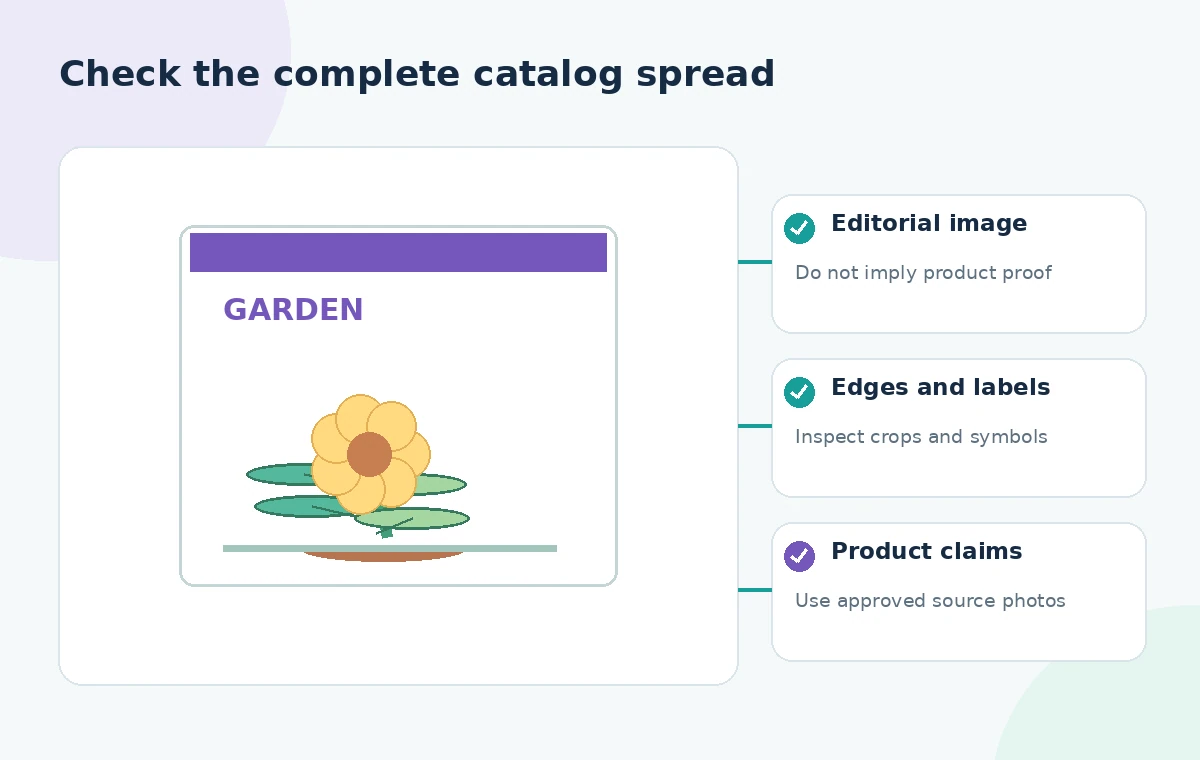
Ask the art director to approve the page at actual reading size and the product editor to verify every adjacent claim. Record which assets are generated illustrations and which are documentary photographs. Reopen the exported PDF to inspect image framing, embedded type, and text flow; do not use the canvas preview as final print proof. If a variant causes readers to confuse illustration and product evidence, change placement or discard it. The workflow is source-based and conceptual: no InDesign account was used to generate, measure, or print the scenes depicted here.
How We Research
To prepare this guide, we reviewed the official product documentation: Adobe InDesign: generate images with text prompts and Adobe InDesign: generative AI features overview. We compared the explicitly documented feature entry points, supported tasks, limitations and configuration requirements with the decisions in the hypothetical scenario. We did not access a customer account, upload any of the described documents, run prompts, obtain actual generated outputs or measure performance. The visuals are custom instructional diagrams, not software screenshots or evidence of live tests. Any scenario-specific people, approvals, files, vendor availability and outcomes are illustrative. Check the current documentation, account entitlements and your organization’s policies before acting on the workflow.
Frequently Asked Questions
Yes. Adobe documents a Firefly-powered Text to Image panel with prompts, formats, and image variations in InDesign.
Avoid presenting generated art as proof of a product’s appearance. Use authentic, approved product imagery for cultivar-specific claims.
Adobe documents Window > Text to Image, with an additional contextual entry point depending on the current interface.
Yes. Inspect small marks and package-like shapes; keep genuine product names and facts as independently verified text.
No. Check actual placed size, effective resolution, crop, bleed, and the requirements of your printer before approval.