
A forty-minute webinar may contain one useful thirty-second explanation, but the sentence before it can change what the speaker means. Riverside Magic Clips identifies candidate highlights and lets an editor customize captions, pacing and layout. In this fictional scenario, a bicycle mechanic explains when a tire needs replacement. A clipped sentence like ‘ride it one more week’ would be irresponsible without the preceding condition. The illustrations are conceptual storyboards rather than clips generated in Riverside. This guide focuses on preserving that qualification, framing the right speaker and reviewing the final export before anyone treats a machine-selected moment as trustworthy advice.
Write the takeaway before asking AI to find it
Open the full recording and identify a complete, accurate answer, not merely a punchy quote. For the bicycle webinar, the useful takeaway is that tire replacement depends on damage, tread condition and inspection, not a universal calendar schedule. Write a one-sentence editorial brief that includes the qualifier. This becomes the standard against which every proposed short is reviewed. If you do not own the recording or have permission to reuse a participant’s likeness and voice, resolve that before selecting highlights. Retain the original webinar link or source file so that anyone reviewing the short can verify the surrounding discussion.
Locate the suggested Magic Clips
Riverside’s current help center directs users to the relevant studio and project, then to Made for You > Magic Clips to preview and edit automatically suggested highlights. AI may choose a dramatic moment that lacks the information needed to make it responsible. Do not assume the first suggestion is the best. Listen at least several sentences before and after the selected segment and note where the answer begins. The workflow drawing shows the long recording with distinct question, qualification and advice regions; the proposed short must include the critical context. Riverside also describes generating additional clips from a recording, with preference controls available on some plans.

Choose one complete answer and check who speaks
A strong vertical clip usually has a clear premise, complete response and natural ending. It should not splice a second person’s answer in a way that changes responsibility for the claim. If the webinar has a host and mechanic, check whose name and face appear while advice is being voiced. Riverside documents options for speaker focus and keywords when generating more clips on eligible paid tiers; access can vary by plan. The illustration shows the host asking a question followed by the mechanic’s explanation, then a proposed vertical crop. Treat face tracking and suggested captions as edit decisions to approve, not as proof that the model correctly understood the discussion.
Keep the condition attached to the advice
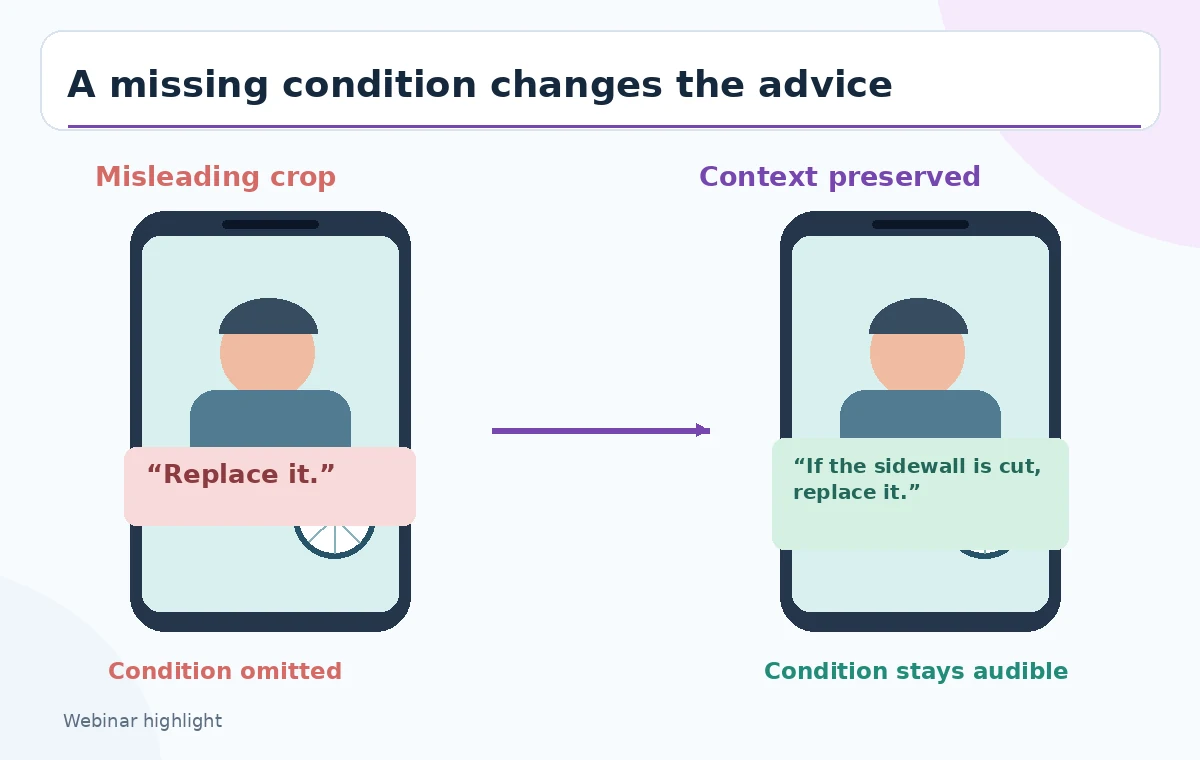
Review the exact sentence boundaries in the transcript and in the actual audio. A sentence such as ‘if the tire sidewall is cut, replace it’ becomes misleading when clipped to ‘replace it’ without the condition. Do not use jump cuts or b-roll to hide the missing clause. When the explanation contains an important safety qualification, make that clause visible and audible inside the short. The before-and-after diagram contrasts a dangerously cropped quote with a context-preserving excerpt. It illustrates editing risks, not a verified Riverside export. A reviewer should compare the candidate against the master recording and reject it if the meaning changes.
Reframe the speaker for a vertical canvas
Open the proposed Magic Clip for editing and choose a vertical aspect ratio such as 9:16 when the destination requires it. Inspect whether the crop includes the correct speaker and whether hands or objects are essential to understanding the point. For a bicycle maintenance tip, cutting off the tire the mechanic is pointing to can make the clip confusing. Reframe deliberately, with safe room for captions and platform overlays. Riverside’s published material describes layout and aspect ratio adjustment; it does not promise that every automatic crop will identify the most relevant object. Look at the opening, middle and closing frame rather than only the thumbnail.
Correct captions and the visible terminology
Automated captions help many viewers, but they can turn specialized terms into ordinary words. Compare each subtitle line to the audio, especially sidewall, tread, pressure and puncture. Avoid inventing a technical specification that the speaker did not say. Keep captions out of the bottom UI zones of the target platform and away from the mechanic’s hands. If a sentence must span two subtitle cards, break it at a natural clause rather than separating a condition from its instruction. Riverside’s documentation describes animated captions and editor customization; these are starting materials requiring editorial review, not guaranteed transcripts.
Check pacing without stripping useful pauses
Riverside’s optional Magic Clip preferences include removing pauses and filler words on some plans, but a pause before a safety warning can be meaningful. The edit should feel direct without changing the speaker’s intent or urgency. Preview the audio for cut-off consonants and abrupt breaths. If background enhancement, smart muting or other processing is enabled, compare the intelligibility of the final audio against the original and make sure a second speaker has not disappeared at an important moment. Do not present an edited quote as a continuous raw statement when cuts matter to the viewer’s interpretation. Keep an unedited source link for authorized fact-checkers.
Inspect the on-screen safety cue and export
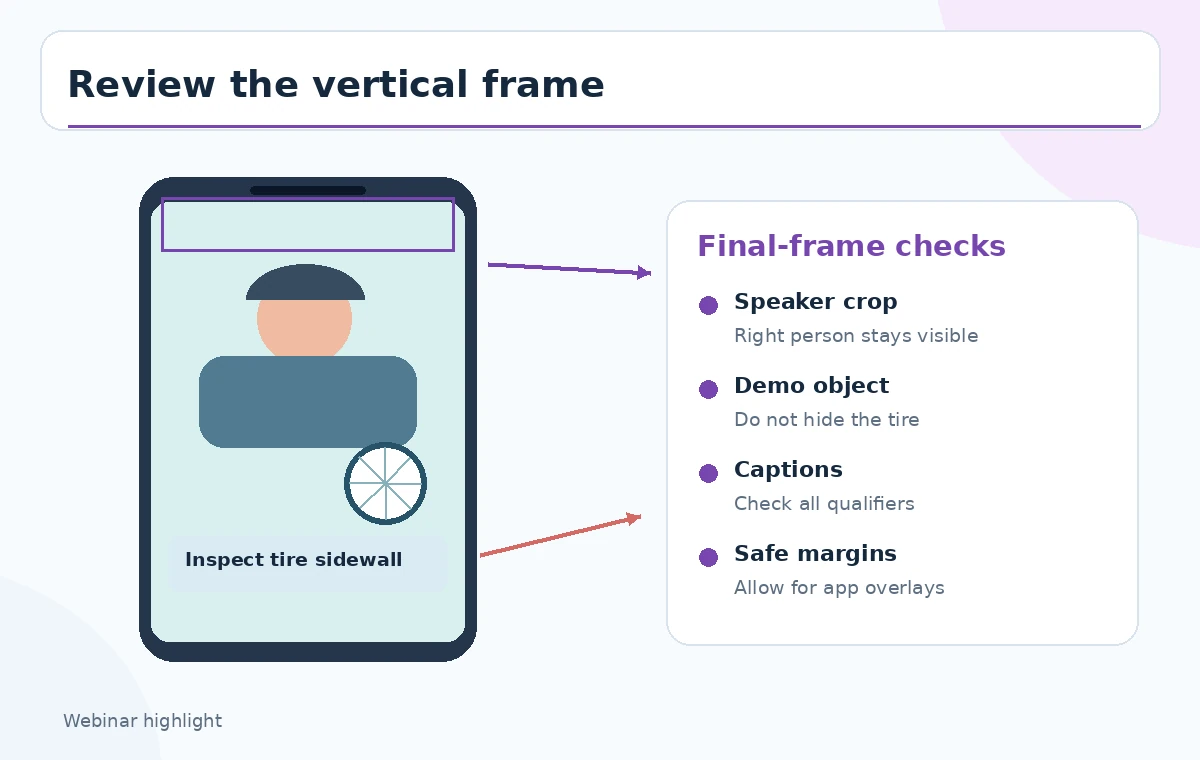
Place a short, accurate summary that the spoken content supports; do not add an official-looking certification, number or repair guarantee. The inspection diagram highlights the qualified advice, the tire illustration, speaker identification and safe caption margins in a vertical mockup. Watch the exported file from start to end on a phone, because the editor preview can differ from the social app’s overlays. Make sure the clip has a complete closing thought and a path back to the full session when appropriate. Captions and graphical text should not obscure any crucial demonstration gesture. A helpful short preserves meaning even when shared without the webinar.
Record editorial approval instead of relying on virality
Have the speaker or responsible editor approve the exact words, including any caption correction. If the advice touches safety, verify it against appropriate authoritative sources or a qualified specialist before circulation. Analytics can later inform distribution, but view counts never prove that an AI-selected quote was responsibly framed. Maintain the full recording, selected time range, caption revision and final export as an audit trail. The Riverside help center documents AI highlight selection and editing; it does not establish that the service will consistently pick the safest or most representative moment. A careful review is what turns a useful excerpt into a publishable one.
How We Research
We checked Riverside’s About Magic Clips guide for suggested highlights, editing and plan-specific controls, its preferences reference for pauses and layouts, and its vertical clipping tutorial. We did not upload a recording, generate clips, inspect Riverside output or publish to any social platform. The mechanic, quotation and storyboard are fictional editorial teaching devices.
Frequently Asked Questions
No. It proposes moments based on AI analysis; an editor must compare each excerpt with the surrounding recording.
Yes. Riverside documents previewing, editing, customizing and exporting Magic Clips through the project interface.
Some additional-generation controls allow speaker and keyword preferences on eligible paid plans; verify the account’s current options.
No. A pause may separate conditions or emphasize a safety warning. Preserve it when removal would distort meaning.
No. Check specialist terminology, speaker identification and every condition that changes the advice.