
A product designer inherits a page with dozens of frames called ‘Frame 82,’ unnamed text layers and repeated card elements. A developer preparing an implementation handoff cannot tell which layer is the price, product image or call-to-action label. Figma’s AI layer renaming can infer contextual names from contents and nearby relationships, but automatic naming is not an information architecture. This hypothetical example follows a checkout card component and a two-screen product flow. The instructional UI panels are original sketches, not Figma screenshots or evidence that the tool renamed a real team file. The purpose is to shorten cleanup while protecting names that carry component and prototyping meaning.
Define the handoff vocabulary first
Agree on layer names that a developer can understand: product photo, price, item name, quantity control and checkout action. Identify the top-level screens that need persistent labels such as Product Detail and Cart Review. Distinguish a human-owned component’s public name from incidental internal layers. If a design system already defines naming rules, use them as the reference rather than asking AI to invent a second convention. Record the baseline file version before making bulk changes. A good result is not merely a tidier Layers panel; it is a tree that lets a teammate locate the right asset and reproduce a user flow. Avoid reorganizing the hierarchy in the same pass because that would make regressions harder to identify.
Check access, plan and supported object types
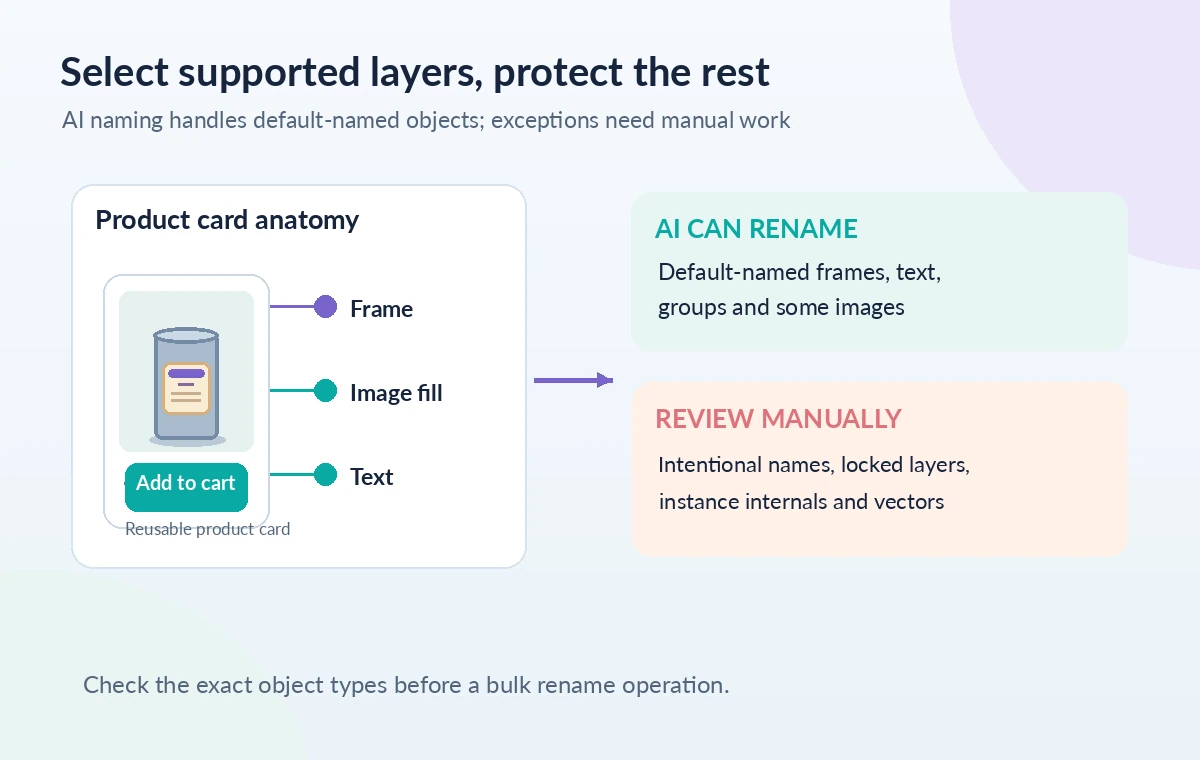
Figma’s current official help lists Rename layers with AI for eligible Professional, Education excluding K–12, Organization and Enterprise plans, with edit access required. Verify eligibility in your actual workspace before planning the work. The documentation says the feature examines a layer’s contents, location and relationship to others, and supports specific types such as frames, groups, text and some image-filled rectangles. It excludes objects like standalone vector networks, many simple shapes, hidden or locked layers and nested layers within instances. That means a single AI pass will not name every item. Plan a manual follow-up for icons, specialized vector controls and component internals rather than treating exclusions as a failure of the whole file.
Protect established names before selecting
Figma states that its AI renaming normally works with layers that retain default naming conventions. Manually named layers are preserved, and the feature also tries to keep corresponding unnamed layers consistent across repeated top-level frames where prototype behavior may depend on it. Review component instances, variants and key screens before selecting a large group. Existing clear labels such as ‘Primary Button’ should remain intact unless a design owner explicitly wants them changed. Hidden and locked layers will not be renamed by the AI operation, so do not infer that they were audited. Save a before-state inventory or branch for team review if this is a shared production file. The visual diagram distinguishes editable default names from protected intentional names.
Rename a small, visible selection first
Select a representative part of the page: a product card containing an image, a text title and a price. Figma documents initiating AI renaming from the right-click menu, the Actions menu or quick actions, depending on context. Choose Rename layers and examine the result inside the layer hierarchy. Did ‘Text 91’ become an understandable product name field or an over-specific copy of its current string? Did an image-filled rectangle get a descriptive role rather than a product SKU that will change next week? If it guesses poorly, revise the name manually and reconsider how the source elements are grouped. This local trial is the editorial checkpoint before repeating the operation over a complete page.
Use a before-and-after tree to spot bad labels
Compare the same nested structure before and after, not just the count of default names. A helpful revision changes ‘Frame 82 / Rectangle 12 / Text 91’ into a meaningful card group, product image and title label without flattening the nesting. Watch for names that describe current content rather than function: ‘Blue Tea Tin’ may be correct for an artwork asset but brittle as a reusable component’s semantic name. Duplicate names can be useful for repeated elements only when their parent context differentiates them. In the illustration, nested branches retain their original hierarchy as leaf labels become clearer. The change is schematic, not a measured AI-generated result from Figma.

Inspect prototypes, instances and developer references
After renaming, walk a simple prototype from Product Detail to Cart Review. Check smart-animate transitions, scrolling and repeated elements whose identity may depend on layer matching. Figma’s documentation explicitly notes consistent renaming across matching unnamed layers in multiple top-level frames to help maintain prototype settings. That is not a guarantee against every team-specific animation or plugin reference breaking. Ask a developer to inspect the layer tree and confirm important assets remain discoverable. Instances are particularly sensitive: their main component name and internal structure may require separate stewardship, and nested instance layers are outside the AI rename scope. Don’t silently rewrite library components as part of one page cleanup.
Finish unsupported layers with conventional bulk tools
For icon sets, vector networks or intentionally locked design-system elements, Figma’s standard Rename Layers modal offers a manual route, including prefixes, counters and regular-expression based replacement. Use that method where the naming pattern is deterministic: for example, sequential icon variants that do not need semantic inference. A broad text replacement can also damage meaningful existing names if the selection is careless, so preview the proposed change. Reserve manual fixes for ambiguous categories such as decorative rectangles, masks and interactive state indicators. A file with some intentionally generic low-level vector names can still be more maintainable than one filled with invented semantic claims. The final checklist should separate automatically renamed types, manually renamed types and untouched protected layers.

Document the conventions and release the handoff
Share a short naming guide with the design and engineering teams: screen names, reusable component names, asset roles and any known exceptions. Review the page at the intended zoom and inspect a few deeply nested items rather than accepting a top-level screenshot. Keep a version checkpoint, check that the prototype still works and obtain design-owner approval for changes to shared libraries. Product access and Figma’s AI feature availability may evolve, so refer to current help rather than assuming your account has the function. We did not access a workspace, run an AI rename or validate a live prototype; the drawings are illustrative trees and component sketches. The outcome to seek is a handoff a teammate can navigate safely, not a cosmetic promise that every default name vanished.
How We Research
We reviewed official Figma articles covering eligibility and permitted layer types for AI rename, default-name behavior, preservation of manual names and limitations for instances and vector layers. We also checked conventional Rename Layers and Actions guidance for manual cleanup. No Figma file, paid plan, prototype or component library was accessed or altered; all layer trees are designed instructional examples. Official documentation reviewed: Figma Help: Rename layers with AI; Figma Help: Standard Rename Layers; Figma Help: Actions in Figma Design. Recheck the live docs before proceeding because interfaces, availability and model support can change.
Frequently Asked Questions
No. Figma’s help excludes individual vector shapes and several other types; finish those deliberately with standard naming tools.
The documented default behavior preserves manually named layers, though any explicit force-rename option should be reviewed carefully.
No. Figma documents nested instance sublayers as unsupported by AI renaming; update the component or use other permitted manual methods.
No. The AI rename help lists eligible paid or educational tiers and requires editing access; verify current workspace eligibility.
Review matched layers across frames, walk important prototype transitions and ask a developer to find a few critical assets.