
Podcast show notes are often the first content listeners read, and they can be inaccurate if they describe a version of the recording that nobody will publish. Riverside AI Show Notes can generate summaries, takeaways, keywords, sound bites, and chapter suggestions from an original recording or a final exported edit. That distinction matters when a guest corrects a numerical estimate and the editor removes a private question. This guide follows a fictional 32-minute arborist interview and explains how to make final notes correspond to the released episode without treating AI text as a verified transcript.
Decide which episode version deserves notes
Recordings and final exports can differ substantially. In the hypothetical arborist conversation, an early guess about tree age is corrected after the guest checks their field notes; a separate listener question is removed because permission was never granted. If the show notes are generated from the unedited recording, they may highlight the wrong estimate or quote a segment that will not appear in the episode. Riverside documents generating AI Show Notes for an individual recording and for an export reflecting the final edit. For release metadata, select the final export once the cuts are approved. Retain the original notes as a private comparison only if the team needs an audit trail.
Confirm transcript length and access before generating
Riverside says AI Show Notes require content longer than five minutes and an available transcript. It identifies eligible Pro, Grow, Webinar, and Business plans for the help workflow and specifies supported desktop-browser and Mac-app environments. Check the account role; owners, administrators, directors and editors have documented access. A 32-minute conversation easily clears the duration threshold, but an incomplete transcript can still produce unreliable notes. Review the studio’s default transcription language, especially when the guest switches language or uses uncommon botanical terms. Do not copy the autogenerated language choice into the release as if it had been professionally validated.
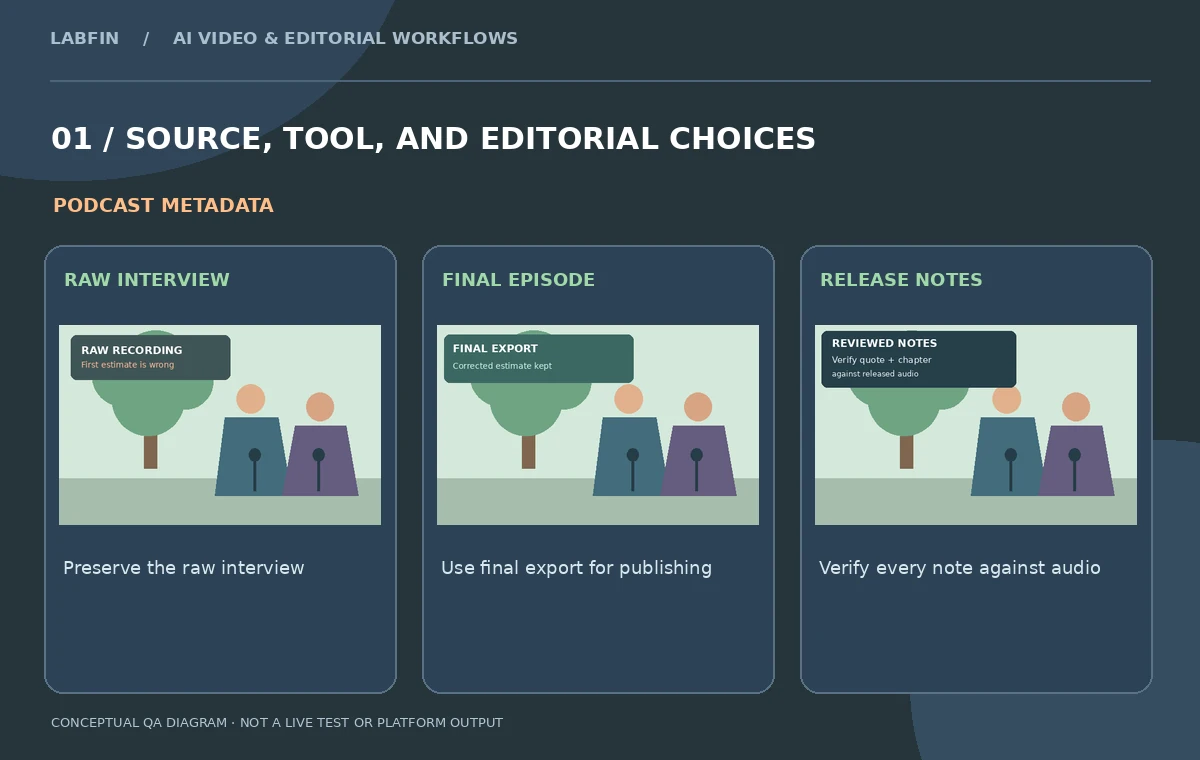
Generate notes from the export, not merely the studio recording
In the project, navigate to Exports, locate the finished edited episode, choose Ask AI, then Show notes according to Riverside’s guide. For source-recording notes, the corresponding workflow lives in Recordings. The Made for You area can also contain automatically generated notes tied to a Magic Episode. These are related entry points, not interchangeable guarantees that all text references the same media. Label your draft with the correct version: “final export v2” versus “raw interview.” If the host makes another structural change after export, regenerate or manually reconcile the show notes; chapter times and quoted sound bites may no longer match.
Fact-check all numbers, names, and qualifications
Read each proposed summary sentence next to the final transcript and, when needed, the recorded audio. In our example, the correct age estimate is the later qualified figure; the first offhand number must not be carried into the show description as fact. Check spellings of Latin species names, the guest’s professional title, any addresses, and dates of community events. A confident headline like “The oldest tree in the city” may be misleading if the arborist said “one of the oldest trees in this park.” Preserve qualifiers and unresolved uncertainty. Show notes are marketing and navigation content, but they still publish assertions about real people and real places.
Audit sound bites against the final audio
AI notes may include a list of candidate sound bites. For every quote, find the exact passage in the final edit and check that the surrounding sentence supports the selected meaning. A snappy phrase removed for privacy or inaccurate context should not reappear as a teaser. If a proposed quotation cannot be located in the final audio, omit it rather than paraphrasing it in quotation marks. Confirm that the speaker attribution is correct: a host summarizing a source is different from the guest making a claim. Sound bites that are technically grammatical but exclude a warning or caveat can be worse than simply having fewer promotional quotes.
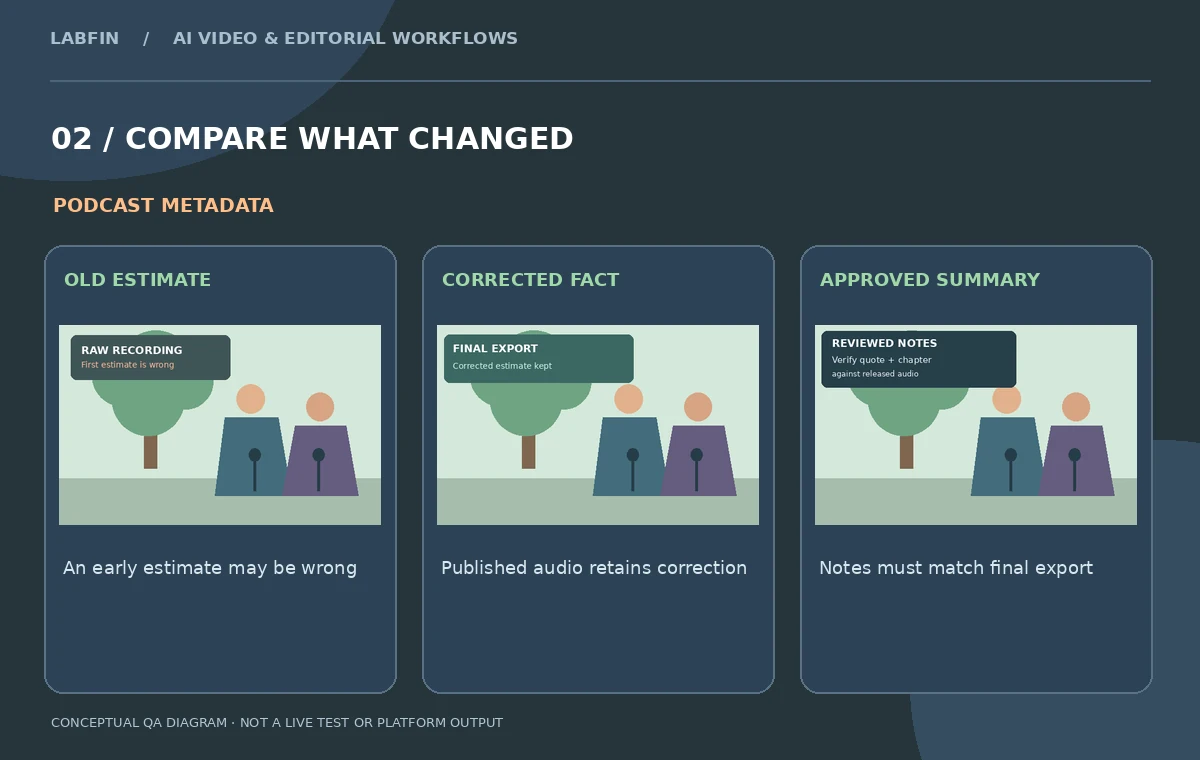
Match chapter titles and timestamps to the exported runtime
AI Show Notes may contain chapter names and timestamps. If a three-minute tangent is removed, all later chapter boundaries can move. Open the exported episode and check each title against its real start, including a short lead-in if that aids navigation. Name chapter content conservatively: “How a tree inventory works” is stronger than “Guaranteed lifetime for every street tree.” Do not rely on the elapsed time displayed in the raw session view. A chapter should land inside the released file, not inside a discarded take. Build a quick two-column check between proposed chapter labels and the approved export; fix misaligned entries before pasting them into a podcast host.
Prepare keywords and a reader-friendly episode description
The generated keyword list is a proposal, not a reason to repeat the same phrase ten times. Choose terms that a listener would actually use: urban trees, canopy assessment, street planting, and seasonal maintenance, only if the interview really covers them. Write an opening sentence that identifies the guest, purpose, and key takeaway without overclaiming. Keep a plain-language outline of links mentioned on air and verify external URLs before publishing. Avoid posting personally identifying details from the original unedited recording. If a guest must approve promotional copy, share the final summary and quote list for review, not an unfiltered machine transcript containing unrelated off-air discussion.
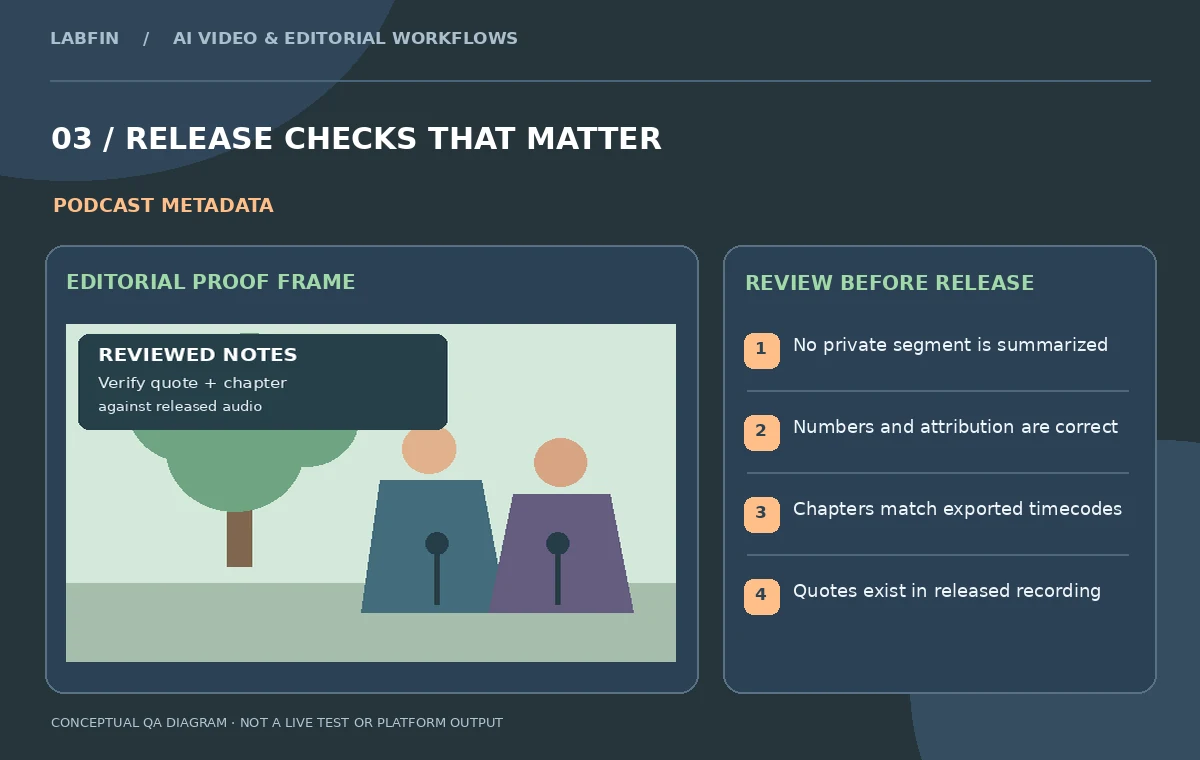
Build a reproducible publishing handoff
Save the final audio or video export identifier, episode title, reviewed summary, approved sound bites, chapter list, accessibility transcript, source links, and approval status. Mark whether each note came from Riverside generation, manual correction, or a signed fact sheet. Riverside also allows workflow-level controls for whether assets generate automatically after recording; teams should confirm those preferences before assuming notes were created on demand. Published copy must refer to the final episode that listeners can actually play. Retain the editable text and revision history so a later correction does not require recreating the entire metadata package. The diagrams in this article represent proposed QA steps, not a completed Riverside account test.
How We Research
This Riverside AI Show Notes guide is independent editorial guidance grounded in official documentation: Riverside: About AI Show Notes; Riverside: automatically generate assets after recording. The illustrated scenario is a fictional 32-minute interview with a city arborist where a wrong early estimate is corrected later, a private off-air question is cut, and final episode chapters must match the published edit. We checked the vendor-described capabilities and important eligibility conditions, then mapped a sequence of editorial reviews that readers can repeat with their own authorized media. The images are original teaching diagrams, not product UI screenshots, generated exports, results of a live account test, or measured benchmarks. We did not upload private recordings, access a paid vendor account, run a real A/B experiment, measure performance, or verify hypothetical timecodes. Retain source assets, check current plan availability and privacy settings, and review exported media and metadata before publication.
Frequently Asked Questions
For publishing, prefer the final export so summaries, sound bites, and timestamps match the released edit.
Yes. Its guide specifies a transcript and content longer than five minutes.
No. Compare numbers and claims with the final audio and trusted source material.
Cuts or a different media version change runtime; review every chapter against the final export.
Final export reference, reviewed summary, approved quotes, timestamp sheet, source links and approval record.