
Adobe Firefly sketch to image is useful when you already know where key objects should sit. Unlike a text-only image prompt, a structure reference provides visual geometry. That does not make the AI output an engineering drawing: shapes, counts and small details can drift. Here is a controlled method for converting a rough lighthouse scene into mood artwork while protecting the composition and identifying any changes. It differs from turning a sketch into editable vector paths.
Draw a readable composition anchor
Begin with a simple grayscale sketch: one lighthouse on the right, horizon below the center, narrow footpath leading to the tower, and open sky on the left for later text. The sketch need not be polished, but ambiguity about which objects matter will carry into the render. Annotate the nonnegotiables separately, such as the single tower, the direction of the path and the empty headline area.
Export the reference at a readable size without covering it in handwritten instructions. Use separate notes for annotations so the model does not reproduce your editing arrows as scenery. Keep an untouched sketch and record a brief for the mood, materials and lighting. A structure guide controls broad spatial relationships, not exact pixel placement.
Choose the appropriate Firefly reference workflow
Adobe’s Sketch to Image feature page describes uploading a sketch as a reference within Firefly’s image editor, entering a prompt, selecting a model and reviewing generations. Adobe’s April 2026 tutorial additionally demonstrates Structure Reference in Text to Image and a strength slider that changes resemblance to the sketch. Available screens and model options can differ across products and releases.
Use the tool that actually exposes reference guidance in your account. Confirm that the selected model supports the requested kind of reference before proceeding; do not assume every partner model or subscription gives identical control. Record the model and reference settings alongside the prompt. The article’s images are conceptual explanations, not claimed screenshots.
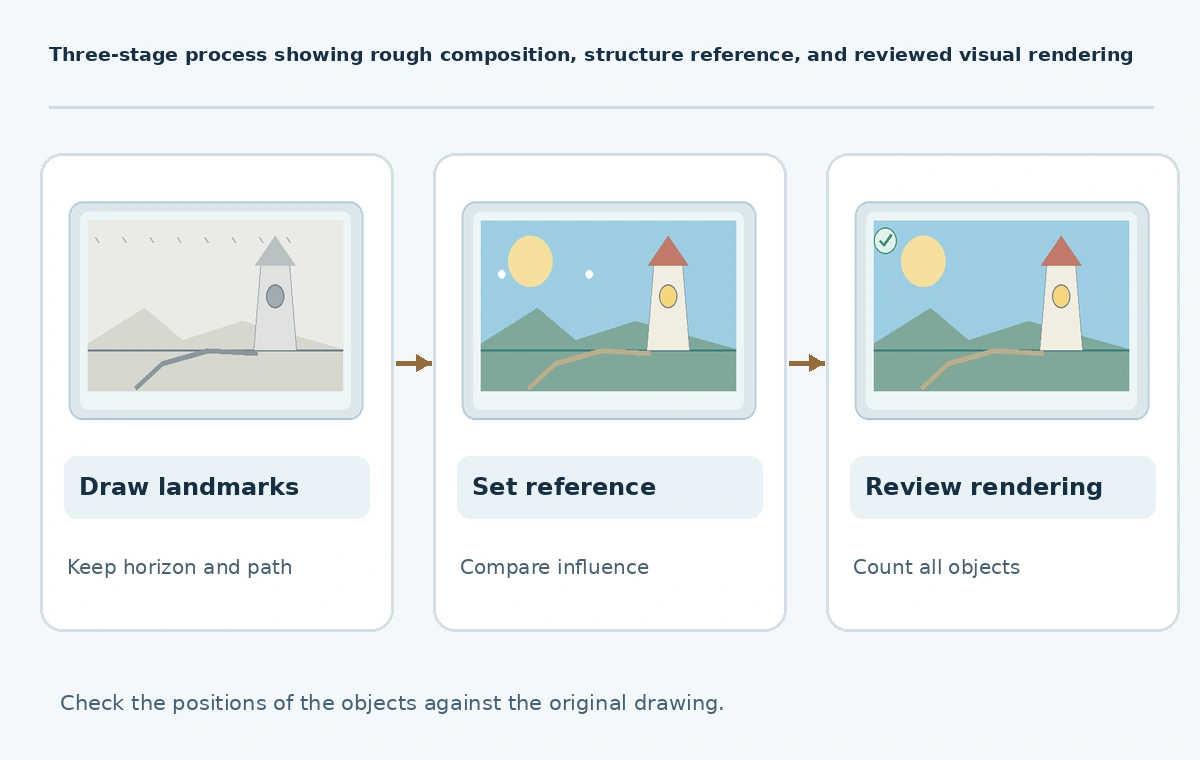
Run a controlled structure-strength comparison
Write one prompt describing the intended materials and light, then create a small set of candidates while changing only the structure influence. Adobe’s tutorial explains that stronger reference influence tends to follow the source composition more closely. Check actual candidates, because this is a control tendency, not a mathematical guarantee that every outline will match.
Use a simple visual scorecard: lighthouse remains right of center, coastline does not move above the horizon, path remains connected, and the left sky stays open. A bright painting that flips the scene can be attractive yet fail the assignment. Never compare two versions while also changing the model, aspect ratio and reference image unless your goal is to test all those factors together.
Separate style requirements from layout requirements
Structure specifies arrangement; style specifies the desired surface language. A coastal drawing could become watercolor, painted animation or photographic concept art while still keeping similar object positions. Keep the aesthetic description in a separate section of the prompt from your landmarks. This makes requests easier to review and revise.
If the goal is a real construction, product or site plan, stop before treating any render as specification. A model may subtly alter door placement, railings or pathway width. Compare the generated art with the original sketch rather than treating photo-realistic materials as evidence of geometric correctness. For clients, mark the asset as conceptual visualization and retain the drawing as the reference of record.
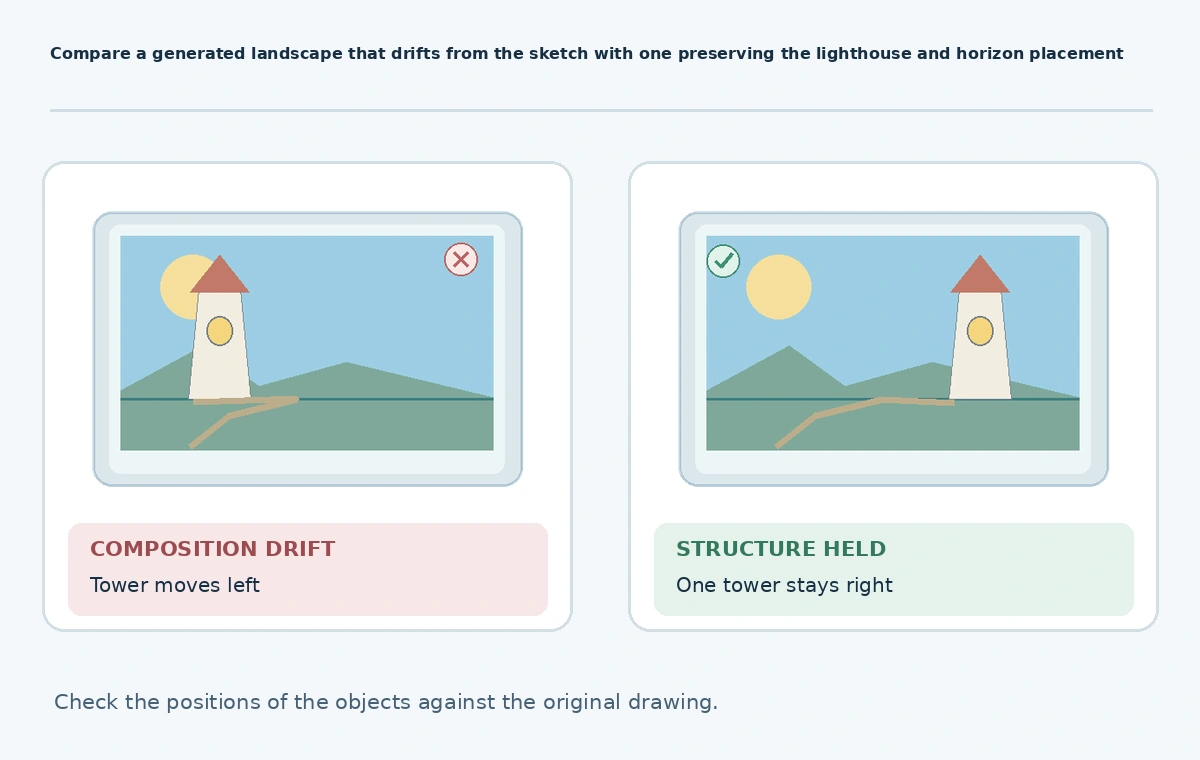
Repair drift with the smallest possible intervention
Before regenerating everything, list the visible deviations: a second lighthouse appears, the path ends abruptly, or the horizon is tilted. Correct the prompt or reference strength according to the type of deviation. For local changes, use supported region editing cautiously, keeping the unedited candidate available. A more elaborate prompt is not inherently better; a targeted instruction often creates a cleaner review trail.
For text areas, leave deliberate negative space and set final typography in a normal design editor. Generated lettering is not a substitute for exact event names or legal copy. Inspect object counts, edge continuity and light direction at full resolution. After a local fix, review the entire image because surrounding pixels may also change.
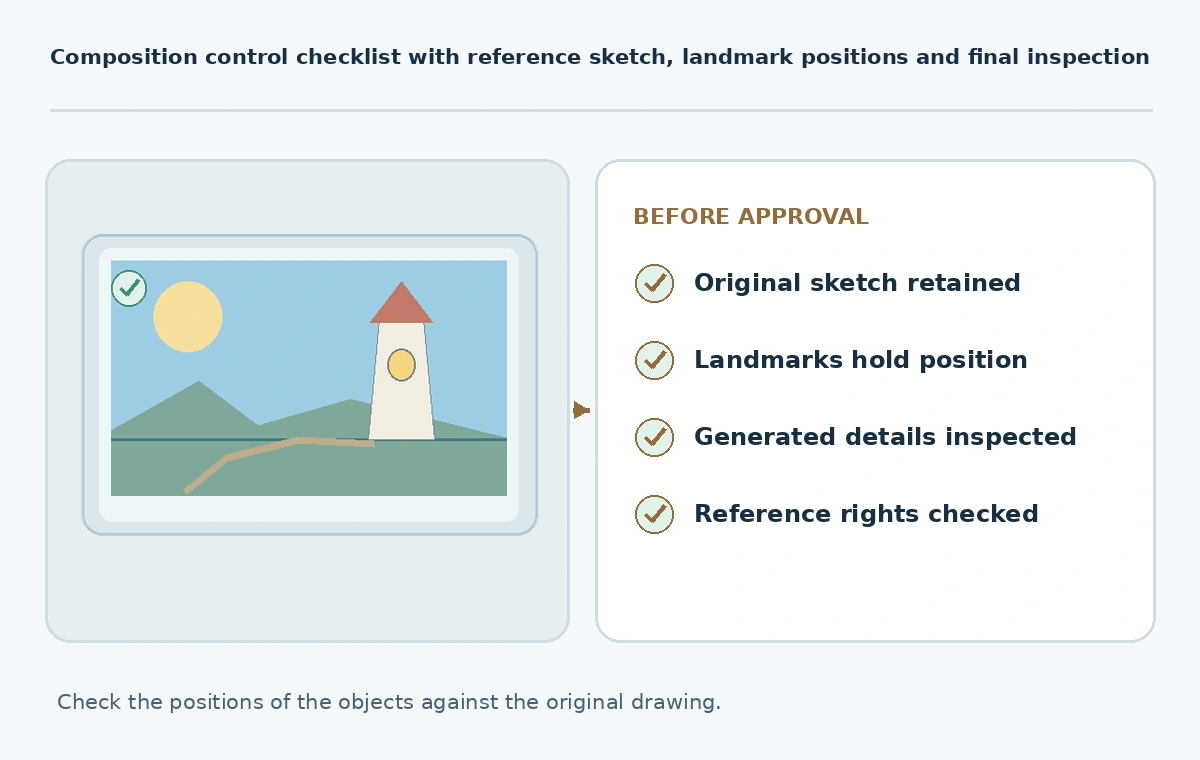
Package creative evidence for approval
The final handoff should contain the source sketch, accepted image, rejected comparison if it explains the decision, model name, reference choice and text brief. Record what was preserved and what was intentionally redesigned. A client can then approve the scene rather than being surprised by a changed landmark in a later draft.
If you used stock images, client sketches or photos as a reference, confirm you have permission to upload and transform them. Check output licensing for the chosen Firefly or partner model before commercial distribution. The fact that Adobe provides a tool does not automatically clear personal likeness, protected designs or outside reference images.
How We Research
We read Adobe’s Firefly sketch-to-image instructions and Adobe’s April 13, 2026 structure-reference tutorial on October 27, 2026. Adobe documents the use of a sketch reference and the strength control; the lighthouse brief and review grid are our workflow example, not benchmark results or a claim of verified pixel-level geometry.
Frequently Asked Questions
No. It guides the composition; count and geometry still need comparison with the source.
Use the representation that best communicates the layout you must preserve, with permission for any uploaded material.
Adobe describes it as increasing resemblance to the reference; inspect the resulting images rather than assuming exact matching.
No. A generated render is not a measured construction or engineering record.
Reserve a clean area and typeset verified words in a conventional layout editor.