
An AI image editor can clean a distracting background, remove dust or build a lifestyle scene quickly. It can also invent stitching, change the apparent size of a product or erase a safety label. For ecommerce, that second possibility matters as much as speed: photographs help buyers understand what they will receive.
This guide compares editing workflows, not made-up speed or quality benchmarks. Canva documents background removal and Magic Edit; Adobe documents Photoshop Remove and Generative Fill; ChatGPT Images supports regional edits and prompts. Their interfaces serve different teams, but every workflow needs product facts, reversible source files and a human approval gate.
Separate permissible cleanup from product alteration
Create two lists before opening an editor. Presentational changes include cropping, removing a background distraction, adjusting exposure and adding contextual surroundings clearly labeled as illustration. Material product changes include making a shirt appear to have another pocket, changing dimensions, enlarging a package or hiding damage. The second list needs product-team approval, and many changes should simply be rejected.
Keep at least one straightforward product reference image that faithfully shows color, silhouette, included accessories and labeling. AI-generated lifestyle images can complement that reference, but should not replace it when the generation changes features. Ask whether a reasonable buyer might infer a characteristic the real product lacks.
Canva: simple background and design workflows
Canva provides a background remover and AI-assisted editing within its design environment. Its help pages describe background removal from a design or uploaded images, plus restrictions tied to paid access and certain bulk workflows. This makes it practical for a marketing team producing consistent storefront cards or social formats without a complex layer-based workflow.
Check the edge around hair, transparent packaging and reflective objects after any automatic cutout. A white object on a white background may lose important boundaries. Canva’s Magic Edit can add, remove or replace parts of a photo, which is convenient but should not be used casually to invent product features. Keep raw source photos outside the design export.

Photoshop: controlled retouching and selections
Photoshop offers targeted removal and Generative Fill for selected regions. Adobe documents non-destructive workflows that let an editor compare variations while retaining the original image. This is useful for skilled retouchers handling glare, composition or removing an unrelated object from the background. A selection limits the intended area but does not eliminate unintended visual changes.
Use separate layers for adjustments, and label generative alterations so reviewers can locate them. Zoom in at 100% to inspect logos, zipper teeth, material patterns and shadows. For regulated goods or precise technical products, a clean real photograph may be more appropriate than a heavily reconstructed scene.
Chat-based editing: fast concepts, careful verification
ChatGPT Images lets users upload an image and ask for changes, with options to select a specific region. This may work for fast lifestyle concepts, alternative settings or a visual brief to a designer. The product’s support guide also notes that edits may extend beyond the selected area, so a requested background swap can affect adjacent elements.
Use a reference photo as a factual anchor and compare the before/after versions side by side. If the new output changes label text, product color or included parts, reject it. Conversational convenience does not substitute for a pixel-level check. Preserve a list of exactly what was meant to change before beginning the edit.
Build a truthful five-step editing workflow
Step one: capture or obtain licensed photographs and product specifications. Step two: make a preservation checklist including shape, color, logos, included accessories and dimensions. Step three: use a dedicated tool for exposure, crop or background changes. Step four: perform visual and factual approval against the source. Step five: export with the destination’s file size and aspect ratio requirements.
Put the reviewer’s name and the approved original next to the output. For a set of ten product photos, apply consistent backgrounds and cropping without forcing every object into the same artificial perspective. An image that looks clean but misleads buyers about scale is not publication-ready.

Handle transparent, shiny and textured products
Automatic masks struggle with glass, polished metal, wispy hair, lace and mesh because the boundary is not simply one solid edge. Inspect highlights and semi-transparent regions at full resolution. Where the generated fill changes a product reflection or deletes holes in a fabric, consider conventional masking or reshooting instead of further AI manipulation.
Add a subtle real shadow when a cutout looks like it floats, but do not imply impossible physical contact or dimensions. For a product with subtle texture, retain at least one macro image from real photography. A buyer needs to see the actual surface; a synthetic replacement that invents grain or stitching may undermine trust.
Review marketing claims and disclosures
Distinguish a conceptual scene from a photograph of an actual product in use. If an AI-generated backdrop implies a claim — waterproof operation, outdoor durability or medically useful performance — verify that claim separately. Avoid using fabricated user testimonials or invented certifications inside graphics. Keep clear disclosures where required by a platform or by the context.
Adobe’s commercial-use documentation and other vendor licensing guidance help identify product terms, but they do not authorize any third-party source photo automatically. Confirm rights to the input, the people depicted and visible trademarks. Preserve provenance, because a future marketplace review may ask what was changed.
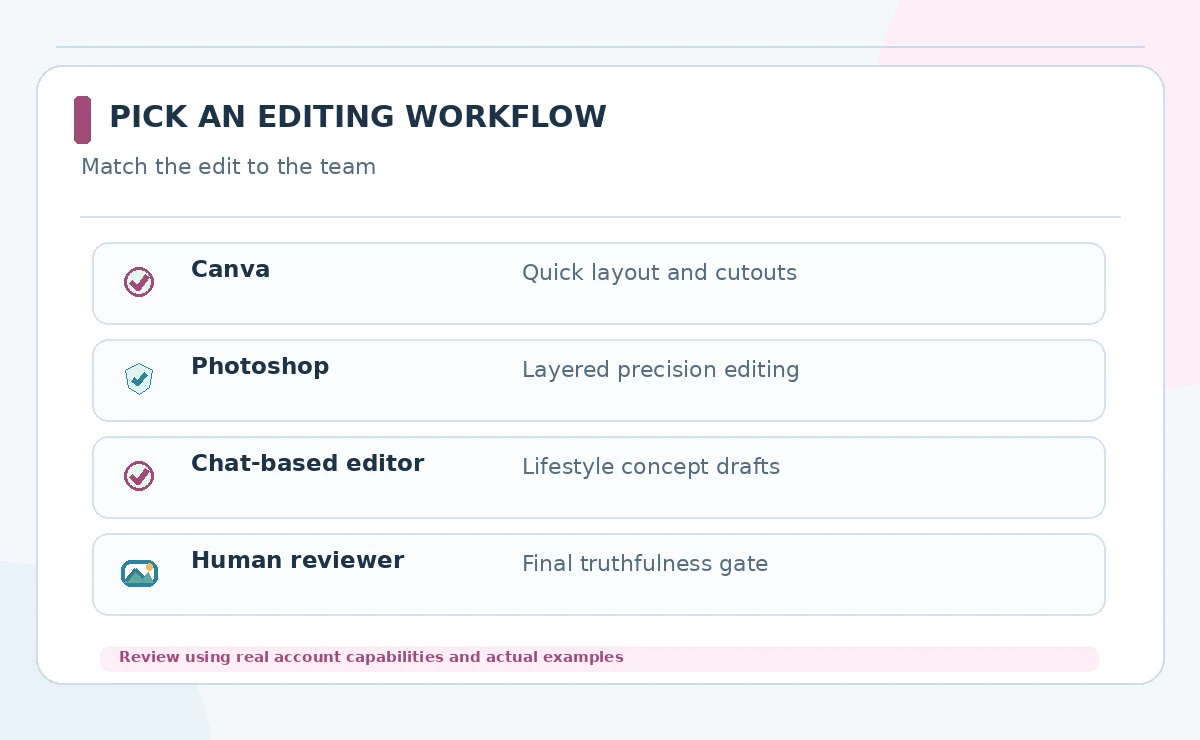
Choose by team skill, revisions and audit needs
For quick layouts and straightforward backgrounds, begin by evaluating Canva. For layer-based retouching and detailed selective fixes, evaluate Photoshop. For exploratory lifestyle concepts with conversational direction, consider a chat-based editor, then finish and verify in a production design tool. These are workflow suggestions, not an independently tested performance ranking.
Estimate editing cost per approved image, including rejected attempts, human review and correcting inaccurate object details. Pilot with a difficult reflective product, a textured garment and a labeled package, not only an easy matte item. Track failure examples and export quality before committing to a paid workflow.
How We Research
Research checked on October 26, 2026. Our primary references are Canva background remover help; Canva Magic Edit help; Photoshop Generative Fill guide; OpenAI image editor documentation. We mapped documented product capabilities to this specific reader task, distinguished provider claims from independent evidence, and checked adjacent LabFin coverage to avoid an overlapping article. The comparison is editorial and does not imply hands-on paid tests, measured output quality, verified account access or permanent pricing. Features, permissions and usage rules can change; confirm relevant terms in the live product before purchase or launch.
Frequently Asked Questions
Yes, but inspect transparent edges, reflections and shadows, and keep the unedited source for comparison.
No. Cleanup differs from changing material characteristics, packaging, dimensions or included accessories. Preserve truthfulness.
Photoshop provides dedicated selection and layer-based workflows; the right choice also depends on your retoucher’s skills and review requirements.
Only when your rights and the service terms permit it. Check confidential assets, people and trademarks before uploading.
Compare them against real product photographs and specifications, document edits and reject visuals that imply unsupported product claims.