A personal AI assistant should reduce the small administrative loops in your day: turning rough notes into priorities, organizing a meeting preparation list or finding a reference you already own. That is a narrower and more useful promise than a magical assistant that silently runs your life. Chat, memory, connected applications and scheduled actions are separate capabilities with separate permissions.
This article gives you a repeatable setup using everyday tools and deliberately avoids assuming that any one subscription can access your calendar, send email and remember everything. The result is a workflow you can inspect, change or stop without losing control of your information.
Decide whether you need conversation or real action
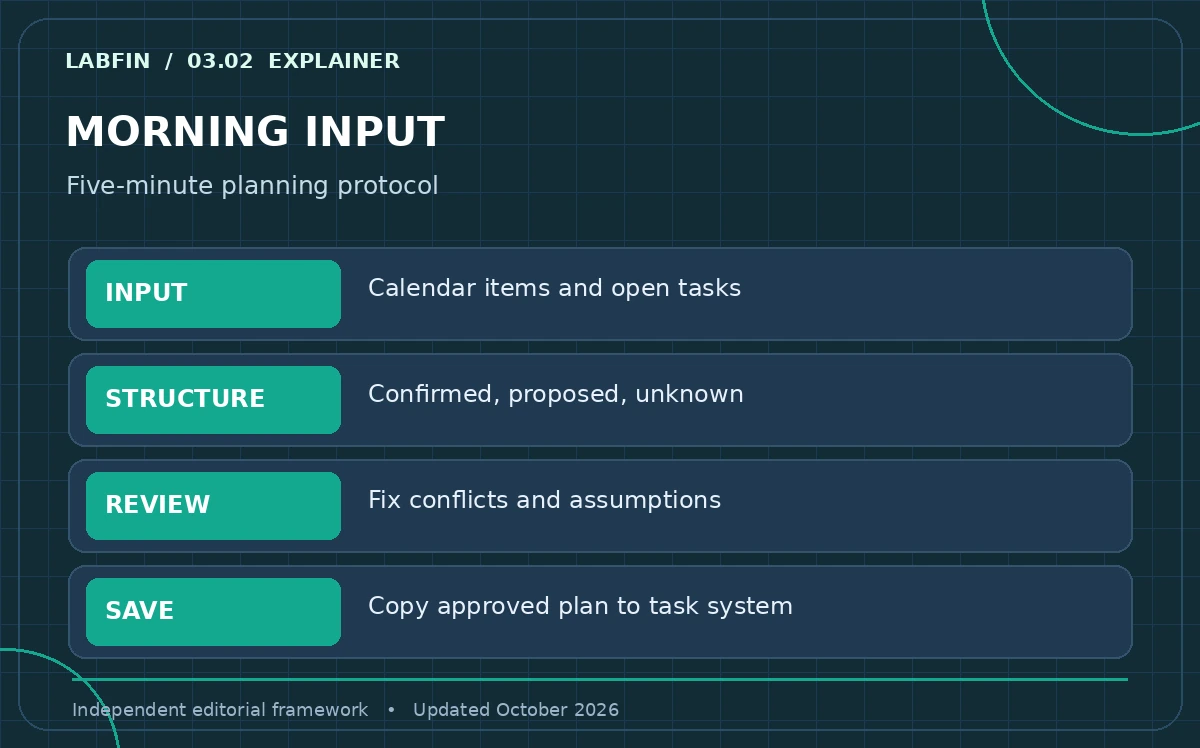
Write down the five recurring jobs you want to simplify. Mark each as draft, find, remind or act. An assistant can often draft an agenda with no integration. Finding an event may require calendar access. Creating or moving the event is a write operation that should require confirmation. The names of the features are less important than those distinctions.
For example, “prepare tomorrow’s meeting” can mean summarizing pasted notes, proposing questions and presenting a draft schedule. It does not inherently mean changing invitations. Starting with drafts allows you to learn the interface and evaluate reliability without granting broad account access.
Pick one home for your tasks and one home for facts
Use an existing calendar or task manager as the system of record. Keep authoritative documents in a known folder or notes app. The chatbot is a planning layer, not the canonical location where due dates should live. If you can no longer distinguish a suggestion in chat from a committed task, your workflow is already too fragile.
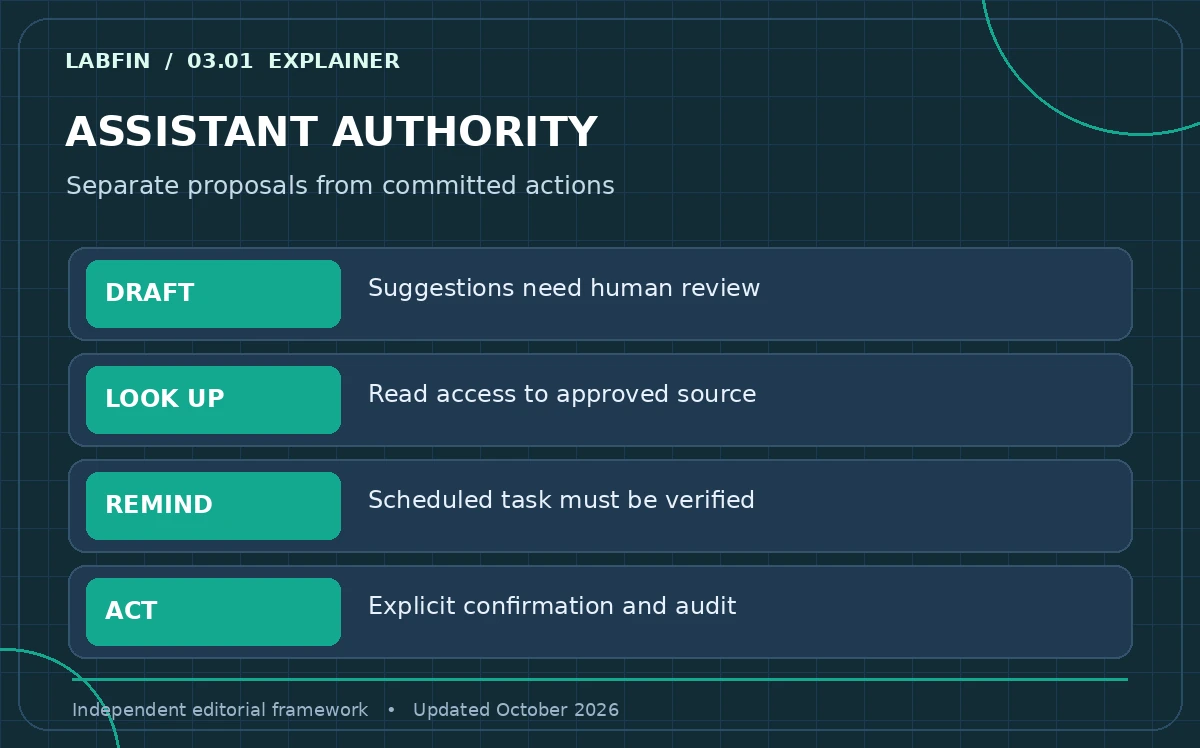
Create a compact daily input containing your appointments, three commitments and any blockers. Remove sensitive identifiers. Ask the assistant for an agenda with separate “confirmed”, “proposed” and “needs verification” sections. That three-column convention turns an attractive paragraph into something actionable and auditable.
A five-minute morning check-in
Start with a bounded prompt: “Based only on the schedule and tasks below, draft a three-item priority list, flag time conflicts, and ask before assuming an appointment can move.” Then paste the relevant non-sensitive information. Read the output, amend it and move accepted changes to the actual calendar or task tool.
If a meeting is missing from the supplied context, the assistant should not infer that your afternoon is free. Ask explicitly for unknowns. Save the final approved list outside chat so it is still available if the provider changes or a history feature becomes unavailable.
Use memory for preferences, not irreplaceable commitments
Personalization can help with stable preferences such as “prefer concise agendas” or “use US English”. It is less reliable as the sole keeper of deadlines, passwords or an agreed client action. OpenAI describes how ChatGPT memory may draw from different sources and how controls vary by account. Google describes separate controls for Gemini activity and personalization.
Choose deliberately what a product may remember. At a scheduled review, ask what preferences it is using, correct anything wrong and check the account’s supported memory controls. Turning memory off does not necessarily delete prior chats or eliminate every other form of retention; provider documentation explains those distinctions.
Connect applications with minimum permissions
Before connecting mail, files or calendars, read the permission screen. Prefer read-only access for a summary job. Grant write access only if the tool can show a clear preview and requires your confirmation before changes. If there is no visible approval step, leave the action manual. Also consider who administers the connected account and who can access the underlying data.
Test using a harmless entry titled “Demo appointment” or a public folder. Ask the assistant to find it, then separately propose a change. Check the destination application yourself. If the feature reports success but the record was not updated, you have discovered an important mismatch without risking a real event.
Handle recurring reminders and follow-ups carefully
Some assistants offer scheduled tasks, but the feature may depend on the plan, region or app. A message that says “I’ll remind you” is not proof that a scheduled job exists. Open the product’s task list or the actual calendar and confirm its date, time zone, recurrence, notification channel and ability to edit or cancel.
For higher-stakes commitments, keep a second reminder in your established calendar. A personal assistant should help you prepare the reminder text and review priorities, while the reliable scheduling system remains visible and testable. Avoid using a conversational history search as your only deadline tracker.
Build a privacy boundary you can explain
Decide in advance which materials are allowed: public briefs, sanitized to-do items and non-confidential drafts are reasonable practice inputs. Keep medical details, financial credentials, client records and other protected information out of consumer workflows unless an approved service and data agreement explicitly permit them. Review training, retention and memory controls separately.
An especially important boundary concerns people besides you. The assistant should not ingest private email threads or colleague documents merely because a connector technically can. Respect the smallest access scope required and set a regular date to remove unused connectors and delete unneeded shared data.
Know the failure modes and the weekly audit
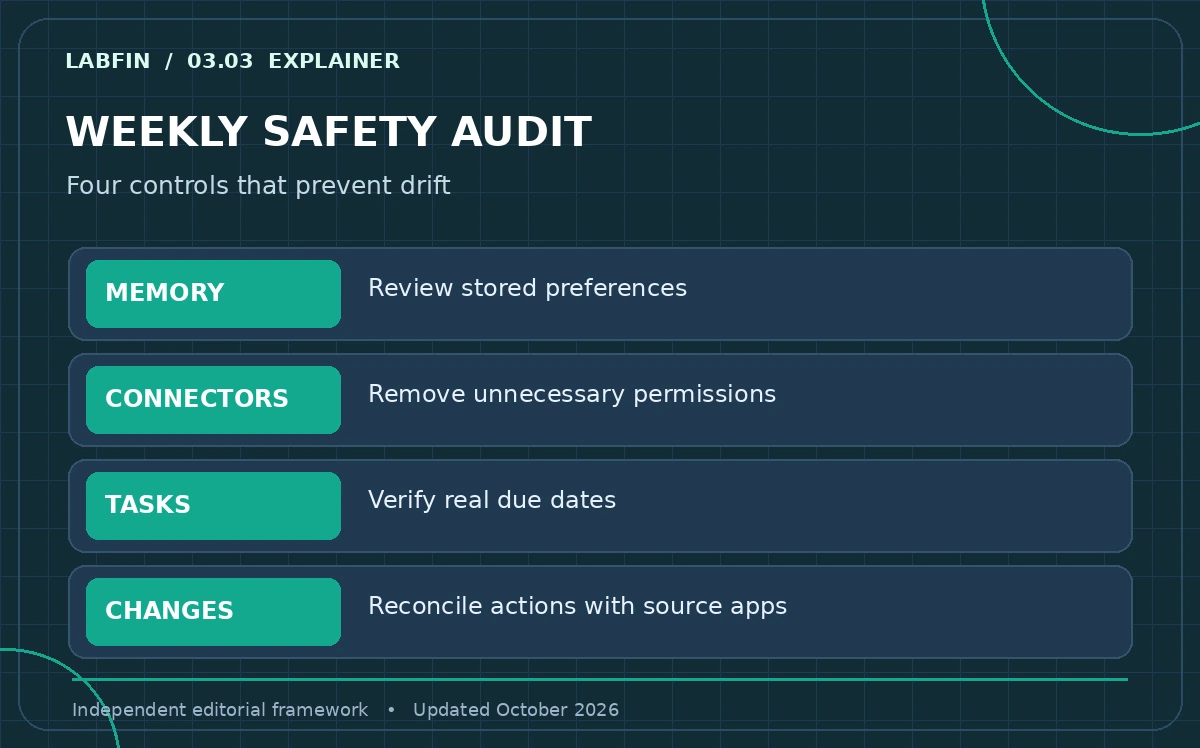
A personal assistant can omit tasks, misunderstand a time zone, invent an appointment, summarize the wrong attachment or confuse a proposal with confirmation. Once per week compare its task summary with the actual system of record and review any changes it claims to have made. Track errors as concrete incidents, not vague disappointment.
If it repeatedly misses a particular workflow, narrow its input, provide a structured template or stop using automation for that step. Reliability comes from clear boundaries and verification, not from the assistant sounding certain. This guide describes a user-managed method; it does not claim a specific app passed independent reliability testing.
How We Research
We used OpenAI’s memory explanation, OpenAI’s data-controls FAQ and Google’s Gemini Apps Privacy Hub, updated October 23, 2026, to distinguish memory, chat retention, model improvement and connected data. The daily and weekly routines are our editorial procedures, not vendor promises or tests of third-party integrations. Availability of scheduled tasks and connectors must be confirmed within the individual account.
Frequently Asked Questions
Only if a supported connector and account permissions allow calendar actions. Treat suggestions as drafts, require confirmation for changes and check the actual calendar after every important operation.
No. Memory features can select, summarize or exclude information, and account settings vary. Keep durable tasks in a dedicated system rather than trusting conversational memory.
Only after checking the exact permissions, organization policy, retention rules and ability to revoke access. Start with a low-risk read-only trial when that option exists.
Use a daily agenda drafted from information you deliberately paste, mark proposed items separately, and manually copy accepted tasks into a calendar or task manager.
Open the assistant’s supported scheduled-task interface or the connected calendar and verify the date, time zone, recurrence and notification settings. A chat confirmation alone is insufficient.