
A local nonprofit recorded a 50-minute volunteer safety training with a live demonstration, a question period, and a short policy clarification at the end. Staff want a replay that volunteers can navigate without missing the safety exception. Zoom smart recording can create AI highlights, chapters, and suggested next steps from a cloud recording, but its structure is not automatically the approved course outline. This illustrative workflow uses the tool to organize the replay while a human reviewer checks the timeline, complete context, and sharing controls before distributing a link.
Confirm recording consent and the source video
Before editing, confirm the meeting was recorded under the organization’s consent and retention practices. Identify the original cloud recording, its host, the training version, and the document that contains the authoritative safety instructions. Check whether the Q&A includes identifiable participants or personal details that should not be in a broad replay. An AI highlight cannot retroactively grant permission to reuse someone’s appearance or voice. Choose the intended audience before exporting clips, and preserve an untouched source recording as required by policy so later reviewers can find omitted context.
Check that Smart Recording is available
Zoom documents smart recording for eligible accounts with the appropriate cloud-recording and AI settings enabled. Feature behavior can depend on licensing, admin controls, and processing status. Confirm the recording and any required audio transcript or processing have finished, rather than relying on a missing menu as proof that the tool does not exist. The public documentation explains that cloud recordings can be reviewed in the Zoom web portal under Recordings and Transcripts. Use the current account labels, because UI placement and transcript display behavior may change.
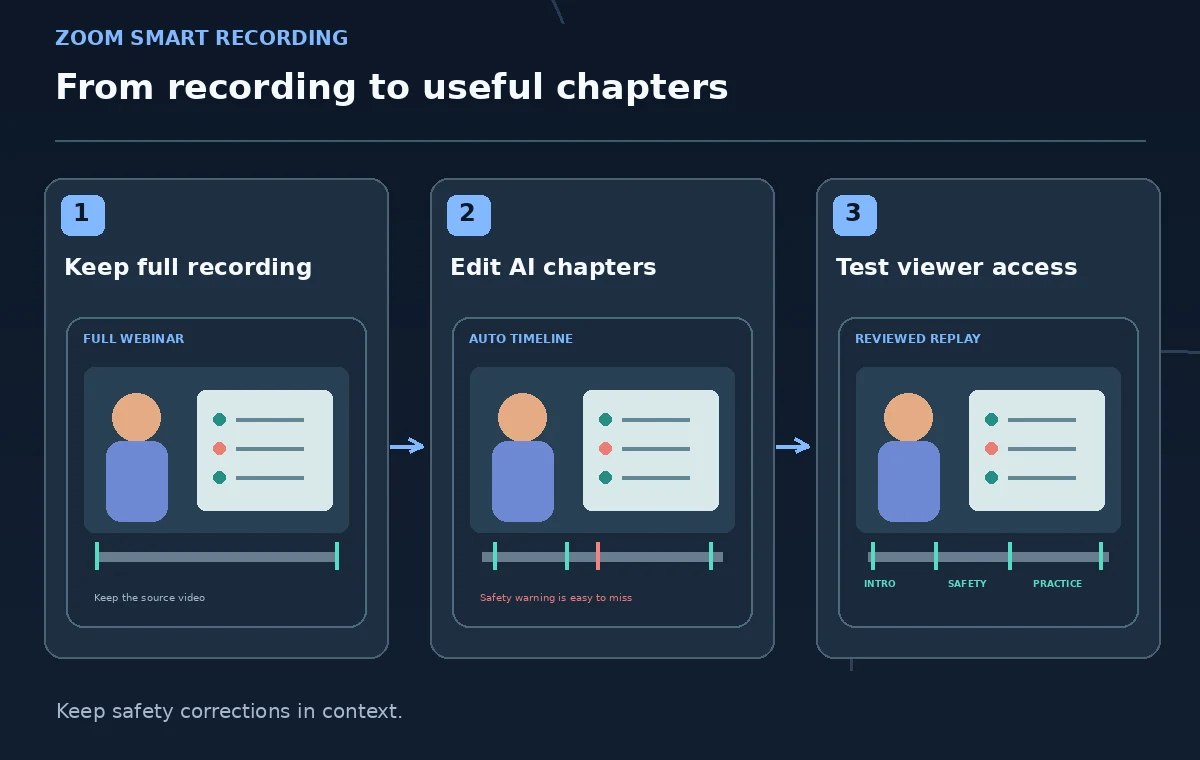
Open the recording and inspect the proposed structure
In the Zoom web portal, find the meeting in the Cloud recordings tab and open the video. Review the automatically suggested chapters, recording highlights, and next steps where available. Write down the intended sequence from the real session: introduction, equipment demonstration, emergency exception, supervised practice, and questions. Compare that outline to the generated timeline before touching the edit controls. A chapter labeled General guidance could hide the most important warning. Do not treat a meeting-summary sentence as a substitute for listening to the corresponding part of the recording.
Edit smart chapter boundaries on actual transitions
Zoom supports Edit Smart Chapters with controls to move boundaries, split a chapter, delete one, and edit its title or text. A split may require entering its chapter text manually. Scrub to the instant the presenter starts the new procedure and align the chapter accordingly; do not begin a safety step at the middle of a sentence. Keep enough context for the viewer to understand why the next action follows. Adjustments to one chapter can affect neighboring chapters, so recheck the entire timeline after each edit. Clear titles such as Check protective gear beat motivational titles that conceal the task.
Treat AI highlights as an editorial selection
A highlight may pick an energetic moment and omit the exception that makes it safe. Compare each proposed highlight with the full segment immediately before and after it. For example, a demonstration of a lifting technique should not be shared without the trainer’s warning about conditions when assistance is required. Zoom provides tools to adjust highlights and save excerpts, but a shorter clip changes the viewer’s context. Clearly distinguish a recap for convenience from the complete required training. If participation requires the full lesson, do not suggest that viewing a two-minute highlight satisfies it.

Verify the audio transcript and named terms
Replay sections containing equipment names, emergency instructions, numeric thresholds, or participant questions. Do not let an inaccurate transcription silently become a misleading chapter summary or next-step recommendation. Compare the words with the approved safety guide and identify any material uncertainty in notes. If the presenter corrected an earlier statement near the end, make the correction easy to find and do not promote the obsolete wording in an excerpt. Human listening is essential because generated text may sound authoritative even when background noise or overlapping speakers caused transcription mistakes.
Review next steps and avoid invented assignments
Zoom can suggest next steps from conversational cues; it does not independently confirm that someone accepted a task. For each proposed action, find the relevant recording moment and verify what was actually agreed. Replace Volunteer coordinator approved with Coordinator will review if approval was only requested. Remove next steps that disclose a private attendee matter or turn a hypothetical classroom example into a real instruction. Keep task owners and deadlines in the approved project system, not only in a replay summary. A clear replay points to the decision record rather than creating a competing one.
Configure cloud recording access before copying the link
Zoom’s cloud recording sharing controls can restrict viewing to an account, require sign-in, use a passcode, set an expiration date, and govern downloads or transcript visibility; options vary with administrator configuration. Review these settings before copying a link to the replay. Never assume that a link is private just because it was sent to a limited email group. Use an authorized test account to confirm access and verify that attendees cannot download or redistribute sensitive material if policy prohibits it. Separate the original full recording from excerpts whose audiences may differ.
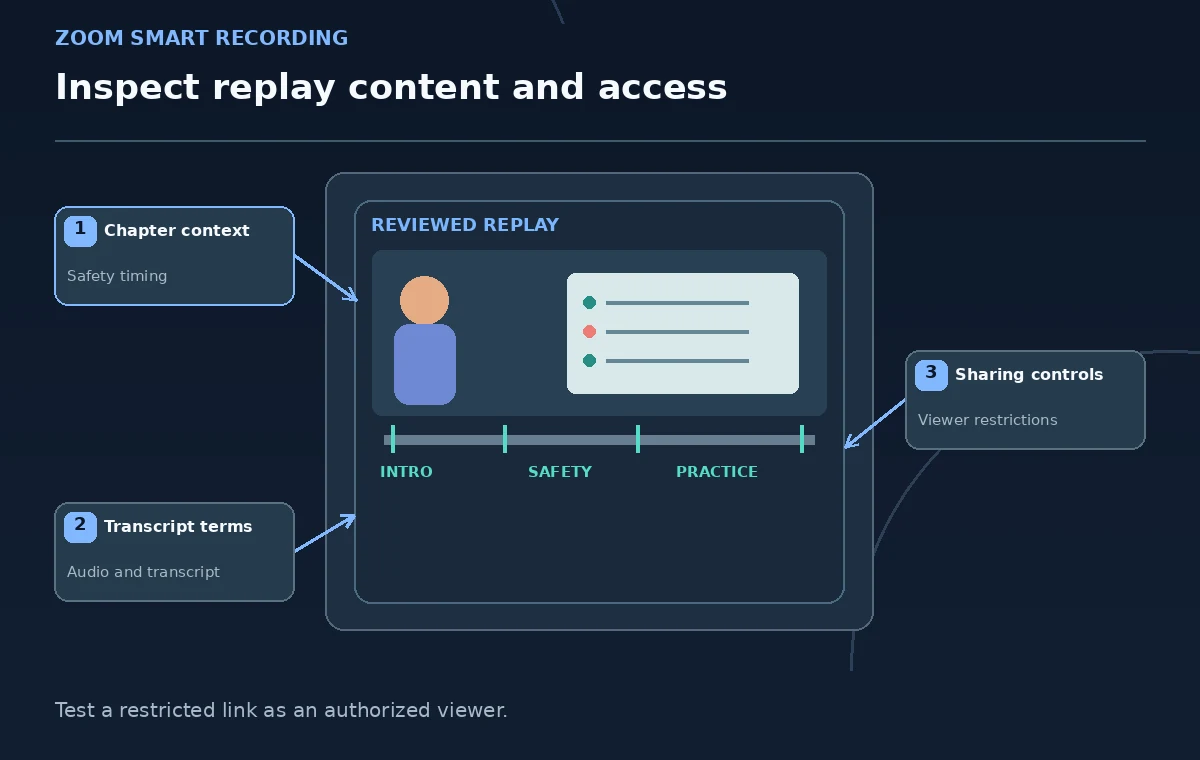
Play the finished replay as a new volunteer
Open every chapter in order and click a few transitions from a narrow screen or a second device. Check that the chapter title corresponds to the visible instruction, the corrected safety policy is prominent, the Q&A has not been misrepresented, and the recording starts without accidental dead air. Confirm the metadata, retention date, and link scope with the course owner before publishing it to staff. Record the review date and policy version near the replay link. Smart chapters are useful navigation, but the training owner remains responsible for accuracy and access.
How We Research
This guide was prepared by reading the named official documentation—Zoom Support — Using smart recording with AI and Zoom Support — Managing and sharing cloud recordings—and cross-checking the described feature, its workflow, platform or plan restrictions, and the point at which a person must review the result. The scenario, illustrations, example inputs, approvals, and sample outputs are hypothetical editorial teaching aids; we did not access a customer account, run a live product test, measure model accuracy, or verify an actual organizational policy. Screens, plan rules, and labels can change after this documentation review. Always confirm the currently available feature and the authoritative source documents before acting on any AI-generated wording.
Frequently Asked Questions
The documented Smart Recording workflow is centered on eligible Zoom cloud recordings, not arbitrary uploaded local video files.
Yes. Zoom documents moving boundaries, splitting, deleting, and editing chapter titles and text in Edit Smart Chapters.
Not by default. Highlights can omit important warnings; the training owner must decide what constitutes full completion.
No. Check who can view, authentication, downloads, passcode, expiry, and transcript visibility in cloud recording settings.
No. Confirm proposed assignments against what speakers actually agreed and record approved owners separately.