
A facilities committee is discussing a fictional building entrance when one member joins the video call late. Zoom’s meeting-question feature can offer a catch-up prompt describing what the person missed, but a summary might not preserve the difference between a repair proposal and a voted decision. This tutorial explains a source-aware rejoining workflow: verify that meeting questions are permitted, ask a narrow question, confirm uncertain claims with participants and update only the official minutes. The sample statements are invented, and the guide does not claim to have tested a Zoom meeting or recorded anyone.
Establish who may use meeting AI
Before the call, the host or administrator should confirm the organization’s meeting-AI policy, participant notices and the relevant account settings. Zoom’s 2026 release notes describe a late-joiner catch-up prompt when Meeting Questions permissions allow the joining participant to ask questions. The prompt is not a universal guarantee for every meeting, and the organization may disable AI when restricted attendees join. Ask whether sensitive contract terms, personnel matters or security details are on the agenda; use the approved non-AI minutes process where required. Tell participants how to raise an objection or request a nonrecorded discussion.
Set up a decision register alongside the call
Prepare a simple table with Topic, Proposed action, Evidence needed, Decision owner, Status and Date. For the fictional entrance repair, the agenda says a ramp surface is damaged and a contractor quote is pending. The status at the start is ‘Under discussion’. This controlled register exists outside the AI answer and is updated by the secretary or chair. If the committee needs a formal motion, record the motion and outcome using its normal rules. A generated recap cannot replace quorum, voting rules or signed approval simply because it sounds authoritative.
Join late and review the available catch-up control
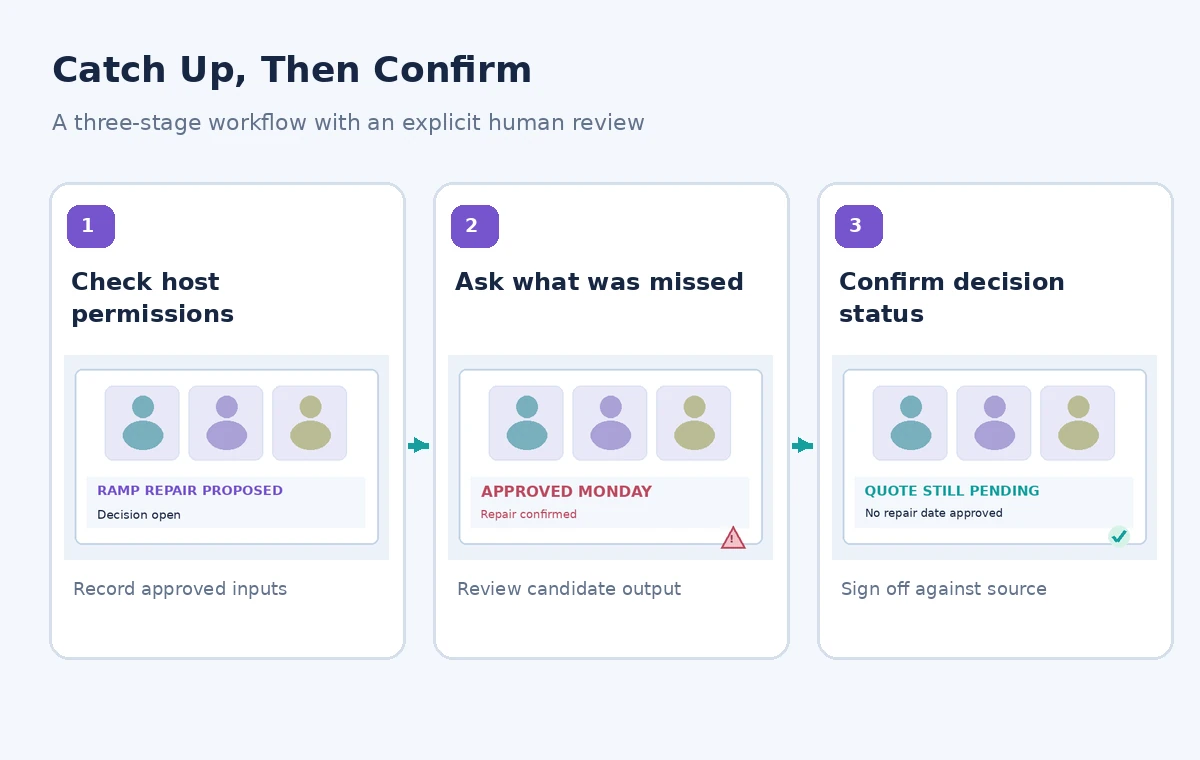
The documented Zoom behavior is a prompt to summarize missed discussion for participants arriving late, subject to permitted meeting questions. If it appears, review its wording before relying on it. Ask a narrow follow-up such as ‘What was discussed about the ramp quote, and was a decision explicitly approved?’ Rather than ‘What are our next steps?’ The latter can invite a tidy action list without showing whether work was authorized. If no prompt appears, request a brief human recap in the meeting or consult the written agenda. Do not ask the AI to expose private portions of the call beyond your role.
Distinguish the three types of statement
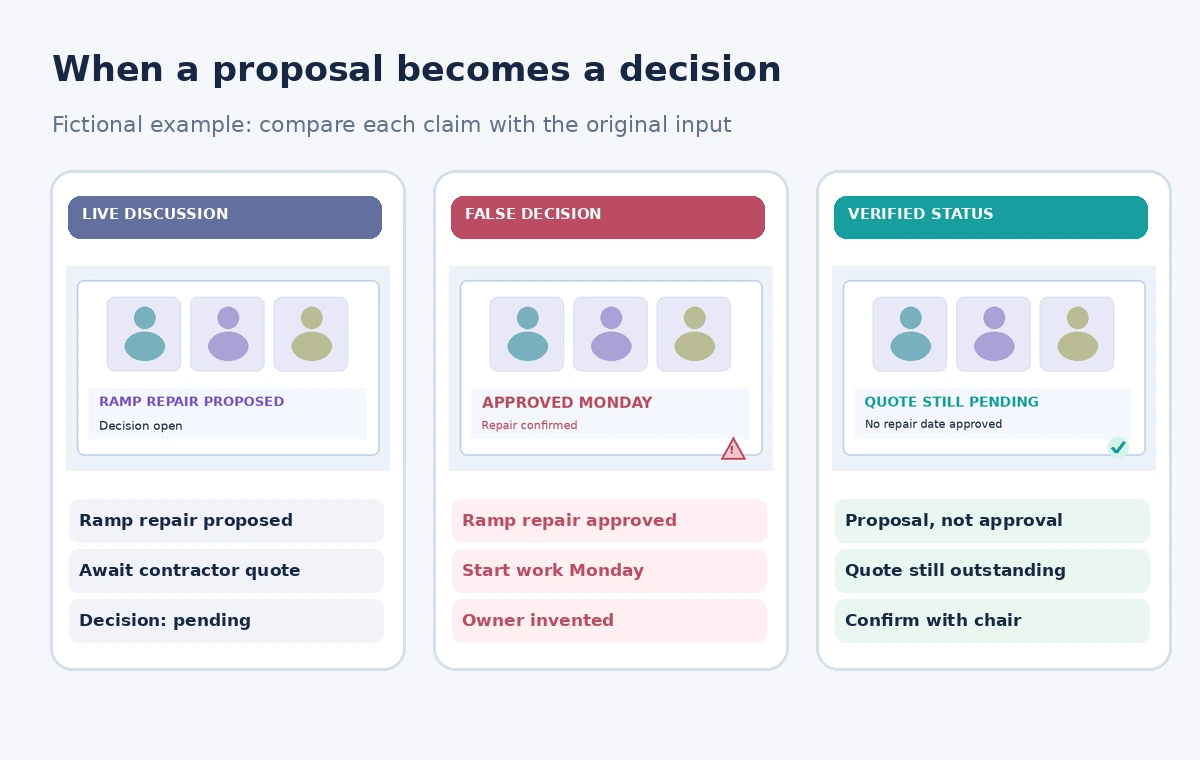
Classify each catch-up item as a reported fact, a suggestion or a confirmed decision. ‘The quote has not arrived’ may be a reported status; ‘we could schedule repair Monday’ is a suggestion; ‘the committee voted to authorize Monday work’ is a decision only if the approved record supports it. In the fictional scenario the contractor quote is still outstanding, so the correct summary is ‘repair proposed; no purchase approved.’ Write these labels in a visible note rather than merging them into one paragraph. Any ambiguous phrase such as ‘we agreed to look into it’ needs a clarifying question before assignment.
Ask a participant to confirm high-impact claims
When the AI says ‘the ramp will be repaired Monday,’ pause and confirm with the chair whether this was a commitment, a target date or merely an option. Ask which quote or work authorization supports the date. If the person who can approve the repair is absent, record ‘pending chair confirmation’ instead of naming a volunteer. Use the official minutes or decision register as the authority. This check is particularly important for building accessibility and safety because stakeholders might act on an apparently final instruction. Avoid burdening the meeting with questions about minor wording while prioritizing statements that authorize action or spending.
Check meeting context the model may miss
A catch-up answer may condense caveats that were obvious in live discussion: the ramp can be closed temporarily only if an accessible alternative is available, the contractor must provide a written quotation, or the repair is conditional on a safety inspection. Read the relevant section of the agenda and ask people who heard the whole exchange what constraints were stated. If a statement is sensitive, don’t paste the transcript into a public chatbot. The fictional comparison shows a risky recap announcing work approval and a corrected record saying that the quote and authorization are pending. The graphics are conceptual, not Zoom screenshots.
Avoid copying AI action items into systems automatically
A secretary might be tempted to paste every generated task into a project board. Check that each item has an identified owner, authority and evidence before creating an assignment. A suggestion to ‘contact three contractors’ may become a task only after someone agrees to do it. A vote to seek quotes is not the same as a vote to accept a quote. In the register, separate follow-up requests from formal decisions and include unknown owner where appropriate. Do not attach real participant names or contact details to the sample scenario; the goal is teaching status discipline, not inventing meeting participation.
Apply access and retention rules
Meeting AI settings and summaries can be visible to different roles depending on host, participant and organizational configuration. Check access to any shared recording, notes or questions before distributing results. Some meetings may require enhanced consent or may restrict AI when specific attendees join, according to Zoom’s release notes. Do not assume that being allowed into the call implies permission to forward its AI summary to the public. A short report can capture non-sensitive outcomes without retaining every spoken comment. Follow the organization’s established retention and deletion policies for recordings, transcripts and minutes.
Create a verified post-meeting update
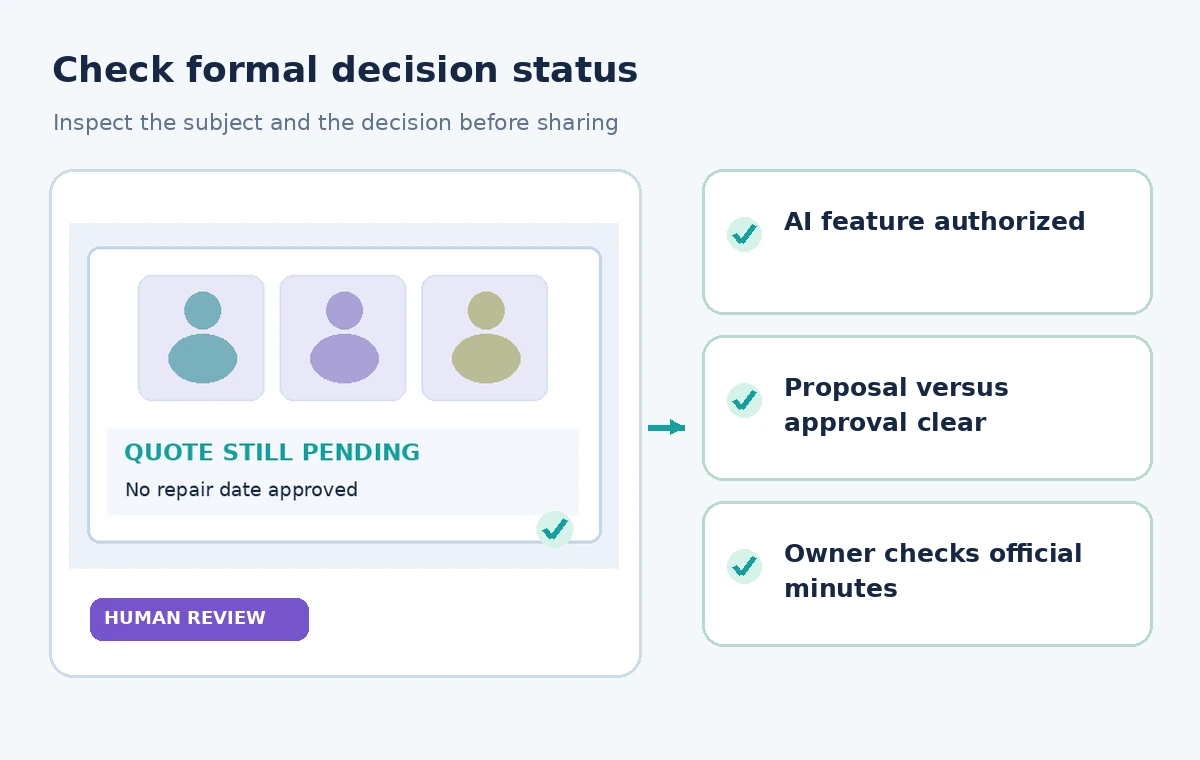
After the chair approves the minutes, send an update such as ‘Entrance ramp quote requested; no repair date approved as of this meeting.’ Include a specific next check-in date only if the meeting established one. Where a late attendee identified an apparent mismatch, note the correction in the approved decision register. Avoid sharing a raw AI catch-up as evidence of consent, spending approval or legal compliance. The reviewed update should state what remains unresolved, who can decide and which source document establishes the answer. This is more useful than a polished but unqualified AI paragraph.
Understand rollout and verification limits
Zoom’s documentation establishes the existence of the late-joiner prompt and conditions under which it appears; it does not guarantee that its output captures every nuance or that all accounts show the same controls. Product labels may also change as Zoom updates AI branding. Our example does not contain actual audio, participant data or a live test. For real facilities decisions, use authorized meeting records and the committee’s governing procedures. If participants dispute what was decided, seek clarification and document it rather than using the assistant’s confidence as a tie-breaker.
How We Research
Our research used the following named official vendor documentation: Zoom Support — Release notes for Zoom Meetings; Zoom Support — Release notes for the Zoom Workplace app. We checked the existence and intended purpose of each named feature, documented availability or configuration requirements, and explicit limitations. The workflows were then written around a fictional example that exposes common editorial risks, not around an account we operated. No hands-on product benchmark, real output file, recorded participant, measured accuracy score or legal/compliance review is claimed. All diagrams are independently drawn explanatory illustrations; they are not screenshots. A real project must verify live settings, permissions, source documents, relevant policy and human approval before release.
Frequently Asked Questions
No. Zoom describes the prompt when Meeting Questions is configured to let that participant ask questions.
No. The authorized chair or secretary must verify decisions against the actual meeting record.
Mark it as tentative, confirm with the chair and avoid assigning or scheduling work until authorized.
Zoom documents support for stopping certain AI features when restricted users join, subject to administrator settings.
Ask a participant for a human recap and use the written agenda or approved minutes.