
A neighborhood recycling group needs a short slide deck for a public workshop. The audience must learn which items go in three collection streams, but the rules are local and exceptions matter. A slide generator can arrange approved content quickly while accidentally substituting generic advice from another city. Visme AI Presentation Maker should be treated as a layout assistant, not the source of waste-policy authority.
Visme’s help center describes AI Designer as a guided chat for creating editable presentations, documents and printables. It also lists source-upload options, AI credits and a project-page limit. The sample materials here are hypothetical, not an AI deck we generated or an independently verified municipal recycling guide. Replace every illustrative bin label with the actual approved local instructions before teaching.
Start with the local collection authority
Find the current municipal or contracted-hauler guidance rather than collecting pictures from unrelated recycling websites. Record the publication date, allowed material categories, prohibited items, contamination rules and what to do with uncertain waste. Mark local exceptions prominently; a familiar bottle icon can mean different things under different collection systems.
Write a source table with the material name, approved destination, exception and URL. If a category has not been confirmed, leave the slide cell marked “verify locally.” Do not ask the presentation model to fill missing policies with plausible advice, even when it would make the deck look more complete.
Keep the scope inside a short teachable deck
For a five-to-seven-minute workshop, use six or seven slides: purpose, bin categories, two examples, tricky exceptions, a practice question and the local reference link. Visme’s AI Designer help currently describes up to ten generated pages per project. Avoid a giant presentation that mixes everything from batteries to compost into unreadable bullet lists.
Set learning goals before choosing a template. A learner should be able to identify where an approved example belongs and where to check an exception. The visual theme should make these actions clear, not merely deliver colorful decoration or extra sustainability statistics that need separate sourcing.

Generate from source material, not the model’s memory
In Visme, the documented path begins in the dashboard and Generate with AI or Create with Visme AI. The guided chat asks about the project and can use a document or link as a reference. Provide a cleaned, public version of the approved rule sheet without resident names or internal staff contact details.
Write instructions like: “Draft a seven-slide lesson using only this authority-issued collection list. Keep each material with its assigned stream and its exception. Mark gaps as unanswered; do not invent recycling symbols, pickup times or acceptance percentages.” Visme can propose structures, but the lesson remains incomplete until the editor checks every mapping.
Inspect the generated sorting graphics
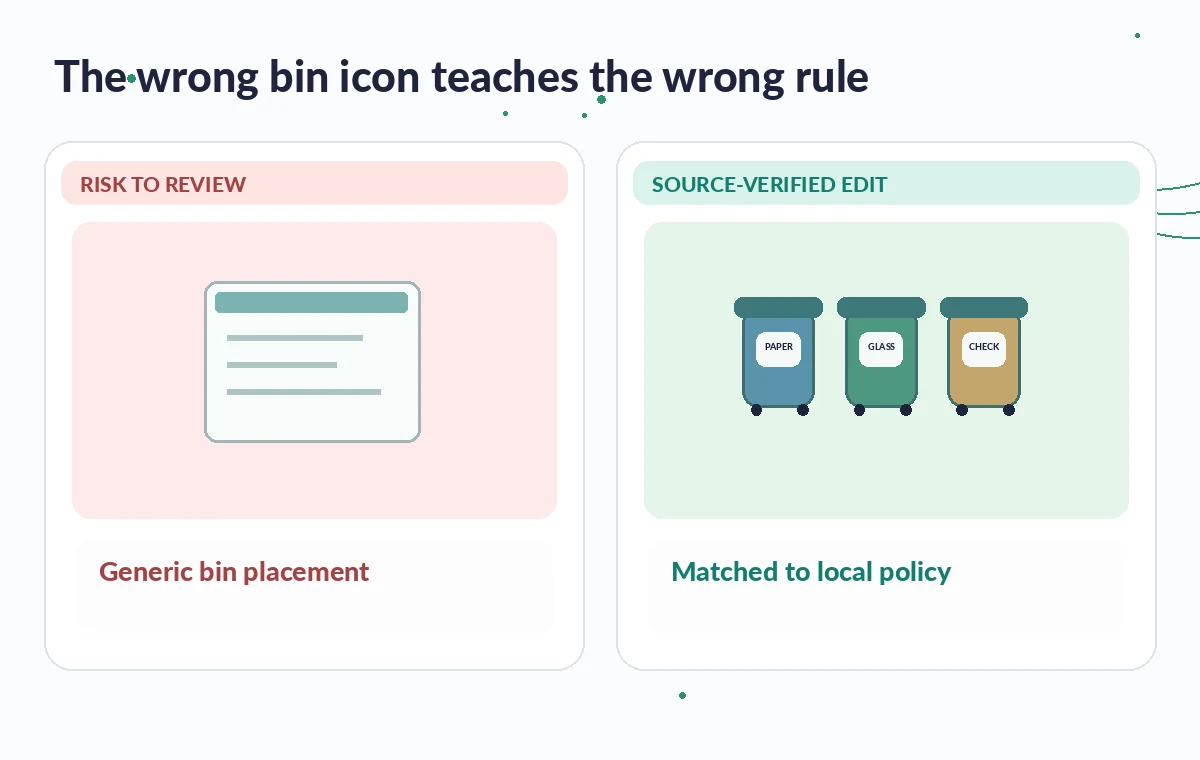
Check every item icon against its label and collection stream. A model might place a coated coffee cup next to ordinary paper, or make a battery look like a routine curbside material. Those visual errors can teach the wrong rule even when the written note below it is accurate.
Build a side-by-side review: approved source row, generated slide and corrected slide. Use callouts showing the exact mismatched label, not a vague “AI may be wrong” warning. The comparison diagrams in this article are conceptual teaching drawings, not screenshots of Visme output or official recycling bins.
Separate universal advice from policy-specific rules
General guidance like “check local collection instructions” is usually safer than an invented universal bin list. Still, avoid overusing cautions until they drown out the lesson. Put the verified rule on the slide in large type and the specific exception underneath, with a citation or short reference label.
Where two municipalities have different rules, do not average them into one. Choose one named service area and one current rule set for the entire workshop. If the program serves several areas, create separately reviewed materials or a slide that directs people to their correct authority.
Make each slide readable and accessible
Inspect contrast, font sizes and text order in the final editor. Do not communicate acceptance solely through green and rejection solely through red; pair color with words and distinct icons. When an illustration contains important information, add a useful alternative description or speaker explanation, depending on the delivery format.
Test the deck as projected from the back of a room, not just on a laptop. Bins and arrows can be attractive at full resolution but vanish on a low-quality projector. Keep the exercise question visible long enough for attendees to answer, and explain the answer before leaving the slide.
See how AI tools work together
Run a source-to-slide approval pass
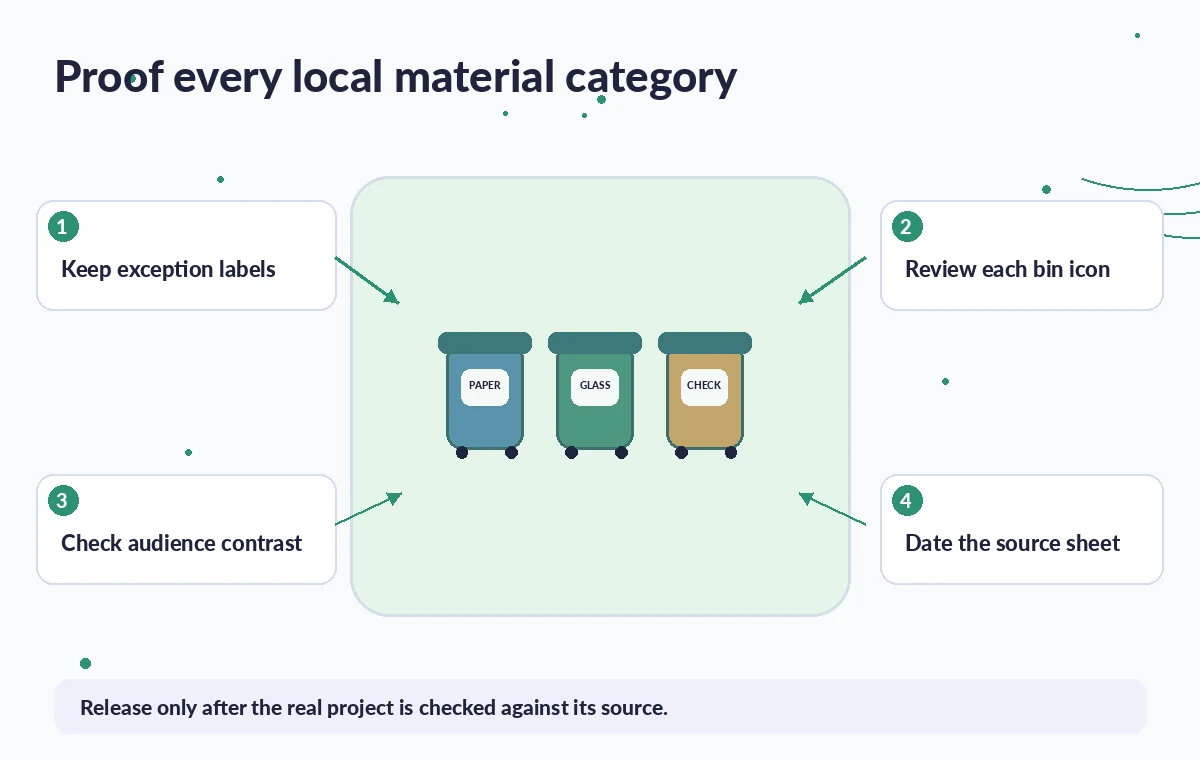
Assign one reviewer to check local rules and another to inspect presentation mechanics. For each item example, point to the authority’s exact category and exception. If the source has been updated since the deck was generated, change the deck before the workshop instead of waiting for attendee questions.
Treat a confident chart or an AI-invented statistic as unresolved until a primary source supplies it. Claims such as “80 percent of everything here is recycled” should not appear just because the model finds them persuasive. The deck’s persuasive power should come from clear and correct actions.
Export, rehearse and date the teaching copy
Preview the finished project and export the supported format your venue needs. Verify the slide order and that the final link to the current local guidance is readable and usable. Rehearse the explanation with one person who did not build the deck; ask them to classify a tricky item using only the visuals.
Save the source sheet, the editor-approved deck and a review date together. When the municipality revises its policy, the slides need a new review. Visme speeds up the design stage; the group hosting the workshop remains accountable for the instructions that participants take home.
How We Research
This guide was prepared on November 4, 2026 using the official developer materials Visme Help: AI Designer and Visme: AI Presentation Maker. We checked the named feature, the developer’s stated setup path, relevant access limits and pitfalls that follow from the documented controls. No subscription workspace, customer files, media processing session or output evaluation was used to produce these claims; the example is hypothetical and every accompanying illustration is original explanatory art, not a service screenshot or test result. Before deployment, the publisher should recheck live help pages and review the real output against its own authoritative sources.
Frequently Asked Questions
Yes. Visme describes Generate with AI and a guided chat that produces a presentation draft you can open and edit in its designer.
Visme’s AI Designer help explains that users can upload a document or provide a link as reference. Check what information the generated slides actually use.
No guarantee. Collection categories differ across municipalities and contracts, so every bin instruction must be checked against the current local authority.
The Visme help center currently documents a limit of up to ten pages per AI Designer project. Verify the current interface and entitlement before planning a larger deck.
No. A human must review material categories, exceptions, icons, readability and the presentation’s final exported order before it is used for instruction.