
A neighborhood association is planning a fictional Saturday market. Volunteers discuss placing a produce stall near the north gate, but the group does not vote on the change and nobody accepts responsibility for updating the map. Microsoft Teams Facilitator can create live notes, capture open questions, and surface follow-ups; however, a neat AI-generated recap can make a tentative idea look final. This guide uses the meeting as an example of keeping suggestions, decisions, and assigned tasks in separate categories that participants can actually verify.
Publish an agenda and decision rules before the call
Send the participants a short agenda that labels the matters for discussion and the matters requiring a formal decision. In this fictional meeting, “Discuss produce stall placement” is not equivalent to “Approve the north-gate stall map.” Decide who chairs the meeting and what counts as approval according to the association’s own process. If a vote is required, record the method of voting and the chair’s confirmation explicitly. AI notes cannot supply missing procedural authority.
Write three distinct headings in the working notes: Proposals, Confirmed decisions, and Open questions. Include a separate follow-up list for tasks whose owners have accepted them. Before enabling any AI capture, inform attendees of the organization’s recording, transcription, or AI-note policies and check whether sensitive topics should be handled outside that workflow. A compliant meeting process matters more than a complete-looking transcript.
Confirm license and eligible meeting format
Microsoft’s documentation says Facilitator requires an appropriate Copilot license to turn on and can be used in scheduled Teams meetings. It cannot be added to channel meetings, instant meetings, or ordinary Teams calls as though they were equivalent. When scheduling, inspect the Copilot and other AI meeting options, then enable Facilitator if the organizer and policy allow it. Do not promise the feature will be present for every guest or plan.
The same help material distinguishes live meeting behavior from post-meeting interaction. Transcription must be enabled to prompt Facilitator about the meeting afterward. Check the meeting’s setting for whether Copilot is available only during the call or during and after. Some task-management functionality is described as public preview and may change. Build an editorial review process that remains useful even if a particular AI control is missing or renamed.
Watch AI notes while participants can correct them
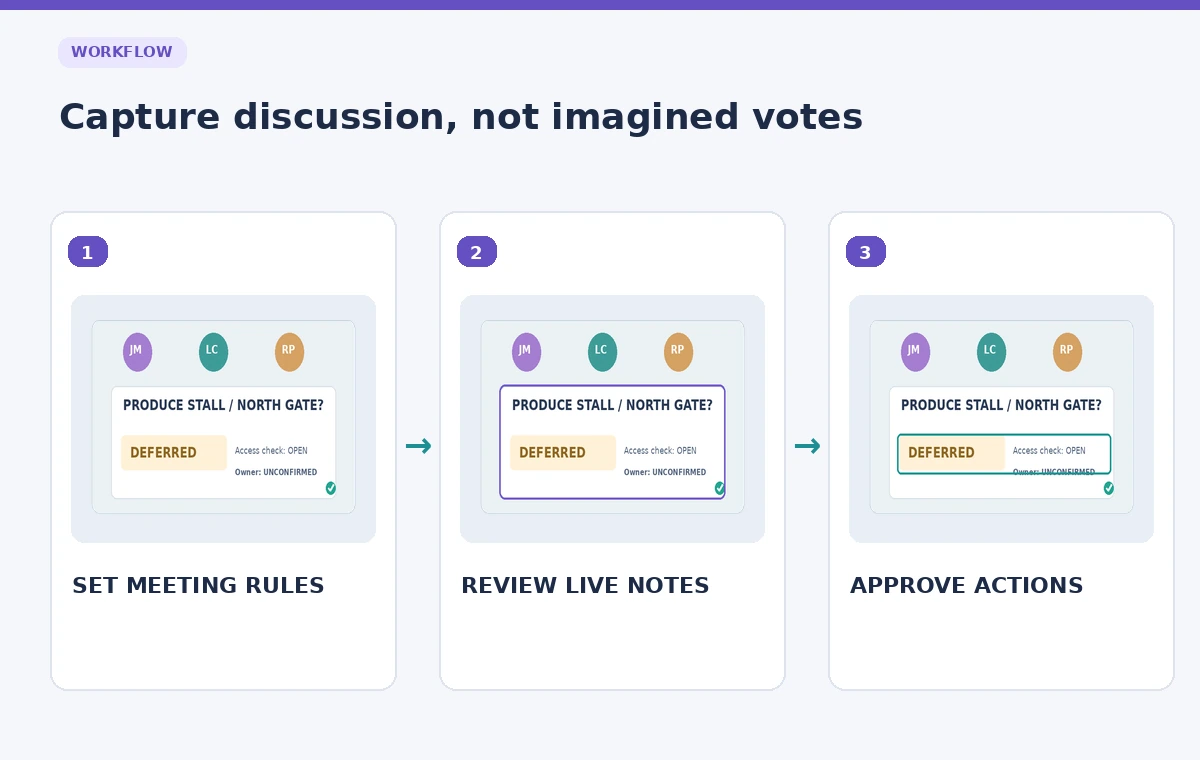
Facilitator can generate real-time notes and allow collaborative review by participants. During the market discussion, watch for wording that subtly upgrades a suggestion to a decision. The sentence “Someone proposed moving the produce stall” should not become “The group moved the produce stall.” Correct the note when the context is fresh. Ask the chair to restate an actual decision in clear language rather than relying on inference from agreement-like expressions.
Keep the original conversation context available under the organization’s policy. If attendees disagree about what happened, do not vote by counting lines in the AI summary. Revisit the specific discussion and ask the chair or authorized decision-maker to resolve the wording. Live notes are a working surface for shared correction, not independent proof of consensus. A confidently phrased sentence is not a substitute for the required decision process.
Keep proposals, approvals, and unresolved questions distinct
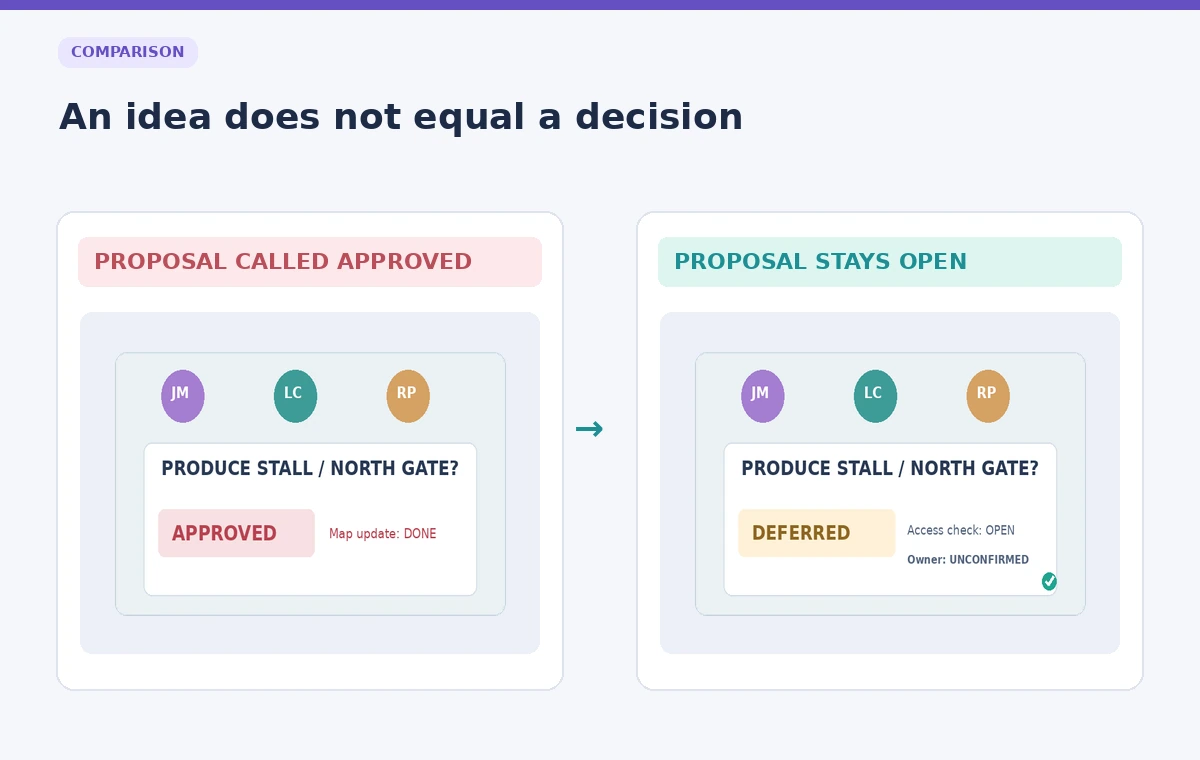
In the example, one volunteer suggests shifting the produce stall beside the north gate, another raises a wheelchair access concern, and the chair defers the matter pending a site walk. The accurate record is “Proposal discussed; access review needed; no final placement approved.” That carries all three important facts. A summary that includes only the first speaker’s suggestion would omit the objection and could cause organizers to print the wrong map.
Use explicit status labels beside each agenda item: Proposed, Approved, Deferred, or Rejected. Assign a source in the meeting discussion for the label, and mark anything uncertain as Pending confirmation. Do not make “Approved” the default just because the agenda item was closed for time. An item can be discussed thoroughly without reaching a decision, and that distinction becomes critical when the notes are converted into an email or an action plan.
Treat suggested follow-up tasks as unassigned until accepted
Facilitator can capture follow-up tasks, while some direct task operations are in preview. Even where a task can be synchronized with Planner, that technical action should not be confused with a volunteer accepting work. For the stall-map example, write “Ask the access coordinator whether a north-gate placement is feasible” with Owner: Unconfirmed until a person accepts it. Never add an absent participant as an owner because their name was mentioned during the call.
If a suggested task is helpful, read it aloud or post it for confirmation before the meeting closes. Confirm the deliverable, owner, and date separately. “Review access” is too vague; “Check the north gate’s accessible route and report constraints by Thursday” is easier to verify once a willing owner is named. Do not invent an exact deadline for an unresolved item to make a project board look complete.
Check generated documents and downstream sharing
Facilitator may help produce documents from a meeting’s discussion, chat, and shared files, depending on the feature and account. Treat a generated briefing as a derivative draft. Compare its claimed decisions against the confirmed-decisions column and its owner names against explicit acceptances. If a later document says “north gate approved” when the meeting deferred the issue, correct the source notes and the derivative file before the summary is sent to vendors or volunteers.
Sharing should follow the meeting’s access expectations. Do not post complete notes to a public group when attendees expected a limited internal recap. Remove unnecessary personal remarks and keep only operational details that were authorized for distribution. When an issue involves potential accessibility barriers, preserve the factual concern and the request for verification. Do not soften it into a generic positive statement because a drafting model favors reassuring prose.
Plan a responsible AI workflow
Run a simple factual review before distributing minutes
Use a three-column check: What the notes say, What the chair confirms, and What still needs evidence. Read every proposed decision and follow-up aloud or circulate a short draft for correction within the group’s normal approval process. The sample has one unresolved stall-location issue; its final record should plainly say Deferred. Put a human review date and a version identifier on the minutes so readers know whether they are seeing the draft or the approved record.
Invite someone who disagreed with the proposal to verify that the final notes represent their concern accurately. This is not a special privilege for AI skeptics; dissent and exceptions are often the first information lost in an overcompressed recap. If a serious dispute remains, do not present the notes as unanimously confirmed. Use a narrower statement supported by the actual procedure, and document the correction path.
Create a repeatable meeting-quality standard
For future sessions, prepare a template with agenda items, responsible decision-makers, a separate discussion summary, and a clearly marked approval state. Facilitator can reduce the burden of drafting, but participants still own the record. Ask for an explicit recap at the end: “What is approved, what is not approved, and who accepted which follow-ups?” Capture those confirmations in the official process instead of relying entirely on automated detection.
Store the approved notes, the distribution date, and any corrected versions according to the association’s policies. Do not claim that AI notes are a verbatim transcript or a legal record. Success looks modest but valuable: the team can see what it discussed, know which items are still open, and avoid making plans based on a decision nobody actually made.

How We Research
We consulted official Microsoft Teams Facilitator documentation 1 and official Microsoft Teams Facilitator documentation 2 to verify the feature names, access constraints, and described controls. We built the scenario as a fictional editorial example and separated the product documentation from the independent review steps recommended here. No live customer account, recording, operational dataset, or product output was tested; all numbers, people, places, and illustrated screens are teaching examples. Access and interface details can change, so readers should verify current plan eligibility and instructions in their own product before following the workflow.
Frequently Asked Questions
It can summarize discussion and decisions, but formal approval still depends on the group’s process and explicit confirmation from the responsible people.
No. Microsoft documents license and meeting-format requirements, including restrictions on channel meetings and instant meetings. Check organizer settings before scheduling.
No. A task suggestion or Planner synchronization does not establish that a volunteer agreed to own it. Confirm the assignee and due date separately.
Microsoft says transcription must be turned on to prompt Facilitator about a meeting afterward. Availability also depends on meeting options and policies.
Record the proposal as discussed or deferred, state that no approval occurred, and identify any unresolved questions or fact-finding tasks without inventing a decision.