
A local arts fair has a layered Photoshop poster: original fox mascot, approved event details, logos, and a background illustration. The designer wants to change a decorative element using Photoshop’s AI Assisted Editor without losing the ability to correct next week’s date or the sponsor’s name. Adobe documents a consequential workflow detail: moving from Pro Editor to AI Assisted Editor can flatten the working document. This hypothetical guide focuses on preserving an editable master and verifying the output; no actual Photoshop beta editing session or generated result was tested.
Inventory the layers that must remain editable
Before exploring a simplified editor, identify each asset in the approved poster: date and time, address, accessibility details, QR code, sponsor artwork, character drawing, and background textures. Mark which layers must remain editable for future changes. A useful master file has named type and graphics layers and approved source references. Do not confuse the poster’s current flattened JPG with the layered source file. A contractor can deliver a perfectly attractive picture that still fails handoff if nobody can update the venue later. The goal is reversible experimentation, not merely a prettier background.
Understand the beta editor and its limitations
Adobe describes AI Assisted Editor as a beta mode on Photoshop desktop, with tools such as Prompt, Markup, Fill, Remove, Crop and expand, Upscale, and Remove background. Availability depends on eligibility and rollout; the beta UI may evolve. Most importantly, Adobe warns that when switching from Pro Editor to AI Assisted Editor, layered documents are flattened for compatibility. When switching back, the latest AI Assisted Editor edit is added as a new layer. That is not the same as restoring every original text and graphics layer. Plan the edit around this documented transition before clicking through the mode switch.
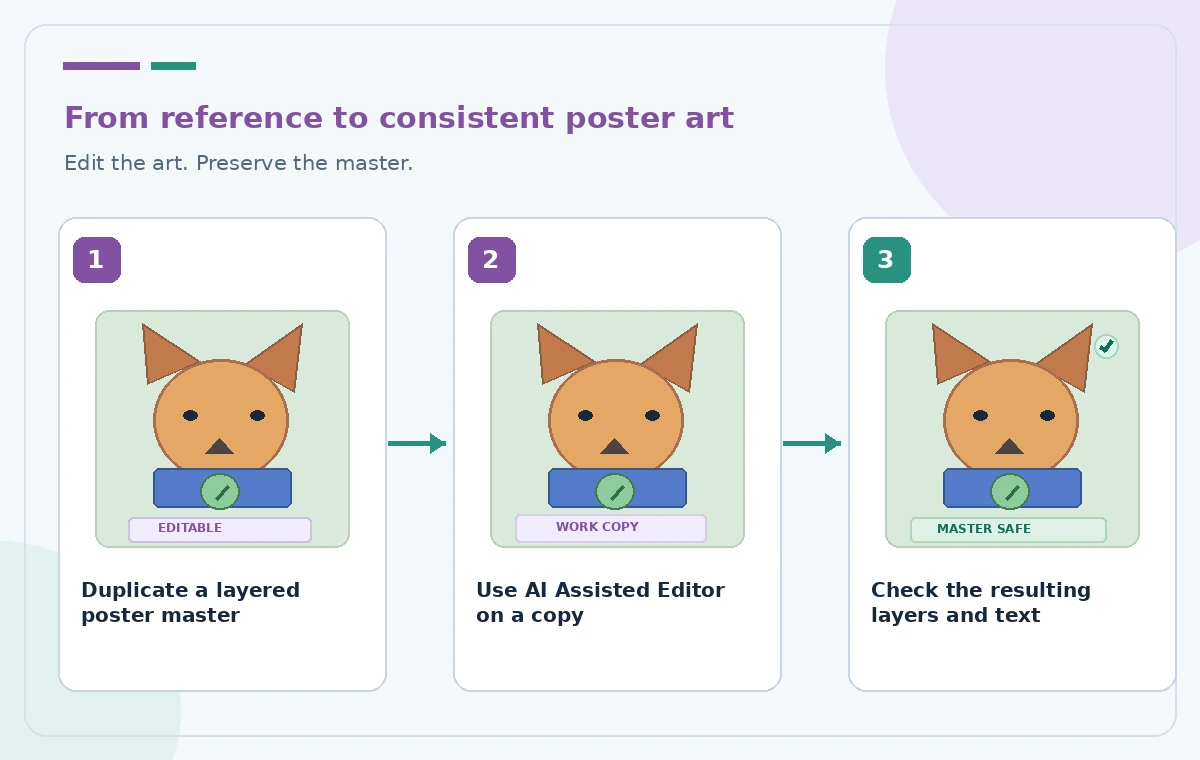
Duplicate the project rather than flatten the only master
Save the original layered PSD in a clearly labeled master folder and make a working copy. Consider exporting a separate visual reference showing the approved layout, sponsor logos, and all lines of text. Confirm the duplicate can be opened and that its layers are present. Do not depend on Undo or temporary history to reconstruct layered content after a change in editing mode. Use only media and logos you have permission to edit. If the poster is already being used for print, preserve the vendor-approved export as a baseline for later comparisons.
Describe a narrow edit and keep text out of scope
In the eligible Photoshop workspace, open the AI Assisted Editor and request a focused change such as ‘replace the plain sky behind the illustrated mascot with a soft sunset gradient; do not redraw the fox, date, text, or sponsor logo.’ Adobe documents prompt-driven edits and switching between simplified and Pro workflows, but it does not guarantee that a text instruction will protect every design pixel. Work on a duplicate and inspect the generated proposal closely. If an AI result changes any words, numbers, or logos, treat that version as unsuitable and revise or restore from approved assets.
Distinguish a flattened copy from an editable source
The illustrated comparison shows an approved layered master, a risky flattened copy, and a reviewed handoff that retains the master separately. It is an explanation, not a capture from Photoshop. A flattened image can preserve the look of text while losing the text objects that the communications team needs to update. Count and inspect layers after returning to Pro Editor; do not infer editability from visual similarity. If the latest AI operation appears as a new layer, verify the original editable layers still exist in the unmodified master. Keep the two deliverables named unambiguously.

Inspect background seams and licensed assets
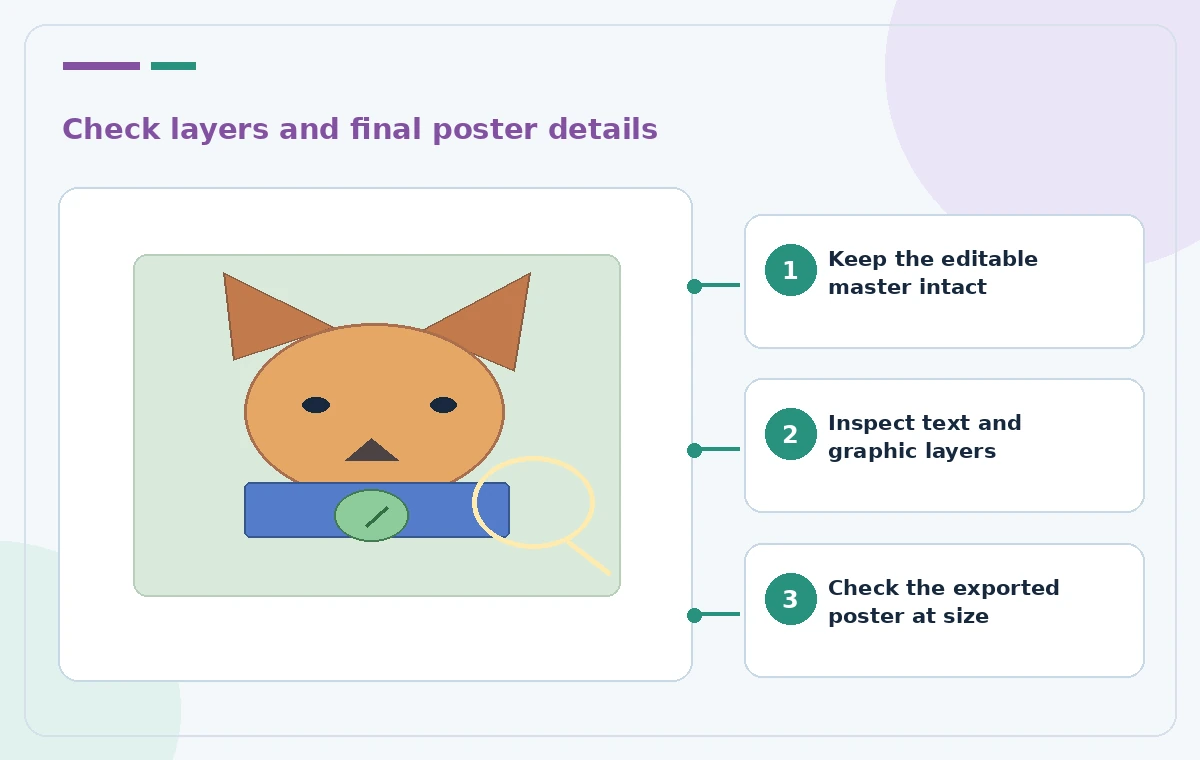
Zoom along the fox’s ears, scarf, badge, and contact shadow to check whether a decorative background adjustment has damaged the character. Verify that a new sunset does not shift the approved artwork’s colors or obscure a sponsor mark. Compare the changed canvas to the baseline at full resolution and at intended print dimensions. Save a small list of differences that are permitted, and flag every unexpected change. An AI-generated variation may look polished on a phone while exposing halos, repeated textures, or blurred text in the print proof.
Return to Pro Editor and assemble a safe deliverable
When the background proposal is accepted, return to Pro Editor and check the resulting document structure. Adobe says the latest AI Assisted Editor edit is added as a new layer when switching back; do not mistake this for recovery of all original sublayers. If final event wording needs changes, make them in the approved layered master or deliberately reconstruct the working file with verified type and vector assets. A responsible handoff can contain the untouched master, an edited artwork layer, and a separate publication export, with their roles stated plainly. Avoid replacing a team master with an opaque flattened derivative.
Check captions, dates, and output geometry
Compare each line of public copy against the authorized event calendar: year, day, start time, room, venue address, ticket requirements, accessible entry, and sponsor names. Check pixel dimensions, bleed, text contrast, and positioning in the square social crop and wide banner. A background edit may create insufficient contrast underneath the footer even if the words remain unchanged. Proof typography with a human reader and preserve meaningful file descriptions. If the design uses a QR code, scan it from the final exported file; don’t assume a generated version of a code will remain readable.
Document the beta test boundary before release
Record the Photoshop version, beta eligibility, the mode switch performed, the exact approved edit, the source master location, and the person who checked the final version. Label any schematic examples as conceptual in the article or alt text rather than embedding editor production labels in the public artwork. For operational release, require the design lead to confirm that there is a separate editable master and an accurate flattened export. If features or transition behavior change with an Adobe update, reread the current documentation and repeat the safety check. This article makes no claim about measured Photoshop performance or a completed poster production test.
How We Research
We reviewed these named official developer resources: Adobe Help — Use AI Assisted Editor; Adobe Help — Edit images with AI Assistant. We checked the documented feature entry points, eligible platforms, administrator or licensing controls, and known sharing or source limitations against the tutorial steps. Editorial examples were designed as hypothetical failure-mode checks, not reports of hands-on testing. We did not have a live account, source files from a museum or nonprofit, user interviews, access to private records, or measured model outputs. Every illustration is original explanatory artwork rather than a vendor screenshot or measured before/after result. Features and entitlements can change. A responsible editor should confirm current product documentation, applicable organizational policy, and the original evidence before putting the workflow into consequential use.
Frequently Asked Questions
Adobe warns that switching from Pro Editor to AI Assisted Editor flattens layered documents for compatibility.
Adobe says the latest AI Assisted Editor edit is added as a new layer; this is not a guarantee that original layer structure is restored.
It is documented as a beta feature with eligibility and interface variations; check current Adobe requirements.
No. Compare every date, address, logo, and accessibility statement against approved source files.
Keep the intact editable master, separately reviewed edited artwork, and an approved export with clear version labels.