
An old seed-catalog plate can be useful for a garden museum even when the only surviving scan is small. Enlarging it for a display invites a particular mistake: the result may look more detailed while introducing leaf veins and letter edges that cannot be verified in the original. Photomator’s Super Resolution can produce a larger image, but it is not a historical recovery instrument. This guide uses a hypothetical 1930s packet drawing with a botanical caption to show a controlled enlargement workflow. The objective is an attractive interpretive reproduction that never pretends a guessed feature came from the archival plate.
Decide whether enlargement is appropriate
Photomator is Apple’s dedicated photo-editing app, and the developer describes Super Resolution as a machine-learning method for increasing image resolution. It can make a small raster easier to lay out at a useful size. That promise is about pixel dimensions and a plausible visual enlargement, not about finding physical details that a scanner failed to capture. A larger image is not inherently better evidence of how the original drawing looked. Keep those two uses separate in the exhibit plan.
Before editing, decide what a visitor actually needs to see. If the priority is the flower silhouette and the arrangement of leaves, a responsibly enlarged reproduction may work. If the priority is the exact Latin species spelling, a catalog editor should transcribe it against the accession record rather than trusting processed pixels. A faint pencil notation near the edge is a conservation question, not an opportunity for generative completion. Set these requirements before seeing a visually appealing result.
Preserve the reference and identify vulnerable details
Create an immutable copy of the source scan and record its provenance: collection identifier, scan date if known, original dimensions, and the person who supplied it. Work on a duplicate and include a known ruler or printed label only if one actually appeared in the original. Do not invent one in the edited artwork. If the museum has a second scan or a paper print, treat that as an independent reference rather than averaging contradictory versions into a fictional composite.
At actual pixel size, mark a small watch list: leaf ribs where ink has broken, letterforms that resemble one another, the thin line forming the seed-packet border, and a damaged corner. Export a low-resolution reference next to the source as a reminder of what the camera or scanner captured. An enlarged line that looks impressively continuous may be an algorithm’s interpretation of several separated ink dots. For archival claims, the dots—not the reconstruction—remain the evidence.
Run Super Resolution on the working copy
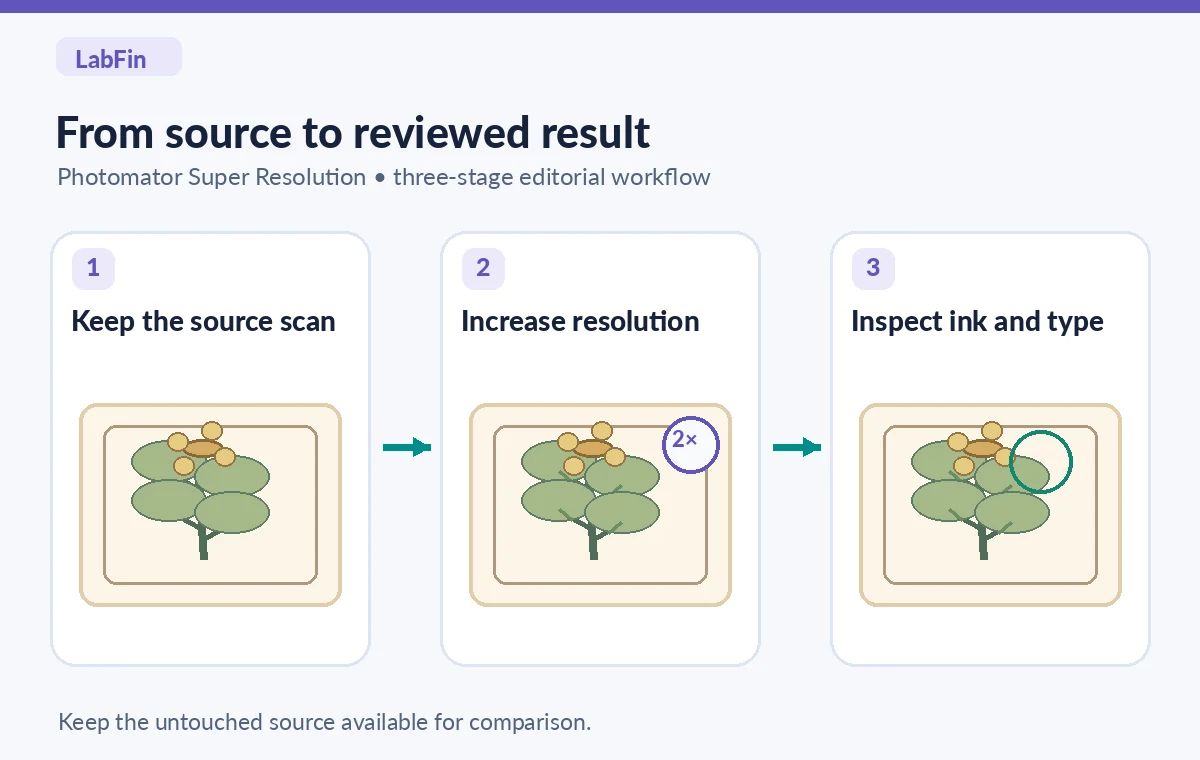
Open the duplicate image in Photomator and locate the Super Resolution tool in the app’s current editing workflow. The vendor advertises resolution enhancement on supported Apple devices, but individual control placement can vary across Mac and mobile releases; use the version-specific in-app guide if the button is not where an older tutorial suggests. Apply the feature once and save the enlarged result separately. Do not stack repeated upscaling passes to chase imaginary detail.
Use the AI tool selection checklist
Record both the source pixel dimensions and the resulting dimensions. The precise scale factor is less important than whether the display layout requires it. If a display panel needs still more size, consider designing with white space around the illustration rather than demanding ever-larger synthetic pixels. Also keep a plain interpolation enlargement for comparison. The method with the crispest edges is not necessarily the method that most faithfully represents the aging print or its uncertain marks.
Review plant geometry, not just perceived sharpness
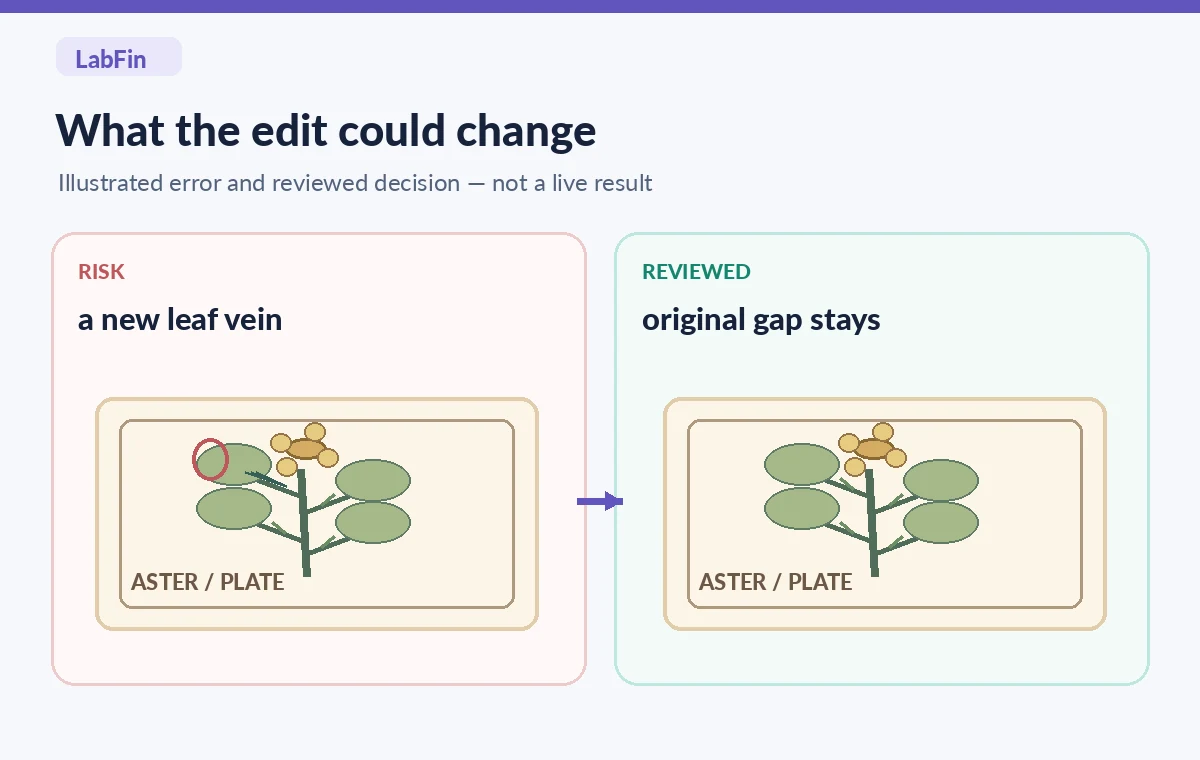
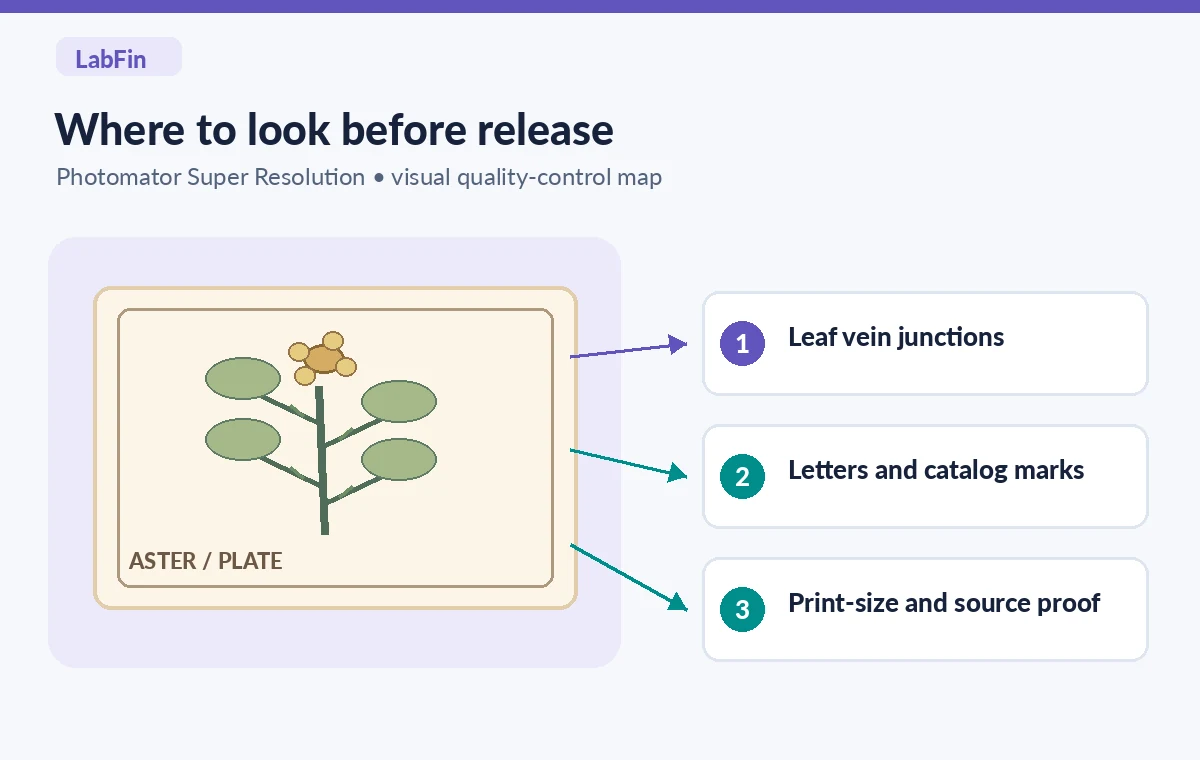
Compare the source and enlargement at the same relative crop. Follow the outer contour of one leaf, the junction where a stem meets it, and the repeating ribs inside. Do the ribs continue exactly where dark source pixels justify them, or has a perfectly regular pattern appeared? Inspect a damaged section beside a better-preserved section. Matching the style of the drawing is useful for visual design, but matching the original pixels and physical print is the higher standard for archival interpretation.
The visual comparison in this article deliberately shows a tempting but unsupported extra vein beside a cautious enlargement that leaves the gap unresolved. Those pictures are explanatory illustrations, not screenshots or measured Photomator results. Use the discrepancy as an inspection prompt, not as a claim that every run will add veins. If the artifact remains ambiguous, keep the source crop and an uncertainty note available to researchers and curators.
Keep captions, numbers, and borders authoritative
A seed packet might carry a catalog number, a date, or a species name. Those elements can be more consequential than the flower’s decorative edges. At 100% view, compare every character with the original. Watch for a thin 1 becoming a 7, an e appearing as a c, or broken punctuation becoming continuous. If a letter cannot be verified, do not silently substitute what seems botanically likely. Get the authoritative transcription from a curator’s accession notes or label the reading as uncertain.
See how to combine AI tools safely
For a public display, consider building the exhibition caption as real editable type outside the image rather than relying on low-resolution lettering embedded in the print. That improves accessibility, print sharpness, and later corrections. Preserve the original caption in the archival image, but present verified interpretive text separately. Never merge a modern label so tightly into the plate that a future visitor mistakes it for original printing.
Export an honest reproduction and audit at print size
Export a lossless or high-quality master for the exhibit designer and a smaller web copy for the website. Use a filename and metadata that distinguish the enlargement from the scan. Check that the export retains the full border, has not cropped a collection mark, and does not unintentionally alter the background tone enough to conceal paper damage. The final print should be inspected at its actual physical size; pixel-perfect viewing on a large monitor alone does not reproduce gallery viewing distance.
Place a simple acknowledgement in the exhibition record: the displayed image was enlarged with software from a source scan, while the original remains archived. This need not dominate the public-facing image, but the methodology should be discoverable. Request approval from the image rights holder or collection manager before publishing where required. Super Resolution does not change the legal status or attribution of the historical work; it also does not create new evidence from absent data.
Know when manual treatment is safer
If the source is severely blurred, an important word is indecipherable, or the design includes small line-art patterns that must be replicated precisely, a conservative presentation may be better. Show the original at its authentic dimensions alongside a separately typeset explanation. A trained conservator may use high-resolution rescanning or careful manual repairs under documented standards. Those are distinct from pressing an enhancement button, and neither should be represented as successful without inspecting the actual work.
This hypothetical scenario has not been processed through a live Photomator session for this article. We did not measure sharpness, confirm particular letters, or claim historical authenticity of any reconstructed features. The actionable test is transparent: keep the untouched scan, inspect the vulnerable leaf and text regions with a curator, and reject any result that makes the archival object seem more certain than its evidence permits.
How We Research
We reviewed Pixelmator/Apple’s Photomator product documentation for the Super Resolution capability, Apple’s About Photomator support guide for supported platforms and editorial positioning, and the official App Store description for its current AI photo tools. We compared what these sources explicitly promise against normal archival requirements and designed a hypothetical decision workflow. No first-hand processing test, benchmark, historical document authentication, or appraisal of image rights is asserted.
Frequently Asked Questions
No. Upscaling can produce larger, sharper-looking pixels, but it does not establish the correct letters. Verify any inscription against the original scan or collection records.
No. Keep a protected source scan and enlarge a working duplicate. A documented provenance chain lets the museum distinguish original evidence from the presentation derivative.
Potentially, after checking print size, leaf patterns, text, and collection permissions. A visually attractive print alone cannot certify the accuracy of reconstructed fine detail.
No. The model can suggest plausible edges that are not evidence of the original artist’s work. A curator must verify any botanical or historical claims separately.
Leave the image’s original ambiguity intact and use a separately verified caption when available. Do not convert an uncertain character into a confident historical identifier.