
An AI-generated poster may look impressive at thumbnail size while spelling a headline incorrectly at print size. Ideogram is useful precisely because it emphasizes lettering and design iteration, yet every generated word still requires human checking. The aim is not to ask for the perfect poster in a single prompt; it is to separate creative exploration from final text accuracy.
This walkthrough builds one event graphic and adapts it for social media. It draws on Ideogram’s published quick start, Canvas and Text Tool documentation. Where a plan controls access to private output, uploaded-image edits or queue capacity, the exact entitlements must be confirmed in the current account rather than assumed from old tutorials.
Write a poster brief with exact approved copy
Start with the name of the event, date, location, visual theme, audience and intended distribution channels. Decide which words are legally or commercially critical. For a fictional autumn craft market, approved copy might be “AUTUMN MARKET” and “SATURDAY • 10 AM”. Keep that text in a separate source document with the final capitalization and punctuation.
The prompt should describe a style and hierarchy: large main headline, short secondary line, generous margins and a central illustration. Do not crowd a small social image with a paragraph of details that nobody can read. Put long terms and addresses in platform-native captions or editable design layers.
Generate an initial set in the main workspace
Ideogram’s official quick start asks users to enter a natural-language prompt; it documents optional style choices and Magic Prompt. Begin with a simple draft specifying the subject, layout and exact words in quotation marks. Compare the resulting variations by overall hierarchy before polishing decorative details. A striking font is less useful if the date is incorrect or placed over a busy texture.
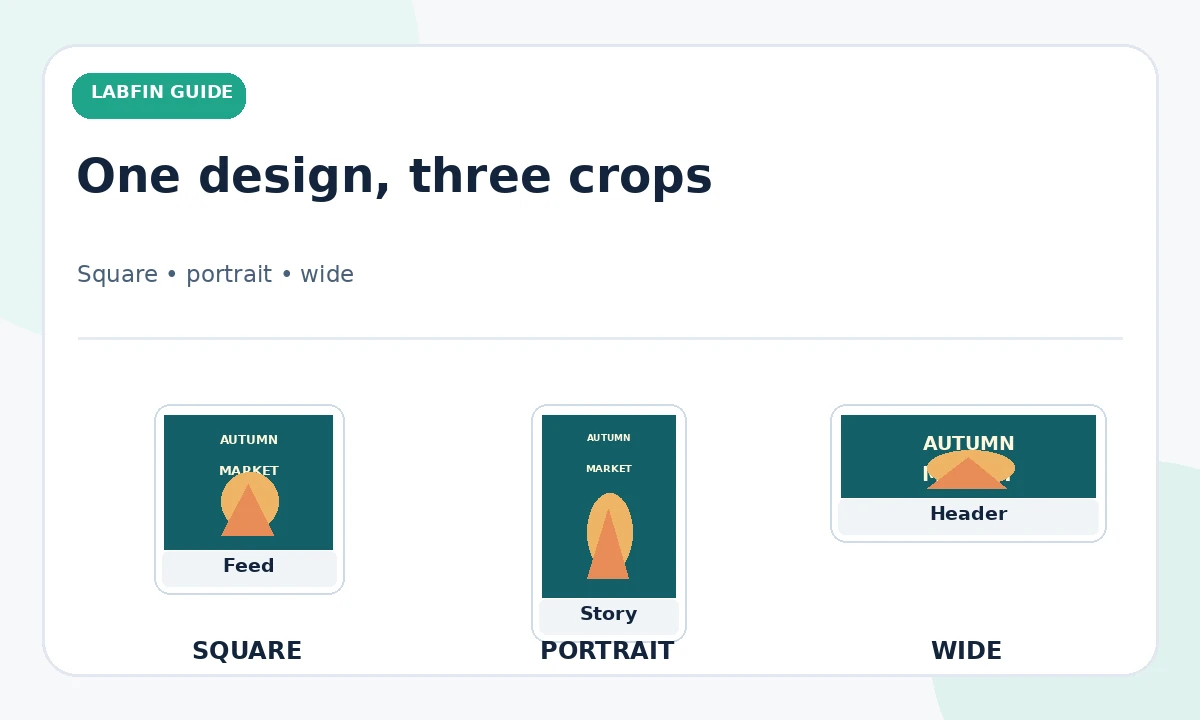
Log the prompt and aspect ratio of your strongest candidate. This lets you change one design requirement without losing the chosen direction. If you need vertical and horizontal versions, plan for separate compositions instead of stretching one flattened image indiscriminately.
Treat Magic Prompt as a creative helper, not a copy editor
Magic Prompt can expand a short visual brief, but it may also introduce unwanted flourishes or alter the emphasis of your design. For a brand campaign, compare the original short prompt with the expanded instructions and remove ideas that contradict your art direction. Approved copy should remain authoritative even when the generator suggests appealing substitutes.
After each render, transcribe the visible words character for character. Check numbers, apostrophes, product names, dates and punctuation. Do not rely on the text predicted by the model or the filename to establish what the generated asset actually says.

Set the crop and type hierarchy for each channel
Social feeds, stories and print flyers have different safe areas. A headline near the edge of a square post can disappear when reused as a portrait story. Make a placement sketch with separate zones for title, illustration, details and whitespace. Small text that survives on a 27-inch monitor may be unreadable on a phone.
Before generating more variants, preview the asset at its actual feed width. Judge hierarchy in under two seconds: can the viewer identify the offer, date and source? If not, reduce decorative language in the prompt and give the headline more space rather than raising every font size at once.
Use Canvas to expand or repair a good composition
Ideogram’s Canvas brings generation and editing together; its documentation describes Generate, Remix, Magic Fill and Extend. Use Magic Fill to target one defective region rather than discarding an otherwise usable image. Extend can grow a composition for a new aspect ratio, but review repeated patterns and seams where original and added pixels meet.
Work from a saved copy. When repairing a headline region, mark the entire relevant area rather than only a single letter if inconsistent type treatment could remain. A successful patch must match spacing and line weight, not just fix spelling.
Use the Canvas Text Tool for precision
The official Text Tool allows placing editable text in Canvas and choosing formatting options. That makes it valuable when exact approved wording matters more than the surprise of generated lettering. Consider generating an illustration and decorative lettering separately, then typesetting the final date, address and legal line as controlled text. This reduces the chance of small but costly copy errors.
Check whether the exported format preserves editable layers for your downstream workflow; do not assume every downloadable image does. Keep an editable master or a separately documented text overlay. The final export is only one part of the asset package.

Evaluate consistency across a poster series
For multiple events, define reusable visual constraints: a dominant palette, illustration treatment, margin system and standard footer. Use a repeatable brief rather than asking the generator to invent the brand from scratch each time. Ideogram’s Canvas can help arrange and revise related graphics, but a designer must still assess whether a series looks deliberately related.
Inspect three graphics side by side. Look for inconsistent headline alignment, shifting logo space or clashing texture. If one is noticeably different, change its layout description or assemble the final series within a design tool with shared guides.
Run an accessibility and truthfulness check
High-contrast type, readable font sizes and useful alt text matter for image-first posts. A generated illustration should not misrepresent real merchandise, endorsements or venue facilities. Avoid fabricated brand logos and unsupported promises. For accessibility, put material event information into the post caption or accompanying HTML rather than relying solely on words embedded in a JPEG or WebP.
Read the entire poster at mobile size and have somebody unfamiliar with the brief identify the event, date and action. That is a practical test of clarity, not a benchmark of model performance. Correct issues in the editable source before exporting.
Export and document the final approved asset
Download the appropriate dimensions from Canvas or your finishing editor, verify the crop, and retain the original approved copy alongside the export. Save a record of the prompt, editing choices and content approval. If the content is client-owned, follow the project’s confidentiality and licensing instructions, particularly for uploaded reference images.
For a print poster, request the printer’s required size, bleed and color setup instead of assuming the web export is print-ready. For social posts, create separate files for each placement and verify that the platform does not hide a critical word behind its interface.
How We Research
We reviewed Ideogram’s official quick start and Canvas/Text Tool help for the workflow described here, plus the vendor’s Canvas feature explanation. The poster is an illustrative editorial example, not a claimed hands-on Ideogram test. Feature and plan access can change; we recommend checking the live interface and proofing every piece of generated text manually. Primary sources: Ideogram quick start; Ideogram Canvas overview; Ideogram Text Tool; Ideogram Canvas feature overview.
Frequently Asked Questions
Ideogram supports text-oriented image creation, but generated words may still be wrong. Proof every character of critical copy.
It expands a brief into a more detailed creative instruction. Review the expansion to ensure it respects your approved headline and style.
Canvas Magic Fill can target an area, and the Text Tool can place controlled editable words. Save a copy and inspect the repair.
Canvas offers editing and Extend features, but a different placement still needs crop, margins and readability checks.
No. Provide key details as real text in an accompanying caption or page and check contrast and readable size.