
A brand wants a short video of a teal travel flask rotating on a studio table, with the same shape and simple white mountain symbol in every frame. Google Vids supports AI video generation from prompts and reference images called ingredients, with account-dependent access. The practical challenge is not making something visually appealing; it is ensuring the flask has a stable cap, logo, handle, and color throughout the shot. This workflow starts with three approved product drawings, one precise shot brief, and a frame-by-frame review. The sample flask is fictional and the diagrams are not outputs from Google’s models.
Create an approved miniature product specification
Before generating anything, draw or photograph the same physical object from the front, three-quarter, and side. Add a one-page specification that names the exact color, cap shape, handle placement, and one allowed icon. For this example, the flask is teal with a smooth black lid and a white mountain symbol, not a branded product that anyone could mistake for an existing manufacturer. Check that the references agree with each other; three contradictory angles will not become reliable simply because an AI system sees all three. Keep the actual product photograph, if there is one, outside the speculative approval set.
Confirm that Generate video is available for the account
Google’s Vids generation help describes creating clips from text prompts and reference images, and its feature-availability page notes that account type and administrator permissions matter. Open Google Vids on a computer, find the AI video creation entry point, and confirm the option appears in your account. The documentation describes adding up to seven reference images as ingredients in the relevant workflow; that is a maximum, not a recommendation to upload seven unrelated visuals. Avoid promising that every free or school account has the same controls, monthly credits, model, or output limits.

Use ingredients for identity rather than clutter
Upload the three approved product angles if the current UI supports them and place them alongside a concise shot instruction. State which image establishes the object’s shape and which confirms its side silhouette. Do not add scenic mood boards into the same ingredient list if they conflict with the object color or logo. For the first draft, keep the flask alone on a clean tabletop with a fixed horizon. A complex forest or crowded cafe can wait until the identity is stable. The references serve as input constraints, not as proof that the resulting video accurately reproduces a real object.
Write a shot prompt with measurable invariants
Describe the scene, action, camera, lighting, and exclusions in normal language: a teal flask on a neutral studio desk; slow quarter-turn; constant black lid; single white mountain symbol; soft daylight; no captions or extra labels. Explicitly distinguish the camera’s movement from the flask’s movement. The result needs to show the whole object with room around the sides. Keep a prompt revision number so an editor can compare versions without guessing which sentence changed. Do not require the model to display printed specifications such as manufacturing capacity unless those details are subsequently added and verified in a conventional graphics layer.
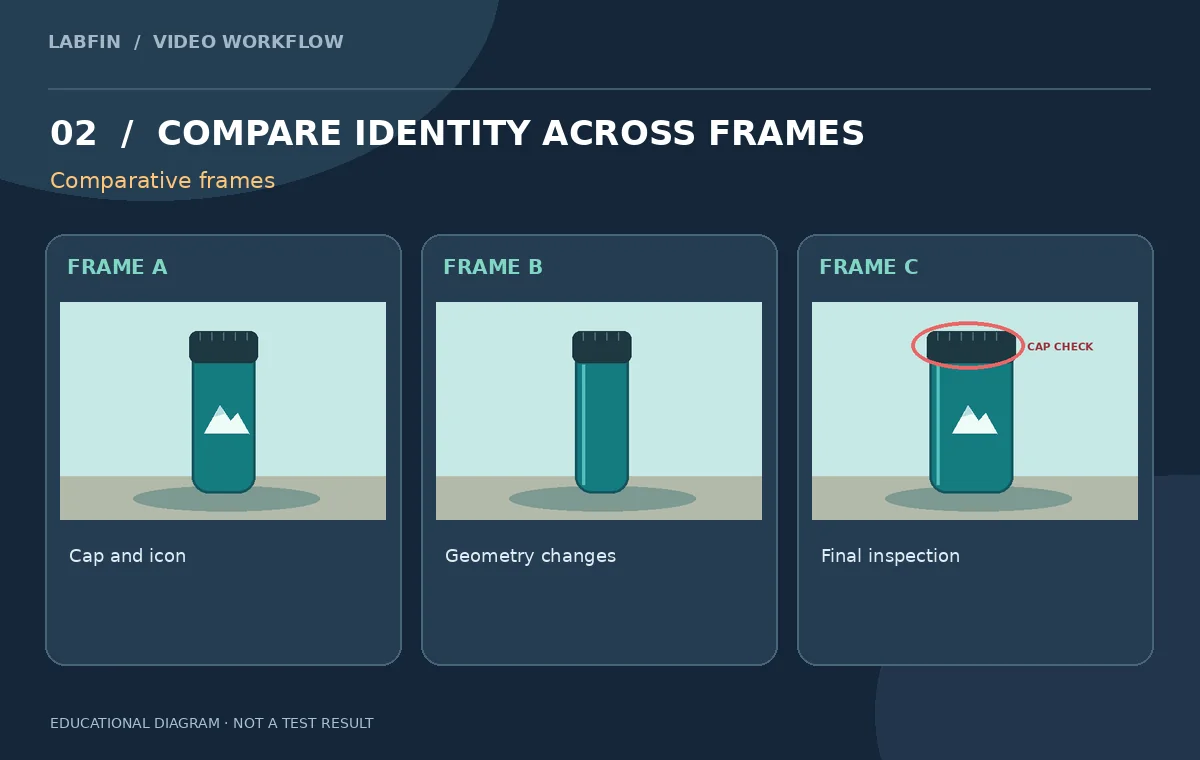
Inspect identity on a three-frame strip
Export or capture the beginning, midpoint, and ending of the generated clip. Compare the same four features on each frame: silhouette, lid, icon, and color. Watch for the cap growing wider mid-turn, the mountain symbol changing into letters, or an invented side handle. Also compare shadows and the object’s contact with the desk, especially when it rotates. If the flask stretches or appears to hover, reject that version for an accurate product demonstration. A product-looking image can be persuasive while remaining factually wrong, so a human reviewer must compare it with the actual approved reference.
Keep video-generation settings as a dated record
The help center publishes technical constraints such as supported orientations and frame rates, but available specifications and monthly limits can change with account plans and model rollouts. Record what your actual editor reports for aspect ratio, output resolution, estimated consumption, and permitted duration on the day of creation. If a format is unsupported, choose a compatible shot rather than stretching the result afterward and claiming it was natively generated that way. For vertical delivery, reserve space for captions and platform interface overlays. Maintain a version history even if the generation interface does not expose the same settings as older tutorials.
Separate cinematic concept art from factual product claims
If the video is a concept, label it internally as an illustrative mockup. If it is intended as commerce material, require product-owner approval of visual features and do not suggest the generated flask is a photographic representation without checking it against the real unit. Material properties, dimensions, safety labels, and packaging details are not safe to infer from the rendered clip. Avoid giving a fictitious object a real brand logo unless the brand has authorized that use. A polished fictional ad is not proof of durability, temperature retention, weight, or any other measurable product specification.

Export a reproducible asset-and-proof package
The finished folder should contain the three approved ingredient images, the exact text prompt, generation settings observed in the account, a three-frame contact sheet, and a brief identity-check table. Keep the untouched source angles and any manufacturer-approved product shots accessible for comparison. If no version passes the identity test, use a conventional animation of verified product photography instead. Our teaching illustrations cannot establish a success rate for the tool; the goal is to give an editor a repeatable QA method that stays useful as Google updates its video models and availability.
How We Research
This Google Vids Generate Video workflow was prepared as independent editorial guidance grounded in these primary sources: Google Docs Editors: Use AI to generate video clips in Google Vids; Google Vids Gemini feature availability. The example is a fictional teal travel flask with a plain white mountain symbol, supported by three original angle drawings and an approved five-second campaign brief. All accompanying graphics are original conceptual teaching illustrations; they are not vendor screenshots, actual outputs, measured benchmarks, or evidence that a live software project was run. We compared documented capabilities and limitations, defined a scenario with observable pass-or-fail checks, and identified practical areas requiring human verification including source rights, factual content, consent, accessibility, and continuity. We did not purchase an account, upload private footage, or measure performance. Readers should verify current account access and controls, preserve originals, and test their own exported media before release.
Frequently Asked Questions
Yes. Its documented Generate video workflow supports prompts and reference-image ingredients when that capability is available on the account.
The help describes up to seven in the relevant workflow; start with a few consistent, useful angles rather than filling every slot.
No. Symbols, dimensions, hardware details, and printed claims must be checked against the approved product references.
No. Access and usage restrictions depend on account and plan, and administrators may control availability.
Include original reference angles, prompt text, date and account settings, selected frames, review notes, and final authorized export.