
A community museum wants a short interactive learning guide for a temporary exhibition about a 1932 neighborhood tram route. The curator has an approved object catalog, a map key, and a transcript of an oral-history interview, but does not want an AI-produced guide to quietly turn a disputed recollection into a historical fact. Gemini Notebook supports interactive Reports with a Learning Overview template and optional embedded Studio artifacts. This tutorial shows a hypothetical workflow for using that format as a teaching aid, not as a substitute for collections research. The dates and examples are invented for illustration; no actual notebook or museum account was tested.
Separate approved evidence from useful background
Start with a small packet of verified documents: a curator-approved catalog entry, a map legend, an exhibit text approved for public use, and a transcript whose speaker and recording date are known. In a separate document, identify open questions: a witness remembers the last tram running in 1935, but the collection has not confirmed this. Label that memory as a recollection, not a timetable fact. Document which source may be quoted publicly and which has rights or donor restrictions. Do not upload private accession notes merely because the AI could read them. A learning guide should make uncertainty visible rather than hide it behind a polished interactive layout.
Set up the notebook for this exact exhibition
Create a new notebook at the current Gemini Notebook web experience and add only the approved materials. Check that the intended catalog version, not an obsolete draft, was selected. Name sources so a reviewer can recognize their role: Approved Wall Label, Catalog Record, Public Map Key. If the transcript is allowed for study but not redistribution, leave its sensitive passages out of the public notebook and provide an approved excerpt instead. Google documents that interactive reports are generated from the notebook and that access to shared reports depends on access to the notebook itself. Plan permissions before inviting educators or outside visitors.
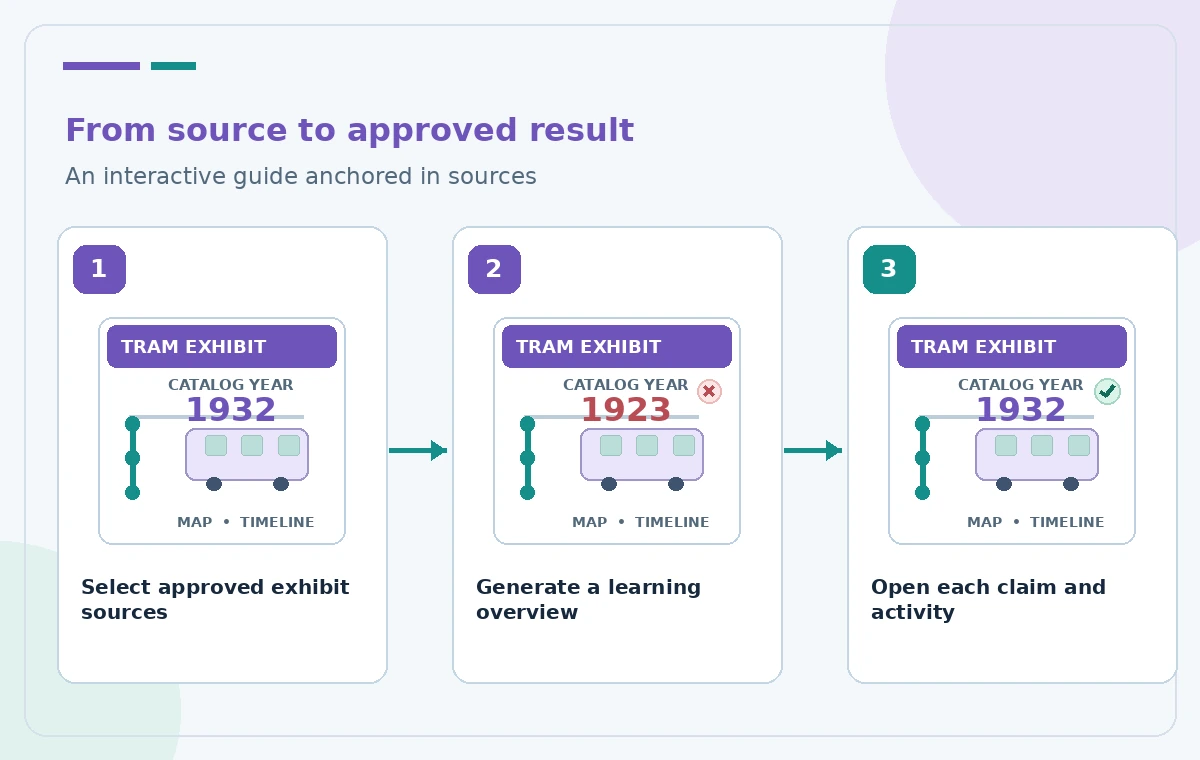
Open Reports and select Interactive
In the Studio panel on the web, select Reports and then Interactive. The official documentation distinguishes this from Document reports: the Interactive path can embed other Studio content, while the Document path makes a structured text report. Choose the Learning Overview template for an education-oriented starting point. Check whether your account offers the option; an age restriction may apply to some interactive content, and the feature is currently documented as web-only. An unavailable button is not evidence that the feature has been discontinued. Do not silently substitute a document export and promise the same interactive behavior to visitors.
Write a source-bounded learning objective
Ask for a guide that helps visitors recognize three changes in the tram route, identify one object in the display, and distinguish a documented year from an oral-history recollection. State that the 1932 date belongs to the curator-approved catalog, while the remembered later date is unresolved. Request a short explanation of every artifact, not a fictional scene or a claim about what unknown passengers felt. Avoid instructing the tool to fill information gaps with plausible history. Keep the output manageable: a curator should be able to trace each sentence, caption and proposed activity to a provided source or identify it as a pedagogical suggestion.
Inspect suggestions before embedding artifacts
Interactive reports can offer suggested Studio artifacts to add. Review each proposed artifact on its own before selecting Add. For example, a generated question might say the route closed in 1923 even though the object label says 1932. This pictured mismatch is a hypothetical editorial error, not an observed model result. A visually engaging quiz can still misteach the main fact. Open the underlying source and confirm that the correct date and location appear consistently in the introduction, quiz, map explanation and any summary. Reject an attractive artifact whose answer cannot be verified or whose rights status is uncertain.

Design for visitors rather than for the model
Keep paragraphs short and make the learning sequence predictable: context, source object, interpretation, then the unresolved question. Ensure that a visitor can read the key information without having to hear audio or manipulate a pointer. If an embedded activity has no accessible alternative, add the same core information in plain text in another approved handout. Do not frame generated illustrations as archival photographs. If a guided exercise asks children to imagine the tram trip, label it as an imagination exercise rather than a documented reconstruction. Accessibility review must be based on the delivered experience, not on the model’s claim that it is accessible.
Audit what a report link actually shares
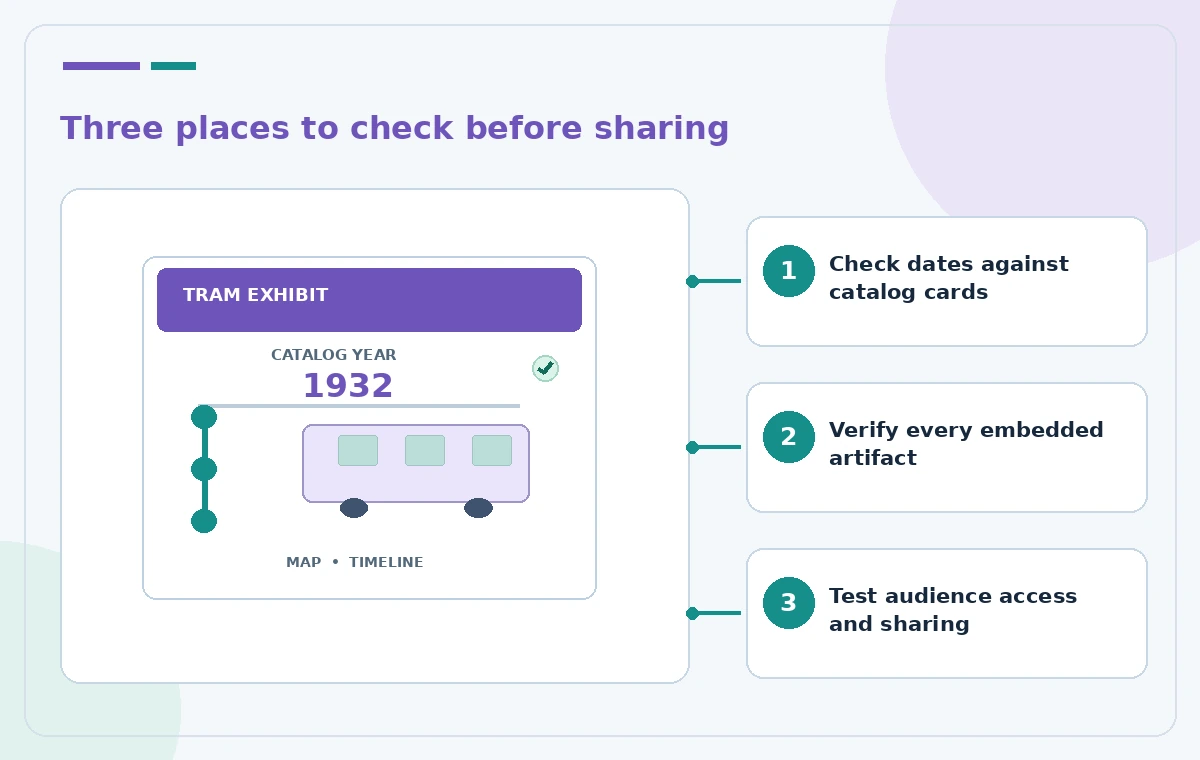
The help page instructs authors to share a report link only after ensuring that recipients have the necessary notebook access. Check this with a reviewer account that is entitled to see the exhibit materials. Do not open the whole research notebook to anonymous viewers just to solve a missing-permission error: that notebook may contain internal source notes. For a public exhibit, consider distributing an approved static text companion if access or product availability makes the interactive version unreliable. Record who can edit the notebook and who may see the link. Test access both before and after any changes to sharing settings.
Plan an update path for historical corrections
Treat the interactive report as a versioned derivative of the approved research, not a self-updating authority. If a new catalog record resolves the disputed end date, update the source packet first, then regenerate or revise the teaching material and review every embedded artifact again. Maintain a change log that mentions the original claim, its source, the correction and the reviewer. Avoid describing an older report as current after its evidence has changed. A teacher who downloaded the previous lesson should be able to identify it as superseded. Put the approved revision date in the external handoff, not as a production watermark on the pictures.
Approve the lesson with a human source check
Before use, have a curator verify the date, route terminology, map symbols and boundaries between fact and recollection; have an educator check the learning objective; and have an accessibility reviewer attempt the activity. If different answers are defensible, phrase the question to permit them instead of forcing one invented certainty. Capture the exact published report version and access arrangement in the museum’s internal checklist. This hypothetical example contains no user data, measured accuracy or screenshots of a live service. The practical value lies in disciplined, source-led review of the AI-assisted lesson.
How We Research
We reviewed these named official developer resources: Google Gemini Notebook Help — Generate reports in Gemini Notebook; Google Gemini Notebook Help — Create a notebook. We checked the documented feature entry points, eligible platforms, administrator or licensing controls, and known sharing or source limitations against the tutorial steps. Editorial examples were designed as hypothetical failure-mode checks, not reports of hands-on testing. We did not have a live account, source files from a museum or nonprofit, user interviews, access to private records, or measured model outputs. Every illustration is original explanatory artwork rather than a vendor screenshot or measured before/after result. Features and entitlements can change. A responsible editor should confirm current product documentation, applicable organizational policy, and the original evidence before putting the workflow into consequential use.
Frequently Asked Questions
Yes. Google describes an Interactive option with embedded Studio artifacts, and a separate Document option for structured text.
In the web Studio panel, choose Reports, Interactive, then the Learning Overview template when offered.
Not necessarily. Google says recipients need access to the underlying notebook; verify permissions before sharing.
No. Check questions, answers and labels against the primary sources even when they were generated from those sources.
The Interactive report workflow is currently described as web-only. Confirm availability for the audience and provide a fallback.